
MSAZ-102 · Lesson 11 of 12 · 18 min
Azure Advisor and Service Health
▶ Video coming soon A video version of this lesson is on the way.
Two emails reached Theo on Tuesday, November 10, 2026. The first was a notice from Azure Service Health: Microsoft had scheduled maintenance for a networking component in Central US later in the month and listed the Harrow & Finch resources that might be affected. The second was a weekly digest from Azure Advisor with a list of recommendations, the first of which said that three virtual machines in the nonproduction subscription had used almost no CPU for a week and could be shut down or resized. Neither email was alarming, but both were useful, and they came from the two Azure services whose job is to tell customers what to improve and what is happening to the platform underneath them.
Azure Advisor
Azure Advisor is a free, personalized service that analyzes the configuration and usage of your Azure resources and recommends ways to improve them. It works continuously in the background using telemetry Azure already has, so there is nothing to install. Recommendations appear in the Advisor dashboard in the portal, in the overview pages of the affected resources, in Cost Management for cost items, and through alerts and digests you can set up.
Advisor groups its recommendations into five categories, which mirror common principles of good cloud architecture.
| Category | What it looks for | Example recommendation |
|---|---|---|
| Reliability | Risks to the continuity of business-critical applications | Use availability zones for a production VM, or enable soft delete for a storage account |
| Security | Threats and vulnerabilities, drawing on Microsoft Defender for Cloud | Turn on multifactor authentication or close a management port open to the internet |
| Performance | Ways to make applications faster | Move a database to a tier that matches its load, or use premium storage for a busy disk |
| Cost | Ways to reduce spending | Shut down or resize underused VMs, or buy reservations for steady workloads |
| Operational excellence | Process and workflow efficiency, manageability and deployment practices | Create Service Health alerts, or use recommended practices for tags and deployments |
Each recommendation shows the affected resources, the reason for the advice, its estimated impact as high, medium or low, and the action to take. Some recommendations have a quick fix that applies the change in a few clicks; others link to documentation. Cost recommendations show estimated savings. If a recommendation does not apply, for example a test VM that is deliberately small, you can postpone or dismiss it with a note, so the list stays meaningful.
Advisor also calculates an Advisor score, which summarizes how closely your resources follow its recommendations, overall and for each category. The score gives teams a simple measure of progress: Renata set a goal of raising the reliability and cost scores for the production management group each quarter. Recommendations can be filtered by subscription, resource group, category and impact, and exported for reports.
The November 10 digest had seven recommendations for Harrow & Finch. Three were the idle test VMs, which Theo deallocated and added to the Friday shutdown script. One recommended buying a reservation for the two StockLine application servers; Renata postponed it until the servers had run in production for a full month, as lesson 1 explained. One security recommendation came from Defender for Cloud: a test VM still had its remote desktop port reachable from the internet, left over from a troubleshooting session in October. Theo closed it the same morning. The last two were operational: create Service Health alerts, and use zone-redundant storage for the backup vault's critical data. The first of those is the second half of this lesson.
Azure Service Health
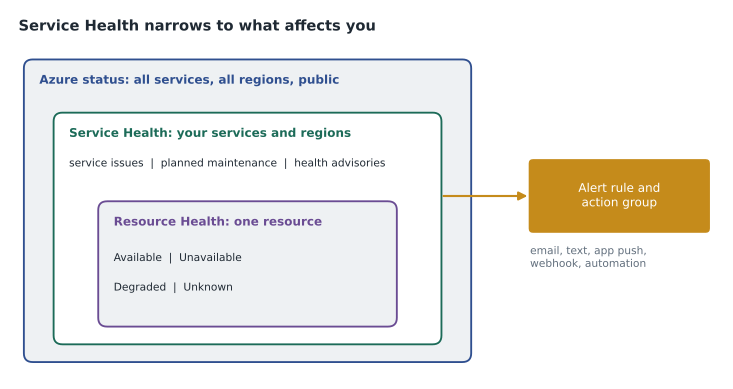
Every cloud platform has incidents and planned maintenance. Azure Service Health tells you about the ones that affect you. It combines three views at different levels of detail, from the whole platform down to a single resource.
| View | Scope | What it shows |
|---|---|---|
| Azure status | All Azure services in all regions, public | Widespread incidents affecting many customers |
| Service Health | The services and regions you use, in the portal | Service issues, planned maintenance and health advisories relevant to you |
| Resource Health | Individual resources you own | Whether a specific VM, database or gateway is available now and its recent history |
Azure status is a public web page that shows the overall health of Azure services across all regions. It is useful during a large incident, but it is general: it lists only events with broad impact and does not know which services you use. Microsoft recommends using the personalized views for monitoring.
Service Health, in the Azure portal, shows events that affect the services and regions your subscriptions use. Service issues are problems happening now, such as an outage or degraded performance in a region. Planned maintenance lists upcoming work that might affect your resources, with dates and the resources involved, like the notice Theo received on November 10. Health advisories describe changes that require attention, such as a feature being retired or an action needed before a deadline. Each event has a tracking ID, updates as it develops, and for significant incidents a later review explaining what happened and what Microsoft is doing to prevent a repeat.
Resource Health shows the health of individual resources. A virtual machine, for example, can show as Available, Unavailable, Degraded or Unknown, with an explanation of the cause and a history of past health events. Resource Health distinguishes between problems caused by the Azure platform and problems caused by actions on your side, such as a user stopping the VM. That distinction matters when the StockLine team calls at two in the morning saying the server is down: Resource Health tells Theo quickly whether to look for a platform issue or a change on Harrow & Finch's side.
Service Health alerts
Looking at Service Health only helps if someone looks at the right time. Service Health alerts send notifications automatically when events occur. They are created in Azure Monitor, covered in the next lesson, and you choose the subscriptions, services, regions and event types to watch, and an action group that decides who is notified and how: email, text message, a push notification to the Azure mobile app, a voice call, a webhook to a chat or ticketing tool, or an automation runbook. Resource Health alerts work the same way for specific resources, such as the VPN gateway becoming unavailable.
az monitor action-group create \
  --name ag-hf-platform \
  --resource-group rg-monitoring-cus \
  --short-name hfplatform \
  --action email theo theo.marchand@harrowfinch.example \
  --action email renata renata.kowal@harrowfinch.example
Theo created two Service Health alerts on November 10. The first watches service issues in the company's two regions for the services Skylight uses and notifies the platform team by email and the mobile app at any hour. The second watches planned maintenance and health advisories and sends an email only, because those need planning rather than an immediate response. He also created a Resource Health alert for the VPN gateway, which the store operations team cares about more than anything else in Azure.
Advisor, Service Health and the operating routine
The two services fit into Harrow & Finch's regular routine. Advisor recommendations are reviewed at the weekly platform meeting: new high-impact items get an owner and a date, and dismissed items get a reason. Service Health planned maintenance notices go into the change calendar so that the stores are not surprised. Service issues trigger the incident process. And the monthly governance review looks at the Advisor score next to the budget figures from lesson 3 and the policy compliance figures from lesson 5.
Theo also used the incident history to check the platform against expectations. MSAZ-101 covered service level agreements, which promise a certain availability for each service. A short calculation turns downtime minutes into an availability figure out of 100, which can be compared with the agreement. The figures below are illustrative.
minutes_in_month = 30 * 24 * 60
downtime = {"VPN gateway": 12, "StockLine VM 1": 0, "StockLine VM 2": 31}
for name, down in downtime.items():
    availability = (minutes_in_month - down) / minutes_in_month * 100
print(f"{name:15s} down {down:3d} min, availability {availability:.3f} out of 100")VPN gateway down 12 min, availability 99.972 out of 100 StockLine VM 1 down 0 min, availability 100.000 out of 100 StockLine VM 2 down 31 min, availability 99.928 out of 100
What this code does
Converts the minutes each resource was down this month into an availability figure out of 100, using the number of minutes in a 30-day month. It prints the result for a VPN gateway and two virtual machines. Comparing these with each service's SLA shows whether the promised availability was met.
Recommendations in practice
Advisor recommendations are a starting point, not a verdict. A recommendation to resize a VM is based on recent usage, so it can miss a monthly peak, such as the end-of-month sales reporting that runs on one of the StockLine servers. A recommendation to buy a reservation assumes the workload will keep running at the same size for a year or three. A security recommendation may already be handled in another way, such as a firewall rule that makes an open port unreachable. Each recommendation needs someone who knows the workload to decide.
For that reason, Harrow & Finch gives every recommendation an owner. The platform team triages new recommendations each week, assigns the ones that belong to a workload team, applies quick fixes for obvious items and dismisses the rest with a short explanation. The dismissed list is reviewed every quarter, because circumstances change; a VM that was deliberately oversized for testing in November may simply be forgotten by March.
Advisor's cost recommendations also feed the cost routine from lesson 3. When Theo prepares the monthly summary for Dana, he lists the savings from recommendations acted on during the month and the potential savings from those still open, so finance can see that the platform team is actively working on cost, not just reporting it.
What Service Health does not cover
Service Health reports problems with the Azure platform. It does not report problems caused by your own configuration, your applications or your own network. If the head office internet link fails, Service Health will show nothing wrong, because Azure is fine; the VPN will be down because of the link. That is why Service Health alerts are only one part of monitoring, and why the next lesson's Azure Monitor alerts on Harrow & Finch's own resources matter just as much. When something breaks, the first two questions are therefore: is it Azure, and is it us? Service Health and Resource Health answer the first; Azure Monitor and the team's own investigation answer the second.
Advisor and Service Health also help with planning. Health advisories often announce that a feature or an older version of a service will be retired on a given date, with the action customers must take before then. Theo adds each relevant advisory to the change calendar with an owner, so retirements become planned work months ahead instead of urgent fixes in the last week.
For the exam, remember the split. Advisor looks at your resources and suggests improvements; Service Health looks at the Azure platform and tells you about incidents, maintenance and advisories that affect you; Resource Health narrows that to a single resource; and the Azure status page covers everyone. Questions often describe a symptom and ask which of these to check first.
Worked problem
Which service answers the question?
Four questions come up during the week: (1) Is there a problem with Azure SQL Database in our region right now? (2) Why was the StockLine VM unavailable at 3:10 this morning? (3) Are there cheaper ways to run the nonproduction subscription? (4) Is something wrong with Azure everywhere, for customers we do not know about?
Show solution
- (1) A service issue in your region for a service you use: Service Health.
- (2) The health history of one resource: Resource Health.
- (3) Ways to reduce cost: Azure Advisor, cost category.
- (4) The overall platform for everyone: the Azure status page.
Answer: Service Health, Resource Health, Azure Advisor and Azure status, in that order.
Common mistakes
MistakeRelying on the public Azure status page to learn about problems affecting you.
InsteadUse Service Health and its alerts, which are personalized to your services and regions.
MistakeTreating Advisor recommendations as orders.
InsteadReview each one; act, postpone or dismiss with a reason.
MistakeIgnoring planned maintenance notices.
InsteadPut them in the change calendar and check whether workloads need preparation.
MistakeAssuming Resource Health only reports platform problems.
InsteadIt also shows unavailability caused by your own actions, which helps troubleshooting.
Summary and key terms
- Azure Advisor is a free service that analyzes resource configuration and usage and gives personalized recommendations in five categories: reliability, security, performance, cost and operational excellence, with impact levels, quick fixes and an Advisor score.
- Azure Service Health has three levels: the public Azure status page for platform-wide incidents, Service Health for service issues, planned maintenance and health advisories affecting your services and regions, and Resource Health for the health of individual resources.
- Service Health and Resource Health alerts, created in Azure Monitor with action groups, notify the right people automatically.
- Azure Advisor
- A free service that recommends improvements to your Azure resources.
- Advisor score
- A measure of how closely resources follow Advisor recommendations.
- Azure status
- A public page showing the health of Azure services across all regions.
- Service Health
- A personalized view of service issues, maintenance and advisories affecting you.
- Resource Health
- The health and history of an individual Azure resource.
- Planned maintenance
- Scheduled work on the Azure platform that might affect your resources.
- Action group
- A set of notification and automation actions used by Azure Monitor alerts.
Practice problems
Work each problem on paper first, then reveal the answer to check.
Name the five Azure Advisor categories.
Show answer
Reliability, security, performance, cost and operational excellence.
Which Service Health view shows whether one specific VM is available?
Show answer
Resource Health.
Is Azure Advisor an extra-cost service?
Show answer
No, it is free.
Lesson quiz · 5 questions
Score 60% or more to complete this lesson.
Create a free account to save your progress, take quizzes and earn a certificate.