
CSCO-190 · Lesson 8 of 12 · 26 min
Reviewing IT support objectives
▶ Video coming soon A video version of this lesson is on the way.
Three weeks before his exam, Jordan spends a Saturday morning reviewing the IT Support objectives with Marisol, using his own tickets as the case studies. Since September he has replaced memory and storage in two veterinary clinic computers, traced a boot failure to a USB stick, set up restore tests after a bakery's backups silently failed for nineteen days, found a lawyer's laptop with its DNS server typed in by hand and cleared a full disk on the community center's Linux lab machines. "You have already done most of this exam," Marisol says. "Now we make sure you can recognize it when it is written down." This lesson is a structured review of the six areas of the CCST IT Support exam as commonly listed, with original practice items and worked examples. It assumes you have completed CSCO-101 and CSCO-102 and points back to them where you need more detail.
Use the lesson actively. Before reading each section's summary, try to write down from memory what you know about the area. Then read, check and add what you missed. Work each example before reading the steps. Finally, answer the quiz under light time pressure, about a minute per item, and add every error or guess to your mistakes log.
Area 1: IT support job tasks and responsibilities
This area covers the work around the technical fixes: receiving and logging requests, prioritizing a queue, communicating with users, documenting, escalating and following professional and ethical standards. The key idea is that priority depends on impact and urgency, not on the order requests arrive. A request that stops many people working, or stops a business from trading, comes before a cosmetic request from one person. Service level agreements set response and resolution targets for each priority. Escalation passes a problem to someone with more skill, access or authority, and a good escalation includes everything the next person needs: symptoms, steps taken, results and the user's contact details.
Expect items about choosing the next request to work, writing a useful ticket note, explaining a problem to a non-technical user, handling an upset caller, and recognizing when a request is outside your authority, such as a manager asking you to read an employee's private email. Professional behavior means listening, confirming understanding, setting realistic expectations, following through and protecting privacy. CSCO-102 lessons 9 to 11 cover this area in depth.
Worked problem
Prioritizing a morning queue
Brightline's queue at 8:05: (a) Kettle & Crumb's Broadway shop reports both card terminals offline; (b) a Riverside lawyer asks for a second monitor next week; (c) Prairie Paws reception's label printer prints faintly; (d) Northfield's director cannot sign in to her laptop and has a board meeting at 9:00. In what order should they be worked?
Show solution
- (a) A shop that cannot take card payments is losing sales now and affects every customer: highest impact and urgency.
- (d) One person, but she cannot work and has a fixed deadline in under an hour: high urgency.
- (c) Faint labels are a degraded service; the clinic can still work, so it is medium priority.
- (b) A future equipment request with no outage is lowest priority; schedule it.
- Record the reasoning in each ticket, so that anyone reviewing the queue understands the order.
Answer: (a), (d), (c), (b). Impact and urgency decide, and the reasoning is documented.
Area 2: Hardware issues
This area covers computer components, peripherals, ports and cables, installation and replacement, safety and the symptoms of failure. Know what each main component does and how it fails: a CPU runs instructions and overheats when its cooling fails; memory holds work in progress and, when faulty, causes crashes and errors under load; storage holds data when power is off, and a slow hard disk is a common bottleneck that an SSD fixes; the power supply converts mains power and can fail intermittently. Know common ports by what they carry: HDMI and DisplayPort for digital video and audio, USB-C for data, power and often video, RJ-45 for Ethernet, and the older VGA for analog video.
Safety matters on the exam as it does on the job. Shut down and unplug before opening a computer, discharge residual power, use an anti-static wrist strap, handle components by their edges, and dispose of batteries and electronic waste properly. Before replacing storage, confirm a working backup and, on encrypted computers, have the recovery key available. CSCO-101 lessons 2 to 5 cover this area.
| Symptom | Most likely cause | First check |
|---|---|---|
| Disk active time at 100 while CPU is low, on a hard disk | Storage bottleneck | Task Manager; plan an SSD upgrade |
| Random restarts under load, worse in a warm room | Overheating | Fans, dust and temperatures |
| Blank receipts from a thermal printer | Paper roll loaded upside down | Reload the roll coated side toward the print head |
| No display after a dock firmware update | Dock firmware or cable issue | Test the screen directly, then the dock firmware |
| Clock resets every time the PC is unplugged | Failed CMOS battery | Replace the coin cell |
Area 3: Connectivity and resource access issues
This area covers connecting devices to networks and to shared resources such as folders and printers. Know how a device gets an address: DHCP supplies an IPv4 address, mask, gateway and DNS servers automatically; if DHCP does not answer, Windows assigns an automatic private address beginning 169.254, which is a clear sign of a DHCP problem. Know how name resolution works: DNS turns names into addresses, so a device that can reach an address but not a name has a DNS problem. Know the basic tools: ipconfig or ip addr to see settings, ping to test reachability, tracert or traceroute to see the path, and nslookup to test DNS. Know Wi-Fi basics: bands, signal strength, the difference between WPA2 and WPA3, and why a captive portal on public Wi-Fi asks you to accept terms before you can browse.
Resource access problems often come down to permissions, credentials or mapping. A user who can see a shared folder but not open it usually lacks permission; a mapped drive that disappears after a password change may need the saved credentials updated. CSCO-102 lessons 1 to 4 cover this area.
Worked problem
Finding a DNS fault
Riverside lawyer Amira Chen can open the firm's document system by its IP address but not by its name, and websites fail to load. Colleagues are fine. ipconfig shows a valid office address and gateway, and a DNS server of 9.9.9.9, which is not the firm's server. What happened and what should be done?
Show solution
- The valid address and gateway rule out DHCP and basic connectivity.
- Reaching the server by address but not by name points to name resolution.
- A public DNS server cannot resolve the firm's internal names, so internal names fail. Someone has set DNS by hand.
- Fix: return the adapter's DNS setting to automatic so DHCP supplies the firm's DNS server; test with nslookup and by opening the system by name.
- Document the change and ask how the setting was changed, in case a tool or script did it.
Answer: A manually set public DNS server cannot resolve internal names. Restoring automatic DNS fixes it; the ticket records the cause.
Area 4: Operating system and application issues
This area covers installing, updating, configuring and troubleshooting operating systems and applications, mainly Windows with some macOS, Linux, ChromeOS and mobile. Know the main Windows tools and what each is for: Task Manager for performance and start-up items, Device Manager for drivers, Event Viewer for logs, Disk Management for drives and partitions, Settings and Control Panel for configuration, and the recovery environment for start-up failures. Know the editions: Pro adds business features such as BitLocker and joining a directory, which Home lacks. Know the equivalents on other systems, such as Activity Monitor on macOS and the terminal and package manager on Linux.
Know how to approach start-up problems by stage: power, firmware, boot device, operating system loading, then sign-in, and the tools for each, including Safe Mode and system restore. Know backup concepts: the 3-2-1 rule of three copies, on two kinds of media, with one off site, and why a backup that has never been restored is only a hope. The Kettle & Crumb story from CSCO-101 lesson 11, where nineteen days of backups failed silently because a drive was full, is the kind of scenario the exam likes. CSCO-101 lessons 6 to 11 cover this area.
Area 5: Common threats and preventions
This area covers recognizing threats and applying basic protections. Know the main types of malware by behavior, such as ransomware that encrypts files and demands payment, and the signs of infection. Know social engineering, especially phishing, which tricks people into clicking links, opening attachments or giving away credentials, and its variants by phone and text message. Know the protections: updates and patches, endpoint protection software, multifactor authentication, strong unique passwords stored in a password manager, least privilege, backups and user awareness. Know what to do when a user reports something suspicious: do not click further, report it, isolate if needed, and follow the organization's incident process. CSCO-102 lessons 5 to 7 cover this area, and CSCO-121 and CSCO-122 go much further.
Area 6: Job tools
This area covers the tools of the trade: ticketing systems, knowledge bases, remote support tools, command-line utilities and documentation. Know that remote support requires the user's consent and should use approved tools, and that remote desktop access should never be exposed directly to the internet. Know when a knowledge base article can solve a problem faster than troubleshooting from scratch, and the value of writing new articles when you solve something new. CSCO-101 lesson 8 and CSCO-102 lesson 8 cover the tools.
The areas overlap on the exam just as they do in real tickets. A single scenario might involve a hardware symptom, a connectivity check and a note to the user, and the right answer often depends on which area the question is really about. When an item seems to fit two areas, look at the final sentence of the stem: is it asking for a cause, a tool, a next step or a way to communicate? That tells you which area's knowledge to apply. Marisol's habit of asking the same few questions in the same order before touching anything, which Jordan noticed on his first day, is the best preparation for these mixed items: it keeps the method steady even when the subject keeps changing.
Worked problem
Working through the six troubleshooting steps
A Prairie Paws reception PC has become slow since a Windows update, according to the receptionist. Walk through the six steps of the troubleshooting method from CSCO-101 lesson 9.
Show solution
- 1. Identify the problem: ask when it started, what is slow, whether anything else changed; check Task Manager. Disk active time is at 100 with CPU at 20.
- 2. Establish a theory of probable cause: the update has triggered heavy disk indexing or a background task, and the hard disk cannot keep up.
- 3. Test the theory: Task Manager shows the search indexer and update service using the disk; the slowdown eases when they finish.
- 4. Establish a plan and implement it: schedule the SSD upgrade already planned for this model, with a verified backup and the BitLocker recovery key at hand.
- 5. Verify full system functionality and add preventive measures: after the upgrade, check performance and apps; set updates to install outside clinic hours.
- 6. Document findings, actions and outcomes in the ticket.
Answer: Identify, theorize, test, plan and implement, verify and prevent, document. The method turns a vague complaint into a recorded fix.
Common mistakes
MistakeWorking tickets in arrival order.
InsteadPrioritize by impact and urgency and record why.
MistakeReading a 169.254 address as a DNS problem.
InsteadIt shows that DHCP did not answer.
MistakeReplacing storage without checking backups and recovery keys.
InsteadConfirm a restorable backup and have the encryption key ready.
MistakeTrusting backups that have never been restored.
InsteadTest restores on a schedule.
MistakeStarting remote support without the user's consent.
InsteadAsk first and use approved tools.
Summary and key terms
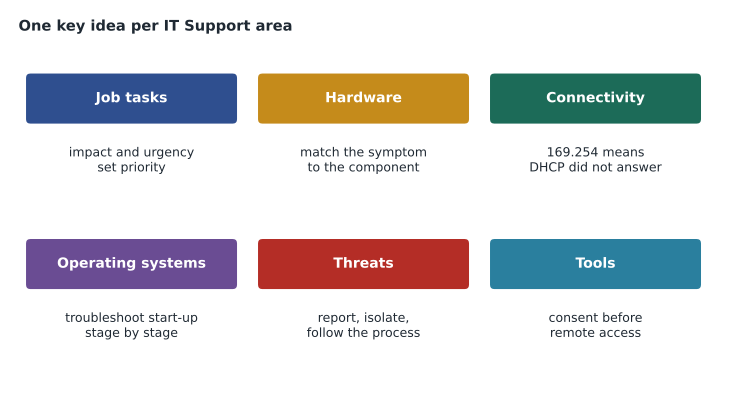
- Job tasks: priority by impact and urgency, clear documentation, good escalation and professional conduct.
- Hardware: match symptoms to components, know ports by what they carry, and work safely.
- Connectivity: DHCP, DNS, the 169.254 clue, and the basic tools ipconfig, ping, tracert and nslookup.
- Operating systems: the main tools, editions, start-up troubleshooting by stage, and tested backups.
- Threats: recognize malware and phishing, apply layered protections and follow the incident process.
- Tools: ticketing, knowledge bases and remote support with consent.
- The six-step troubleshooting method ties all the areas together.
- Service level agreement
- A commitment to response and resolution times for each priority.
- APIPA
- Automatic private IP addressing, the 169.254 address Windows assigns when DHCP fails.
- 3-2-1 rule
- Three copies of data, on two kinds of media, with one off site.
- Phishing
- A message that tricks people into revealing information or running malware.
- Least privilege
- Giving users only the access they need for their work.
- Knowledge base
- A collection of articles describing known problems and their fixes.
Practice problems
Work each problem on paper first, then reveal the answer to check.
What does a 169.254 address tell you?
Show answer
The device did not get an address from DHCP and assigned itself an automatic private address.
A user can reach a server by address but not by name. Which service should you check?
Show answer
DNS.
Name the six troubleshooting steps in order.
Show answer
Identify the problem; establish a theory; test the theory; plan and implement; verify and add preventive measures; document.
Which Windows tool shows driver problems?
Show answer
Device Manager.
What is the 3-2-1 rule?
Show answer
Keep three copies of data on two kinds of media with one copy off site.
A manager asks you to open an employee's email to see what they have been saying. What should you do?
Show answer
Decline and refer the request through the proper channel, such as HR or legal, under the organization's policy.
Why is a restore test important?
Show answer
It proves a backup can actually be restored; untested backups can fail silently.
Lesson quiz · 5 questions
Score 60% or more to complete this lesson.
Create a free account to save your progress, take quizzes and earn a certificate.