
CSCO-101 · Lesson 8 of 12 · 22 min
The command line for troubleshooting
▶ Video coming soon A video version of this lesson is on the way.
Marisol solves problems faster than anyone Jordan has worked with, and after a week of watching he realizes why: she rarely clicks through menus. When a user calls, she opens a command window, types three or four short commands, reads the answers and knows where the problem is. When Jordan asks her to teach him, she writes a dozen commands on a sticky note and tells him that these, used well, will answer most of the questions he will ever need to ask a computer. "The graphical tools are fine," she says. "But the command line gives you the facts in one screen, and you can paste them into the ticket."
Why use a command line
A command-line interface (CLI) accepts typed commands and returns text. It is faster than clicking through windows once you know the commands, it works the same way on every computer of the same type, it gives precise output that can be copied into a ticket or a chat with a colleague, and it works over remote connections where a graphical interface may be slow or unavailable. Many tasks, such as checking network settings, testing connections, or repairing system files, are simpler from the command line than from any menu.
Windows has two command shells: the Command Prompt, the older shell that runs cmd commands, and PowerShell, a more powerful shell built around objects and scripts. Windows Terminal is the modern app that hosts both in tabs. macOS and Linux use Unix-style shells, typically zsh on recent Macs and bash on most Linux distributions, opened through the Terminal app. Commands differ between Windows and Unix-style systems, but many have close equivalents, and the troubleshooting ideas are identical.
Some commands need administrator rights. In Windows, right-click the Command Prompt or Terminal and choose Run as administrator; the title bar then says Administrator. On macOS and Linux, put sudo before the command. Commands that change system settings, repair files or restart services usually need these rights; commands that only display information usually do not.
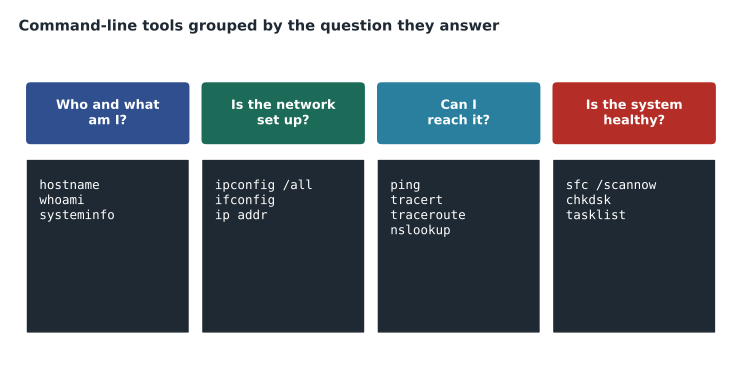
Who and what: identifying the computer
The first facts in any ticket are which computer, which user and which system. The hostname command prints the computer's name. The whoami command prints the signed-in user, including the domain or computer name, which matters when a user has several accounts. The systeminfo command in Windows prints the operating system version, the install date, the last start time, the hardware model, the memory and the installed updates. On macOS, sw_vers prints the macOS version; on Linux, the file /etc/os-release describes the distribution.
C:\> hostname
RFL-DESK-04

C:\> whoami
riverside\amira.chen

C:\> systeminfo | findstr /B /C:"OS Version" /C:"System Boot Time"
OS Version:                10.0.26100 N/A Build 26100
System Boot Time:          2026-10-06, 8:12:41 AM
Is the network set up?
Network commands are the ones support staff use most. In Windows, ipconfig shows each network adapter's IP address, subnet mask and default gateway; ipconfig /all adds the hardware (MAC) address, the DHCP server, the DNS servers and the lease times. An address beginning 169.254 means the computer asked for an address and got no answer, which points to a cable, Wi-Fi or DHCP problem. On macOS, ifconfig lists adapters, and on Linux, ip addr does the same. CSCO-102 explains IP addressing in detail; for now the point is that these commands tell you, in seconds, whether the computer has a sensible address.
Two more Windows commands repair common problems. ipconfig /release and ipconfig /renew drop the current address and ask for a new one. ipconfig /flushdns clears the computer's stored list of name lookups, which helps when a website or server has moved to a new address and the computer still remembers the old one.
Can I reach it?
The ping command sends small test messages to another device and reports whether replies come back and how long they take. Pinging the default gateway tests the local network; pinging a public address tests the route to the internet; pinging a name tests name resolution too. A ping that fails is not always a fault, because many devices and firewalls are set not to answer ping, but a ping that succeeds proves the path works. The tracert command in Windows, traceroute on macOS and Linux, lists each router along the path, showing where a connection stops.
The nslookup command asks a DNS server to translate a name into an address. If ping by address works but ping by name fails, the problem is name resolution, not the network itself. These three commands, ping, tracert and nslookup, form the core of network troubleshooting, and CSCO-102 returns to them.
C:\> ping 192.168.20.1
Reply from 192.168.20.1: bytes=32 time=1ms TTL=64
Reply from 192.168.20.1: bytes=32 time=1ms TTL=64

C:\> ping docs.riversidelaw.example
Ping request could not find host docs.riversidelaw.example.

C:\> nslookup docs.riversidelaw.example
*** dns.google can't find docs.riversidelaw.example: Non-existent domain
Is the system healthy?
Windows includes tools to check and repair itself. The System File Checker, sfc /scannow, scans protected system files and replaces damaged ones from a cached copy. When sfc cannot repair a file, the Deployment Image Servicing and Management tool repairs the cached copy first, with DISM /Online /Cleanup-Image /RestoreHealth, after which sfc can be run again. The chkdsk command checks a disk's file system for errors, and chkdsk /f fixes them; on the system drive it schedules the check for the next restart. These commands need an administrator prompt and can take a while.
Other useful commands include tasklist, which lists running processes, and taskkill, which ends one by name or number; shutdown /r /t 0 restarts immediately, and shutdown /s shuts down; gpupdate /force applies Group Policy settings now instead of waiting; and gpresult /r shows which policies apply to the computer and user. On macOS and Linux, top or htop shows processes, kill ends one, and the system's package manager or Software Update handles updates.
| Question | Windows | macOS and Linux |
|---|---|---|
| Which computer and user? | hostname, whoami | hostname, whoami |
| Which system version? | winver, systeminfo | sw_vers (macOS), cat /etc/os-release (Linux) |
| What is my address? | ipconfig /all | ifconfig (macOS), ip addr (Linux) |
| Can I reach a host? | ping, tracert | ping, traceroute |
| Does this name resolve? | nslookup | nslookup, dig |
| What is running? | tasklist | ps, top |
| Repair system files | sfc /scannow, DISM | Reinstall packages with the package manager |
| Check a disk | chkdsk | Disk Utility First Aid (macOS), fsck (Linux) |
Working safely at the command line
The command line does exactly what it is told, with no undo. Before running a command that changes anything, read it twice, make sure you are on the right computer, which the hostname command confirms, and make sure you know what it will do. Never paste commands from an untrusted website or message into an administrator prompt; that is a common way for attackers to trick people into installing malware. Brightline keeps a library of approved commands and scripts in its knowledge base for exactly this reason.
Output is evidence. Copy the relevant lines into the ticket rather than retyping or paraphrasing them. Many commands can save their output to a file by adding a greater-than sign and a file name, which is useful for long outputs such as systeminfo. When you escalate a ticket, the next technician will thank you for including the exact output of ipconfig /all.
PowerShell for support staff
PowerShell is increasingly the standard Windows command line. Its commands, called cmdlets, follow a verb-noun pattern that makes them easy to guess: Get-Process lists processes, Stop-Process ends one, Get-Service and Restart-Service manage services, Get-NetIPConfiguration shows addressing, Test-NetConnection tests whether a host and port can be reached, and Get-ComputerInfo summarizes the system. Most traditional commands, such as ipconfig and ping, still work inside PowerShell, so a technician can move to it gradually. PowerShell's real strength is that its output is structured data that can be filtered and sorted, which is why administrators use it for scripts that check or change many computers at once.
PS C:\> Test-NetConnection docs.riversidelaw.example -Port 443
ComputerName     : docs.riversidelaw.example
RemoteAddress    : 10.20.0.15
RemotePort       : 443
TcpTestSucceeded : True

PS C:\> Get-Service -Name Spooler
Status   Name      DisplayName
------   ----      -----------
Running  Spooler   Print Spooler
Test-NetConnection is especially useful because many servers block ping but still accept connections on the ports their services use. If ping fails but Test-NetConnection to the service's port succeeds, the server is up and the service is reachable; the failed ping simply reflects a firewall rule.
Getting help at the command line
No one memorizes every option. In the Command Prompt, typing a command followed by /? prints its options, as in ipconfig /?. In PowerShell, Get-Help followed by a cmdlet name explains it, with examples if you add -Examples. On macOS and Linux, the man command opens the manual page for a command, as in man ping, and many commands accept --help. Learning to read these help pages is part of learning the command line, and the exam expects you to know which tool to reach for, not every option of every tool.
One last habit: keep a personal command notebook. Each time a command solves a problem, write down the command, what it showed and the situation, in your own words. Within a few months this notebook becomes a quick reference that is tuned to the systems you actually support, and many of its entries will make good knowledge base articles for the rest of the team. Marisol's sticky note started that way, years ago, as a page of notes from her own first help desk job.
Command history saves typing too. Pressing the up arrow recalls previous commands in every shell covered here, and on macOS and Linux the history command lists them. Tab completion finishes file, folder and command names after the first few letters, which avoids typing errors in long paths. Both habits make the command line faster than clicking for most routine checks, which is the whole point of learning it.
Worked problem
Using four commands to locate a fault
Amira Chen at Riverside cannot open the document management system, but email and websites work. Jordan connects to her computer. Which commands should he run, in what order, and what would each result tell him?
Show solution
- hostname and whoami: confirm he is on Amira's computer and she is signed in with her firm account.
- ipconfig /all: confirm the address is in the office range and see which DNS servers are set.
- ping the gateway: confirm the local network works. It replies, so the network is fine.
- ping and nslookup the document server's name: the name does not resolve, and the DNS server listed is a public one.
- Conclusion: the adapter has been set to a public DNS server by hand, so internal names cannot be found. Setting DNS back to automatic fixes it.
Answer: Identify, check addressing, test the path, test name resolution. The fault is the DNS setting, found in about two minutes without guessing.
Common mistakes
MistakeRunning repair commands from a normal prompt.
InsteadOpen the prompt or terminal as administrator, or use sudo.
MistakeTreating a failed ping as proof of a fault.
InsteadMany devices block ping; use it alongside other tests.
MistakeRetyping command output into the ticket.
InsteadCopy and paste the exact output.
MistakePasting commands from untrusted sources.
InsteadUse only commands you understand and approved scripts.
MistakeRunning commands on the wrong computer in a remote session.
InsteadCheck hostname before changing anything.
Summary and key terms
- The command line is fast, precise and works over remote connections.
- Windows has Command Prompt and PowerShell; macOS and Linux use zsh or bash in Terminal.
- hostname, whoami and systeminfo identify the computer, user and system.
- ipconfig /all shows addressing; an address starting 169.254 means no DHCP answer.
- ping, tracert and nslookup test reachability, the path and name resolution.
- sfc /scannow, DISM and chkdsk check and repair Windows and its disks.
- Check which computer you are on and understand every command before you run it.
- CLI
- Command-line interface, where commands are typed and results are shown as text.
- PowerShell
- A Windows shell and scripting language built around objects.
- ping
- A command that tests whether another device answers and how quickly.
- nslookup
- A command that asks a DNS server to resolve a name.
- sfc
- System File Checker, which repairs protected Windows files.
- APIPA
- Automatic Private IP Addressing, which gives a 169.254 address when DHCP fails.
Practice problems
Work each problem on paper first, then reveal the answer to check.
Which command shows the signed-in user?
Show answer
whoami.
A computer shows the address 169.254.12.7. What does that mean?
Show answer
It did not get an address from a DHCP server.
Ping by address works but ping by name fails. What is the problem?
Show answer
Name resolution, usually DNS.
Which command repairs protected Windows system files?
Show answer
sfc /scannow, run as administrator.
Which command shows each router along the path in Windows?
Show answer
tracert.
Which command clears the computer's stored DNS lookups?
Show answer
ipconfig /flushdns.
What should you check before running a change command in a remote session?
Show answer
That you are on the right computer, using hostname.
Lesson quiz · 5 questions
Score 60% or more to complete this lesson.
Create a free account to save your progress, take quizzes and earn a certificate.