
CSCO-101 · Lesson 11 of 12 · 22 min
Backups, restores and imaging
▶ Video coming soon A video version of this lesson is on the way.
Jordan's sixth week starts with a lesson nobody wants to learn the hard way. A bookkeeper at Kettle & Crumb deletes a folder of supplier invoices while tidying the office computer, empties the Recycle Bin, and calls in a panic. Marisol asks Jordan to restore the folder from the bakery's backup. He opens the backup console and finds that the nightly job has been failing for nineteen days because the backup drive is full. Nobody noticed. The invoices are recovered from the cloud copy, which was still running, but the near miss becomes a Brightline project: check every client's backups, and test every one by restoring something.
Why backups matter
Data can be lost in many ways: a drive fails, a laptop is stolen, a user deletes or overwrites a file, ransomware encrypts everything it can reach, a software bug corrupts a database, or a fire or flood destroys the office. For a small business, losing its accounts, client records or orders can be fatal. A backup is a separate copy of data that can be used to restore it. Backups are only useful if they are complete, recent, kept where the same disaster cannot reach them, and proven to work by actually restoring from them.
Two numbers describe what a business needs. The recovery point objective (RPO) is how much data the business can afford to lose, measured in time: an RPO of 24 hours means a nightly backup is enough; an RPO of 15 minutes means backups must run far more often. The recovery time objective (RTO) is how quickly service must be restored. A bakery might accept losing a day of office files but need its point-of-sale system back within an hour. These numbers drive the choice of backup method, frequency and storage.
The 3-2-1 rule
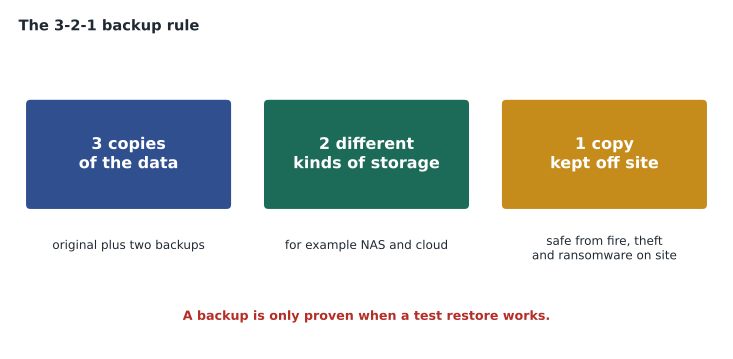
A widely used guideline is the 3-2-1 rule: keep three copies of important data, on two different kinds of storage, with one copy off site. The original data counts as one copy. A typical small office meets the rule with its working data on the computers or a server, a nightly backup to a network-attached storage (NAS) device in the office, and a copy in a cloud backup service. Many organizations extend the rule with an offline or immutable copy that cannot be changed or deleted for a set time, because ransomware often looks for and encrypts backups it can reach over the network.
Backup types
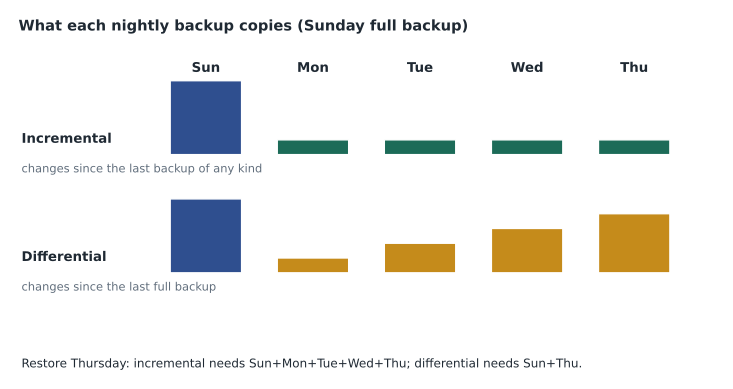
A full backup copies all the selected data every time. It is the simplest to restore from, but it takes the longest and uses the most storage. An incremental backup copies only what has changed since the last backup of any kind; it is fast and small, but a restore needs the last full backup plus every incremental since. A differential backup copies everything changed since the last full backup; each differential grows through the week, but a restore needs only the full backup and the latest differential. Many modern backup products combine these ideas behind the scenes, but the trade-off between backup speed, storage and restore effort remains.
| Type | Copies | Backup speed and size | To restore |
|---|---|---|---|
| Full | Everything selected | Slowest, largest | The one full backup |
| Incremental | Changes since the last backup of any kind | Fastest, smallest | Last full plus every incremental since |
| Differential | Changes since the last full backup | Grows each day until the next full | Last full plus the latest differential |
What to back up, and where
File-level backups copy selected folders and files, such as documents and shared data. System or image-level backups copy an entire drive, including the operating system, applications and settings, so that a whole computer can be restored onto new hardware. Application-aware backups handle databases and email servers properly, making sure the copy is consistent. Cloud services such as Microsoft 365 and Google Workspace keep data on the provider's servers, but they protect against the provider's failures rather than the customer's mistakes; deleted items are kept only for a limited time, so many businesses add a third-party backup of their cloud data too.
Windows includes File History, which backs up files in user folders to an external drive or network location, and older versions include a system image tool. Backup and sync services such as OneDrive keep files in the cloud and on several devices, and can restore earlier versions of a file, but sync is not the same as backup: if a file is deleted or encrypted on one device, sync may faithfully copy that change everywhere. macOS uses Time Machine. Businesses usually use dedicated backup software that schedules jobs, checks them, keeps several versions and reports failures, which is the feature that would have saved Kettle & Crumb nineteen days of silent failure.
Restores and testing
Restoring is the point of backing up, and it should be practiced. A restore test picks a file, a folder or an entire system, restores it to a safe location and checks that it opens correctly. Brightline now tests one restore per client per month and records the result. Backup software should also send alerts when a job fails, and someone must read them; monitoring is part of the backup system, not an extra.
Restoring a single file is usually simple: choose the file and the date, and restore it to its original place or a new one. Restoring a whole computer from an image needs boot media, the backup location and, for encrypted systems, recovery keys. Before restoring over existing data, make sure you will not overwrite newer work; restoring to a different folder first is often safer.
Imaging and deployment
An image is a complete copy of a drive at a point in time. Support teams use images in two ways. For recovery, an image of a working computer can be restored to bring the same computer back exactly as it was. For deployment, a standard image, built once with the operating system, applications and settings an organization uses, can be copied to many new computers, so that each starts identical. Large organizations increasingly replace deployment images with cloud tools that configure a computer automatically from its first sign-in, but imaging remains common in labs, classrooms and small businesses.
Cloning, introduced in lesson 3, is a close relative: copying one drive directly to another, usually to move a computer onto a new SSD. Whether cloning or imaging, the copy must be checked afterwards: the computer should start, applications should open and the user's data should be present. A Windows image used for deployment must be prepared so that each copy gets its own computer name and security identifiers, using Microsoft's preparation tool, called Sysprep, or the deployment tool's own process.
C:\> wbadmin get versions
Backup time: 2026-10-14 11:00 PM
Backup target: Network share labeled \\kc-nas\backups
Version identifier: 10/15/2026-05:00
Can recover: Volume(s), File(s), Application(s), Bare Metal Recovery
Restore points and reset options
Windows System Restore creates restore points before major changes such as driver or update installations. Rolling back to a restore point undoes changes to system files, drivers and settings without touching personal files. It is not a backup, because it does not protect documents and does not survive a drive failure, but it is a useful tool for undoing a bad change. Reset this PC reinstalls Windows, with the option to keep or remove personal files; it is a last resort before a clean installation, and personal files should be backed up first anyway.
Backups and ransomware
Ransomware is malicious software that encrypts files and demands payment for the key, and it has made backups more important than ever. Modern ransomware often spends days quietly searching a network before it strikes, looking for backups to delete or encrypt first. That is why the off-site copy in the 3-2-1 rule should also be offline or immutable, and why backup systems should have their own separate administrator accounts, protected with multifactor authentication, rather than sharing the everyday admin credentials. It is also why versions matter: if ransomware encrypted files a week ago and the infection was noticed only today, the restore must come from a version older than the infection. CSCO-102 covers ransomware prevention and response.
Documenting backups
Every client's backup arrangement should be written down: what is backed up, how often, to where, how many versions are kept, who receives alerts, where the recovery keys and credentials are stored, and when the last successful restore test was done. This record is what lets any technician respond to a data loss call quickly and calmly. When Brightline reviewed its clients after the Kettle & Crumb near miss, three of the forty had no written record at all, and one had a backup that excluded the folder where its staff actually saved their work. The review took a week and has since prevented two serious losses.
Retention, meaning how long old versions are kept, deserves a deliberate decision. Short retention saves storage but may not reach back far enough when a problem is noticed late, such as a file that was corrupted a month before anyone opened it. Some businesses also have legal or regulatory reasons to keep records for years. Law firms and clinics in particular must follow professional and privacy rules on how long client records are kept and how they are destroyed, so their backup retention should be set with those rules in mind.
Finally, backups must protect the backup itself. Recovery keys, backup encryption passwords and the administrator credentials for the backup service must be stored somewhere that survives the loss of the office, such as the managed-services provider's password vault, or a restore may be impossible exactly when it is needed most.
Worked problem
Choosing a backup design for the bakery office
Kettle & Crumb's office has one computer with accounts and supplier files, a NAS, and a cloud backup subscription. The owner says she could re-enter one day of invoices but not more, and needs the office running again within a working day after any failure. Design a backup plan that meets the 3-2-1 rule and her objectives.
Show solution
- RPO is one day and RTO is one working day, so nightly backups are enough and a restore within hours is required.
- Copy 1: the working data on the office computer.
- Copy 2: a nightly incremental backup to the NAS, with a weekly full backup and 30 days of versions; this gives fast local restores.
- Copy 3: a nightly copy from the NAS to the cloud backup service, with immutability for 14 days; this is the off-site copy, on a second kind of storage.
- Monitoring: failure alerts go to Brightline's ticket system; a technician tests one restore each month.
- Recovery: keep a current system image of the office computer on the NAS so it can be restored to new hardware within the day.
Answer: Three copies, two kinds of storage, one off site and protected from change, with alerts and monthly restore tests. The plan meets a one-day RPO and RTO.
Common mistakes
MistakeAssuming backups work because they were set up.
InsteadMonitor every job and test restores regularly.
MistakeTreating sync as backup.
InsteadSync copies deletions and encryption; keep versioned backups as well.
MistakeKeeping the only backup next to the computer.
InsteadKeep one copy off site and one offline or immutable.
MistakeRestoring over existing files without checking.
InsteadRestore to a separate location first if newer work might be overwritten.
MistakeRelying on System Restore to protect documents.
InsteadRestore points cover system files and settings, not personal data.
Summary and key terms
- Backups protect against hardware failure, theft, deletion, ransomware and disaster.
- RPO is how much data can be lost; RTO is how quickly service must return.
- The 3-2-1 rule: three copies, two kinds of storage, one off site.
- Full, incremental and differential backups trade speed and size against restore effort.
- Sync is not backup; cloud services need their own backups for user mistakes.
- A backup is proven only by a successful restore; monitor jobs and test regularly.
- Images restore whole systems or deploy standard configurations to many computers.
- RPO
- Recovery point objective: the maximum acceptable data loss, in time.
- RTO
- Recovery time objective: the maximum acceptable time to restore service.
- Incremental backup
- A backup of changes since the last backup of any kind.
- Differential backup
- A backup of changes since the last full backup.
- NAS
- Network-attached storage, a file storage device on the local network.
- Immutable backup
- A backup that cannot be changed or deleted for a set period.
- Image
- A complete copy of a drive at a point in time.
Practice problems
Work each problem on paper first, then reveal the answer to check.
State the 3-2-1 rule.
Show answer
Three copies of the data, on two kinds of storage, with one copy off site.
A business can lose at most four hours of data. What does that set?
Show answer
Its recovery point objective.
Which backup type needs only the last full and the latest backup to restore?
Show answer
Differential.
Why is file sync not a backup?
Show answer
It copies deletions and corruption to every synced device.
What proves a backup works?
Show answer
A successful test restore.
What does System Restore change?
Show answer
System files, drivers and settings, not personal files.
Name two uses of disk images in support.
Show answer
Restoring a whole computer and deploying a standard configuration to many computers.
Lesson quiz · 5 questions
Score 60% or more to complete this lesson.
Create a free account to save your progress, take quizzes and earn a certificate.