
CSCO-101 · Lesson 2 of 12 · 22 min
Inside a computer: components and their jobs
▶ Video coming soon A video version of this lesson is on the way.
Jordan's first hardware ticket comes from Prairie Paws Veterinary Clinic. The reception PC, BL-24817 in the ticket system, takes four minutes to reach the sign-in screen and another three before the practice-management app opens. The clinic manager wants to know whether to buy a new computer. Marisol hands Jordan a screwdriver and says that before anyone spends money, he should open the case and tell her what is inside it. "You can't recommend an upgrade," she says, "until you know what each part does and which one is holding the others back."
The parts of a computer system
Every computer, from a phone to a server, has the same basic jobs to do. It must take input, process it, keep data it is working on, store data for later, and produce output. In a desktop PC those jobs are split among separate parts that a technician can identify, test and replace. Knowing which part does which job is the foundation of hardware support, because a symptom usually points to the part responsible for that job.
The central processing unit, or CPU, executes the instructions that make up programs. It sits in a socket on the motherboard under a heat sink and fan or a liquid cooler, because it produces a great deal of heat. CPUs are described by their maker, model, number of cores and clock speed. More cores let the computer run more tasks at once; a higher clock speed lets each core work faster. For support work you rarely replace a CPU, but you often need to identify it, because software requirements, operating system upgrades and driver downloads depend on it.
Random access memory, or RAM, is the computer's working memory. Programs and the data they are using are loaded into RAM because it is far faster than storage. RAM is volatile: its contents disappear when power is removed. Desktop RAM comes as long modules called DIMMs, and laptop RAM as shorter SO-DIMMs; some thin laptops have memory soldered to the board, which cannot be upgraded. Modules are made to particular generations, such as DDR4 and DDR5, which are keyed differently and are not interchangeable. When a computer has too little RAM for what the user runs, the operating system moves data back and forth to storage, and everything slows down.
The motherboard and firmware
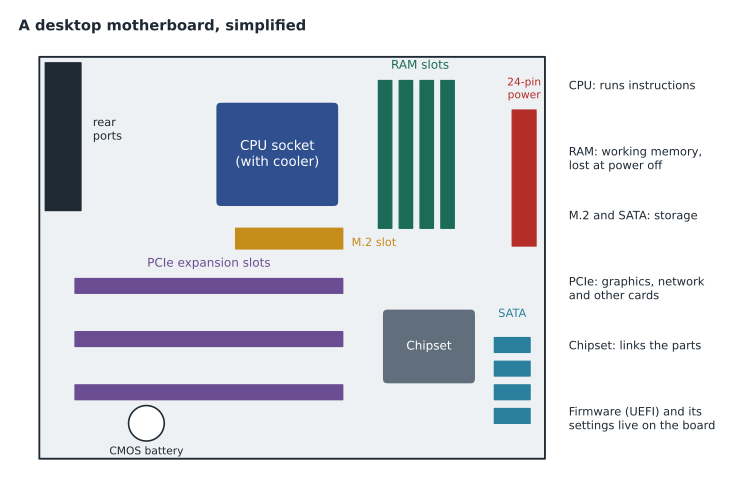
The motherboard is the main circuit board that connects everything else. It holds the CPU socket, the memory slots, expansion slots, storage connectors, the chipset that manages traffic among them, and the rear panel of ports. Motherboards come in standard sizes called form factors, such as ATX, micro-ATX and mini-ITX, which determine which cases they fit. A technician replacing a motherboard must match the form factor, the CPU socket and the memory generation, which is why a motherboard replacement often turns into a whole-computer replacement.
Firmware is the small program stored on the motherboard that starts the computer before the operating system loads. Modern computers use UEFI, the Unified Extensible Firmware Interface, which replaced the older BIOS; many people still say BIOS out of habit. Firmware runs the power-on self-test, finds a boot device and hands control to the operating system's boot loader. It also holds settings such as the boot order, the system clock, Secure Boot, virtualization support and whether certain devices are enabled. A small coin battery, usually called the CMOS battery, keeps the clock running when the computer is unplugged. A computer that loses its date and time every time it is unplugged usually needs a new battery.
Storage
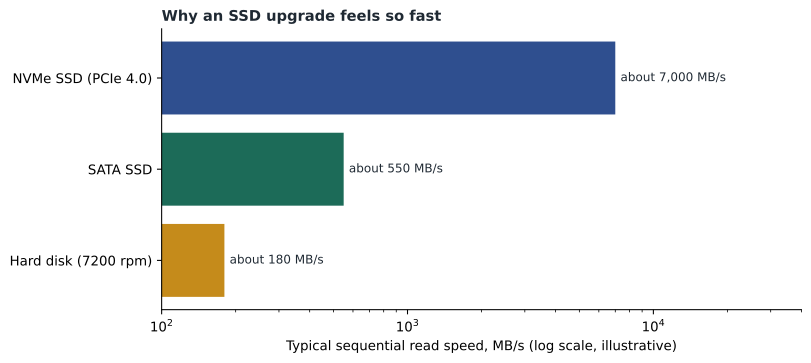
Storage keeps data when the power is off. There are three common kinds. Hard disk drives (HDDs) store data on spinning magnetic platters read by a moving head; they are inexpensive per unit of capacity but slow and sensitive to shock. Solid-state drives (SSDs) store data in flash memory with no moving parts. SATA SSDs use the same connector and interface as hard disks and are several times faster. NVMe SSDs plug into an M.2 slot or a PCIe card and talk directly to the PCIe bus, making them faster again. For a user, the difference between a hard disk and any SSD is dramatic: start-up, sign-in and opening applications can take a fraction of the time.
Capacity is measured in gigabytes (GB) and terabytes (TB). Operating systems and drive makers count these differently, so a drive sold as 1 TB shows as about 931 GB in Windows; that is not a fault. Storage also wears out. Hard disks develop bad sectors and mechanical faults, often with clicking sounds; SSDs have a limited number of write cycles and can fail suddenly. Both report health data through a system called SMART, which diagnostic tools can read, and a drive reporting problems should be backed up and replaced before it fails.
Power, cooling and expansion
The power supply unit (PSU) converts mains power from the wall into the low direct-current voltages the components use. It is rated in watts, and it must supply enough power for the CPU, the graphics card and everything else, with some headroom. A failing power supply can cause random restarts, failure to start, or a computer that starts only after several tries. Power supplies store dangerous charge even when unplugged, so support technicians replace them as a whole unit and never open them.
Cooling keeps components within their temperature limits. Case fans move air through the case, the CPU cooler draws heat from the processor, and graphics cards have their own fans. Dust is the enemy of cooling: a clogged heat sink can make a computer slow down to protect itself, a behavior called thermal throttling, or shut off without warning. Cleaning dust with compressed air, with the computer off and the fans held still, is one of the cheapest fixes in hardware support.
Expansion cards plug into PCIe slots to add capabilities. The most common is a graphics card, needed for demanding visual work, gaming or multiple high-resolution displays; ordinary office computers use graphics built into the CPU. Other cards add network ports, Wi-Fi, extra USB ports or storage controllers. PCIe slots come in different lengths, labeled x1, x4, x8 and x16, which reflect how many data lanes they carry; a short card fits a longer slot, but not the other way round.
| Component | Job | Typical symptom when it fails or is too small |
|---|---|---|
| CPU | Runs program instructions | Slow under load; overheating; rarely, no start at all |
| RAM | Holds programs and data in use | Slowdown with many apps open; crashes; beep codes at start |
| Storage | Keeps data with power off | Slow start; missing files; clicking; boot device not found |
| Motherboard | Connects all the parts | No start; ports or slots not working |
| Firmware and CMOS battery | Starts the computer; keeps settings and time | Wrong date and time; lost settings |
| Power supply | Converts mains power | Random restarts; no power; burning smell |
| Cooling | Removes heat | Loud fans; throttling; sudden shutdowns |
| Graphics | Produces the display | No picture; artifacts on screen; driver crashes |
Identifying what is installed
Before opening a case, a technician can learn a great deal from the operating system. In Windows, the Settings app's About page shows the processor, installed RAM and Windows edition; System Information shows much more detail; and Task Manager's Performance tab shows the CPU, memory, disk and graphics, including the memory speed and how many slots are used. On a Mac, About This Mac gives the chip, memory and serial number. Command-line tools give the same information in a form that can be copied into a ticket.
C:\> systeminfo | findstr /C:"OS Name" /C:"Total Physical Memory"
OS Name:                   Microsoft Windows 11 Pro
Total Physical Memory:     8,034 MB

C:\> wmic diskdrive get model,mediatype
MediaType              Model
Fixed hard disk media  WDC WD10EZEX-08WN4A0
Every computer also has identifiers that matter for support: a serial number or service tag used for warranty and parts lookups, a model number, and often an asset tag applied by the organization. Brightline records all three in each client's asset list, so that when a user calls, the technician can see the computer's age, warranty status and history before asking a single question.
Laptops and all-in-ones
Laptops pack the same parts into a much smaller space, and that changes what a technician can do. Many laptops have one memory slot or none, a single M.2 slot for storage, a battery held in by screws rather than a latch, and a keyboard, touchpad and screen that are replaced as assemblies. The cooling system is a thin heat pipe and a small fan that clog with dust faster than a desktop's. All-in-one computers, which build the computer into the back of the monitor, are similar: they are tidy on a reception desk, but most repairs mean removing the screen. Before quoting an upgrade for either, look up the model's service manual or specifications to see what can actually be changed. When little can be changed, the right recommendation may be a replacement after all, and knowing that early saves the client a wasted visit.
Desktop towers, by contrast, are built to be opened: side panels come off with a thumbscrew or two, drive bays slide out, and most parts are standard sizes from many makers. That flexibility is why many small businesses keep desktops at reception and in back offices even when staff carry laptops elsewhere.
Worked problem
Deciding where an upgrade will help
The Prairie Paws reception PC has a 6-core CPU that is four years old, 8 GB of RAM in two of four slots, and a 1 TB hard disk. Task Manager at sign-in shows the CPU at about 38, memory at about 92 and disk active time at 100 on a scale of 100. Which upgrade will help most, and what should Jordan check before ordering parts?
Show solution
- The disk is pinned at its maximum while the CPU is not busy, so storage is the bottleneck.
- Memory is also near its limit, so the system is probably paging to the slow disk, making the disk problem worse.
- Upgrade 1: replace the hard disk with an SSD, cloning the existing installation or reinstalling, as lessons 10 and 11 describe.
- Upgrade 2: add RAM to reach 16 GB, using the two empty slots.
- Check first: the memory generation and speed the board supports, whether it has an M.2 slot for NVMe or needs a SATA SSD, and whether the computer is still under warranty.
Answer: An SSD plus 8 GB more RAM, after confirming compatible parts. Together they cost far less than a new computer and should remove both bottlenecks.
Jordan opens the case, finds the empty memory slots and an unused M.2 slot, photographs the labels on the existing memory modules and writes the part details into the ticket. Marisol checks them, approves the parts order and tells him the clinic will get its computer back faster than a new one could be delivered and set up. Lesson 3 covers the installation.
Common mistakes
MistakeRecommending a new computer for every slow one.
InsteadFind the bottleneck first; storage and memory upgrades are often enough.
MistakeAssuming any memory module fits.
InsteadMatch the generation, form (DIMM or SO-DIMM), speed and capacity the board supports.
MistakeTreating a 1 TB drive that shows 931 GB as faulty.
InsteadDrive makers and operating systems count capacity differently.
MistakeIgnoring SMART warnings.
InsteadBack up and replace a drive that reports health problems.
MistakeOpening a power supply to repair it.
InsteadReplace power supplies as a unit; they hold dangerous charge.
Summary and key terms
- The CPU runs instructions, RAM holds work in progress, and storage keeps data when the power is off.
- The motherboard connects all parts; its form factor, socket and memory type limit what can be replaced.
- UEFI firmware starts the computer, runs the power-on self-test and holds boot settings; the CMOS battery keeps the clock.
- HDDs are cheap and slow; SATA SSDs are faster; NVMe SSDs are faster again.
- Power supplies, cooling and expansion cards each have recognizable failure symptoms.
- Identify installed hardware from the operating system before opening the case.
- Find the bottleneck before recommending an upgrade or a replacement.
- CPU
- The processor that runs program instructions.
- RAM
- Volatile working memory that holds programs and data in use.
- SSD
- A solid-state storage drive with no moving parts.
- NVMe
- A fast storage interface for SSDs that connects over PCIe.
- UEFI
- The modern firmware that starts a computer, replacing BIOS.
- Form factor
- A standard size and layout, such as ATX for motherboards.
- Thermal throttling
- A component slowing itself down to avoid overheating.
Practice problems
Work each problem on paper first, then reveal the answer to check.
Which component is volatile?
Show answer
RAM; its contents are lost when power is removed.
A computer forgets its date and time when unplugged. What is the likely cause?
Show answer
A failing CMOS battery.
Name two kinds of SSD by interface.
Show answer
SATA and NVMe.
Which Windows tool shows how many memory slots are used?
Show answer
Task Manager, on the Performance tab under Memory.
Why might a 2 TB drive show as about 1.8 TB in Windows?
Show answer
Drive makers count in powers of 10 and Windows reports in powers of 2.
A computer restarts randomly under load and smells hot. Which two parts would you suspect first?
Show answer
The power supply and the cooling.
What three identifiers should be recorded for each computer?
Show answer
Serial number or service tag, model number and asset tag.
Lesson quiz · 5 questions
Score 60% or more to complete this lesson.
Create a free account to save your progress, take quizzes and earn a certificate.