
CSCO-101 · Lesson 6 of 12 · 22 min
Windows installation, settings and tools
▶ Video coming soon A video version of this lesson is on the way.
Riverside Family Law is replacing three of its oldest desktops, and Owen Larkin, Brightline's owner, has decided that Jordan will set them up under Marisol's eye. The law office runs Windows 11 Pro, a document management system, the Microsoft 365 apps and a legal accounting package. Each new computer must be installed, updated, joined to the office's management, configured with the firm's settings and handed to a lawyer who expects everything to be exactly where it was. "Setting up a computer is easy," Marisol says. "Setting it up the same way every time is the skill."
Windows editions and versions
Microsoft sells Windows in several editions. Windows Home is for personal use. Windows Pro adds business features such as BitLocker drive encryption, joining a corporate directory, Group Policy, Remote Desktop hosting and Hyper-V virtualization. Enterprise and Education add further management and security features for large organizations. A computer bought for a business should normally run Pro or higher; a Home edition computer cannot join a domain or be managed the same way, and upgrading it costs extra.
Windows also has versions. Windows 10 reached its end of support in October 2025, so organizations still running it need to upgrade or buy extended security updates. Windows 11 receives a feature update each year, identified by a version number such as 24H2 or 25H2, and monthly quality updates, often called Patch Tuesday updates because Microsoft releases them on the second Tuesday of each month. Windows 11 has stricter hardware requirements than Windows 10, including a supported processor, a Trusted Platform Module (TPM) 2.0 security chip and UEFI firmware with Secure Boot capability, which is why some older computers cannot be upgraded.
Installing Windows
There are several ways to get Windows onto a computer. Most new computers come with Windows installed by the manufacturer, which a technician then configures. A clean installation from USB media, made with Microsoft's media creation tool, erases the drive and installs a fresh copy; it is the standard fix for a computer whose installation is badly damaged. An in-place upgrade installs a new version over the old one while keeping files, settings and applications. Larger organizations use imaging or cloud deployment tools, such as Windows Autopilot, so that a new computer configures itself when a user first signs in.
During a clean installation, the installer asks which drive and partition to use. On a modern UEFI computer, Windows creates several partitions on a GPT-formatted disk: a small EFI system partition that holds the boot files, a reserved partition, the main Windows partition formatted with NTFS, and a recovery partition. Older computers using legacy BIOS used MBR-formatted disks instead; GPT supports larger disks and more partitions and is required for Secure Boot. After installation, the out-of-box experience (OOBE) asks for region, keyboard, network and account details.
The account choice matters. A computer can be set up with a local account that exists only on that computer, a Microsoft account tied to an email address, or a work or school account in Microsoft Entra ID (formerly Azure Active Directory). Business computers are usually joined to Entra ID, to a traditional on-premises Active Directory domain, or to both, so that users sign in with their work credentials and the organization can manage the device. Riverside's computers are joined to Entra ID and enrolled in Microsoft Intune for management.
| Install method | Keeps files and apps? | When to use it |
|---|---|---|
| Factory installation | Not applicable (new) | New computers; configure and update |
| Clean installation | No; drive is erased | Badly damaged installation; repurposing a computer |
| In-place upgrade | Yes | Moving to a new version of Windows |
| Reset this PC | Optional | Built-in reinstall from the recovery environment |
| Image or cloud deployment | Depends on design | Many computers configured the same way |
After installation: updates and drivers
The first job after installing Windows is to update it. Windows Update installs security fixes, feature updates and many drivers. Run it until no further updates are offered, restarting as needed; a new installation often needs two or three rounds. Then install any drivers Windows did not supply, from the computer manufacturer's support site, using the model or service tag. Finally, check Device Manager for any devices with warning symbols.
Updates sometimes cause problems. If a computer misbehaves right after an update, the update history in Settings shows what was installed and when, and recent quality updates can usually be uninstalled. Device drivers can be rolled back in Device Manager. Organizations often delay updates by a few days to test them on a small group of computers first; that is sensible, but delaying security updates for long leaves computers exposed.
Settings and Control Panel
Windows 11 is configured mostly through the Settings app, organized into System, Bluetooth and devices, Network and internet, Personalization, Apps, Accounts, Time and language, Accessibility, Privacy and security, and Windows Update. Some older settings are still only in the Control Panel, such as some network adapter options, the full user account controls and certain device settings; Microsoft has been moving them into Settings over time. Searching from the Start menu is often the quickest way to find a setting in either place.
Settings that support technicians change often include display scaling and multiple monitors, default apps for opening particular file types, the default printer, power and sleep settings, sign-in options such as Windows Hello, accessibility options such as magnifier and text size, language and keyboard layouts, and privacy permissions for the camera and microphone. A lawyer who cannot be heard on a video call has very often denied the conferencing app access to the microphone.
Tools for support work
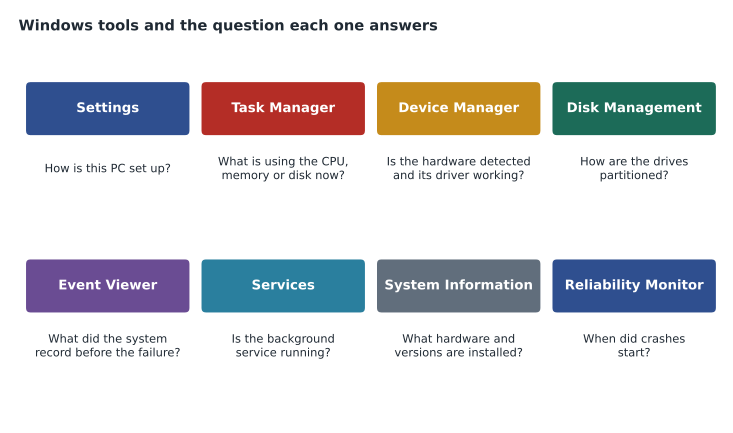
Task Manager, opened with Ctrl+Shift+Esc, shows running apps and background processes, how much CPU, memory, disk and network each uses, which apps start with Windows, and the services running. It can end an unresponsive program. Device Manager shows hardware and drivers. Disk Management shows disks and partitions and can create, format, extend and shrink them. Event Viewer holds logs of errors and events, and is often the place to discover why a computer crashed or a service failed to start. Reliability Monitor gives a simpler timeline of crashes, failures and installs, and is a good first stop when a user says "it's been crashing for a week".
Other tools include System Information (msinfo32) for a full inventory, the Services console (services.msc) to start, stop and configure background services, Computer Management, which combines several tools, and Local Users and Groups, available in Pro and higher editions, to manage local accounts. Many of these are reachable by right-clicking the Start button, a menu technicians use constantly.
User accounts and permissions
Windows accounts are either standard users or administrators. Standard users can run programs and change their own settings, but must enter administrator credentials to install most software or change system settings; the prompt that appears is called User Account Control (UAC). Giving everyday users administrator rights is convenient and dangerous, because malware that runs as that user gets the same rights. Brightline's clients' users have standard accounts, and technicians use separate administrator accounts when they need to make changes.
Files and folders on NTFS drives have permissions that control who can read, change or delete them. Shared folders on a network have share permissions as well. A user who suddenly cannot open a shared folder has usually lost membership in a group, changed accounts or hit a permissions change; CSCO-102 covers resource access in more detail.
Applications
Applications are installed from the Microsoft Store, from installer files supplied by the vendor, or by management tools that push them silently. Uninstalling is done from Settings, Apps, Installed apps. Applications have requirements, such as an operating system version, a processor type, an amount of memory, or other software like a specific runtime; checking these before installation saves time. When an application misbehaves, the usual steps are to restart it, check for updates, run its repair option if it has one, clear its cache or settings, and reinstall it as a last resort.
C:\> winver
(opens a window showing: Windows 11 Pro, Version 24H2, OS Build 26100.xxxx)

C:\> winget list --name "Adobe Acrobat"
Name                 Id                       Version
Adobe Acrobat Reader Adobe.Acrobat.Reader.64  25.1.20531
Group Policy and central management
In a business, many Windows settings are not set by hand on each computer. In a traditional Active Directory domain, Group Policy objects apply settings to computers and users by location in the directory: password rules, screen lock times, drive mappings, printer assignments, software restrictions and security options. In cloud-managed environments, Microsoft Intune applies similar policies through configuration profiles, along with app deployment and compliance checks such as requiring BitLocker and current updates. A support technician needs to recognize when a setting is controlled centrally, because changing it locally either fails, with a message that some settings are managed by your organization, or is reversed at the next policy refresh. The gpresult command and the Intune portal show which policies apply.
Central management also changes how problems are fixed. If one computer is missing a printer that everyone else has, the cause may be a policy that did not apply. Running gpupdate /force, or syncing the device from its Settings, Accounts, Access work or school page, applies the latest policies immediately. If many computers have the same problem, the cause may be the policy itself, which is a tier 2 or tier 3 escalation rather than something to fix computer by computer.
Windows licensing and activation
Windows must be activated to confirm the copy is genuine. New computers usually activate automatically with a digital license linked to the hardware. Business computers may activate through a volume licensing arrangement or through Microsoft 365 subscriptions that upgrade Pro to Enterprise. A computer that shows a message to activate Windows after a motherboard replacement has lost its link to the old hardware; the activation troubleshooter in Settings can usually reconnect it.
Finally, Windows has accessibility features that support staff should know how to turn on and off: Narrator reads the screen aloud, Magnifier enlarges part of it, high-contrast themes improve readability, and Sticky Keys lets users press shortcut keys one at a time. A user who reports that the keyboard is "acting strangely" after pressing Shift five times has usually turned on Sticky Keys by accident. Turning these features off for a confused user, or on for a user who needs them, is a routine and appreciated part of the job.
Worked problem
Setting up a lawyer's new desktop
Jordan is setting up a new Windows 11 Pro desktop for a Riverside lawyer. List the main steps, in order, from unboxing to handing it over.
Show solution
- Unbox, connect, start, and check the edition is Pro and the hardware matches the order.
- Complete the out-of-box setup with the firm's work account so the computer joins Entra ID and enrolls in Intune.
- Run Windows Update until no more updates are offered; install the manufacturer's drivers; check Device Manager.
- Let Intune install the standard apps, then install the legal accounting package; confirm BitLocker is on and its key is stored.
- Configure printers, default apps and the lawyer's display preferences; sign in as the lawyer and check the document system opens.
- Record the serial number, asset tag and setup steps in the ticket and asset list; hand over and confirm with the lawyer.
Answer: Install and join, update, apply standard software and security, personalize, test with the user, then document.
Common mistakes
MistakeBuying Windows Home for business computers.
InsteadUse Pro or higher so the computer can be managed and encrypted.
MistakeStopping after the first round of Windows Update.
InsteadRepeat until no updates remain, then check drivers.
MistakeGiving users administrator accounts for convenience.
InsteadUse standard accounts and separate administrator credentials.
MistakeSearching the Control Panel for every setting.
InsteadMost settings are now in the Settings app; search from Start.
MistakeReinstalling an app as the first fix.
InsteadRestart, update and repair it first.
Summary and key terms
- Windows Pro adds business features such as BitLocker, domain join and Group Policy.
- Windows 10 support ended in October 2025; Windows 11 needs TPM 2.0 and Secure Boot capable UEFI.
- Clean installations erase the drive; in-place upgrades keep files and apps.
- Modern installations use GPT disks with an EFI system partition and NTFS for Windows.
- Update repeatedly after installation, then install drivers and check Device Manager.
- Task Manager, Device Manager, Disk Management, Event Viewer and Reliability Monitor each answer specific questions.
- Users should run as standard accounts; UAC prompts for administrator credentials.
- Edition
- A version of Windows with a particular feature set, such as Home or Pro.
- TPM
- Trusted Platform Module, a security chip that stores encryption keys.
- GPT
- GUID Partition Table, the modern disk partitioning scheme used with UEFI.
- NTFS
- The standard Windows file system, with permissions and large file support.
- UAC
- User Account Control, the prompt for administrator approval.
- Entra ID
- Microsoft's cloud identity service, formerly Azure Active Directory.
Practice problems
Work each problem on paper first, then reveal the answer to check.
Which Windows edition is the minimum for joining a business domain?
Show answer
Windows Pro.
What chip does Windows 11 require for security?
Show answer
TPM 2.0.
Which install method keeps files and applications?
Show answer
An in-place upgrade.
Which keyboard shortcut opens Task Manager?
Show answer
Ctrl+Shift+Esc.
A computer has crashed several times this week. Which tool shows a simple timeline?
Show answer
Reliability Monitor.
What does the UAC prompt ask for?
Show answer
Approval, or administrator credentials, for a change that needs administrator rights.
Which command shows the exact Windows version?
Show answer
winver.
Lesson quiz · 5 questions
Score 60% or more to complete this lesson.
Create a free account to save your progress, take quizzes and earn a certificate.