
CSCO-101 · Lesson 5 of 12 · 22 min
Mobile devices and their settings
▶ Video coming soon A video version of this lesson is on the way.
Kettle & Crumb's shops take orders on tablets, the managers run the business from their phones, and the owner, Hana Okafor, signs invoices on an iPad. On Monday morning Hana calls Brightline because her new phone is not getting work email, one of the shop tablets cannot join the Wi-Fi, and a manager has lost his phone on the bus. Jordan has supported phones for friends and family, but never for a business. Marisol explains the difference: on a business device, the technician is responsible not only for making it work but for keeping the company's data safe if the device is lost.
Kinds of mobile devices
Mobile devices include smartphones, tablets, laptops, wearable devices such as smartwatches and fitness bands, and a growing range of specialized devices such as handheld barcode scanners and payment terminals. Most phones and tablets run one of two operating systems: Apple's iOS and iPadOS, or Google's Android, which many manufacturers customize. Laptops run Windows, macOS, ChromeOS or Linux. The support principles are the same across them, but the menus, update processes and management tools differ, so a technician must know where to find the key settings on each.
Phones and tablets differ from desktop computers in important ways. Their batteries and storage are usually not replaceable by the user. They rely heavily on wireless connections. Their apps come almost entirely from curated app stores. They are designed to be used by one person and are tied to that person's account. And they are lost or stolen far more often than desktops. Each of these differences shapes how they are supported.
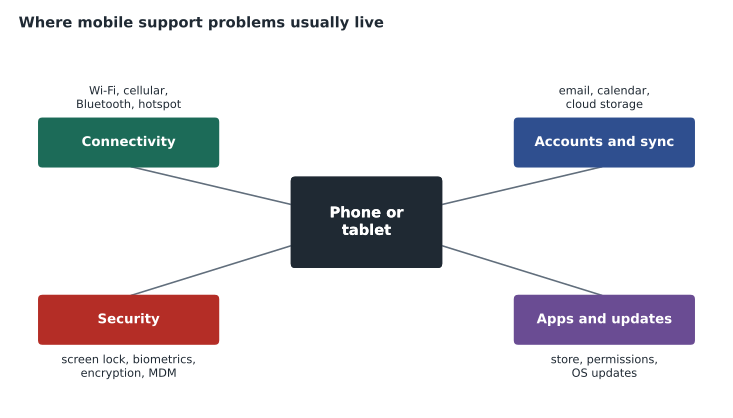
Connectivity
Mobile devices connect in several ways. Wi-Fi connects to local wireless networks; cellular data connects through the mobile carrier's network using generations such as 4G LTE and 5G; Bluetooth connects nearby accessories such as headsets, keyboards and car systems; near-field communication (NFC) handles very short-range tasks such as tap-to-pay; and a phone's hotspot feature can share its cellular connection with a laptop. Airplane mode turns off all radios at once, and a surprising number of "no connection" tickets end with someone discovering it was switched on.
When a mobile device will not join Wi-Fi, the first checks are simple: is Wi-Fi on, is the right network chosen, is the password correct, and is the device within range? If a device joined successfully before and now cannot, telling it to forget the network and joining again clears stored settings that may be wrong. Some business networks require a certificate or a sign-in page, and some hide their network name. Networks that filter devices by hardware address can be confused by the privacy feature on newer phones that uses a random hardware address for each network; turning that off for the business network is sometimes necessary. CSCO-102 covers Wi-Fi in depth.
Cellular problems are usually outside the technician's control but can still be diagnosed. Check signal strength, whether mobile data is enabled for the app in question, whether the account has a data limit, and whether the SIM or eSIM is active. Restarting the device, or toggling airplane mode on and off, forces it to reconnect to the carrier.
Accounts, email and synchronization
A mobile device is usually tied to a platform account, an Apple ID or a Google account, which controls app purchases, backups and the ability to find or erase the device. Business email and calendars are added through a separate work account, often Microsoft 365 or Google Workspace. Most business email now uses modern protocols with sign-in through the organization's identity system and multifactor authentication; older protocols such as POP3 and IMAP with a stored password are being phased out by many providers.
Synchronization keeps mail, calendars, contacts and files the same across devices. Sync problems are a common ticket: a calendar event created on the laptop does not appear on the phone, or a contact deleted on one device reappears. The usual checks are that the account is signed in and not asking for a password, that sync is turned on for that type of data, that the device has a network connection and the correct date and time, and that the app is up to date. Removing the account and adding it again is a reliable fix, but warn the user first: anything stored only on the device for that account may be removed with it.
Hana's new phone is not getting work email because she signed in with her personal account only. Jordan walks her through adding the work account in the mail app, approving the sign-in prompt from her multifactor app, and confirming that mail, calendar and contacts sync are switched on.
Security on mobile devices
Every business mobile device should have a screen lock: a PIN, password, pattern, or biometric sign-in such as fingerprint or face recognition backed by a PIN. A screen lock is also what enables encryption on most modern phones, so a lost phone with a lock is much safer than one without. Devices should be set to lock automatically after a short idle time, to require the PIN after restarts, and, where appropriate, to erase themselves after many failed attempts.
Mobile device management (MDM) lets an organization enroll its devices, push settings and apps, enforce security rules and remotely lock or wipe a lost device. Organizations that allow staff to use personal phones for work, a practice called bring your own device (BYOD), often use mobile application management instead, which protects only the work apps and data and can remove them without touching personal photos and messages. Brightline manages the bakery's shop tablets fully and uses app-level protection on the managers' personal phones.
When a device is lost or stolen, speed matters. The steps are to locate it if possible using the platform's find-my-device service, lock it and display a contact message, change the passwords of accounts used on it, and if it cannot be recovered, wipe it remotely. For a business device, the loss should also be reported to whoever handles privacy incidents, because client information may have been on it, and state breach-notification laws may require notice to affected people if personal information was exposed.
| Problem | First checks | If that fails |
|---|---|---|
| Will not join Wi-Fi | Wi-Fi on, right network, password, range, airplane mode off | Forget and rejoin; check private address setting; check the network |
| No work email | Work account added and signed in; sync on | Remove and re-add account; check MFA and app updates |
| Battery drains fast | Battery usage screen in settings; screen brightness | Update or remove the app at fault; check battery health |
| App crashes | Update the app and the OS; restart the device | Clear the app cache or reinstall it |
| Storage full | Storage screen: largest apps and media | Offload unused apps; move photos to cloud storage |
| Device lost | Locate with find-my-device; lock it | Change passwords; remote wipe; report the incident |
Apps, updates, battery and storage
Apps come from the platform's app store, or in a business from an MDM-managed catalog. Apps ask for permissions, such as access to the camera, location or contacts, and a user who denied a permission may find a feature does not work; the fix is in the device's privacy or app settings. Operating system updates fix security problems and bugs, and keeping devices updated is one of the most effective security measures there is. Business devices often have updates delayed briefly by MDM so that they can be tested, but they should not be delayed indefinitely.
Battery complaints are usually about usage, not faults. Both iOS and Android show which apps are using the most battery. Screen brightness, location services, poor signal and apps running in the background are the usual causes. Batteries do wear out, and both systems report battery health; a battery that holds much less charge than when new, or a phone that shuts down unexpectedly at moderate charge, needs a replacement through the manufacturer or an authorized repair shop. A swollen battery is a safety hazard and the device should not be charged or used.
Storage fills up with photos, videos, messages and app data. The storage screen in settings shows what is using space and often suggests ways to free it, such as offloading apps that have not been used recently or moving photos to cloud storage. A device with almost no free storage may fail to update, fail to back up and slow down.
Laptops as mobile devices
Laptops share many mobile concerns: battery, wireless connectivity, theft and the need for encryption. Laptop-specific settings include power plans and lid-close behavior, function keys that control brightness, volume, wireless and display output, and touchpads whose gestures can be adjusted or disabled. A laptop whose touchpad stops working has often had it turned off with a function key. Laptop batteries can be checked in Windows with a battery report, generated from the command line.
C:\> powercfg /batteryreport
Battery life report saved to C:\Users\jordan\battery-report.html
Setting up a new business mobile device
Setting up a phone or tablet for a business follows a pattern. The device is unboxed and updated, then enrolled in the organization's management service, often automatically through the maker's business enrollment program when the device was bought through an approved supplier. Enrollment applies the screen lock policy, encryption, Wi-Fi settings and email configuration, and installs the required apps. The technician then signs the user in, confirms that mail, calendar and the business apps work, and records the device's serial number, phone number and assigned user in the asset list. Shop tablets used by many staff are often set to a kiosk or single-app mode, so that they can only run the point-of-sale or ordering app and cannot be changed by customers or staff.
Retiring a device is just as important. Before a business phone or tablet is reassigned, sold or recycled, it is removed from the management service and erased to factory settings, and any activation lock tied to a personal account is cleared, because a locked device cannot be set up by the next user.
Tablets used as shared devices also need a plan for charging, cleaning and replacement, because a shop's only ordering tablet failing on a Saturday morning is an urgent ticket however small the device.
Worked problem
Responding to a lost phone
A Kettle & Crumb manager reports at 9:10 a.m. that his personal phone, enrolled for work email with app-level protection, was left on a bus last night. What should Jordan do, and in what order?
Show solution
- Ask whether the phone has a screen lock and whether he has tried the find-my-device service; help him locate and lock it, showing a contact number.
- Use the management console to remove the work apps and data from the phone; personal data is not touched because the phone is personal.
- Have the manager change his work password and review recent sign-ins; revoke the phone's sessions.
- Record the incident in the ticket and notify the person responsible for privacy at the bakery, noting what data was on the phone.
- When he has a replacement, re-enroll it and restore the work apps.
Answer: Lock, protect work data, secure the account, record and report, then restore. The screen lock and app protection mean the bakery's data is probably safe, but the steps are taken anyway.
Common mistakes
MistakeForgetting to check airplane mode.
InsteadCheck the simplest settings first.
MistakeRemoving an email account without warning the user.
InsteadExplain that data stored only on the device may be removed.
MistakeWiping a personal phone to protect work data.
InsteadUse app-level management to remove only work data from personal devices.
MistakeDelaying updates indefinitely for stability.
InsteadTest briefly, then deploy; updates close security holes.
MistakeCharging a phone with a swollen battery.
InsteadStop using it and arrange a safe battery replacement.
Summary and key terms
- Phones and tablets run iOS, iPadOS or Android; laptops run Windows, macOS, ChromeOS or Linux.
- Connectivity includes Wi-Fi, cellular, Bluetooth, NFC and hotspots; check airplane mode early.
- Work accounts, sync settings and multifactor sign-in cause many email tickets.
- Every business device needs a screen lock, which also enables encryption.
- MDM manages whole devices; app management protects work data on personal phones.
- A lost device is located, locked, protected, reported and, if needed, wiped.
- Battery and storage screens show what is using resources before anything is replaced.
- MDM
- Mobile device management, which enrolls and controls whole devices.
- BYOD
- Bring your own device: staff using personal devices for work.
- NFC
- Near-field communication, used for very short-range tasks such as payments.
- Hotspot
- A phone sharing its cellular connection over Wi-Fi.
- Remote wipe
- Erasing a device, or its work data, from a management console.
- Synchronization
- Keeping data the same across several devices.
Practice problems
Work each problem on paper first, then reveal the answer to check.
What does airplane mode do?
Show answer
Turns off all the device's radios at once.
A tablet joined the shop Wi-Fi last week but now cannot. What is a simple fix?
Show answer
Forget the network and join it again.
What enables encryption on most modern phones?
Show answer
Setting a screen lock PIN or password.
What is the difference between MDM and app-level management?
Show answer
MDM controls the whole device; app management protects only work apps and data.
Which settings screen shows which apps use the most battery?
Show answer
The battery usage screen in the device's settings.
Name three steps after a business phone is lost.
Show answer
Locate and lock it, change account passwords, wipe it or its work data, and report the incident.
Which Windows command produces a battery health report?
Show answer
powercfg /batteryreport.
Lesson quiz · 5 questions
Score 60% or more to complete this lesson.
Create a free account to save your progress, take quizzes and earn a certificate.