
CRE-210 · Lesson 6 of 12 · 25 min
Pacing and editing for retention
Editing is where a short video gains its rhythm. The same footage can become a sluggish 60-second video that loses most viewers or a sharp 30-second video that people watch twice. CRE-130 covered the mechanics of editing on a phone; this lesson focuses on the craft of pacing short-form video for retention: reading retention curves, trimming ruthlessly, cutting on rhythm, controlling pace through shot length and variety, jump cuts and speed ramps, building toward the payoff, editing for rewatches and loops, avoiding over-editing, and using editing templates without losing originality.
Reading retention for editing
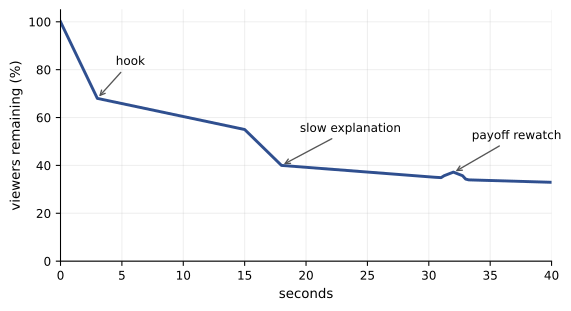
Retention curves (CRE-202) show the percentage of viewers still watching at each moment. For editing, they are diagnostic tools: a steep early drop points to the hook (Lesson 3); a sudden drop in the middle often marks a slow section, an unclear moment or a point where viewers feel the promise has been delivered; a gentle steady decline is normal; and bumps upward show moments that viewers rewatch, often the payoff or a surprising moment. Comparing retention curves of similar videos reveals which editing choices keep viewers. Many creators annotate the curve against their timeline, noting what happened at each drop and what they could change next time.
Trimming ruthlessly
The single most effective editing technique for short form is cutting. Remove anything that does not move the video forward:
- Pauses, breaths and filler words such as "um", "so" and "basically" between and within sentences.
- Greetings, introductions and repeated context.
- Steps or details that viewers can infer.
- The setup frames at the start of each clip and the dead frames at the end.
- Repeated points, even if well said.
- Anything after the payoff that does not add value.
A useful exercise is to edit a video, then try to cut another 20 % without losing anything essential. Often the result is better. Silence-removal tools in editing apps automatically cut pauses in speech, a useful starting point, though they can create choppy results that need adjustment.
Cutting on rhythm
Rhythm makes edits feel natural. Cuts timed to the beat of music, to the rhythm of speech or to actions in the footage feel satisfying, while cuts that fall randomly feel jarring. Techniques include cutting on downbeats or accents in the music, using beat-detection markers in editing apps; cutting at the end of a spoken phrase or on a key word; cutting on action, in the middle of a movement such as a hand lifting or a door opening (CRE-130 Lesson 11); and cutting on sound effects, such as a click, a pop or a whoosh. Varying the rhythm, rather than cutting at exactly the same interval throughout, keeps edits from feeling mechanical.
Controlling pace
Pace is the perceived speed of a video, controlled by shot length, the amount of change between shots, speech speed, music tempo and the density of information. Short-form content is generally fast, but pace should vary with purpose:
- Fast pace, with shots of one to two seconds, suits energy, comedy, montages and process compressions.
- Medium pace, with shots of two to four seconds, suits tutorials and explanations where viewers need to follow steps.
- Slower moments, with shots of four seconds or more, suit payoffs, emotional beats, satisfying visuals and moments viewers need to absorb.
Contrast between fast and slow sections creates emphasis: a rapid montage followed by a slow-motion reveal makes the reveal land. A video that is uniformly fast can feel exhausting; one that is uniformly slow loses viewers.
| Section | Typical shot length | Purpose |
|---|---|---|
| Hook | 0.5–2 seconds per shot | Grab attention, establish promise |
| Montage or process | 0.5–1.5 seconds | Compress time, build momentum |
| Explanation or steps | 2–4 seconds | Allow comprehension |
| Payoff or reveal | 2–5 seconds, often slow motion | Let the reward land |
| Ending | 1–2 seconds | Finish quickly, loop or prompt |
Jump cuts, punch-ins and speed ramps
Jump cuts, which remove pieces of continuous footage, are standard in talking-head short videos and give a brisk, energetic feel. To keep them from feeling choppy, alternate between the original framing and a digital punch-in, a slight zoom of 10 to 20 %, on every other cut, which makes cuts look deliberate and adds emphasis. Punch-ins also work on key words. Recording in 4K gives room for punch-ins without visible loss in a 1080 × 1920 export. Speed ramps, changing playback speed within a clip, such as slowing down at the moment of impact or speeding up a walk before slowing at the arrival, add drama and emphasis. Smooth speed ramps require footage recorded at higher frame rates, such as 60 or 120 fps (CRE-130 Lesson 7).
Worked problem
Tightening a talking-head tip
A 52-second talking-head video explaining a spreadsheet tip has pauses between sentences, a 6-second introduction and a 5-second outro. Retention drops sharply at 6 seconds and steadily afterward. How could it be edited for retention?
Show solution
- Cut the introduction and start with the most useful line: "This formula saves me an hour every week."
- Remove pauses and filler words throughout, which typically saves 15–25 % of the length.
- Alternate normal framing and 15 % punch-ins on every other jump cut.
- Replace explanation shots with screen recordings of the formula in action, with on-screen labels.
- End on the result of the formula, cutting the outro, for a final length of about 30–35 seconds.
Answer: Start with the payoff line, remove pauses, alternate punch-ins, show the screen instead of telling, and end on the result, roughly halving the length.
Building toward the payoff
Editing should create a sense of progress toward the payoff. Techniques include escalating pace or music toward the climax; using sound design, such as a riser or a pause before the reveal; cutting away just before the result to build anticipation, then revealing it; and holding the payoff long enough to be enjoyed, often with slow motion or a reaction. The payoff should arrive when the viewer expects it or slightly earlier; delaying it too long, especially after a hook promised it, causes drop-off. Many creators place a quick preview of the payoff in the first seconds, then deliver the full version at the end.
Editing for rewatches and loops
Rewatches signal strong interest and add to watch time. Editing techniques that encourage rewatching include seamless loops (Lesson 4); details that reward a second look, such as visual jokes in the background or fast text that viewers pause to read; ending at the exact moment of a punchline, so viewers rewatch to catch it; and dense information that viewers replay to follow. Use these techniques honestly: deliberately hiding information or making text unreadably fast to force rewatches frustrates viewers and may be seen as manipulative.
Avoiding over-editing
Short-form editing can easily become excessive: constant zooms, shakes, flashing text, sound effects on every cut and relentless speed. Over-edited videos can feel tiring, cheap or trend-chasing, and they may obscure the content. Rapid flashing effects also raise accessibility concerns for people with photosensitive conditions (CRE-130 Lesson 12). The right amount of editing depends on the content and audience: educational content often benefits from clean, restrained editing that keeps attention on the information; comedy and entertainment may benefit from energetic editing. A good test is to watch the edit with fresh eyes and ask whether each effect serves the viewer or merely fills time.
Templates and originality
Editing apps and platforms offer templates: pre-built edits with timed cuts, effects and music into which creators insert their own clips. Templates are fast and can help creators participate in trends, but videos built from popular templates can look generic and indistinguishable from thousands of others. Using templates as a starting point, then customizing timing, adding original elements and developing a recognizable editing style, balances speed with originality. Over time, many creators build their own templates and presets for recurring series (Lesson 10), with consistent fonts, colors, sounds and transitions that make their videos instantly recognizable.
Editing apps and workflows for short form
Short-form creators use a range of editing tools: the built-in editors in TikTok, Instagram Edits and YouTube Create; mobile editors such as CapCut, VN and InShot; and desktop editors such as Premiere Pro, Final Cut Pro and DaVinci Resolve for complex projects (CRE-130 Lesson 11). Whatever the tool, an efficient short-form workflow typically starts with a rough assembly of the selected clips in beat-sheet order, then a tightening pass that removes everything unnecessary, then a rhythm pass that aligns cuts with music and speech, then text, captions and graphics, then sound effects and mixing, and finally a review on a phone. Keeping these passes separate helps focus on one aspect of the edit at a time.
Editing for different viewing contexts
Viewers watch short videos in many contexts: on a bus with sound off, in bed with headphones, on a large tablet or on a television through casting. Edits that work across contexts use clear visuals and text, avoid tiny details that disappear on small screens, keep audio intelligible on phone speakers, and do not rely on very fast flashes that some viewers miss. Testing an edit on a small phone and on a larger screen, with and without sound, reveals problems that a desktop editing monitor hides.
Building an editing style
Over time, creators develop editing styles that become part of their identity: a particular rhythm, caption style, color grade, use of zooms, sound effects or transitions. A recognizable style helps viewers identify a creator's videos in the feed and gives series coherence. Styles should serve the content and audience: a calm, minimalist style suits educational or aesthetic content, while energetic, playful editing suits comedy and entertainment. Documenting your style in templates and presets (Lesson 12) makes it consistent and easier to hand off to an editor.
Working with editors
As creators grow, many hire editors. Successful collaboration requires clear briefs: the beat sheet or script, reference videos showing the desired style, templates and assets, brand fonts and colors, music sources and licenses, deadlines and the number of revision rounds. Feedback should be specific, with timestamps and examples, rather than general comments such as "make it pop". Editors who understand the creator's audience and analytics can contribute ideas for improving retention, so sharing results and learnings with them builds a stronger partnership.
Editing loops in practice
Creating a seamless loop takes deliberate planning in the edit. One method is to end on a frame that matches the first frame, such as finishing a pour in the same position where the video began. Another is to split a sentence across the end and beginning, so that the final words lead directly into the opening line: "...and that is why I always" at the end, followed by "keep a spare key outside" at the start. Music can help too: trimming a track so that its end flows into its beginning makes the loop feel natural. Test loops by playing the video several times in a row on a phone; a good loop makes it hard to see where the video ends.
Timing captions and text in the edit
Text and captions should be timed precisely with speech and action. Captions that appear before words are spoken spoil jokes and reveals; captions that lag behind confuse viewers. Hook text should appear on the first frame, not after a fade. When cutting quickly, adjust text timing after each change to the edit, since moving clips often leaves text out of sync. Many editors leave text and captions until the picture edit is locked, then time them in a dedicated pass.
Second opinions
Before publishing important videos, show the edit to someone who has not seen the footage and watch their reaction. Where they look away, laugh or lean in tells you more than any self-review.
Common mistakes
MistakeKeeping pauses, filler and introductions.
InsteadTrim ruthlessly and cut another 20 %.
MistakeCutting randomly against music and speech.
InsteadCut on beats, phrases and actions.
MistakeUniform pace throughout.
InsteadContrast fast sections with slower payoffs.
MistakeDelaying the payoff after the hook promised it.
InsteadDeliver on time, with a preview if needed.
MistakeEffects on every cut.
InsteadEdit with restraint so effects serve the content.
Summary and key terms
- Retention curves show where edits lose or regain viewers.
- Cutting pauses, filler and repetition is the most effective technique.
- Cuts timed to music, speech and action feel natural.
- Vary pace: fast for momentum, slower for payoffs.
- Punch-ins and speed ramps add emphasis and smooth jump cuts.
- Build toward the payoff and encourage honest rewatches.
- Avoid over-editing and customize templates for originality.
- Pace
- Perceived speed of a video.
- Rhythm
- Timing pattern of cuts.
- Cutting on the beat
- Timing cuts to musical beats.
- Punch-in
- Digital zoom between jump cuts.
- Speed ramp
- Change of playback speed within a clip.
- Riser
- Building sound that creates anticipation.
- Silence removal
- Automatic cutting of pauses in speech.
- Over-editing
- Excessive effects that distract from content.
- Template
- Pre-built edit structure.
- Retention drop
- Sudden decrease in viewers at a moment.
Practice problems
Work each problem on paper first, then reveal the answer to check.
What does a sudden mid-video retention drop suggest?
Show answer
A slow, unclear or already-delivered section.
What do upward bumps in retention show?
Show answer
Moments viewers rewatch.
Name three things to trim.
Show answer
Pauses, filler, greetings, repeated points, dead frames.
What is cutting on action?
Show answer
Cutting during a movement.
Typical shot length for a montage?
Show answer
About 0.5–1.5 seconds.
How large is a typical punch-in?
Show answer
About 10–20 %.
What footage do smooth speed ramps need?
Show answer
High frame rates such as 60 or 120 fps.
How can you build anticipation before a reveal?
Show answer
Risers, pauses, cutting away, then revealing.
Why avoid rapid flashing effects?
Show answer
They tire viewers and can affect photosensitive people.
How can templates stay original?
Show answer
Customize timing and add original elements.
Lesson quiz · 5 questions
Score 60% or more to complete this lesson.
Create a free account to save your progress, take quizzes and earn a certificate.