
COMP-101 · Lesson 10 of 12 · 22 min
Labs and hands-on practice at home
▶ Video coming soon A video version of this lesson is on the way.
Lorna's office has a shelf the rest of the team calls the museum: three retired desktop computers from the public labs, a small managed switch from a branch that was rewired, a home router still in its box, a Raspberry Pi in a plastic case, and a crate of cables. At the tenth session she carries the whole shelf to the meeting room. "Everything you need for a home lab," she says, "is either on this shelf, already in your house, or free to download." She hands Noor one of the desktops, with its storage wiped, and tells her it is on loan until she passes A+. This lesson explains why hands-on practice matters, how to build a lab cheaply and safely with physical equipment and virtual machines, and how to turn the objectives into lab exercises.
Why hands-on practice matters
Lesson 4 showed that many objectives start with "given a scenario," and lesson 5 showed that the higher-level exams include performance-based questions that simulate real tasks. Both reward people who have actually done the work. Reading that a guest Wi-Fi network separates visitors from staff devices is one thing; setting it up, connecting a phone to it and confirming that the phone cannot reach the printer is another. The second kind of learning lasts longer, transfers to unfamiliar situations, and is exactly what employers test in interviews.
Practice also builds confidence. The first time you open a computer case, change a setting in a router's administration page or type a command into a terminal, it can feel risky. In a lab, nothing important can break, so you can experiment, make mistakes and undo them. By the time you meet the same task at work or on the exam, it is familiar. Noor, who used to dread the circulation desk's receipt printer menus, says the biggest change from her first month in Library Technology Services is that she now expects to be able to figure things out.
Physical equipment
Some objectives need physical hardware, especially for A+. An old desktop computer is the most useful single item: you can take it apart, identify the components, replace memory and storage, install operating systems and break and fix the start-up process. Many organizations, schools and recyclers give away or sell retired computers cheaply; ask before buying new. A spare home router, a small switch and a few network cables let you practice addressing, wireless settings and basic troubleshooting. A single-board computer such as a Raspberry Pi is an inexpensive way to practice Linux and simple networking.
Treat physical equipment with care. Unplug a computer before opening it, and follow the electrostatic discharge precautions you will learn in A+, such as using an anti-static wrist strap. Do not open power supplies or monitors, which can hold dangerous charges even when unplugged. Wipe or remove storage from donated computers before use, and when you dispose of lab equipment, follow local electronic waste rules rather than putting it in the trash. Lorna's crate of cables comes with one rule: anything frayed or cracked goes in the recycling bin, not back in the crate.
Virtual machines
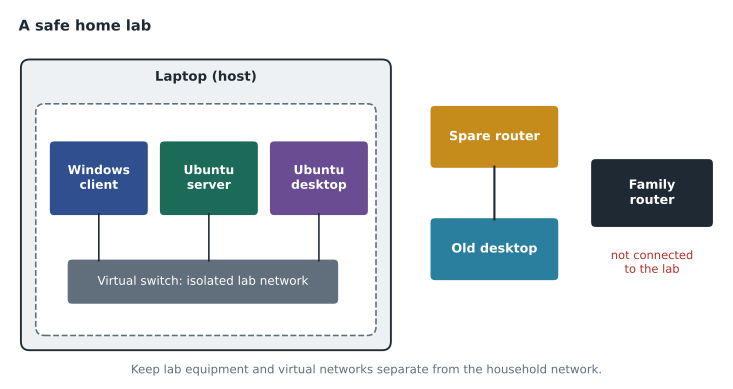
A virtual machine is a complete computer simulated in software, running inside your real computer, which is called the host. Virtualization software, also called a hypervisor, lets you create virtual machines, install operating systems in them, connect them into private networks and take snapshots that save their state so you can roll back after a mistake. Free options include VirtualBox on Windows, macOS and Linux, Hyper-V, which is built into some editions of Windows, and UTM on Apple computers with their own processors. With virtual machines, one computer can host a small network of Windows and Linux systems for practice.
The main limit is the host's resources. Each running virtual machine needs a share of the host's memory, processor and storage, and the host needs some for itself. Memory is usually the tightest constraint. Noor's home laptop has 16 GB of memory, and before she plans her lab she checks how many virtual machines it can run at once.
host_ram_gb = 16
reserve_for_host_gb = 6       # leave room for the host system and a browser
vms = {"Windows 11 client": 4, "Ubuntu server": 2, "Ubuntu desktop": 3, "Windows Server": 4}

available = host_ram_gb - reserve_for_host_gb
running, used = [], 0
for name, ram in vms.items():
    if used + ram <= available:
        running.append(name); used += ram
print("available for VMs:", available, "GB")
print("can run together:", ", ".join(running), "using", used, "GB")
print("left over:", available - used, "GB")available for VMs: 10 GB can run together: Windows 11 client, Ubuntu server, Ubuntu desktop using 9 GB left over: 1 GB
What this code does
It works out which practice virtual machines fit on a 16 GB laptop after keeping 6 GB for the host itself. It goes through the list in order and adds each machine only if its memory still fits. The output shows three machines can run together using 9 of the 10 available GB, with the Windows Server left out.
She can run a Windows client, an Ubuntu server and an Ubuntu desktop together, with 1 GB to spare, but not the Windows Server machine as well. That is enough for most Tech+ and A+ practice. For larger labs later, she can shut down machines she is not using, give each one less memory, or use one of the retired desktops from the museum shelf as a second host.
Simulators, cloud and free resources
Some practice does not need equipment at all. Network simulators let you build and configure networks of routers and switches in software. Cisco Packet Tracer is a widely used free simulator, available through Cisco's Networking Academy. Operating system trials and free editions let you practice installation and configuration: many Linux distributions are free, and Microsoft offers evaluation versions of its server software. Command-line practice needs nothing but a terminal, which every operating system includes.
Cloud providers offer free tiers and trial credits that let you practice creating virtual servers, storage and networks in the cloud. They are useful for Cloud+ and similar exams, but they come with a warning that Dez repeats every time he mentions them: set a billing alert, delete what you create when you finish, and never leave a large resource running overnight by accident. Free tiers have limits, and charges for anything beyond them can arrive weeks later. Practice cloud work in short, deliberate sessions with a cleanup step at the end.
Keep the lab safe and legal
A lab should be isolated from anything you care about. Use a separate virtual network for virtual machines, so that lab experiments cannot disrupt the household's devices, and keep physical lab equipment on its own network or disconnected from the internet when it does not need it. Do not run lab servers that are reachable from the internet unless you know how to secure them. Keep personal files off lab machines, and take snapshots before big changes so that a mistake is a two-minute rollback rather than an evening's rebuild.
Practice only on systems you own or have written permission to use. Scanning, testing or changing settings on networks and computers that belong to someone else, including your employer's systems outside your assigned duties, the library's public Wi-Fi, or a neighbor's network, can break the law and workplace policy even when the intent is innocent. Hana makes this point firmly: everything security-related in the cert club is practiced in the isolated lab, on equipment the person owns, and nowhere else.
| Need | Low-cost option | Cautions |
|---|---|---|
| Hardware practice | A retired desktop, spare cables | Unplug first, ESD care, never open power supplies |
| Several operating systems | Virtual machines on your own computer | Watch memory; take snapshots |
| Networking practice | A spare router and switch, or a simulator | Keep separate from the household network |
| Linux practice | A free distribution in a VM or on a single-board computer | Keep personal files off the lab |
| Cloud practice | Free tiers and trial credits | Billing alerts, delete resources after each session |
Turning objectives into lab exercises
The objectives checklist from lesson 4 doubles as a list of lab exercises. Go through it and mark every line that can be practiced hands-on, which for A+ and Network+ is a large share. For each one, write a short exercise in the form "do this, check that." For example: "install Ubuntu in a virtual machine; check that it gets an address from the virtual network." "Create a standard user account in Windows; check that it cannot install software." "Set up a guest Wi-Fi network on the spare router; check that a phone on it cannot reach a computer on the main network." Each exercise should end with a check, because the check is where you learn whether you understood.
Keep a lab notebook. For each exercise, write what you did, what happened, what went wrong and how you fixed it. The notebook becomes your best revision material, because it is written in your own words about your own mistakes, and it gives you concrete stories to tell in job interviews. Lorna still has her lab notebook from her A+ days, and she shows the cert club the page where she accidentally deleted a partition table and spent a Saturday learning to recover it.
Learning on the job, with permission
Your workplace can be the richest lab of all, as long as you use it properly. Real tickets bring problems no study guide predicts, and solving them under supervision is exactly the experience the recommended-experience lines on exam pages describe. Ask your manager whether you can shadow more experienced colleagues, take on tasks slightly beyond your current role, or help with projects such as a computer refresh or a network upgrade. Many managers say yes, because it develops the team. Lorna arranges for Noor to spend one afternoon a week with Dez during the Eastside branch planning, watching how he designs the addressing and asking questions.
The limits matter. Work systems belong to the employer, and changes to them follow the organization's procedures, such as change requests, approvals and maintenance windows. Never experiment on production systems, never use admin access for anything outside your assigned task, and never install tools that are not approved. If you want to try something you saw at work, recreate it in your home lab. The habit of separating learning from production is itself a professional skill that employers look for.
Free help close to home
Public libraries are a good example of free learning resources that people forget to use. Many offer free access to online learning platforms with IT courses and practice labs, loan laptops and hotspots, run digital skills classes, and host makerspaces with equipment such as single-board computers and 3D printers. Fairhaven does all of these, and Ava and Jun first learned to install Linux at a makerspace workshop. Community colleges, workforce centers and non-profit training programs often provide labs, equipment and sometimes exam vouchers for people who qualify. Before buying anything for a lab, check what is available nearby for free.
Online communities can help too, with lab guides, troubleshooting advice and encouragement. Use them like any other source: helpful, but checked against official documentation before you rely on them.
Worked problem
Designing a lab exercise
One of Noor's Tech+ objectives is about operating system features, including user accounts and permissions. Design a lab exercise for it, with a check, using her laptop and virtual machines.
Show solution
- Choose a safe environment: the Windows 11 client virtual machine, with a snapshot taken first.
- Task: create a standard user account and an administrator account, then sign in as the standard user.
- Check: try to install a program and to change a system setting as the standard user, and confirm that Windows asks for administrator approval.
- Record: write in the lab notebook what happened and why separating standard and administrator accounts improves security; then roll back to the snapshot if needed.
Answer: Snapshot, create both account types, sign in as the standard user, confirm that administrator approval is required, and record what happened and why it matters.
By the end of the week, Noor has the borrowed desktop on her spare-room desk, VirtualBox installed on her laptop with three virtual machines, and a notebook with four exercises completed. Her confidence ratings for operating systems, the area the exercises covered, have each gone up by a point.
Common mistakes
MistakeReading about scenario objectives without doing them.
InsteadTurn each one into a "do this, check that" exercise.
MistakeConnecting lab machines to the household network.
InsteadUse an isolated virtual network or separate equipment.
MistakePracticing security tools on networks you do not own.
InsteadPractice only on systems you own or have written permission to use.
MistakeLeaving cloud resources running after a session.
InsteadSet billing alerts and delete what you create each time.
MistakeOpening a power supply to see inside.
InsteadNever open power supplies or monitors; they can hold dangerous charges.
Summary and key terms
- Hands-on practice prepares you for scenario objectives and performance-based questions.
- An old desktop, a spare router and switch, and cables cover most physical practice.
- Virtual machines let one computer host several operating systems; memory is usually the limit.
- Simulators, free operating systems and cloud free tiers extend the lab at low cost.
- Keep the lab isolated, take snapshots, and practice only on systems you own or are permitted to use.
- Turn objectives into "do this, check that" exercises and keep a lab notebook.
- Home lab
- A personal set of equipment and software for practicing IT tasks safely.
- Virtual machine
- A complete computer simulated in software on a host.
- Hypervisor
- Software that creates and runs virtual machines.
- Snapshot
- A saved state of a virtual machine that can be restored later.
- Isolated network
- A network kept separate so experiments cannot affect other devices.
Practice problems
Work each problem on paper first, then reveal the answer to check.
Why is an old desktop such a useful lab item?
Show answer
You can take it apart, replace parts, install systems and break and fix it safely.
What is usually the main limit on how many virtual machines a host can run?
Show answer
Memory.
What is a snapshot for?
Show answer
Saving a virtual machine's state so you can roll back after a mistake.
Name one free network simulator.
Show answer
Cisco Packet Tracer.
What two habits prevent surprise cloud bills?
Show answer
Setting billing alerts and deleting resources after each session.
On which systems should you practice security tools?
Show answer
Only systems you own or have written permission to use.
Lesson quiz · 5 questions
Score 60% or more to complete this lesson.
Create a free account to save your progress, take quizzes and earn a certificate.