
WEB-230 · Lesson 10 of 12 · 26 min
Testing accessibility with tools and assistive technology
▶ Video coming soon A video version of this lesson is on the way.
On Thursday, February 15, Sana sets three laptops on the meeting table. One runs an automated checker, one has a screen reader running, and one has had its mouse unplugged. "Each of these finds things the others miss," she says. "Today we use all three on the portal, the partner pages and the public site, and we write down everything." Accessibility testing has the same shape as security testing: automated tools are fast and catch the obvious, and the problems that matter most are found by people working through real tasks.
What automated tools can and cannot do
Automated checkers such as axe-core (the engine inside many browser extensions and test tools), Google's Lighthouse and WebAIM's WAVE load a page and test it against rules derived from WCAG: images without alt attributes, form fields without labels, text with too little contrast, missing page language, duplicate ids, buttons with no name, and so on. They are fast, repeatable and good at finding the same mistake on many pages. They belong in CI, where a new missing label fails the build before it reaches a volunteer.
Their limit is that many criteria need judgment. A tool can tell that an image has alt text, but not whether "image123.jpg" or "photo" describes it. It can check that a heading exists, but not that the headings make sense as an outline. It cannot tell whether the focus order follows the meaning of the page, whether an error message helps, or whether a custom widget can actually be operated with a keyboard. Estimates of the share of WCAG issues that automated tools can find vary with how issues are counted, from about a third of the criteria to over half of the issues found in typical audits. Every estimate agrees on the conclusion: a clean automated report is the start of testing, not the end.
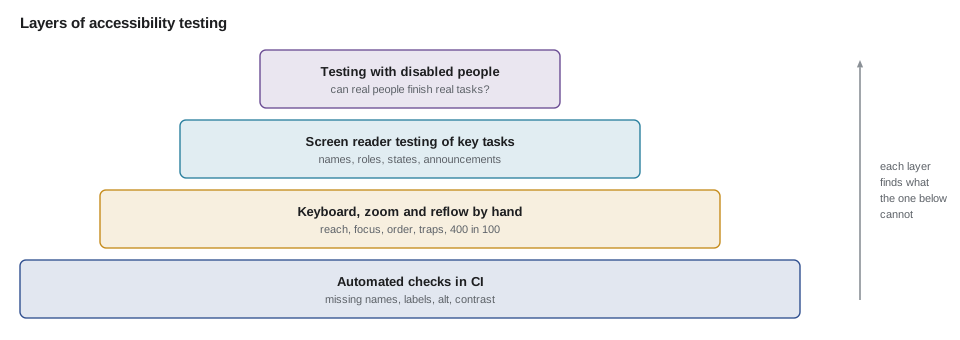
| Method | Finds | Misses |
|---|---|---|
| Automated checker | Missing names, labels and alt attributes; contrast; invalid ARIA; missing language | Quality of names and alt text, focus order, whether widgets work |
| Keyboard only | Unreachable controls, traps, invisible focus, illogical order | What a screen reader announces |
| Zoom and reflow | Text cut off, overlap, horizontal scrolling at 400 in 100 | Keyboard and screen reader problems |
| Screen reader | Missing or wrong names, roles and states; unannounced changes; confusing reading order | Problems only some users meet, such as cognitive load |
| Testing with disabled users | Whether real people can finish real tasks, and what slows them down | Rarely misses; limited by time and the number of testers |
Running a checker
axe-core cannot be installed on this review laptop today, so Sana shows a report from the run she made on staging last week, cut down to the portal's plan page. The format is typical: each violation names a rule, its impact, the WCAG criteria it relates to, and the elements that failed.
npx axe https://staging.riverside-food-hub.example/volunteer/planTesting https://staging.riverside-food-hub.example/volunteer/plan ... please wait, this may take a little while
Violation of "button-name" with 1 occurrences!
Ensure buttons have discernible text. Correct invalid elements at:
- .order-row > .remove
Violation of "color-contrast" with 2 occurrences!
Ensure the contrast between foreground and background colors meets WCAG 2 AA minimum contrast ratio thresholds. Correct invalid elements at:
- input[name="phone"]::placeholder
- .footer-note
Violation of "image-alt" with 1 occurrences!
Ensure <img> elements have alternative text or a role of none or presentation. Correct invalid elements at:
- .plan-header > img
3 Accessibility issues detected.What this code does
The report groups problems by rule, gives each an impact from minor to critical and lists the elements that failed. Three rules fail on this page, and together they are most of what Beatrix met. A real report also lists the rules that passed and the checks that need a human to decide.
The tool did not report the shift tiles at all. They are div elements with text, and a div with text is perfectly valid HTML; nothing marks it as a control, so the tool has nothing to check. This is the most important lesson of the morning: the problem that stopped Beatrix was invisible to the checker.
Looking at the accessibility tree
What a screen reader announces comes from the accessibility tree described in lesson 9, and browsers can show it. Chrome's and Firefox's developer tools have an accessibility panel, and Playwright, which the studio already uses for end-to-end tests from JS-210, can print a compact ARIA snapshot of any part of a page. Mira uses it to compare the plan page before and after the fix, and to check the keyboard order by pressing Tab in a real browser.
// aria-check.mjs: what does Chromium's accessibility tree say about the plan page?
import { chromium } from 'playwright';

const before = `<!doctype html><html lang="en"><title>Plan</title><main>
<h1>Your hamper drive plan</h1>
<div class="tile" onclick="t(17)">Sat Dec 16, 9:00–12:00 · Packing</div>
<div class="tile" onclick="t(18)">Sat Dec 16, 13:00–16:00 · Packing</div>
<img src="leaf.svg">
<div class="btn" onclick="save()">Save plan</div></main>`;

const after = `<!doctype html><html lang="en"><title>Plan</title><main>
<h1>Your hamper drive plan</h1>
<fieldset><legend>Packing shifts, Saturday December 16</legend>
<label><input type="checkbox" name="shifts" value="17" checked> 9:00–12:00</label>
<label><input type="checkbox" name="shifts" value="18"> 13:00–16:00</label></fieldset>
<img src="leaf.svg" alt="">
<button type="submit">Save plan</button>
<p role="status">1 shift chosen</p></main>`;

const browser = await chromium.launch();
const page = await browser.newPage();
for (const [name, html] of [['before', before], ['after', after]]) {
  await page.setContent(html);
  console.log(`--- ${name}`);
  console.log(await page.locator('main').ariaSnapshot());
}

// Press Tab three times on the fixed page and record where focus lands.
await page.setContent(after);
console.log('--- Tab order after the fix');
for (let i = 1; i <= 3; i++) {
  await page.keyboard.press('Tab');
  const where = await page.evaluate(() => {
    const e = document.activeElement;
    return `${e.tagName.toLowerCase()}[${e.type}] ${(e.labels?.[0] ?? e).textContent.trim()}`;
  });
  console.log(`${i}. ${where}`);
}
await browser.close();$ node aria-check.mjs
--- before
- main:
- heading "Your hamper drive plan" [level=1]
- text: Sat Dec 16, 9:00–12:00 · Packing Sat Dec 16, 13:00–16:00 · Packing
- img
- text: Save plan
--- after
- main:
- heading "Your hamper drive plan" [level=1]
- group "Packing shifts, Saturday December 16":
- text: Packing shifts, Saturday December 16
- checkbox "9:00–12:00" [checked]
- text: 9:00–12:00
- checkbox "13:00–16:00"
- text: 13:00–16:00
- button "Save plan"
- status: 1 shift chosen
--- Tab order after the fix
1. input[checkbox] 9:00–12:00
2. input[checkbox] 13:00–16:00
3. button[submit] Save planWhat this code does
Before the fix, the shifts and the save control appear only as text, and the image is an unnamed img, which is exactly what Beatrix heard. After the fix, the shifts are named checkboxes inside a named group, the decorative image has vanished from the tree, the button has a role and a name, and the status message is exposed. The Tab presses confirm that a keyboard reaches both checkboxes and then the button, in visual order.
A snapshot like the after version can be saved and compared in an end-to-end test, so that a later change that turns a checkbox back into a div fails CI. Sana adds three such tests: the plan page, the sign-up form and the order screen.
Checks you can automate yourself
Some checks are simple enough to write as part of the team's own tests, using the parsed structure of a page. Two of Sana's favourites look for heading levels that skip, such as an h2 followed by an h4, and for images whose alt text is missing or useless.
// Find heading-level jumps in a page outline.
const headings = [
  { level: 1, text: 'Volunteer with us' },
  { level: 2, text: 'Upcoming shifts' },
  { level: 4, text: 'Saturday December 16' },
  { level: 2, text: 'Your plan' },
  { level: 3, text: 'Packing' },
  { level: 1, text: 'Contact' },
];

function headingProblems(list) {
  const problems = [];
  if (list[0]?.level !== 1) problems.push('page does not start with h1');
  list.forEach((h, i) => {
    if (i > 0 && h.level > list[i - 1].level + 1) problems.push(`h${list[i - 1].level} -> h${h.level} at "${h.text}"`);
  });
  const h1s = list.filter((h) => h.level === 1).length;
  if (h1s > 1) problems.push(`${h1s} h1 headings`);
  return problems;
}

console.log(headingProblems(headings).join('\n') || 'no problems');h2 -> h4 at "Saturday December 16" 2 h1 headings
What this code does
The function walks the headings in page order and reports any heading more than one level deeper than the one before, which breaks the outline screen reader users navigate by. It also checks that the page starts with a single h1. Going back up levels, from h3 to h2, is normal and is not reported.
// Images: missing alt, empty alt on informative images, and alt text that says nothing.
const USELESS = /^(image|photo|picture|img|graphic|logo)$|\.(jpe?g|png|svg|webp)$/i;
const images = [
  { src: 'kitchen-team.jpg', alt: 'Rosa and two trainees plating soup at the lunch counter', decorative: false },
  { src: 'leaf.svg', alt: '', decorative: true },
  { src: 'garden-2028.jpg', alt: 'photo', decorative: false },
  { src: 'map.png', decorative: false },
  { src: 'IMG_4471.jpg', alt: 'IMG_4471.jpg', decorative: false },
  { src: 'divider.svg', alt: 'decorative line', decorative: true },
];

for (const img of images) {
  let verdict = 'ok';
  if (img.alt === undefined) verdict = 'missing alt attribute';
  else if (img.decorative && img.alt !== '') verdict = 'decorative: use alt=""';
  else if (!img.decorative && img.alt.trim() === '') verdict = 'informative image with empty alt';
  else if (USELESS.test(img.alt.trim())) verdict = 'alt text says nothing';
  console.log(img.src.padEnd(18), verdict);
}kitchen-team.jpg ok leaf.svg ok garden-2028.jpg alt text says nothing map.png missing alt attribute IMG_4471.jpg alt text says nothing divider.svg decorative: use alt=""
What this code does
Each image is classified by whether it carries information, which a person must decide, and the code then applies the rules. A missing alt attribute is always wrong, because screen readers fall back to reading the file name. Generic words and file names are caught as useless, while decorative images should have an empty alt so they are skipped entirely.
Testing by hand: keyboard, zoom and reflow
The laptop without a mouse is the cheapest test there is. Sana's keyboard checklist takes ten minutes per page and finds a surprising amount.
| Check | How | Food Hub result |
|---|---|---|
| Every control can be reached | Tab and Shift+Tab through the page | Order row remove buttons reachable; old shift tiles were not |
| Focus is always visible | Watch for the focus indicator at every step | Lost on the public site's donate button, which removed its outline |
| Order makes sense | Focus follows reading order | The partner page jumps to the footer and back |
| No keyboard traps | Tab out of every widget, including dialogs (Escape) | The map embed on the contact page traps focus |
| Controls work | Enter and Space on buttons, arrows in radio groups and menus | Fine after the fix |
| Skip link | First Tab shows a link to skip to the main content | Present on the public site, missing in the portal |
Zoom and reflow come next. Criterion 1.4.10 asks that content works at a width of 320 CSS pixels without scrolling in two directions, which is what a 1280-pixel-wide window looks like at 400 in 100 zoom, and 1.4.4 asks that text can be resized to 200 in 100 without losing content. Mira zooms each page to 400 in 100. The portal and the public site reflow well, thanks to JS-250's work on layout, but the partner order table overflows; it needs to become a list of cards on narrow screens. Text spacing, criterion 1.4.12, is tested by applying a small style sheet that increases line and letter spacing; two buttons with fixed heights clip their labels.
Testing with screen readers
Screen reader testing needs some practice, because the tools are designed for experts. The common combinations are NVDA with Firefox or Chrome on Windows (free and widely used), JAWS with Chrome on Windows (commercial, common in workplaces), VoiceOver with Safari on macOS and iOS (built in), and TalkBack with Chrome on Android (built in). WebAIM's long-running survey of screen reader users shows NVDA and JAWS as the most used on desktop and VoiceOver on mobile, so the review tests the key tasks with NVDA and Firefox, and with VoiceOver on an iPhone.
Sana writes the tasks rather than the pages: sign up as a new volunteer; choose a hamper-drive plan; change a shift; for agencies, place an order with a dietary form; for kitchen staff, read the board. For each task, the tester listens for whether every control has a sensible name, role and state, whether the reading order makes sense, whether errors are announced, and whether changes such as "Plan saved" are spoken. Navigation by headings and by landmarks, the main, nav and footer regions, is how most screen reader users move around, so pages need both.
// Turn the testing log into the findings list, with WCAG criteria and severity.
const log = [
  { task: 'choose a plan', tool: 'NVDA', issue: 'Shift tiles announced as clickable, no name or state', sc: '4.1.2', blocks: true },
  { task: 'choose a plan', tool: 'keyboard', issue: 'Shift tiles not reachable with Tab', sc: '2.1.1', blocks: true },
  { task: 'place an order', tool: 'zoom 400', issue: 'Order table needs horizontal scrolling', sc: '1.4.10', blocks: false },
  { task: 'sign up', tool: 'axe', issue: 'Placeholder text contrast 3.03:1', sc: '1.4.3', blocks: false },
  { task: 'read the board', tool: 'VoiceOver', issue: 'New orders not announced', sc: '4.1.3', blocks: false },
  { task: 'contact', tool: 'keyboard', issue: 'Map embed traps focus', sc: '2.1.2', blocks: true },
];

const severity = (f) => (f.blocks ? 'critical' : 'serious');
const rows = log.map((f, i) => ({ id: `A${i + 1}`, ...f, severity: severity(f) }))
  .sort((a, b) => (a.severity === b.severity ? a.sc.localeCompare(b.sc) : a.severity === 'critical' ? -1 : 1));
for (const r of rows) console.log(r.id, r.severity.padEnd(8), r.sc.padEnd(6), r.issue);
console.log(`${rows.filter((r) => r.severity === 'critical').length} findings stop a task completely`);A2 critical 2.1.1 Shift tiles not reachable with Tab A6 critical 2.1.2 Map embed traps focus A1 critical 4.1.2 Shift tiles announced as clickable, no name or state A3 serious 1.4.10 Order table needs horizontal scrolling A4 serious 1.4.3 Placeholder text contrast 3.03:1 A5 serious 4.1.3 New orders not announced 3 findings stop a task completely
What this code does
Each entry from the testing sessions records the task, the method that found it and the WCAG criterion. A finding that stops someone finishing a task is critical; the rest are serious. Sorting puts the blockers first, which is the order Paul's report will use.
Testing with disabled people
The most valuable test is the one Beatrix gave the studio for free in January. Sana's recommendation to Paul is that the Food Hub pay disabled volunteers for an hour of testing before each major release, as many organizations now do, with Beatrix and two others who use a screen magnifier and switch access already willing. Testing with people is not a replacement for knowing the guidelines; it is how the team finds out whether following them was enough.
Accessibility also needs a way for users to report problems. The public site gets an accessibility statement page that says which standard the Food Hub aims for, what is known not to meet it yet, and how to ask for help or report a problem by e-mail or phone. Criterion 3.2.6, Consistent Help, asks that such help appears in the same place on every page, so the link goes in the footer of every site.
Worked problem
How long will manual testing take?
Sana estimates 10 minutes of keyboard checks and 5 minutes of zoom checks per page, and 25 minutes of screen reader testing per task. The review covers 14 pages and 6 tasks, and each task is tested with two screen readers. How many hours of manual testing is that?
Show solution
- Keyboard and zoom: 14 pages × (10 + 5) minutes = 210 minutes.
- Screen readers: 6 tasks × 2 screen readers × 25 minutes = 300 minutes.
- Total: 210 + 300 = 510 minutes.
- In hours: 510 ÷ 60 = 8.5 hours.
Answer: About eight and a half hours, a little more than a day for one person. The automated checks take minutes, which is why they run in CI, but they would have missed the problem that mattered most.
Common mistakes
MistakeTreating a clean automated report as proof of accessibility.
InsteadUse it as the first layer, then test with keyboard, zoom, screen readers and people.
MistakeTesting pages one by one without tasks.
InsteadTest real tasks from start to finish, the way volunteers and staff use the site.
MistakeUsing a screen reader with the screen on and the mouse in hand.
InsteadNavigate the way users do: by keyboard, headings and landmarks, listening rather than looking.
MistakeWriting alt text such as photo or the file name.
InsteadDescribe what the image conveys, or use alt="" for decorative images.
MistakeFixing a reported problem without a test.
InsteadAdd an automated check or an accessibility-tree snapshot so the problem cannot return.
Summary and key terms
- Accessibility testing uses layers.
- Automated checkers such as axe-core, Lighthouse and WAVE quickly find missing names, labels, alt attributes and contrast problems and belong in CI, but they cannot judge the quality of names, focus order or whether a custom widget works, and they missed the problem that stopped Beatrix.
- The browser's accessibility tree, viewed in developer tools or as a Playwright ARIA snapshot, shows what assistive technology receives.
- Manual testing with a keyboard checks reach, visible focus, order, traps and skip links; zoom to 400 in 100 checks reflow.
- Screen reader testing with NVDA, JAWS, VoiceOver or TalkBack follows real tasks and listens for names, roles, states and announcements.
- Testing with disabled people shows whether it all works in practice, and an accessibility statement gives users a way to report problems.
- Automated checker
- A tool, such as axe-core or WAVE, that tests a page against machine-checkable accessibility rules.
- ARIA snapshot
- A text outline of the accessibility tree, such as the one Playwright prints, used to inspect or test what assistive technology receives.
- Keyboard trap
- A component that keyboard focus can enter but not leave.
- Reflow
- Content adapting to a narrow width, such as 320 CSS pixels, without two-way scrolling.
- Landmark
- A region of the page, such as main, nav or footer, that screen reader users can jump between.
- Skip link
- A link at the start of a page that moves keyboard focus straight to the main content.
- Accessibility statement
- A page explaining which standard a site aims for, known gaps, and how to get help or report problems.
Practice problems
Work each problem on paper first, then reveal the answer to check.
Why did the automated checker not report the shift tiles?
Show answer
A div containing text is valid HTML, and nothing marked it as a control, so there was nothing to check.
What does a 320 CSS pixel width correspond to?
Show answer
A 1280-pixel-wide window zoomed to 400 in 100.
Why test tasks rather than pages with a screen reader?
Show answer
Problems often appear in how steps connect, such as unannounced changes after an action.
What should decorative images have?
Show answer
An empty alt attribute, so screen readers skip them.
Try it yourself
Heading jumps
Complete jumps(levels), where levels is an array of heading levels in page order such as [1, 2, 4]. Return an array of strings like h2->h4 for every heading more than one level deeper than the heading before it.
Return an empty array when there are no jumps.
function jumps(levels) {
  return [];
}

console.log(jumps([1, 2, 4, 2, 3, 5]).join(', '));
console.log(jumps([1, 2, 3, 2, 2]).length);
console.log(jumps([2, 4]).join(', '));
Try it yourself
Alt text check
Complete altProblem(img). Return missing if img.alt is undefined, decorative needs empty alt if img.decorative is true and alt is not empty, informative needs text if it is not decorative and alt is empty, file name if the alt text ends in .jpg, .png or .svg (any case), and ok otherwise.
Check in that order.
function altProblem(img) {
  return img.alt ? 'ok' : 'missing';
}

const imgs = [
  { alt: 'Volunteers packing hampers', decorative: false },
  { decorative: false },
  { alt: '', decorative: true },
  { alt: 'border', decorative: true },
  { alt: '', decorative: false },
  { alt: 'DSC_0042.JPG', decorative: false },
];
console.log(imgs.map(altProblem).join(' | '));
Lesson quiz · 5 questions
Score 60% or more to complete this lesson.
Create a free account to save your progress, take quizzes and earn a certificate.