
WEB-101 · Lesson 5 of 12 · 22 min
Forms and input elements
▶ Video coming soon A video version of this lesson is on the way.
The PDF volunteer form was the part of the old site Mira knew best, because she had spent four years typing its contents into a spreadsheet. People printed it, filled it in by hand, and dropped it at the front desk. Half the email addresses were unreadable. Some people wrote their availability as "weekends mostly", others ticked every box, and a few left the whole second page blank because they never saw it. On Tuesday, October 13, Lucy Tran came to Brightwater to work through a replacement with Mira and Gareth. "Ask for less," Lucy said. "Every question I don't need is a reason for someone to give up."
This lesson builds the new volunteer sign-up form. It covers the form element and how its data is sent, the input types and other controls, labels and grouping, the browser's built-in validation, accessible error messages, and the privacy and consent rules that apply when a website collects personal information. The form sends its data to a server, which a later PHP course builds; here the focus is the HTML.
The form element
A form element groups controls and says where and how to send what the user enters. Its action attribute names the address that receives the data, and its method attribute says which HTTP method to use. With method="get", the data is added to the URL as a query string, which suits a search box: the results page can be bookmarked and shared. With method="post", the data travels in the body of the request, which suits anything that creates or changes data, such as a sign-up, and keeps personal details out of addresses, browser history and server logs.
Each control that sends data needs a name attribute. When the form is submitted, the browser collects each control's name and current value into pairs and encodes them, by default in the same name=value format used for query strings.
const data = new URLSearchParams();
data.append('first_name', 'Amara');
data.append('email', 'amara@example.com');
data.append('program', 'kitchen');
data.append('days', 'tue');
data.append('days', 'sat');
data.append('notes', 'Can drive on weekends & holidays');

console.log(data.toString());
console.log('Days chosen: ' + data.getAll('days').join(', '));first_name=Amara&email=amara%40example.com&program=kitchen&days=tue&days=sat¬es=Can+drive+on+weekends+%26+holidays Days chosen: tue, sat
What this code does
URLSearchParams builds the same encoded text a browser sends when a form is submitted. Each append adds one name and value pair; two checkboxes with the same name produce two pairs, which getAll returns together. In the encoded output, spaces become plus signs and the ampersand inside the notes is encoded so it cannot be confused with the separator between pairs. A server program reads this text back into names and values.
Labels
Every control needs a label: visible text that says what to enter, tied to the control in the code. The usual way is a label element whose for attribute matches the control's id. The connection does three things. Screen readers announce the label when the control receives focus; clicking or tapping the label moves focus to the control, which makes small checkboxes much easier to hit; and voice-control users can say "click email" to reach the field.
<label for="email">Email address</label>
<input type="email" id="email" name="email" autocomplete="email" required>
Placeholder text, the grey hint inside an empty box, is not a substitute for a label. It disappears as soon as the user types, it is often too pale to read, and some assistive technology ignores it. If a hint helps, such as the format of a phone number, put it in visible text near the label.
Input types and other controls
The input element changes with its type attribute. Choosing the right type costs nothing and helps a great deal: phones show a keyboard suited to the data, browsers check the format, and password managers and autofill know what to offer.
| Type or element | Use for | What the browser adds |
|---|---|---|
| text | Short free text such as a name | A single-line box |
| Email addresses | An @ key on phone keyboards; a format check | |
| tel | Phone numbers | A number pad on phones; no format check, because formats vary |
| number | Quantities you count, such as household size | Arrows and a numeric keyboard; min and max checks |
| date | Calendar dates | A date picker |
| checkbox | Yes or no choices, or several choices from a group | A box that can be ticked |
| radio | One choice from a small group | Round buttons; choosing one clears the others with the same name |
| password | Passwords | Hidden characters; a prompt to save in a password manager |
| select element | One choice from a longer list | A drop-down list of option elements |
| textarea element | Longer free text | A multi-line box |
| button element | Submitting the form | Submits by default; type="button" makes it do nothing until a script handles it |
Not everything that contains digits is a number. A phone number, a postal code or a card number is a string of characters that happens to use digits; nobody adds or subtracts them, and type="number" may strip leading zeros or show spinner arrows. Use type="tel" for phones and type="text" with inputmode="numeric" for codes that need a numeric keyboard.
The autocomplete attribute tells the browser what each field holds, using standard tokens such as name, given-name, email, tel, street-address and postal-code. Autofill then fills the form in one tap. It is also a WCAG requirement: success criterion 1.3.5, Identify Input Purpose, asks for it on fields that collect information about the user.
Grouping choices
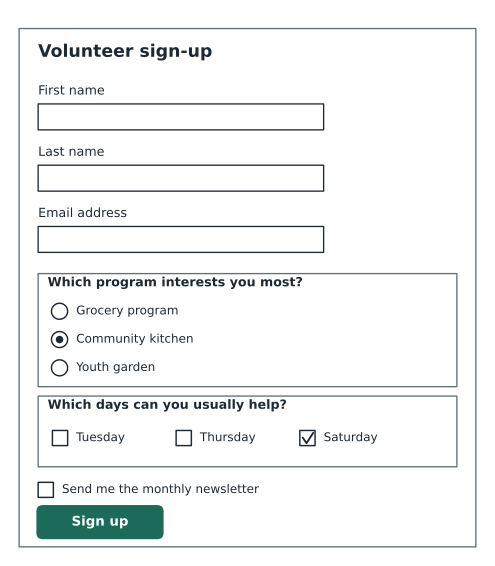
A set of radio buttons or checkboxes answers one question, so the question needs a label too. The fieldset element groups the controls and its legend gives the group's question. A screen reader then announces "Which program interests you? Group. Community kitchen, radio button, 1 of 3."
<fieldset>
  <legend>Which program interests you most?</legend>
  <input type="radio" id="prog-grocery" name="program" value="grocery">
  <label for="prog-grocery">Grocery program</label>
  <input type="radio" id="prog-kitchen" name="program" value="kitchen">
  <label for="prog-kitchen">Community kitchen</label>
  <input type="radio" id="prog-garden" name="program" value="garden">
  <label for="prog-garden">Youth garden</label>
</fieldset>

<fieldset>
  <legend>Which days can you usually help? Choose all that apply.</legend>
  <input type="checkbox" id="day-tue" name="days" value="tue">
  <label for="day-tue">Tuesday</label>
  <input type="checkbox" id="day-thu" name="days" value="thu">
  <label for="day-thu">Thursday</label>
  <input type="checkbox" id="day-sat" name="days" value="sat">
  <label for="day-sat">Saturday</label>
</fieldset>
Radio buttons in a group share the same name, so only one can be chosen and only that one's value is sent. Checkboxes may share a name too, as the days do here, and then every ticked value is sent, as the earlier JavaScript example showed.
Built-in validation
Browsers can check input before the form is sent. required means the field must not be empty. type="email" checks for an address with an @ and a domain. min, max and step limit numbers and dates; minlength and maxlength limit text; and pattern takes a regular expression that the whole value must match. If a check fails, the browser stops the submission, moves focus to the first problem and shows a message.
<label for="household">People in your household</label>
<input type="number" id="household" name="household" min="1" max="20" required>

<label for="postal">Postal code</label>
<input type="text" id="postal" name="postal" autocomplete="postal-code" required
       pattern="[A-Za-z][0-9][A-Za-z] ?[0-9][A-Za-z][0-9]">
Built-in checks help honest users fix mistakes quickly, but they are not security. Anyone can turn them off, edit the page, or send a request without using the form at all. The server must check every value again before trusting it, a rule the PHP courses return to often. Client-side checks are for the user's convenience; server-side checks are for correctness and safety.
Accessible errors and instructions
WCAG has several criteria about forms. 3.3.1 Error Identification asks that errors be described in text, not just shown with a red border. 3.3.2 Labels or Instructions asks for labels or instructions wherever input is needed. 3.3.3 Error Suggestion asks that the message say how to fix the problem when that is known. WCAG 2.2 added 3.3.7 Redundant Entry, which says users should not have to type the same information twice in one process, and 3.3.8 Accessible Authentication (Minimum), which says signing in must not depend on a memory or puzzle test unless there is an alternative, such as letting password managers paste.
<label for="email">Email address</label>
<p id="email-hint">We only use this to confirm your shifts.</p>
<input type="email" id="email" name="email" autocomplete="email" required
       aria-describedby="email-hint email-error" aria-invalid="true">
<p id="email-error">Enter an email address in the form name@example.com.</p>
The aria-describedby attribute lists the ids of elements that describe the control, so a screen reader reads the hint and the error after the label. aria-invalid="true" announces that the current value has a problem. When the server sends the form back with errors, the page should also show a summary at the top listing each problem, with links that move focus to the fields.
Collecting personal information lawfully
A sign-up form collects personal information: names, email addresses, phone numbers and availability. Lucy's advice to ask for less matches the law and good practice in both countries: collect only what you need, say why, keep it secure, and keep it no longer than necessary.
In Canada, the Personal Information Protection and Electronic Documents Act (PIPEDA) governs personal information that private-sector organizations collect in the course of commercial activities. The Office of the Privacy Commissioner of Canada notes that most of a non-profit's volunteer and fundraising work is not commercial activity, while selling, trading or renting donor or member lists is. The Food Hub does not sell its lists, so PIPEDA may not strictly apply to the volunteer form, but Brightwater builds every form to PIPEDA's fair information principles anyway: identify the purpose, get meaningful consent, limit collection to what the purpose needs, and safeguard what is kept. Federal privacy reform is under way: Bill C-36, the Protecting Privacy and Consumer Data Act, was tabled on June 15, 2026, and as of mid-November 2026 is still before Parliament, so PIPEDA remains the law.
The form therefore asks only for first name, last name, email, an optional phone number, program interest and usual days. Date of birth became a single checkbox, "I am 14 or older", with a note that younger volunteers sign up through a parent or guardian. A short notice above the button says what the information is for and who sees it, and links to the privacy page.
Newsletter consent
The form also offers a monthly newsletter. Email marketing has its own rules.
Canada's Anti-Spam Legislation (CASL) covers commercial electronic messages. Messages sent by a registered charity whose main purpose is raising funds are exempt, but the Food Hub newsletter also promotes paid cooking classes, so Brightwater treats it as covered. CASL requires express consent, which on a web form means an opt-in the user chooses: the newsletter checkbox must start unticked, and agreeing to volunteer cannot be bundled with agreeing to email. Each message must identify the sender, give contact information, and include an unsubscribe method that works for at least 60 days after sending and is honoured within 10 business days.
<input type="checkbox" id="newsletter" name="newsletter" value="yes">
<label for="newsletter">Send me the monthly Food Hub newsletter. You can unsubscribe at any time.</label>
Worked problem
Measuring the effect of a shorter form
The old PDF form had 22 questions. Of the 410 people who downloaded it in 2025, 148 returned it. The new form has 7 questions. In two weeks of testing with the soft launch, 96 people opened the form page and 61 submitted it. Compare the completion rates, and find how many more sign-ups the Food Hub would get from 410 interested people at the new rate.
Show solution
- Completion rate is submissions divided by people who started.
- \[148 \div 410 \approx 0.361\]
- \[61 \div 96 \approx 0.635\]
- Apply the new rate to 410 people and compare.
- \[410 \times 0.635 \approx 260, \quad 260 - 148 = 112\]
Answer: About 36 in 100 people completed the old form and about 64 in 100 complete the new one. From 410 interested people, that is roughly 260 sign-ups instead of 148, about 112 more volunteers, if the test is typical. The test is small, so Lucy agreed to check the numbers again after a full month.
Lucy read through the finished form on her phone at the meeting table. It took her 48 seconds. "The old one took me ten minutes," she said, "and I wrote it."
Common mistakes
MistakeUsing placeholder text instead of a label.
InsteadGive every control a visible label tied to it with for and id; use hints only as extra help.
MistakeUsing type="number" for phone numbers or postal codes.
InsteadUse type="tel" for phones and type="text" with inputmode="numeric" for codes.
MistakePutting radio buttons in a group with no question.
InsteadWrap the group in a fieldset with a legend that asks the question.
MistakeRelying on browser validation for security.
InsteadCheck every value again on the server; client-side checks only help the user.
MistakeShowing errors only with a red border.
InsteadDescribe each error in text, link it with aria-describedby, and say how to fix it.
MistakeTicking the newsletter box by default or bundling it with the sign-up.
InsteadUse a separate, unticked opt-in checkbox for email marketing.
MistakeAsking for information the organization does not need.
InsteadCollect only what the stated purpose requires.
Practice problems
Work each problem on paper first, then reveal the answer to check.
Build this: a required text field for the volunteer's first name, with a label, the right autocomplete token and the name first_name.
Show answer
See the model answer below: the label's for matches the input's id, and autocomplete="given-name" lets autofill offer the first name.
<label for="first-name">First name</label>
<input type="text" id="first-name" name="first_name" autocomplete="given-name" required>
Practice problems
Work each problem on paper first, then reveal the answer to check.
A search form on the Programs page should let people bookmark their results. Should it use GET or POST?
Show answer
GET, so the search words appear in the URL's query string and the results page can be bookmarked and shared.
Why is the newsletter box unticked when the page loads?
Show answer
Consent to marketing email must be a choice the user makes. Under CASL it must be express; under CAN-SPAM it is not required, but an opt-in list is better practice.
A tester turns off JavaScript and edits the HTML to remove the required attribute, then submits an empty form. What should happen?
Show answer
The server should reject the empty submission and send back a clear error. Client-side validation can always be bypassed.
Try it yourself
Check the sign-up
A server receives sign-ups as objects. Write a function problems(f) that returns a list of messages: First name is required if first_name is empty, Email must contain @ if the email has no @ sign, and Choose at least one day if days is empty.
Print the number of problems for each of the two test sign-ups, then print each message for the second one.
function problems(f) {
  const list = [];
  // your checks here
  return list;
}

const good = { first_name: 'Amara', email: 'amara@example.com', days: ['sat'] };
const bad = { first_name: '', email: 'amara.example.com', days: [] };
console.log(problems(good).length);
console.log(problems(bad).length);
for (const message of problems(bad)) console.log(message);
Summary and key terms
- A form's action names where its data goes and its method chooses GET (data in the URL) or POST (data in the body).
- Each control needs a name to be sent and a label tied to it by for and id.
- Choose input types and autocomplete tokens that match the data; phone numbers and postal codes are not numbers.
- Group radio buttons and related checkboxes in a fieldset with a legend.
- required, min, max, minlength and pattern give quick feedback, but the server must check everything again.
- Describe errors in text, link hints and errors with aria-describedby, and follow WCAG's form criteria, including 3.3.7 and 3.3.8 from WCAG 2.2.
- Collect only the personal information you need and say why; make marketing email an unticked, separate opt-in.
- Form
- An element that groups controls and sends their values to a server.
- action
- The form attribute giving the address that receives the data.
- method
- The form attribute choosing GET or POST.
- Label
- Visible text naming a control, tied to it with for and id.
- Fieldset
- An element grouping related controls, with a legend that names the group.
- autocomplete
- An attribute telling the browser what kind of information a field holds, for autofill.
- Client-side validation
- Checks done by the browser before a form is sent; helpful but never enough on its own.
- Express consent
- Permission the person actively gives, such as ticking an unticked box.
- Personal information
- Information about an identifiable individual, such as a name or email address.
Lesson quiz · 5 questions
Score 60% or more to complete this lesson.
Create a free account to save your progress, take quizzes and earn a certificate.