
PYTH-240 · Lesson 8 of 12 · 23 min
Automating documents and PDFs
▶ Video coming soon A video version of this lesson is on the way.
Every parcel Ridgeline ships needs a packing slip, every wholesale customer gets an invoice, every month the importer receives a purchase order, and every quarter Rosa sends a short statement to the café's investors. Until now each of these documents has been made by hand from a word-processor template: open the template, type the order number, copy the lines, fix the alignment, save as PDF, rename the file, email it. With forty online orders on a busy Monday, Theo spends an hour on packing slips alone. Documents like these follow a fixed pattern filled with data that already exists in the shop, which makes them ideal for automation.
This lesson shows how to generate documents from templates and data: plain text with careful alignment, HTML that browsers display and print, Word documents with python-docx, and PDFs with reportlab. It also covers reading, merging and splitting existing PDFs with pypdf, the logic of breaking long documents into pages, and naming and filing the results so they can be found again.
The document libraries in this lesson are third-party packages that the browser Python on this page does not have, so their listings are shown without a Run button. The templating, layout and pagination logic, which is most of the work, runs here.
Templates: separating the layout from the data
The key idea of document automation is to keep the layout, which rarely changes, separate from the data, which changes with every document. A template is the layout with named placeholders where the data goes. Python's standard library has a simple template class, string.Template, whose placeholders are written as a dollar sign followed by a name. To keep this page free of that symbol in plain text, the listing builds the placeholder marker from a variable; in your own files you would simply type the dollar sign. substitute fills every placeholder and raises KeyError if one is missing, which is what you want for documents that must be complete. safe_substitute leaves unknown placeholders untouched instead.
from string import Template

D = chr(36)          # the placeholder sign; in a real template file you would type it directly
SLIP = Template(f"""RIDGELINE COFFEE ROASTERS        Packing slip
Order {D}order_id                     Shipped {D}shipped
Ship to: {D}name
         {D}street
         {D}city
""")

order = {"order_id": 5012, "shipped": "2026-11-09", "name": "Ana Lee",
         "street": "12 Larch Avenue", "city": "Kelowna BC V1Y 2B3"}
print(SLIP.substitute(order))
try:
    SLIP.substitute({"order_id": 5013})
except KeyError as e:
print("missing field:", e)RIDGELINE COFFEE ROASTERS Packing slip
Order 5012 Shipped 2026-11-09
Ship to: Ana Lee
12 Larch Avenue
Kelowna BC V1Y 2B3
missing field: 'shipped'For anything with loops or conditions, such as a table with one row per order line or a note that appears only for wholesale customers, a full template engine is easier. Jinja2, installed with python -m pip install Jinja2, is the most widely used. Its templates use double curly braces for values and tags such as for and if for logic, and it can escape values automatically for HTML. Flask, from PYTH-220, uses Jinja2 for its web pages, so the same skills serve both purposes.
from jinja2 import Environment, select_autoescape

env = Environment(autoescape=select_autoescape(["html"]))
template = env.from_string("""<h1>Invoice {{ invoice_no }}</h1>
<table>
{% for line in lines %}  <tr><td>{{ line.name }}</td><td>{{ line.qty }}</td><td>{{ "%.2f"|format(line.total) }}</td></tr>
{% endfor %}</table>
{% if wholesale %}<p>Wholesale terms: payment due in 30 days.</p>{% endif %}""")
print(template.render(invoice_no="W-2026-041", wholesale=True,
                      lines=[{"name": "Sunrise Blend 5 kg", "qty": 2, "total": 230.0}]))
Try it yourself
Fill a packing slip
The setup defines a Template called SLIP with the placeholders order_id, name and city. Write make_slip(order) that returns the filled slip. The order dictionary may contain extra keys, which should be ignored, and if a required key is missing the function must raise KeyError rather than producing an incomplete slip.
def make_slip(order):
    return SLIP.safe_substitute(order)

print(make_slip({'order_id': 5012, 'name': 'Ana Lee', 'city': 'Kelowna', 'email': 'ana@example.com'}))
Plain text documents and alignment
Plain text is still the right format for many documents: receipts printed on narrow thermal printers, notes attached to emails, labels, and logs that people read. Getting the columns to line up relies on the format specification mini-language from PYTH-101: {name:<20} pads text to 20 characters on the left, {total:>8.2f} right-aligns a number with two decimals, and a fixed-width layout is just a series of such fields. textwrap.fill wraps long text, such as a customer's gift message, to a given width without breaking words.
import textwrap
from decimal import Decimal

lines = [("Sunrise Blend 340 g", 2, Decimal("18.50")), ("Ethiopia Guji 340 g", 1, Decimal("22.00")),
         ("Ridgeline mug", 1, Decimal("14.00"))]
width = 40
print("RIDGELINE COFFEE ROASTERS".center(width))
print("-" * width)
total = Decimal("0")
for name, qty, price in lines:
    amount = qty * price
    total += amount
    print(f"{name:<24}{qty:>3} {amount:>12.2f}")
print("-" * width)
print(f"{'Total':<28}{total:>12.2f}")
note = "Happy birthday Sam! Enjoy the new Ethiopian, and come by the cafe for a free refill any Saturday this month."
print(textwrap.fill("Gift note: " + note, width=width, subsequent_indent=" "))RIDGELINE COFFEE ROASTERS ---------------------------------------- Sunrise Blend 340 g 2 37.00 Ethiopia Guji 340 g 1 22.00 Ridgeline mug 1 14.00 ---------------------------------------- Total 73.00 Gift note: Happy birthday Sam! Enjoy the new Ethiopian, and come by the cafe for a free refill any Saturday this month.
HTML documents
HTML is often the most practical format for documents. It displays in every browser and email program, it can be styled with CSS, and a browser can print it or save it as PDF. Generating HTML from data has one rule that must never be broken: any text that comes from outside the program, such as a customer's name, address or note, must be escaped with html.escape before it goes into the page. Otherwise a name such as <b>Bold</b> & Co would change the page, and in a web context a value containing a script would run it, which is the cross-site scripting problem PYTH-220 explained. Template engines with autoescaping do this for you; when building HTML by hand, escape every value.
from html import escape

def invoice_html(invoice_no, customer, lines):
    rows = "\n".join(
        f"  <tr><td>{escape(name)}</td><td class=\"num\">{qty}</td><td class=\"num\">{amount:.2f}</td></tr>"
        for name, qty, amount in lines)
    total = sum(amount for _, _, amount in lines)
    return f"""<!doctype html>
<html><head><meta charset="utf-8"><title>Invoice {escape(invoice_no)}</title>
<style>body {{ font-family: sans-serif; }} td.num {{ text-align: right; }}</style></head>
<body><h1>Invoice {escape(invoice_no)}</h1><p>Bill to: {escape(customer)}</p>
<table>
{rows}
  <tr><th>Total</th><td></td><td class="num">{total:.2f}</td></tr>
</table></body></html>"""

print(invoice_html("W-2026-041", "Lakeview Bistro <Kitchen> & Bar", [("Sunrise Blend 5 kg", 2, 230.00), ("Espresso Ridge 5 kg", 1, 129.00)]))<!doctype html>
<html><head><meta charset="utf-8"><title>Invoice W-2026-041</title>
<style>body { font-family: sans-serif; } td.num { text-align: right; }</style></head>
<body><h1>Invoice W-2026-041</h1><p>Bill to: Lakeview Bistro <Kitchen> & Bar</p>
<table>
<tr><td>Sunrise Blend 5 kg</td><td class="num">2</td><td class="num">230.00</td></tr>
<tr><td>Espresso Ridge 5 kg</td><td class="num">1</td><td class="num">129.00</td></tr>
<tr><th>Total</th><td></td><td class="num">359.00</td></tr>
</table></body></html>The customer name Lakeview Bistro <Kitchen> & Bar comes out as Lakeview Bistro <Kitchen> & Bar in the HTML, which a browser shows exactly as typed. The doubled curly braces in the style rule are how an f-string writes a literal brace. To turn such a page into a PDF, a script can drive a browser's print function or use a library such as WeasyPrint, which converts HTML and CSS to PDF directly and handles page breaks, headers and footers through CSS print rules.
Try it yourself
An escaped HTML table
Write html_rows(rows) that takes a list of (name, qty) tuples and returns a string of HTML table rows, one per tuple, joined with newlines, in the form <tr><td>NAME</td><td>QTY</td></tr>. Every name must be escaped with html.escape.
def html_rows(rows):
    return '\n'.join(f'<tr><td>{n}</td><td>{q}</td></tr>' for n, q in rows)

print(html_rows([('Fish & Chips <Deluxe>', 2)]))
Word documents with python-docx
Some documents must be Word files, because the recipient will edit them or because an organization requires the format. The python-docx library, installed with python -m pip install python-docx, creates and edits .docx files: headings, paragraphs, tables, page breaks and images. A common approach is to start from a template document designed in Word, with the company's styles and logo, and have the script fill it in, so that the design stays in the hands of the people who care about it.
from docx import Document
from docx.shared import Pt

doc = Document("templates/purchase-order.docx")       # styles and logo designed in Word
doc.add_heading("Purchase order PO-2026-11", level=1)
doc.add_paragraph("Supplier: Northshore Green Coffee")
table = doc.add_table(rows=1, cols=3, style="Light Grid")
for cell, text in zip(table.rows[0].cells, ("Lot", "Bags", "Price per kg")):
    cell.text = text
for lot, bags, price in (("NS-2611", 6, "9.40"), ("NS-2616", 4, "8.75")):
    row = table.add_row().cells
    row[0].text, row[1].text, row[2].text = lot, str(bags), price
doc.add_paragraph("Delivery to: Ridgeline Coffee Roasters, roastery dock").runs[0].font.size = Pt(10)
doc.save("out/PO-2026-11.docx")
Creating PDFs
PDF is the format for documents that must look exactly the same everywhere and should not be edited: invoices, statements, labels and certificates. reportlab is the long-established Python library for drawing PDFs directly: you place text, lines and images at coordinates on a page measured in points, 72 to the inch, starting from the bottom-left corner. Its higher-level part, Platypus, flows paragraphs and tables across pages automatically. For documents with rich layout, generating HTML and converting it with WeasyPrint is often simpler.
from reportlab.lib.pagesizes import letter
from reportlab.pdfgen import canvas

c = canvas.Canvas("out/label-5012.pdf", pagesize=(4 * 72, 6 * 72))     # a 4 x 6 inch shipping label
c.setFont("Helvetica-Bold", 14)
c.drawString(18, 6 * 72 - 30, "Ridgeline Coffee Roasters")
c.setFont("Helvetica", 11)
for i, line in enumerate(["Ana Lee", "12 Larch Avenue", "Kelowna BC V1Y 2B3"]):
    c.drawString(18, 6 * 72 - 70 - i * 16, line)
c.line(18, 120, 4 * 72 - 18, 120)
c.drawString(18, 100, "Order 5012   Tracking RDG10044")
c.showPage()
c.save()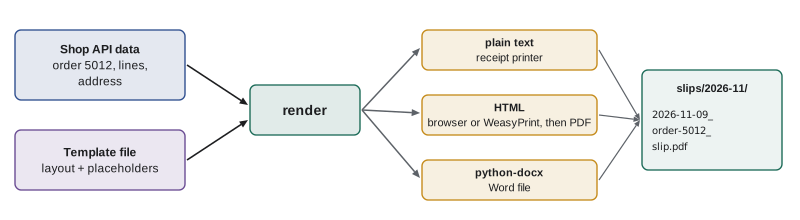
Reading, merging and splitting PDFs
Scripts often need to work with PDFs they did not create: extract the text of a supplier invoice, merge the day's packing slips into one file for the printer, split a scanned batch into separate documents, or rotate pages. The pypdf library handles these jobs. Text extraction works well for PDFs generated by programs and poorly or not at all for scanned images, which need optical character recognition, a different tool. Merging the day's slips into one file means Theo prints once instead of forty times.
from pathlib import Path
from pypdf import PdfReader, PdfWriter

writer = PdfWriter()
for path in sorted(Path("slips/2026-11").glob("2026-11-09_*_slip.pdf")):
    for page in PdfReader(path).pages:
        writer.add_page(page)
with open("print/2026-11-09_all-slips.pdf", "wb") as f:
    writer.write(f)

invoice = PdfReader("inbox/northshore-invoice-2611.pdf")
text = invoice.pages[0].extract_text()
print(len(invoice.pages), "pages;", "Total due" in text)
Breaking long documents into pages
Whatever the format, long documents must be split into pages, each with a header and usually a footer saying Page 2 of 5. The logic is simple and worth getting right in plain Python before handing it to a library: decide how many lines fit on a page after the header, slice the lines into groups of that size, and number the groups. The total number of pages is the number of lines divided by the lines per page, rounded up, which in integer arithmetic is -(-n // per_page).
def paginate(lines, per_page, title):
    pages = [lines[i:i + per_page] for i in range(0, len(lines), per_page)] or [[]]
    out = []
    for number, chunk in enumerate(pages, start=1):
        out.append(f"{title}  (page {number} of {len(pages)})")
        out.extend("  " + line for line in chunk)
        out.append("")
    return "\n".join(out)

orders = [f"Order {5000 + i}: packed" for i in range(1, 8)]
print(paginate(orders, 3, "Packing list 2026-11-09"))Packing list 2026-11-09 (page 1 of 3) Order 5001: packed Order 5002: packed Order 5003: packed Packing list 2026-11-09 (page 2 of 3) Order 5004: packed Order 5005: packed Order 5006: packed Packing list 2026-11-09 (page 3 of 3) Order 5007: packed
Try it yourself
How many pages?
A printed packing list has room for per_page lines on the first page after a big header, and per_page + extra lines on every later page, which has a smaller header. Write page_count(n_lines, per_page, extra) that returns how many pages n_lines lines need. An empty list still needs one page.
def page_count(n_lines, per_page, extra):
    return n_lines // per_page

print(page_count(25, 10, 5))
Naming and filing the results
A thousand generated PDFs are only useful if people can find the right one. Choose a file name pattern that sorts well and says what the document is: an ISO date first, then the kind of document, then the identifier, such as 2026-11-09_order-5012_slip.pdf. Put documents in folders by type and month, such as slips/2026-11. Make names safe for every operating system by removing characters such as slashes, colons and question marks, which customers' names often contain, and never overwrite an existing invoice silently: an invoice number should be used exactly once, so a script that finds the file already there should stop and report it.
import re, unicodedata

def safe_name(text, max_len=40):
    text = unicodedata.normalize("NFKD", text).encode("ascii", "ignore").decode()
    text = re.sub(r"[^A-Za-z0-9]+", "-", text).strip("-").lower()
    return text[:max_len] or "unnamed"

for customer in ("Lakeview Bistro <Kitchen> & Bar", "Café Nord / Downtown", "???"):
print(f"2026-11-09_invoice-W-2026-041_{safe_name(customer)}.pdf")2026-11-09_invoice-W-2026-041_lakeview-bistro-kitchen-bar.pdf 2026-11-09_invoice-W-2026-041_cafe-nord-downtown.pdf 2026-11-09_invoice-W-2026-041_unnamed.pdf
Common mistakes
MistakeBuilding documents by concatenating strings throughout the code.
InsteadKeep the layout in a template and pass the data in.
MistakeUsing safe_substitute for documents that must be complete.
InsteadUse substitute, which raises an error when a field is missing.
MistakeInserting customer text into HTML without escaping it.
InsteadEscape every outside value with html.escape or use autoescaping templates.
MistakeExpecting text extraction to work on scanned PDFs.
InsteadScans are images; they need optical character recognition.
MistakeCalculating page counts with plain division.
InsteadRound up: -(-n // per_page), and remember a different first page.
MistakeSaving files under customer-typed names, or overwriting old invoices.
InsteadBuild safe, dated names and refuse to overwrite an existing document.
Summary and key terms
- Document automation separates a fixed template from changing data.
- string.Template fills named placeholders; substitute insists on every field, safe_substitute does not.
- Jinja2 adds loops, conditions and HTML autoescaping for richer templates.
- Plain text uses format specifications for alignment and textwrap for long text.
- HTML documents must escape outside values; WeasyPrint or a browser can turn them into PDF.
- python-docx creates Word files, reportlab draws PDFs and pypdf reads, merges and splits them.
- Paginate by slicing and rounding up, and file documents under safe, dated, sortable names.
- template
- A document layout with named placeholders for data.
- placeholder
- A marked spot in a template where a value is inserted.
- Jinja2
- A Python template engine with loops, conditions and autoescaping.
- escaping
- Rewriting special characters so they display instead of acting as markup.
- python-docx
- A library for creating and editing Word .docx files.
- reportlab
- A library for drawing PDF documents.
- pypdf
- A library for reading, merging, splitting and rotating PDF files.
- point
- The PDF unit of length, 1/72 of an inch.
- pagination
- Splitting a long document into numbered pages.
- OCR
- Optical character recognition, turning images of text into text.
Practice problems
Work each problem on paper first, then reveal the answer to check.
What does Template.substitute do when a placeholder has no value?
Show answer
It raises KeyError.
How does an f-string write a literal curly brace?
Show answer
By doubling it: {{ or }}.
What does html.escape("Tea & <Cake>") return?
Show answer
"Tea & <Cake>"
How many pages do 31 lines need at 10 lines per page?
Show answer
4
Why put the ISO date first in a file name?
Show answer
So files sort into date order alphabetically.
Why might text extraction return nothing from a supplier's PDF?
Show answer
It is a scanned image, which needs OCR.
Lesson quiz · 5 questions
Score 60% or more to complete this lesson.
Create a free account to save your progress, take quizzes and earn a certificate.