
MSBA-301 · Lesson 6 of 12 · 19 min
Inputs, outputs and environment
▶ Video coming soon A video version of this lesson is on the way.
By early October the team had three working actions, each written a little differently. markdown-guard read its inputs through the inputs context and wrote outputs with echo. trail-units used the toolkit. pdf-proof received its inputs as command-line arguments. When Lena tried to write a fourth action that combined parts of all three, she kept tripping over the details: why an input name with a hyphen behaved oddly in a shell script, why a multi-line output came out truncated, why a message she meant to show as an error appeared as plain text. Priya decided the team needed one session on the plumbing.
This lesson covers how values get into and out of an action: inputs and the environment variables that carry them, outputs and environment files, workflow commands for logging and annotations, job summaries, masking secrets, and passing tokens. The GH-200 outline lists implementing workflow commands within actions as its own objective, and the material here is the same whichever type of action you write.
How inputs reach an action
A workflow passes inputs to an action with the with keyword. What happens next depends on the type of action. In a composite action, steps read inputs through the inputs context in expressions. In JavaScript and Docker container actions, the runner sets an environment variable for each input: INPUT_ followed by the input id in upper case, with any spaces replaced by underscores. An input called path becomes INPUT_PATH, and one called max-gain-ratio becomes INPUT_MAX-GAIN-RATIO.
That hyphen is the oddity Lena hit. Most shells cannot refer to a variable whose name contains a hyphen, so a shell script inside a container action cannot simply read INPUT_MAX-GAIN-RATIO as a variable. JavaScript has no such problem, which is one reason the toolkit's getInput exists: it builds the variable name for you and reads it from the process environment. In a container action, the usual answer is to pass hyphenated inputs as arguments through args, as pdf-proof does, or to give inputs names with underscores.
When the caller does not supply an input, the runner uses the default from the metadata file, so the environment variable still exists with the default value. When there is no default and the caller does not supply a value, the variable is empty. That is why an action's own code should check any input it cannot do without.
| Action type | How inputs arrive | Example for input max-gain-ratio |
|---|---|---|
| Composite | The inputs context in expressions | inputs.max-gain-ratio inside an expression |
| JavaScript | Environment variables, read with core.getInput | core.getInput with the id max-gain-ratio |
| Docker container | Environment variables, and arguments if args refers to them | INPUT_MAX-GAIN-RATIO, or an argument from args |
Environment files
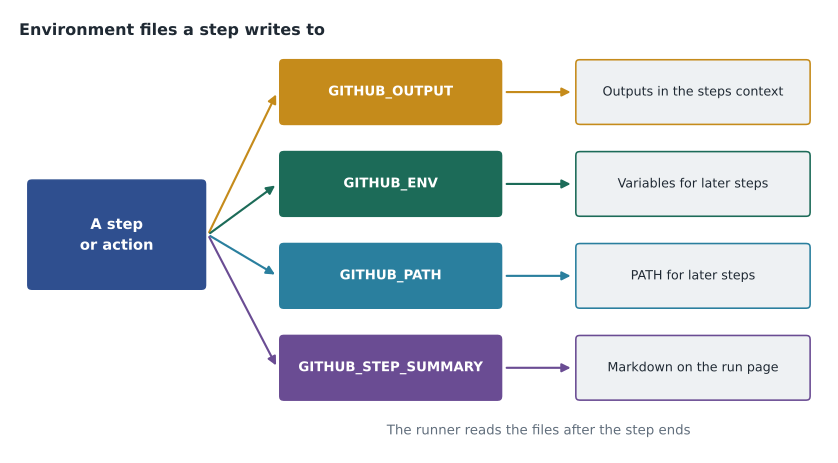
Steps talk to the runner through a set of environment files. The runner creates each file before a step runs and puts its path in an environment variable. A step appends lines to the file, and when the step finishes the runner reads them and acts on them. This mechanism replaced older workflow commands such as set-output, which GitHub deprecated in 2022 because commands printed to the log could be spoofed by untrusted text in the same log.
| Variable | Purpose | Effect |
|---|---|---|
| GITHUB_OUTPUT | Set outputs of the current step | Values available as steps.<id>.outputs.<name> afterwards |
| GITHUB_ENV | Set environment variables | Available to later steps in the job, not to the current step |
| GITHUB_PATH | Add a directory to the PATH | Applies to later steps in the job |
| GITHUB_STEP_SUMMARY | Write Markdown to the job summary | Shown on the run's summary page |
| GITHUB_STATE | Save state for the action's pre or post script | Read by the same action's later scripts |
Each line written to GITHUB_OUTPUT or GITHUB_ENV has the form name=value. A value that spans several lines needs a different form: the name, two less-than signs and a delimiter, then the lines, then the delimiter on its own line. The delimiter must not appear in the value. Lena's truncated output came from writing a multi-line Markdown report with the simple form, which kept only the first line. Using a random delimiter for each value, rather than a fixed word such as EOF, is the safest choice when the value contains text the action did not write itself.
# Single-line output
echo "problems=3" >> "$GITHUB_OUTPUT"

# Multi-line output with a random delimiter
delim="EOF_$(openssl rand -hex 8)"
{
  echo "report<<$delim"
  cat report.md
  echo "$delim"
} >> "$GITHUB_OUTPUT"

# Environment variable for later steps, and a tool directory on the PATH
echo "TRAIL_DATA_VERSION=2026.10" >> "$GITHUB_ENV"
echo "$HOME/.local/trail-tools/bin" >> "$GITHUB_PATH"
Two behaviours surprise people. A variable written to GITHUB_ENV is not visible in the step that wrote it, only in later steps. And from a composite action, writes to GITHUB_ENV and GITHUB_PATH affect the rest of the calling job, because composite steps are part of that job. That is useful for a setup action and a hazard for any other: an action that quietly changes the PATH can break unrelated steps that run after it. Tidewater's actions wrote to GITHUB_ENV only when that was their documented purpose.
Workflow commands
Workflow commands are special lines that a step prints to standard output. Each begins with two colons, a command name and, for some commands, parameters, followed by two more colons and a message. The runner recognizes them in the log stream and acts on them. They work from any kind of step: a run step, a composite action's script, a JavaScript action through the toolkit functions that print them, or a container's entry point.
| Command | Toolkit equivalent | What it does |
|---|---|---|
| ::debug::message | core.debug | A message shown only when step debug logging is on |
| ::notice ...::message | core.notice | A notice annotation, optionally on a file and line |
| ::warning ...::message | core.warning | A warning annotation |
| ::error ...::message | core.error | An error annotation (does not by itself fail the step) |
| ::group::title and ::endgroup:: | core.group, core.startGroup | Folds the log lines between them into a section |
| ::add-mask::value | core.setSecret | Masks the value wherever it appears later in the log |
The annotation commands take optional parameters, written between the command name and the second pair of colons, separated by commas: file, line, endLine, col, endColumn and title. With a file and line, the annotation appears on that line in a pull request's changed files and in the run summary. An error annotation does not fail the step on its own; the step fails only when its process exits with a non-zero code. That is the trap Lena fell into: her message appeared as plain text because she had written a single colon after error, so the runner did not recognize the command, and even a correct error command would not have failed the step without a failing exit code.
echo "::group::Checking trail distances"
echo "::error file=data/trails/fundy-coast.json,line=42,title=Wrong unit::Segment 3 uses mi; route data must be in km"
echo "::warning file=data/trails/cape-split.json,line=18::Elevation gain looks high for this segment"
echo "::endgroup::"
exit 1
GitHub limits how many annotations a single step and a single job can display, so an action that may find hundreds of problems should annotate the most important ones and put the full list in the job summary. Dmitri's trail-units annotated errors first and warnings only while there was room, then wrote a table of every problem to the summary.
Job summaries
The job summary is Markdown that steps write to the file named by GITHUB_STEP_SUMMARY. GitHub shows it on the workflow run's summary page, under the job. It is the best place for a readable report: a table of results, links to artifacts, a short explanation of what failed and what to do next. The toolkit's core.summary object builds summaries with methods for headings, tables, lists and links, and writes them with one call. There is a size limit for each step's summary, so a very long report belongs in an artifact with a link from the summary.
Priya set a rule for the team's actions: every action that checks something writes a summary that a non-developer can understand. Owen, the content operations lead, reads the guidebook repository's pull requests but not raw logs. A summary line saying that three chapters had broken links, with the chapter names and the links, was useful to him; a log full of linter output was not.
Secrets, masking and tokens
Values that come from the secrets context are masked in the log automatically: if a step prints one, the log shows asterisks instead. Values an action derives are not masked until the action registers them, with core.setSecret in JavaScript or the add-mask command elsewhere. An action that exchanges a credential for a short-lived token, as the deployment action in lesson 12 does, must mask the new token immediately, before anything could print it.
Masking is a safety net, not a design. It works on exact strings, so a secret that is transformed, for example encoded or split across lines, may slip past it. The better design is not to print secrets at all and to pass them only where they are needed, through inputs or environment variables, never on a command line where process listings could show them.
Many actions need a token to call the GitHub API. The common pattern is an input named token whose default is the github.token expression, which is the job's GITHUB_TOKEN. Callers who need more access can pass a different token; everyone else gets the job's token without writing anything. The workflow's permissions block decides what that token can do, so the action's README should list the permissions it needs, such as pull-requests write for commenting.
inputs:
  token:
    description: Token used to comment on the pull request
    default: ${{ github.token }}
  report-path:
    description: Path to the report file to post
    required: true
Worked problem
Fixing Lena's combined action
Lena's fourth action wrote a multi-line report as report=, followed by the text, to GITHUB_OUTPUT; set an environment variable with GITHUB_ENV and read it in the next line of the same script; and printed ":error:Data check failed" before exiting with code 0. What three changes fix it?
Show solution
- Write the multi-line report with the delimiter form, name<<delimiter, the lines, then the delimiter.
- Use the value directly in the same step; GITHUB_ENV changes are visible only to later steps.
- Write the command with two colons on each side, ::error::Data check failed, and exit with a non-zero code if the step should fail.
Answer: Use the multi-line form for the output, do not expect GITHUB_ENV in the same step, and fix the command syntax and the exit code.
Default environment variables
Every step, including every action, receives a set of default environment variables describing the run: GITHUB_REPOSITORY for the owner and repository name, GITHUB_SHA for the commit, GITHUB_REF for the branch or tag, GITHUB_EVENT_NAME and GITHUB_EVENT_PATH for the triggering event and the file holding its full payload, GITHUB_WORKSPACE for the workspace path, RUNNER_OS for the operating system and RUNNER_TEMP for a temporary directory that is emptied at the end of each job. Actions use them instead of asking callers to pass the same facts as inputs.
RUNNER_TEMP deserves a habit of its own. Files an action needs only while it runs, such as a downloaded tool or a credentials file, belong in RUNNER_TEMP rather than in the workspace, where they might be committed or uploaded by a later step by accident. The deployment action in lesson 12 writes its short-lived credentials there and deletes them in its final step.
Choosing between inputs, environment variables and files
An action can receive information in three ways: inputs, environment variables set by the caller, and files in the workspace. Inputs are the documented contract and should carry anything a caller is expected to choose. Environment variables suit values that many steps share, such as a proxy setting, or secrets the caller prefers not to pass as inputs. Files suit anything large or structured, such as a configuration file or a list of paths. Tidewater's convention was that every action documents its inputs in the metadata file and README, reads no undocumented environment variables except the default ones GitHub sets, and accepts a configuration file path as an input when its settings outgrow a handful of inputs. That kept each action's behaviour visible in the workflow that called it, where a reviewer would see it.
Common mistakes
MistakeReading a hyphenated input as a shell variable inside a container action.
InsteadPass it as an argument through args, read it with the toolkit, or name inputs with underscores.
MistakeWriting a multi-line value with the single-line name=value form.
InsteadUse the delimiter form, ideally with a random delimiter.
MistakeExpecting an error annotation to fail the step.
InsteadExit with a non-zero code, or use core.setFailed, to fail the step.
MistakePrinting a derived token before masking it.
InsteadMask derived secrets with core.setSecret or add-mask immediately, and avoid printing them at all.
Summary and key terms
- Composite actions read inputs through the inputs context; JavaScript and Docker actions receive INPUT_ environment variables.
- GITHUB_OUTPUT, GITHUB_ENV, GITHUB_PATH, GITHUB_STEP_SUMMARY and GITHUB_STATE are environment files a step appends to.
- Multi-line values need the delimiter form; GITHUB_ENV changes apply only to later steps.
- Workflow commands such as ::error::, ::group:: and ::add-mask:: are printed to standard output; error annotations do not fail a step by themselves.
- Job summaries give readable reports on the run page.
- Mask derived secrets, default token inputs to github.token and document the permissions an action needs.
- Environment file
- A file named by a variable such as GITHUB_OUTPUT that a step writes to so the runner acts on its contents.
- Workflow command
- A specially formatted line printed to standard output that the runner acts on.
- Job summary
- Markdown written to GITHUB_STEP_SUMMARY and shown on the run's summary page.
- Masking
- Replacing a secret value with asterisks wherever it appears in the log.
- GITHUB_TOKEN
- The token GitHub creates for each job, available as github.token.
- RUNNER_TEMP
- A temporary directory on the runner that is emptied at the end of each job.
Practice problems
Work each problem on paper first, then reveal the answer to check.
What environment variable carries an input named fail-on-warning to a JavaScript action?
Show answer
INPUT_FAIL-ON-WARNING.
When does a value written to GITHUB_ENV become visible?
Show answer
In the steps that run after the step that wrote it.
What fails a step that prints an error command?
Show answer
A non-zero exit code; the error annotation alone does not.
Lesson quiz · 5 questions
Score 60% or more to complete this lesson.
Create a free account to save your progress, take quizzes and earn a certificate.