
MSBA-301 · Lesson 2 of 12 · 20 min
Action metadata files
▶ Video coming soon A video version of this lesson is on the way.
Lena volunteered to build the first action, the Markdown check, and Priya suggested she start not with the steps but with the contract. "Write down what a workflow author has to give it and what they get back," she said. "If you can't explain that in the metadata file, you don't understand the action yet." That file, action.yml, is where every custom action begins, whatever type it is.
This lesson covers the metadata file in detail: its required and optional keys, how inputs and outputs are declared, the three forms of the runs section, branding for Marketplace, and how files are laid out in an action repository. The GH-200 outline lists this under defining action structure and metadata, and it is one of the most testable areas of the exam because questions can show a fragment of YAML and ask what it does or what is wrong with it.
The file and its name
Every action has exactly one metadata file, named action.yml or action.yaml, in the directory that the uses reference points to. For an action published to GitHub Marketplace that directory must be the root of the repository. For an action stored in a subdirectory, such as a local action under .github/actions/markdown-guard or one of several actions in a shared repository, the file sits in that subdirectory. If both names exist in the same directory, that is a mistake to avoid; keep one.
The file is ordinary YAML. Indentation matters, keys are case-sensitive, and strings can usually be written without quotes, although quoting values that contain colons, hash signs or leading special characters avoids surprises. A metadata file is short. Even a complex action rarely needs more than 60 lines.
Required and optional top-level keys
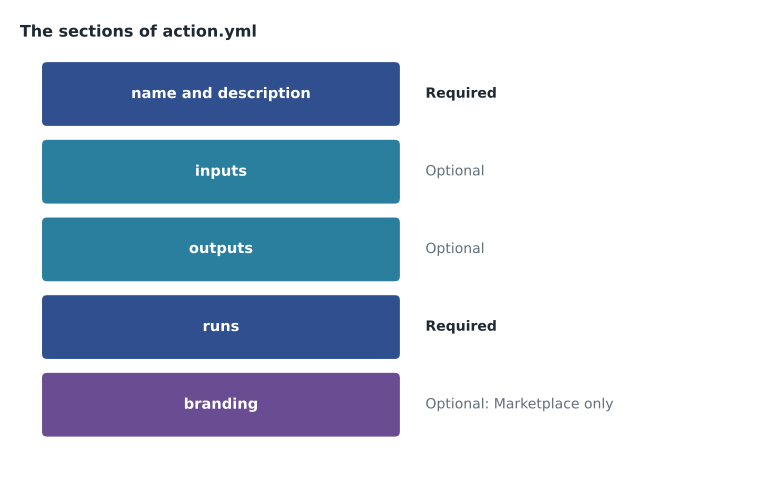
Three top-level keys are required: name, description and runs. The name is the human-readable name of the action. It appears in the logs, and for a Marketplace action it becomes the listing name, which must be unique. The description is a short sentence saying what the action does. The runs section says what kind of action this is and how to start it.
Several more keys are optional. author records who wrote the action. inputs declares the parameters the action accepts. outputs declares the values it produces. branding sets the icon and colour shown on a Marketplace listing. An action that takes no inputs and produces no outputs, such as a simple setup step, needs only the three required keys.
| Key | Required | What it holds |
|---|---|---|
| name | Yes | The action's display name; unique on Marketplace |
| description | Yes | A short sentence describing the action |
| runs | Yes | The type of action and how the runner starts it |
| author | No | The person or organization that wrote it |
| inputs | No | The parameters callers pass with the with keyword |
| outputs | No | The values later steps can read |
| branding | No | Icon and colour for a Marketplace listing |
Declaring inputs
Each entry under inputs has an input id, the name a caller uses after with, and a small map of properties. The description property is required and explains what the input is for. required says whether the caller must supply a value. default gives a value to use when the caller does not supply one. deprecationMessage marks an input that is being retired; when a workflow uses it, the runner shows the message as a warning in the log so callers know to change their workflow.
Input ids should be lowercase, with hyphens or underscores between words. At run time the runner makes each input available to the action, and for JavaScript and Docker actions it does so through an environment variable whose name is INPUT_ followed by the input id in capital letters. An input called fail-on-warning therefore arrives as INPUT_FAIL-ON-WARNING. Lesson 6 explains why that matters and how the toolkit hides it.
Declaring an input as required documents the expectation, but it is wise not to rely on it alone. The safest pattern is to give a sensible default wherever one exists, and to have the action's own code check required values and fail with a clear message when one is missing. The toolkit's getInput function does this when asked, which is why Dmitri's JavaScript action in lesson 4 checks its inputs that way.
name: Markdown guard
description: Check guidebook Markdown for style, links and trail distance formatting
author: Tidewater Trail Guides
inputs:
  path:
    description: Folder or file pattern to check
    required: false
    default: chapters
  fail-on-warning:
    description: Fail the step when warnings are found, not only errors
    required: false
    default: "false"
  link-check:
    description: Deprecated. Use check-links instead.
    deprecationMessage: The link-check input will be removed in v2. Use check-links.
  check-links:
    description: Check that external links respond
    required: false
    default: "true"
outputs:
  files-checked:
    description: Number of Markdown files checked
    value: ${{ steps.check.outputs.files }}
  problems:
    description: Number of problems found
    value: ${{ steps.check.outputs.problems }}
runs:
  using: composite
  steps:
    - id: check
      shell: bash
      run: ${{ github.action_path }}/check.sh
      env:
        CHECK_PATH: ${{ inputs.path }}
        FAIL_ON_WARNING: ${{ inputs.fail-on-warning }}
branding:
  icon: book-open
  color: blue
Two details in that file deserve attention. Input values are always strings. Even though fail-on-warning is a true-or-false setting, its default is written as the string false in quotes, and the action's code compares strings. And the inputs context, which composite actions use to read their inputs, is available inside the action's own steps; the action does not need to know which workflow called it.
Declaring outputs
Outputs are declared with an output id and a description. For a composite action each output must also have a value, an expression that says where the value comes from, usually the output of one of the action's own steps. In Lena's file, the files-checked output takes its value from the files output of the step with the id check.
JavaScript and Docker actions declare outputs with only a description. Their code sets the value at run time, by writing to the file named in the GITHUB_OUTPUT environment variable, which the toolkit's setOutput function does for you. The declaration still matters: it tells callers what they can rely on, and editors and documentation tools use it.
A caller reads an action's outputs through the steps context, using the id it gave the step. If the workflow step that calls markdown-guard has the id guard, a later step can read the number of problems found as the problems output of steps.guard. Outputs are strings too, so a later step comparing the count to zero compares text unless it converts it.
The runs section
The runs section has three forms, one for each type of action. Its using key selects the form.
For a JavaScript action, using names the Node.js runtime: node24 on current runners. The main key, which is required, names the JavaScript file to run, such as dist/index.js. Two optional pairs of keys add scripts that run before and after the main script. pre names a script that runs at the start of the job, before any steps, and post names one that runs at the end of the job, after all steps, even if earlier steps failed. pre-if and post-if make those scripts conditional. A post script is how actions such as caching save their work at the end of a job.
For a Docker container action, using is docker, and the image key says which image to use: either a Dockerfile in the action's repository, written as Dockerfile or a path to one, or a published image written as docker:// followed by its name and tag or digest. Optional keys include args, a list of arguments passed to the container's entry point; env, extra environment variables; entrypoint, which overrides the image's entry point; and pre-entrypoint and post-entrypoint, which run before and after the main container.
For a composite action, using is composite, and steps lists the steps. Each step that uses run must say which shell to use, because a composite action has no job-level default shell to fall back on. Steps can also call other actions with uses. Lesson 3 covers composite actions in depth.
| runs.using | Required keys | Optional keys |
|---|---|---|
| node24 | main | pre, pre-if, post, post-if |
| docker | image | args, env, entrypoint, pre-entrypoint, post-entrypoint |
| composite | steps (each run step needs shell) | Step-level if, env, id, name, working-directory, with |
Branding
The branding section is used only by GitHub Marketplace, where it sets the badge shown on the action's listing. It has two keys. icon names an icon from the set GitHub supports, which is based on the open source Feather icon set, such as book-open, check-circle or upload-cloud. color sets the badge background from a short list of colours: white, black, yellow, blue, green, orange, red, purple and gray-dark. An action that will never be published can omit branding entirely; adding it costs nothing and makes an action easy to recognize if it is published later.
Laying out an action repository
The files around the metadata file depend on the type of action. A composite action might be no more than action.yml and a script. A JavaScript action has source files, tests, a package manifest and a compiled bundle. A container action has a Dockerfile and an entry point script.
| File or folder | Composite | JavaScript | Docker container |
|---|---|---|---|
| action.yml | Yes | Yes | Yes |
| README.md | Yes | Yes | Yes |
| LICENSE | If shared publicly | If shared publicly | If shared publicly |
| Scripts the steps call | Often | Rarely | entrypoint.sh |
| src/ and tests | Optional | Yes | Optional |
| package.json and lock file | No | Yes | Only if the code is JavaScript |
| dist/ with the bundled code | No | Yes, committed | No |
| Dockerfile | No | No | Yes, unless image uses docker:// |
GitHub's documentation recommends keeping a published action in its own repository, separate from other application code, so that its versions, tags and releases belong to the action alone. Marketplace requires it in practice, because the metadata file must be at the root and the repository should contain only the action and the files it needs. Inside a larger repository, local actions live under .github/actions, each in its own folder with its own action.yml, which is where markdown-guard started.
A repository can hold several actions in subdirectories. A step then refers to one of them with the path between the repository name and the ref, such as tidewater/actions/markdown-guard followed by the ref. That pattern suits an organization's private collection of small actions, but every action in the repository shares the same tags, so a new release of one is technically a release of all of them. Tidewater kept that in mind when it later decided to give each shared action its own repository.
Worked problem
Finding the faults in a metadata file
Lena's first draft of a second action had this runs section: using node24, with a key named script pointing at index.js, and an output called report declared with a description and a value expression. What is wrong?
Show solution
- A JavaScript action needs a main key naming the file to run; script is not a recognized key, so the runner cannot start the action.
- JavaScript actions do not take a value for outputs. The value property belongs to composite actions; a JavaScript action sets output values at run time.
- index.js at the root suggests the source file rather than a bundled file. Unless the action has no dependencies, main should point at the bundled dist/index.js, as lesson 4 explains.
Answer: Replace script with main, point it at the bundled file, and remove the value from the output declaration.
Validating a metadata file
A broken metadata file fails in an unhelpful way: the step that uses the action fails at the moment it starts, often with a message about an unexpected key or a missing value. Several checks catch problems earlier. Editors with the GitHub Actions extension validate action.yml as you type. Linters for workflow files can also check action metadata. And for a Marketplace action, the release page checks the metadata file when you choose to publish, refusing to continue until it shows that everything looks good.
The best check is a test workflow in the action's own repository that calls the action with uses: ./ on every pull request. If the metadata file is broken, that workflow fails before the change can merge. Lesson 8 builds that workflow for each of Tidewater's actions.
Quoting and other YAML traps
Most metadata problems are YAML problems rather than Actions problems. Values that look like numbers or booleans, such as 24, true or yes, are read by YAML as numbers or booleans unless they are quoted, and the runner then turns them back into strings in ways that are easy to misread. A default of 0.25 written without quotes is read as a number and arrives as the string 0.25, which is fine; a default of 010 written without quotes may not arrive as the three characters the author meant. Quoting every default that is not plain text removes the doubt. Values that begin with an asterisk, an ampersand, a curly brace or a square bracket also need quotes, because YAML gives those characters special meanings at the start of a value. And a description that contains a colon followed by a space must be quoted, or YAML reads it as a new key. Lena's checklist for metadata files ended with one line: when in doubt, quote it.
Common mistakes
MistakeLeaving out description, which is required, or misspelling runs.
InsteadInclude name, description and runs in every metadata file.
MistakeWriting a boolean default as true without quotes and comparing it as a boolean.
InsteadTreat every input and output as a string and compare string values.
MistakeGiving JavaScript action outputs a value expression.
InsteadOnly composite action outputs take value; JavaScript and Docker actions set outputs at run time.
MistakeOmitting shell on a run step in a composite action.
InsteadEvery run step in a composite action must name its shell.
Summary and key terms
- Every action has one metadata file, action.yml or action.yaml; Marketplace actions keep it at the repository root.
- name, description and runs are required; author, inputs, outputs and branding are optional.
- Inputs have a required description and optional required, default and deprecationMessage properties, and their values are always strings.
- Composite action outputs need a value expression; JavaScript and Docker actions set outputs at run time.
- runs.using is node24, docker or composite; JavaScript actions need main, container actions need image, and composite actions need steps with a shell on each run step.
- Branding sets the Marketplace icon and colour.
- Input id
- The name of an input that callers use after the with keyword.
- deprecationMessage
- An input property that warns callers in the log that the input is being retired.
- runs.using
- The key that selects the type of action: node24, docker or composite.
- main
- The required key naming the JavaScript file a JavaScript action runs.
- post script
- A script a JavaScript action runs at the end of the job, after all steps.
- Branding
- The icon and colour shown on a Marketplace listing.
Practice problems
Work each problem on paper first, then reveal the answer to check.
Which three keys must every metadata file contain?
Show answer
name, description and runs.
How does a composite action say where an output's value comes from?
Show answer
With a value expression, usually reading an output of one of its own steps.
What does the deprecationMessage property do?
Show answer
It shows a warning in the log when a workflow uses an input that is being retired.
Lesson quiz · 5 questions
Score 60% or more to complete this lesson.
Create a free account to save your progress, take quizzes and earn a certificate.