
MSBA-280 · Lesson 3 of 12 · 18 min
Business process flows for sales
▶ Video coming soon A video version of this lesson is on the way.
Ottilie's laminated sales-process card had become Kestrelbay's first business process flow in phase one: Qualify, Develop, Site visit for deals above 50,000, Propose and Close. Four weeks of real use had shown its weak spots. Fleet contracts did not need a site visit but did need a credit check before the proposal. Sellers skipped steps they thought optional, so some proposals went out without a decision maker named. And nobody could easily report how long deals sat in each stage. "The card was a reminder," Ottilie said. "I need the flow to be a guide and a measuring stick."
This lesson covers how business process flows work in Dynamics 365 Sales, how to design them for different kinds of deals, and how to use the data they record. Business process flows matter for AI as well as for discipline: stage and step data feed reports, the forecast and the Copilot summary, and a flow that sellers actually follow produces history a scoring model can learn from.
What a business process flow is
A business process flow is a guided path shown as a bar across the top of a form. It is divided into stages, and each stage holds steps, which are columns the seller should fill in. A stage can belong to a different table from the previous one, so a single flow can start on a lead and continue on the opportunity created from it. Microsoft ships a standard Lead to Opportunity Sales Process with Qualify, Develop, Propose and Close stages, and most companies copy or adapt it.
Each running instance of a flow is itself a row in a Dataverse table created for that flow. The row records the active stage, when each stage started, how long the instance has been active and its status. That is what makes a flow a measuring stick: you can build a view or report that shows how many opportunities are in Propose and how long they have been there.
Stages, steps and required steps
Each stage has a category, such as Qualify, Develop, Propose or Close. Categories map stages to the opportunity's pipeline phase, which feeds pipeline charts. A step can be marked required, which stops the seller from moving to the next stage until it is filled in. Required steps are the main tool for enforcing discipline, so Mirela used them sparingly: a rule that is required everywhere teaches sellers to type rubbish to get past it.
She agreed three required steps with Ottilie. In Develop, the decision maker must be identified. In Propose, the proposal sent date must be set. In Close, the final decision date must be set. Everything else stayed optional but visible. Steps can also be data steps (a column), action steps (a button that runs an on-demand flow, such as sending a proposal for approval) or flow steps that call a Power Automate flow when the stage is reached.
| Stage | Category | Steps | Required |
|---|---|---|---|
| Qualify (lead) | Qualify | Source, budget, purchase timeframe, existing account | Source |
| Develop | Develop | Customer need, decision maker, deal type, vessel | Decision maker |
| Site visit | Develop | Visit date, visit report attached | Visit date |
| Propose | Propose | Proposal sent, quote created, competitor | Proposal sent |
| Close | Close | Final decision date, presentation complete | Final decision date |
Branching by deal type
A business process flow can branch: a condition on a column chooses which stage comes next. Phase one had already used a branch for the site visit, which appeared only when estimated revenue was above 50,000. Mirela now added a second condition on the new Deal type column. When Deal type is Fleet contract, the flow skips the site visit and goes to a Credit check stage before Propose, with a required step for the credit decision. Refit projects keep the site visit regardless of value, because a refit is always quoted after someone has seen the dock.
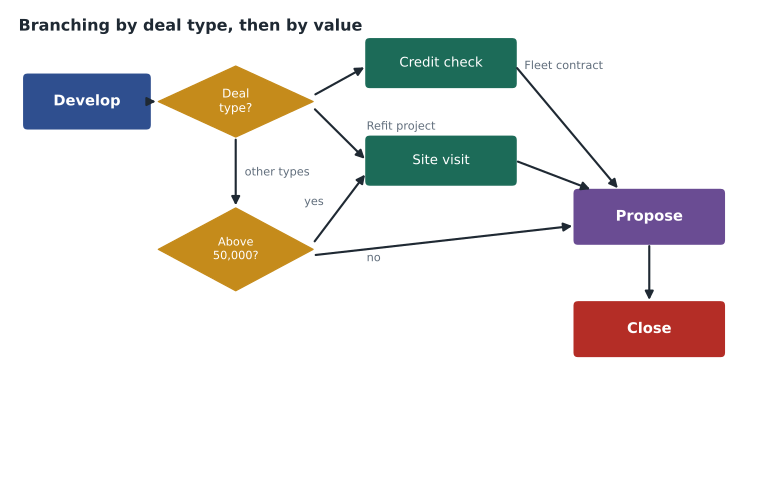
Branches have limits worth knowing. A condition can combine several rules with AND or OR, and the stages after a branch must stay on the same table or move forward to a related one. Microsoft's documented limits for a single flow are 30 stages, 30 steps per stage and five tables. Kestrelbay's flow, with seven stages across two tables, was far inside them.
One flow or several
An opportunity can have several business process flows available, and a seller can switch between them. Each flow has its own order, and the first one the user's security role allows is applied to new records. Mirela considered a separate flow for fleet contracts but chose the branch instead. One flow meant one report for stage duration across all deals, and one place to change when Ottilie changed her mind. A separate flow is better when the process is truly different, for example a renewals process that starts from an existing contract rather than a lead.
Access to a flow is controlled by security roles. Kestrelbay's sellers and sales managers could use the sales flow; the warehouse lookup role could not see it at all. That kept warehouse staff, who sometimes opened an opportunity to check a delivery date, from moving stages by accident.
Automating stage changes
Because each flow instance is a Dataverse row, a Power Automate cloud flow can trigger when the active stage changes. Mirela built two small automations in the Kestrelbay Core solution. When an opportunity enters Propose, a flow posts a message to the Sales channel in Teams with the account, estimated revenue and owner, so that Ottilie sees proposals going out without asking. When a deal sits in Develop for more than 30 days, a scheduled flow creates a task for the owner to update or close it.
Trigger: When a row is modified (Dataverse)
  Table: Kestrelbay Sales Process (business process flow table)
  Filter rows: activestagename eq 'Propose'
Condition: previous stage was not Propose
Action: Post message in a chat or channel (Teams)
  Team: Kestrelbay Sales   Channel: Proposals
  Message: New proposal for {Account}: {Estimated revenue}, owner {Owner}
Mirela warned against putting business logic only in these automations. The required steps enforce the rule; the automation just tells people. If the automation fails, the rule still holds.
Worked problem
Choosing between a required step, a business rule and a cloud flow
Ottilie wants three things: proposals must not go out without a decision maker; the discount field should lock once a quote is won; and she wants an email when a deal over 100,000 reaches Close. Which tool fits each?
Show solution
- Decision maker before Propose: a required step in the Develop stage of the business process flow.
- Locking the discount after the quote is won: a business rule on the quote form that makes the column read-only when status is Won.
- Email for big deals at Close: a Power Automate flow triggered by the stage change, with a condition on estimated revenue.
Answer: Use each tool for what it does best: process flows guide and gate stages, business rules control form behaviour, and cloud flows notify and automate.
Measuring with process data
With the revised flow live, Mirela built a view on the flow table showing active instances by stage with the time spent in the current stage, and a chart of average days per stage. After three weeks the data told a story Ottilie had suspected: deals spent more time between Site visit and Propose than anywhere else, because visit reports were written days later. She asked Joaquim to dictate visit notes in the Sales mobile app in the car park, a change covered in lesson 11.
Process data also improves the forecast and AI features. Each stage category sets the pipeline phase, so pipeline charts reflect where deals really are. The predictive opportunity scoring model can take stage and time-in-stage into account. And when Copilot summarizes an opportunity, the active stage is one of the first things it reports.
Testing and release
Mirela built and tested the changes in Kestrelbay-Test. She checked each path with a test seller account: a fleet contract, a small accessory upsell and a large refit. She also tested what happens to opportunities already in progress. A running instance keeps its current stage when the flow definition changes, but if a stage it sits in is removed, the instance must be moved. She found two open opportunities in the old Site visit stage that were really fleet contracts and moved them by hand before release.
Process flows across devices and features
A business process flow appears wherever the form appears: in Sales Hub in the browser, in the Sales mobile app and in Power Apps mobile. On a phone the stages collapse into a compact bar, so a flow with many steps per stage becomes tedious to complete in a car park. That was one more reason to keep Kestrelbay's required steps few. The flow also interacts with other features in this course. The stage category sets the pipeline phase used by the forecast and pipeline charts. Segments in the sales accelerator, covered in lesson 7, can use the active stage as a condition, which is how the Quote chase sequence knows when a deal reaches Propose.
Typical exam scenarios
Questions about business process flows often turn on a few rules. A user can switch an opportunity to another flow they have access to, and the record then shows the new flow's stages; the old instance is kept. The order of flows decides which one new records get by default. A required step blocks moving forward but does not stop the record being saved. And a business rule can make a column required on the form, which is different from making it a required step in the flow: the rule applies whenever the form is saved, while the step applies only when moving to the next stage.
| Situation | What happens |
|---|---|
| Seller switches process | New flow applies; old instance kept |
| Two flows available to a role | Flow order decides the default for new records |
| Required step empty | Record saves, but the next stage is blocked |
| Business rule makes column required | Form cannot be saved without it, at any stage |
Designing the Close stage
The last stage of a sales flow is often neglected. Kestrelbay's Close stage had three steps: final decision date (required), presentation complete and a link to the accepted quote. When the seller finished the stage, the flow offered Finish, and closing the opportunity as won or lost used the close dialog with its reasons. Mirela checked that finishing the flow did not by itself close the opportunity; sellers still closed it explicitly, so that the actual revenue and reason were always captured.
The flow and the form together
A business process flow works best when the form supports it. Mirela placed the fields that steps fill near the top of the opportunity form, so that a seller completing a stage could see the same values in the form body. She avoided repeating every step as a separate form field, because the step and the field are the same column, and showing it twice confused sellers about which to fill. For the custom Deal type and Vessel columns from lesson 2, the step in Develop became the main place to set them, with the form showing them read-only further down.
Documenting the process
Ottilie's laminated card was retired, but Mirela did not want the process to live only inside the system. She wrote a one-page process description: each stage, its purpose, its required steps, the branch rules and who to ask when a deal did not fit. New sellers read it on their first day, and it became the reference for the next change request. When Ottilie later asked to add a stage, the page made it easy to see what would change and which reports depended on the old stages.
Common mistakes
MistakeMaking most steps required.
InsteadRequire only the few steps that protect the business; leave the rest visible but optional.
MistakeBuilding a separate flow for every variation.
InsteadUse branches when deals share most stages; create a separate flow only for a truly different process.
MistakeRelying on a cloud flow to enforce a rule.
InsteadEnforce with required steps or business rules; use cloud flows to notify and automate.
MistakeChanging a flow in production without checking records in progress.
InsteadTest in a sandbox and review active instances whose stage might change.
Summary and key terms
- A business process flow guides sellers through stages and steps across one or more tables.
- Each flow instance is a Dataverse row that records the active stage and time in stage, which supports reporting.
- Stage categories set the opportunity's pipeline phase; required steps gate progress to the next stage.
- Branches choose the next stage from conditions, such as deal type or estimated revenue.
- Security roles control which flows users can use, and cloud flows can react to stage changes.
- Business process flow
- A guided set of stages and steps shown across the top of a form.
- Stage category
- The label (Qualify, Develop, Propose, Close) that maps a stage to the pipeline phase.
- Required step
- A step that must be completed before moving to the next stage.
- Branch
- A condition in a flow that chooses which stage comes next.
- Pipeline phase
- The opportunity column used in pipeline charts, set from the active stage category.
- Action step
- A step that runs an on-demand flow, such as sending a record for approval.
Practice problems
Work each problem on paper first, then reveal the answer to check.
Why can a business process flow be used for reporting?
Show answer
Each instance is a row in a flow table that records the active stage and time spent.
When is a separate flow better than a branch?
Show answer
When the process is truly different, such as a renewal that starts from an existing contract.
What are the documented limits for one business process flow?
Show answer
30 stages, 30 steps per stage and five tables.
Lesson quiz · 5 questions
Score 60% or more to complete this lesson.
Create a free account to save your progress, take quizzes and earn a certificate.