
MSBA-280 · Lesson 11 of 12 · 18 min
Sales mobile app and Teams calling
▶ Video coming soon A video version of this lesson is on the way.
In lesson 3 the process data showed that deals stalled between Site visit and Propose, because field reps wrote visit reports days later at a desk. Ottilie's fix was simple to say: capture notes at the marina, in the car park, before driving away. That needed a phone app that sellers would actually use. Meanwhile, the inside sellers had Teams calling from lesson 9 but were still learning how calls fitted into their records.
The AB-210 outline's fifth domain, extending and enhancing Sales, starts with configuring supporting apps and services: deploying and configuring the Sales mobile app, setting up Teams calling and configuring an SMS channel. This lesson covers those three, with Kestrelbay's field and inside sellers as the two kinds of user.
Two mobile options
Sellers can reach Dynamics 365 on a phone in two ways. The general Power Apps mobile app (and the older Dynamics 365 for phones experience) runs any model-driven app, including Sales Hub, with the same forms and views as the browser. The Dynamics 365 Sales mobile app is designed for sellers on the move: a home screen of upcoming meetings and recent records, quick note-taking, contact lookup and actions suited to field work. Microsoft documents both; most companies choose the Sales mobile app for field sellers and leave Power Apps mobile for people who need the full app on a tablet.
| Option | Best for | Kestrelbay use |
|---|---|---|
| Dynamics 365 Sales mobile app | Field sellers: meetings, quick notes, contacts | Joaquim and the other field reps |
| Power Apps mobile with Sales Hub | Full model-driven app on phone or tablet | Ottilie on her tablet |
| Browser on a laptop | Desk work, configuration | Inside sellers and managers |
Prerequisites for the Sales mobile app
Microsoft's setup guidance for the Sales mobile app lists a few prerequisites. For the best experience, the environment should have relevance search (Dataverse search) turned on and use Exchange Online. To set a Regarding record for a meeting from the app, server-side synchronization must be enabled and the user's mailbox approved, which lesson 1 had already done for every seller. Users need privileges in their security role: Read on the Organization table, Read on the Mailbox table and the Dynamics 365 for mobile privilege.
Mirela checked each item. Dataverse search had been on since phase one. The mailboxes were approved. The field rep security role had the Organization and Mailbox read privileges, but not the mobile privilege, because phase one had copied the role from one that did not include it. She added it in the sandbox, tested with a field rep test account on a spare phone, and moved the change to production.
Deploying and configuring the app
Field sellers install the app from the Apple App Store or Google Play and sign in with their work account. Companies that manage phones with Microsoft Intune can deploy it as a managed app and apply app protection policies, for example requiring a PIN and preventing copy and paste of customer data into personal apps; Microsoft documents how to configure the app with Intune. Kestrelbay's phones were company-owned and enrolled in Intune, so the Microsoft 365 administrator pushed the app to the field rep group with an app protection policy.
Administrators can then tailor the experience. Microsoft lists managing which forms the app uses, creating custom push notifications and configuring which tables are available for quick create. Mirela made three changes. She set the quick create tables to Note, Phone call and Opportunity, because those were what a field rep created at a marina. She made sure the opportunity form in the app showed the Deal type, Vessel and stage fields. And she created a push notification that alerted the owner when a quote they had sent was accepted.
Capturing visit notes
The behavioural change mattered more than the settings. Mirela and Joaquim agreed a routine: after every visit, before starting the engine, open the meeting in the app, dictate a note using the phone's keyboard dictation, set the outcome, and if a deal came out of it, create the opportunity from the account. The meeting's Regarding record linked the note to the right account or opportunity, which meant Copilot would include it in next month's summary.
Worked problem
A visit captured end to end
Joaquim visits Northshore Port Authority, which manages five marinas. The harbourmaster wants a quote for new fenders on two docks. What should Joaquim do in the app before leaving?
Show solution
- Open the meeting from the home screen; Regarding is set to the Northshore Port Authority account.
- Dictate a note: two docks, about 120 fenders, decision by the harbourmaster, budget approved for spring.
- Create an opportunity from the account: Deal type Accessory upsell or Refit project as agreed, estimated revenue, close date.
- Set the business process flow to Develop and record the decision maker.
Answer: The note, meeting and new opportunity are all linked to the account before Joaquim drives away. The quote chase sequence takes over once the inside team sends the quote.
Three weeks later, the average time between Site visit and Propose had fallen sharply, because visit reports arrived the same day. Ottilie stopped asking for them by email.
Teams calling in practice
Lesson 9 turned on Teams calls and recording for inside sellers. In daily use, the Teams dialer appears in Sales Hub. A seller can call a phone number on a lead, contact or account by selecting it, or dial from the sales accelerator work list when a call step is due. During the call a live transcript shows if recording is on, and the seller can take notes. When the call ends, a phone call activity is created and linked to the record, with the duration and outcome, and the call summary from conversation intelligence becomes available.
Incoming calls ring in Dynamics 365 as well as Teams when the "answer incoming calls in Dynamics 365" option is on, and the dialer looks up the caller against contacts and accounts. Internal calls ring only in Teams by default. Microsoft also notes that Teams calling for other model-driven apps is configured from the advanced settings on the Teams calls setup page, which Mirela used to make the dialer available in the Customer Service workspace for Ravi's counter team later.
| Task | Where it happens |
|---|---|
| Call a contact from a record | Phone number on the record, Teams dialer in Sales Hub |
| Make a sequence call step | Sales accelerator work list |
| Answer a customer's call | Teams dialer in Dynamics 365 (if enabled) and Teams |
| Review the call afterwards | Phone call activity and call summary |
| Extend calling to other apps | Advanced settings on the Teams calls setup page |
The SMS channel
Microsoft's outline also lists configuring an SMS channel for Sales, so that sellers can send and receive text messages from Dynamics 365 and have them recorded as activities. SMS needs an account with a supported SMS provider and phone numbers registered for business messaging, which are connected to Dynamics 365 in settings; the details and the supported providers change, so Mirela read the current Microsoft Learn guidance before planning it. Text messaging to customers also carries consent rules: customers must agree to receive texts, and opt-out requests must be honoured.
Kestrelbay decided not to use SMS in this phase. Fishing fleet captains did prefer texts, but most of those conversations were about deliveries, which belonged to the service team. Mirela recorded SMS as a candidate for the Customer Service project, where Ravi's team could use it for delivery notices with proper consent.
Teams collaboration recap
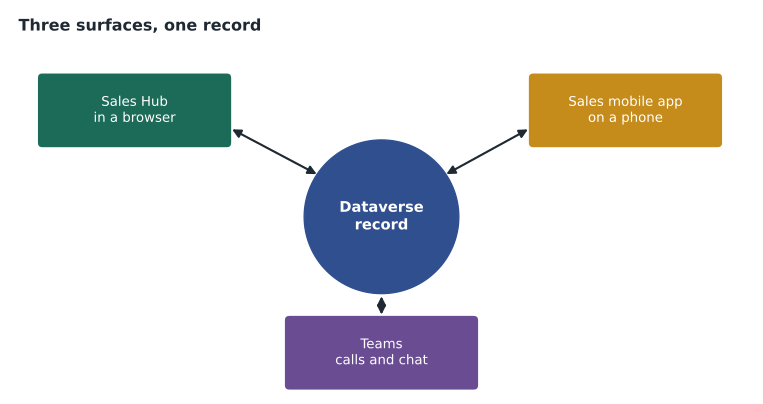
Phase one had already connected Dynamics 365 with Teams for collaboration: a seller can link a Teams channel to an account or opportunity, share a record in a chat, and see the Dynamics 365 record in Teams. With calling and the mobile app in place, Kestrelbay's sellers now worked across three surfaces: the browser for desk work, the phone for visits and Teams for calls and conversations. The record in Dataverse tied them together, which was the whole point.
Working offline
Marinas often have poor mobile coverage. Model-driven apps on mobile support offline use through a mobile offline profile, which defines which tables and which rows (for example, the user's own accounts and open opportunities) are downloaded to the device. Changes made offline synchronize when the device reconnects. Microsoft's documentation notes that users with a mobile offline profile see the Unified Interface experience in the app. Mirela created a small profile for field reps: their accounts, contacts, open opportunities, and activities from the last 90 days, which kept the download small enough for a phone.
| Offline profile table | Rows included |
|---|---|
| Account | Accounts owned by the user |
| Contact | Contacts of those accounts |
| Opportunity | Open opportunities owned by the user |
| Activities | Related activities from the last 90 days |
Troubleshooting calls
In the first week of Teams calling, three problems came up, all typical. One seller could not see the dialer: her security role was not included in the Enable for setting. Another could make calls but not record them: recording had its own Enable for list, and his role was missing from it. A third could not call customers at all: the Microsoft 365 administrator had assigned a Teams Phone licence but no phone number. Mirela added all three checks to the help desk guide, in that order.
| Symptom | Likely cause |
|---|---|
| Dialer not visible | Role not in Teams calls Enable for list |
| Calls work but no recording | Role not in recording Enable for list |
| Cannot call external numbers | No phone number or Calling Plan or Direct Routing |
| Incoming calls only ring in Teams | Answer incoming calls in Dynamics 365 not enabled, or the call is internal |
Designing push notifications
Push notifications are easy to overuse. Mirela agreed three with the field reps and no more: a quote they sent was accepted, a new opportunity was assigned to them, and a meeting for tomorrow had no Regarding record set. The last one was a nudge to link meetings before the visit rather than after, which helped Copilot's briefings. Each notification opened the relevant record directly. Anything else stayed in the app's activity feed for when the rep had time.
Mobile security
Customer data on a phone needs protecting. Kestrelbay's app protection policy, applied through Intune, required a PIN or biometric unlock to open the app, blocked copying data into personal apps, and allowed the company to wipe app data from a lost phone without touching personal photos or messages. Microsoft Entra Conditional Access, already in place from the Microsoft 365 rollout, required multifactor authentication for sign-in. Mirela confirmed with the Microsoft 365 administrator that the Sales mobile app was covered by those policies before the first field rep installed it.
| Rollout step | Who | When |
|---|---|---|
| Add mobile privilege to field rep role | Mirela | Sandbox, then production |
| Push app with protection policy | Microsoft 365 administrator | Before training |
| Thirty-minute training in the warehouse yard | Mirela and the field rep champion | Monday morning |
| First week check-in | Field rep champion | Friday |
The two kinds of seller now worked differently but recorded the same way. Inside sellers lived in Sales Hub with the work list and the Teams dialer; field reps lived in the Sales mobile app with meetings, notes and quick create. Both ended each customer interaction with the same result: an activity linked to the right account or opportunity. That consistency was what made the forecast, the scores and Copilot's summaries work for everyone, and it was the point Mirela returned to in every training session. She measured it with one view: activities created in the last week with no Regarding record, which fell to almost none within a month.
Common mistakes
MistakeRolling out the mobile app without checking the mobile privilege.
InsteadConfirm Read Organization, Read Mailbox and the Dynamics 365 for mobile privilege in each role.
MistakeLeaving all tables available for quick create on mobile.
InsteadChoose the few tables field sellers actually create on the road.
MistakeTurning on SMS without consent rules.
InsteadCollect consent and honour opt-outs before texting customers.
MistakeTreating calls as separate from records.
InsteadMake sure each call creates a phone call activity linked to the right record.
Summary and key terms
- The Dynamics 365 Sales mobile app suits field sellers; Power Apps mobile runs the full model-driven app.
- The Sales mobile app works best with Dataverse search and Exchange Online, and needs server-side synchronization and an approved mailbox for meeting Regarding.
- Users need Read on Organization and Mailbox and the Dynamics 365 for mobile privilege.
- Administrators manage mobile forms, push notifications and quick create tables; Intune can deploy and protect the app.
- Teams calling creates phone call activities on records; an SMS channel needs a provider, numbers and consent.
- Dynamics 365 Sales mobile app
- Microsoft's phone app designed for field sellers working with Dynamics 365 Sales.
- Dynamics 365 for mobile privilege
- The security role privilege that allows mobile access.
- Quick create
- A short form for creating a record quickly, configurable per table on mobile.
- Push notification
- An alert sent to the mobile app when a defined event occurs.
- Phone call activity
- The activity row created for a call and linked to the related record.
- SMS channel
- A text messaging connection, through a supported provider, that records messages as activities.
Practice problems
Work each problem on paper first, then reveal the answer to check.
Which privileges does a user need for the Sales mobile app?
Show answer
Read on the Organization table, Read on the Mailbox table and the Dynamics 365 for mobile privilege.
Why must server-side synchronization be on for meetings in the mobile app?
Show answer
To set a Regarding record for a meeting from the app.
Why did Kestrelbay postpone the SMS channel?
Show answer
Most text conversations were about deliveries, which belong to the service project, and consent had to be planned.
Lesson quiz · 5 questions
Score 60% or more to complete this lesson.
Create a free account to save your progress, take quizzes and earn a certificate.