
MSBA-280 · Lesson 10 of 12 · 18 min
Copilot record summaries
▶ Video coming soon A video version of this lesson is on the way.
Joaquim Pellerin-Sousa visits about forty marinas a month. Before each visit he used to scroll through the account timeline in the truck, reading emails and notes to remember what had happened since his last visit. "Ten minutes in a car park, every stop," he told Mirela. "That is a whole visit lost every week." Copilot in Dynamics 365 Sales can produce that briefing in seconds, as long as it has been set up to look at the right fields and the history it needs is recorded.
The AB-210 outline lists configuring Copilot features, including record summarization, among the AI-powered features of its second domain. This lesson covers how Copilot summaries work on leads, opportunities and accounts, how to turn Copilot on and control where it appears, how to choose the fields and sections a summary uses, and how sellers should use and check what it writes.
What Copilot does in Sales
Copilot in Dynamics 365 Sales appears in a side pane in sales apps such as Sales Hub, and in some places directly on forms. It can summarize a lead, opportunity or account; list recent changes to a record; summarize what has changed across a seller's deals; prepare for a meeting; help draft an email; and answer questions about the data a user can already see. It works within the signed-in user's security roles, so it never shows a seller something the seller could not open.
This course focuses on record summaries and recent changes, because they are the features the exam names and the ones Joaquim needed. The agents that act on records, such as the Sales Qualification and Sales Close agents, are covered in the next course.
Turning Copilot on for sales apps
Lesson 1 covered the environment prerequisites: a supported region or consent to cross-region data movement, Copilot turned on in the Power Platform admin center, data loss prevention policies that allow its connectors, and users in the allowed Microsoft Entra groups. Within those limits, Copilot is controlled per app in Sales Hub: select Change area, then App Settings, then Copilot under General Settings.
The All apps setting can be Default, On or Off, and each app in Individual apps can override it. Microsoft gives the example of turning All apps off and turning on only Sales Hub. A "sales app" here means an app that contains the lead and opportunity tables and is not on Microsoft's exclusion list. The app-level setting interacts with the environment setting: if a Power Platform administrator enables Copilot for the environment but a Power Apps administrator turns it off for Sales Hub, it is off in Sales Hub and on in the other sales apps.
Kestrelbay used Sales Hub for sellers and a custom Kestrelbay Warehouse app for lookups. Mirela set All apps to Off and Sales Hub to On, so that Copilot appeared only where sellers worked.
Auditing and recent changes
The recent changes list is generated from audit history. If auditing is off globally or for a table, the Recent changes tab does not appear, and the Copilot settings page shows a Turn audit on option. Adding a field from a related table to a summary also turns on auditing for that table; if the field is later removed, auditing for that table must be turned off by hand if no longer wanted. Sellers also need the View Audit History and View Audit Summary privileges at Organization level in their security role to see recent changes.
Mirela had already turned auditing on in lesson 1. She now added the two audit privileges to the seller and sales manager roles in the Kestrelbay Core solution, tested with a seller account in the sandbox, and moved the change to production.
Choosing summary fields
Administrators choose which fields Copilot uses for summaries and recent changes on leads, opportunities and accounts. In the Copilot settings page, select the table, then the Summary or Recent changes tab, then Add fields. Microsoft's documentation sets limits: a summary uses at least 4 and at most 15 fields, and recent changes uses at least 4 and at most 10. The save button is disabled outside those limits. Fields can come from the table itself or from related tables.
| Table | Summary fields chosen at Kestrelbay | Recent changes fields |
|---|---|---|
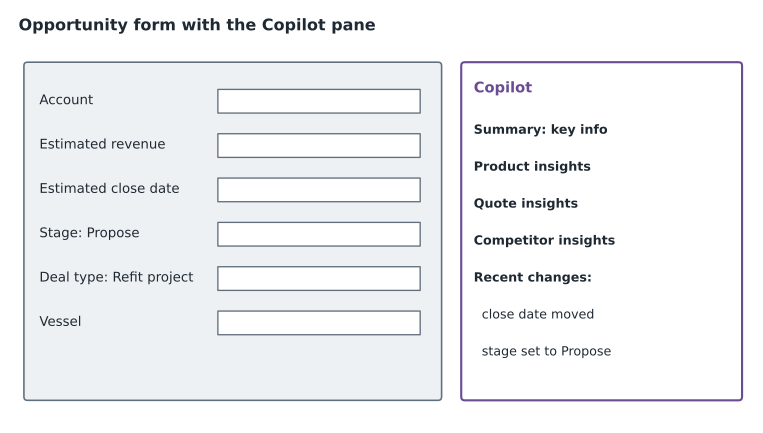
| Opportunity | Account, estimated revenue, estimated close date, stage, deal type, forecast category, decision maker, vessel, competitor, description | Estimated revenue, estimated close date, stage, forecast category, owner |
| Lead | Company, source, topic, rating, budget, purchase timeframe, berths (from account) | Status reason, rating, owner, purchase timeframe |
| Account | Account type, berths, primary contact, credit status, branch, price list | Primary contact, owner, price list, account type |
The custom columns from lesson 2 earned their place here. Deal type and Vessel told Joaquim what kind of deal it was and which boat it concerned; Berths told an inside seller how big a lead's marina was. Mirela left out the credit limit, which only finance and Ravi could see; Copilot would not show it to sellers anyway, but leaving it out avoided confusing summaries for the few people who could see it.
Related information sections
Summaries also include related information sections that the administrator can switch on or off. Microsoft lists enriched key info for all three tables, competitor insights for opportunities and leads, product insights and quote insights for opportunities, and sections for related opportunities, leads and cases on accounts. The cases section needs Dynamics 365 Customer Service, which Kestrelbay had. All are selected by default.
Mirela kept them all on for opportunities and accounts, because the product and quote insights drew on the clean catalogue from lesson 4, and the cases section on the account told a seller about an open warranty claim before he walked into a marina. For a lead processed by the Sales Qualification Agent, Copilot always shows the agent-generated summary instead of the configured lead summary fields, a detail worth knowing for phase three.
The opportunity summary widget
Copilot's summary can appear in the pane or directly on the opportunity form as a widget. The setting Show opportunity summary as a widget in the form is in the Opportunities part of the Copilot settings. Custom forms need the record summary component added manually in the Power Apps maker portal. Kestrelbay used a customized opportunity form from phase one, so Mirela added the component in the form designer, placed it at the top of the summary tab, and published.
Worked problem
Why is the summary thin?
Joaquim says Copilot's summary of the Harbour View Marina account mentions only the account type and owner, and says nothing about the recent email thread about fuel dock pumps. What should Mirela check?
Show solution
- Check that Joaquim's mailbox is synchronizing; emails not tracked to Dataverse cannot be summarized.
- Check that the emails were tracked to the account or a related opportunity with the Regarding column set.
- Check the account summary fields and related sections: is the opportunities section on?
- Check that the fuel dock opportunity exists and Joaquim can open it under his security role.
Answer: The emails had been tracked to the contact, not to the account or the opportunity. Mirela showed Joaquim how to set Regarding to the opportunity, and the next summary included the pump discussion.
Using summaries well
Mirela ran a short session for sellers on using Copilot responsibly. A summary is a starting point: read it, then open the record if anything matters. Copilot can be wrong or incomplete, especially when the history is thin. Every draft email is the seller's email once sent, so read it before sending. And use the feedback controls on Copilot responses; feedback helps Microsoft improve the feature and helps Kestrelbay see where summaries fall short.
After a month Joaquim's car park time had shrunk to a minute or two per stop. He read the summary, checked one or two emails it pointed to, and walked in. He also became the team's most careful logger of notes, because he had seen that what he recorded today became his briefing next month.
Other Copilot help for sellers
Beyond record summaries, Copilot in Sales helps sellers in several everyday ways, and the exam expects a candidate to know they exist. A seller can ask Copilot what has changed across their deals recently, get help preparing for an upcoming meeting with a summary of the account and recent activity, and draft an email reply that uses the context of the record. Copilot can also answer questions in plain language, such as which of a seller's opportunities close this month, using only the data the seller can access. The exact list of features changes with each release wave, so Mirela kept a one-page "what Copilot can do this month" note for sellers and updated it after each wave.
| Copilot help | Typical seller use |
|---|---|
| Record summary | Brief before a call or visit |
| Recent changes | See what moved on a deal since last week |
| What's new across deals | Monday morning catch-up |
| Meeting preparation | Summary before a scheduled meeting |
| Email drafting | First draft of a reply, edited before sending |
| Questions about data | Quick lists without building a view |
Measuring whether Copilot helps
Ottilie wanted to know whether Copilot was worth it. Mirela suggested measures that did not depend on any single product report: briefing time before visits (asked in a short survey), the share of opportunities with notes and stakeholders recorded, and sellers' own ratings of summary usefulness. After a month the clearest result was behavioural: sellers recorded more, because they had seen what Copilot could do with it. She was careful to report that the time savings were self-reported estimates.
Data, privacy and Copilot
Sellers asked what happens to the data Copilot reads. Mirela explained the essentials in plain terms. Copilot uses the records the seller can already see, processes the request through Azure OpenAI Service in a supported region (or another region if cross-region data movement is allowed), and returns an answer; the customer data stays in Kestrelbay's Dataverse environment. She pointed sellers to Microsoft's published responsible AI documentation for Copilot in Sales for the full details rather than paraphrasing it.
Training sellers to use Copilot
Mirela's Copilot training was short and practical. Each seller brought one real account or opportunity to the session, asked Copilot for a summary, compared it with what they knew, and found one thing missing. In almost every case the missing thing was an email tracked to the wrong record or a meeting with no notes. The lesson landed better than any slide: Copilot reflects the record, so the record is worth keeping.
| Session part | Minutes | Outcome |
|---|---|---|
| Summarize your own record | 10 | See what Copilot knows |
| Find what is missing | 10 | Spot recording gaps |
| Draft a reply and edit it | 10 | Practise reviewing drafts |
| Agree one recording habit | 5 | A personal commitment |
Copilot and the sales process
Copilot's summary reports the opportunity's stage, and sellers soon used it before each stage change, asking whether anything in the history contradicted moving forward, such as an unanswered question from the customer. Managers used summaries in the Friday review to get up to speed on deals they had not followed. Mirela was careful to frame this as preparation, not judgement: a summary helps a manager ask a better question, but the seller still knows the deal best.
Mirela also set expectations about change. Copilot's features and their settings move with each release wave, and some arrive first as previews. She subscribed to the Dynamics 365 release plans for Sales and reviewed them before each wave with Ottilie, deciding which new Copilot features to turn on in the sandbox first. That habit mattered more than any single setting, because the Copilot pane sellers saw in spring would not be the same one they saw in autumn, and nobody wanted to be surprised in front of a customer.
Common mistakes
MistakeExpecting recent changes without auditing.
InsteadTurn auditing on for the tables and give sellers the audit history privileges.
MistakeChoosing summary fields without asking sellers.
InsteadPick the 4 to 15 fields sellers actually use to brief themselves.
MistakeAssuming Copilot appears in every app once enabled.
InsteadUse the All apps and Individual apps settings to control where Copilot shows.
MistakeSending Copilot drafts unread.
InsteadRead and edit every draft; the seller owns what is sent.
Summary and key terms
- Copilot in Sales summarizes leads, opportunities and accounts and lists recent changes, within the user's permissions.
- It is controlled per app in Sales Hub App Settings, within environment settings set in the Power Platform admin center.
- Summaries use 4 to 15 chosen fields; recent changes use 4 to 10 and depend on audit history.
- Related sections add competitor, product, quote and related-record insights; cases need Customer Service.
- Sellers need audit privileges for recent changes and should check summaries and drafts before acting.
- Record summary
- A Copilot-generated overview of a lead, opportunity or account built from chosen fields and related data.
- Recent changes
- A Copilot list of changes to a record, generated from audit history.
- Audit history
- The Dataverse record of changes to rows and columns, used for recent changes.
- Related information sections
- Optional parts of a summary, such as competitor, product and quote insights.
- Summary widget
- The record summary component shown directly on the opportunity form.
- All apps setting
- The Copilot setting that turns Copilot on or off for every sales app, with per-app overrides.
Practice problems
Work each problem on paper first, then reveal the answer to check.
What is the maximum number of fields a Copilot opportunity summary can use?
Show answer
Fifteen.
Why might a seller not see the Recent changes tab?
Show answer
Auditing is off for the table or globally, or the seller lacks the audit privileges.
How did Mirela make Copilot appear only in Sales Hub?
Show answer
She set All apps to Off and turned Sales Hub On under Individual apps.
Lesson quiz · 5 questions
Score 60% or more to complete this lesson.
Create a free account to save your progress, take quizzes and earn a certificate.