
MSBA-210 · Lesson 7 of 12 · 20 min
User state migration
▶ Video coming soon A video version of this lesson is on the way.
Dr. Marguerite Ostrander-Bey, Corvallin's clinical director, had one question about the replacement laptops before she would let them near her clinical managers: what happens to everything on the old ones? Some managers kept years of files on their desktops. Others had carefully arranged browser favourites, signatures and dictionary words for clinical terms. And she wanted to be certain that client information on an old laptop would not leave the building inside a recycling bin. This lesson covers how user state moves from one device to another, the tools that do it, and how to retire the old device safely.
What user state is
User state is everything that makes a device feel like a particular person's: their files, their app settings, their Windows settings such as wallpaper, language and accessibility options, their browser data, and their credentials and certificates. It does not include the apps themselves, which are installed again on the new device, usually by Intune.
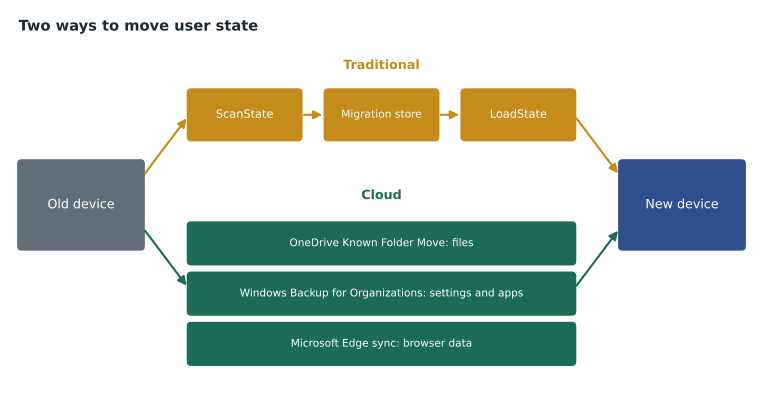
Moving user state is called user state migration. There are two broad ways to do it. The traditional way copies user state from the old device into a store and restores it on the new one with a migration tool. The cloud way keeps user state in cloud services all the time, so that a new device simply downloads it when the user signs in.
The User State Migration Tool
The User State Migration Tool (USMT) is Microsoft's command-line migration tool, included in the Windows ADK. It has two main programs. ScanState runs on the source device and collects user state into a migration store. LoadState runs on the destination device and restores it. What is collected is controlled by XML rule files: MigDocs.xml finds user documents, MigApp.xml covers settings for many common apps, and MigUser.xml covers user folders. Administrators can write custom XML for line-of-business apps and generate a Config.xml to exclude components.
REM On the old laptop, as an administrator, collect state to a share:
scanstate \\chc-fs01\usmt$\%COMPUTERNAME% /i:migdocs.xml /i:migapp.xml /o /c /v:5 /l:C:\Temp\scan.log /ue:*\* /ui:CHC\*

REM On the new laptop, after the user's account exists, restore it:
loadstate \\chc-fs01\usmt$\OLD-LAPTOP-07 /i:migdocs.xml /i:migapp.xml /c /v:5 /l:C:\Temp\load.log
USMT has options for different situations. A hard-link migration keeps the store on the same disk and is used when Windows is reinstalled on the same device, because it moves nothing and is very fast. An offline migration collects state from a Windows installation that is not running, for example from Windows PE or from the Windows.old folder after a reinstall. The store can be encrypted with a key, which is wise when it travels on a USB drive.
USMT works best with domain or local accounts on the same kind of setup. It has limitations that matter for cloud-first organizations. Moving from a domain account on an old device to a Microsoft Entra ID account on a new, Entra joined device needs careful mapping of accounts, and many organizations find it simpler to move files and settings through cloud services instead. Configuration Manager task sequences can run USMT automatically as part of a wipe-and-load, which is where it is most often used today.
Cloud-based user state
Corvallin's target state from lesson 2 had every device Entra joined and every user's files in OneDrive, so Ama planned a cloud path for user state. It has three parts.
| User state | Cloud service | How it is set up |
|---|---|---|
| Files in Desktop, Documents and Pictures | OneDrive Known Folder Move | An Intune policy silently moves these folders into OneDrive for the signed-in user |
| Windows settings and Microsoft Store app list | Windows Backup for Organizations | Intune settings turn on Windows Backup on devices and show the restore page during setup |
| Browser favourites, passwords and settings | Microsoft Edge sync | Edge signs in with the work account and syncs under organization policy |
| Microsoft 365 Apps settings and signatures | Microsoft 365 cloud settings | Stored with the user's account and applied when they sign in |
OneDrive Known Folder Move redirects the Desktop, Documents and Pictures folders into the user's OneDrive, so their contents are stored in the cloud and appear on any device the user signs in to. Files On-Demand keeps disk use low by downloading files only when opened. Ama turned Known Folder Move on for the old Windows 10 laptops a month before replacement, so that by the time the new laptops arrived, every manager's desktop files were already in OneDrive.
Windows Backup for Organizations extends the Windows Backup app to work and school accounts. With it turned on through Intune, devices back up the user's Windows settings and the list of Microsoft Store apps they use to the cloud. When the user sets up a new or reset device, Windows offers to restore that backup. Microsoft first offered the restore during the out-of-box experience on Entra joined devices, and in 2026 added a restore experience at first sign-in, so more devices can use it. Implementing Windows Backup by using Intune is one of the skills listed for MD-102 under deploying and upgrading Windows clients.
Setting it up takes two Intune configurations: a settings catalog policy that enables Windows Backup on devices, and the Windows Backup and Restore setting in Windows enrollment, which shows users the restore page during setup. Microsoft's documentation lists the supported Windows versions and scenarios, which have widened over time.
Worked problem
Was OneDrive big enough?
Dr. Ostrander-Bey's twelve clinical managers had an average of 18 GB of files on their old desktops and in Documents, and the largest had 74 GB. Corvallin's Microsoft 365 E3 licences include 1 TB of OneDrive storage per user. Would Known Folder Move fit, and how much total data would move?
Show solution
- The largest single user needs 74 GB, well under 1 TB (about 1,000 GB).
- Total for twelve managers: 12 x 18 = 216 GB.
- At the branch office's upload speed the move would take days, so Ama started it a month ahead.
Answer: Storage was not a problem: 74 GB is a small fraction of a 1 TB allowance, and the group moved about 216 GB in total. Upload time, not space, set the schedule.
What is not migrated
No method migrates everything, and the plan should say so. Apps are not migrated by either approach; they are installed fresh. Local printers are replaced by the printers Intune assigns to the new device. Certificates and Wi-Fi profiles are issued again by Intune. Data stored somewhere unusual, such as an old app's database in a folder on the C: drive, is not covered by Known Folder Move. Ama asked each manager to tell her about any such app during the month before replacement, and found two: a spreadsheet macro library and an old drug-interaction reference that had been retired years ago and was simply deleted.
Retiring the old device
Once the user confirms that everything they need is on the new device, the old one must be retired safely. For a device managed by Intune, the Wipe action resets it to factory settings and removes all data, and the device record can then be deleted from Intune and Entra ID. If the device is registered for Autopilot and is being reused elsewhere in the organization, its registration stays; if it is leaving the organization, its Autopilot registration should be deleted too, so that it does not reappear under Corvallin's control for its next owner.
Dr. Ostrander-Bey's concern about client information was well founded. Devices that leave the organization should have encrypted disks, which BitLocker provides on every Corvallin device, so that even an incomplete wipe leaves no readable data. Corvallin's recycling contract required certified data destruction of every disk, and the IT office kept a register of serial numbers, wipe dates and destruction certificates. That register satisfied the privacy officer's audit under the provincial health information law that apply to the agency.
| Step | Action | Done by |
|---|---|---|
| 1 | User confirms files, favourites and settings on the new device | User and help desk |
| 2 | Old device kept powered off for two weeks in case something was missed | Help desk |
| 3 | Wipe from Intune; confirm the wipe completed | Help desk |
| 4 | Delete the device from Intune and Entra ID; delete the Autopilot registration if the device leaves the organization | Endpoint administrator |
| 5 | Send the device for certified disk destruction or approved resale; record the certificate | IT manager |
Planning a migration
Whichever tools are used, a migration plan answers the same questions: what each user needs to keep, where it is now, how it will move, and how the user will confirm it arrived. Ama ran a short survey of the 140 branch users before the project. Most kept everything in OneDrive already; 23 had files on the desktop or in Documents that were not yet synchronized; 6 used an app that kept data locally; and 2 had personal photos on their work laptops, which agency policy did not allow and which they were asked to remove.
| User state found | Number of users | How it moved |
|---|---|---|
| Files already in OneDrive | 109 | Nothing to do |
| Desktop and Documents files not yet synchronized | 23 | Known Folder Move turned on a month ahead |
| App data stored locally | 6 | Exported by each user with the app's own export function, then imported on the new device |
| Personal files not allowed on work devices | 2 | Removed by the users before replacement |
The numbers add to 140, the full set of branch users. Planning by category kept the work proportional: most users needed nothing, and the help desk could spend its time on the six with local app data.
USMT in more depth
When USMT is the right tool, a few options matter. The /c switch tells ScanState and LoadState to continue past non-fatal errors, such as a locked file, rather than stopping. The /v switch sets the logging level. The /ue and /ui switches exclude and include user profiles, which is how an administrator avoids migrating dozens of stale profiles from a shared device. The /uel switch excludes profiles not used for a set number of days. The /encrypt switch encrypts the store with a key, and LoadState needs the same key with /decrypt.
Worked problem
How big will the store be?
A shared desktop at head office has 14 user profiles. Only 5 have been used in the last 90 days, and each of those holds about 6 GB of data. The other 9 hold about 3 GB each. How much smaller is the store if ScanState excludes profiles unused for 90 days?
Show solution
- All profiles: 5 x 6 + 9 x 3 = 30 + 27 = 57 GB.
- Recent profiles only: 5 x 6 = 30 GB.
- Saving: 57 - 30 = 27 GB.
Answer: Excluding stale profiles with /uel:90 cuts the store from about 57 GB to 30 GB, saving 27 GB and a good deal of copy time.
USMT is supported for migrations to Windows 11 from supported versions of Windows, and a new USMT version comes with each ADK release. It migrates user accounts it is told to include, and it can create local accounts on the destination if asked. What it cannot do is turn a domain profile into an Entra ID profile by magic; when the account type changes, the files move into the new profile but some app settings tied to the old identity may not carry over.
Testing the restore
The best test of a migration is a real user doing a real task on the new device. During the pilot, Ama asked each pilot user to open their three most-used files, send an email with their signature, open a favourite website from Edge and print one page. Anything that failed went onto a checklist for the remaining rings. That checklist found one surprise: Outlook signatures created before 2024 had been stored only on the old laptop, not in the cloud. The users recreated them, and the help desk added a reminder to the setup leaflet.
Privacy during migration
User state can contain personal and client information, and moving it is a privacy question as much as a technical one. A USMT store on a file share holds copies of documents and settings and should be encrypted and deleted once the restore is confirmed. Cloud migration keeps data in services the organization already governs, which is one reason Dr. Ostrander-Bey preferred it.
Common mistakes
MistakeAssuming apps move with user state.
InsteadMigration moves data and settings; apps are installed again, usually by Intune.
MistakeTurning on Known Folder Move the day the new laptop arrives.
InsteadTurn it on weeks earlier so files are already in OneDrive at replacement.
MistakeWiping the old laptop before the user confirms the new one.
InsteadKeep the old device for an agreed period, then wipe it.
MistakeLeaving a departing device registered for Autopilot.
InsteadDelete the Autopilot registration so the next owner is not enrolled into your tenant.
Summary and key terms
- User state is a person's files, settings, browser data and credentials; apps are reinstalled, not migrated.
- USMT collects state with ScanState and restores it with LoadState, using XML rules; it is common inside Configuration Manager task sequences.
- Cloud-first organizations keep user state in OneDrive Known Folder Move, Windows Backup for Organizations and Edge sync.
- Windows Backup for Organizations is turned on and its restore page shown through Intune settings.
- Retire old devices by confirming, waiting, wiping, deleting records and destroying or certifying disks.
- User state
- The files, settings and data that make a device a particular user's.
- User State Migration Tool (USMT)
- The ADK tool that migrates user state with ScanState and LoadState.
- Migration store
- The location where ScanState saves user state for LoadState to restore.
- Known Folder Move
- A OneDrive feature that moves Desktop, Documents and Pictures into OneDrive.
- Windows Backup for Organizations
- Windows Backup for work accounts, managed by Intune, that restores settings and apps on a new device.
Practice problems
Work each problem on paper first, then reveal the answer to check.
Which USMT program runs on the source device?
Show answer
ScanState.
Which three folders does OneDrive Known Folder Move cover?
Show answer
Desktop, Documents and Pictures.
Why delete the Autopilot registration of a laptop being sold?
Show answer
Otherwise it would go through your organization's Autopilot setup for its next owner.
Lesson quiz · 5 questions
Score 60% or more to complete this lesson.
Create a free account to save your progress, take quizzes and earn a certificate.