
MSBA-210 · Lesson 4 of 12 · 21 min
Autopilot device preparation
▶ Video coming soon A video version of this lesson is on the way.
Halfway through the pilot, Teodor raised a problem with the replacement order. Corvallin was buying the second batch of laptops from a different supplier, a local reseller that did not upload hardware hashes. Without registration, the Autopilot profiles from lesson 3 would not apply, and someone would have to collect a hash from every device. Ama asked whether there was a way to provision a device without registering it first. There is: Windows Autopilot device preparation, sometimes called Autopilot v2 in community writing, which Microsoft introduced in 2024 and has extended steadily since.
What device preparation is
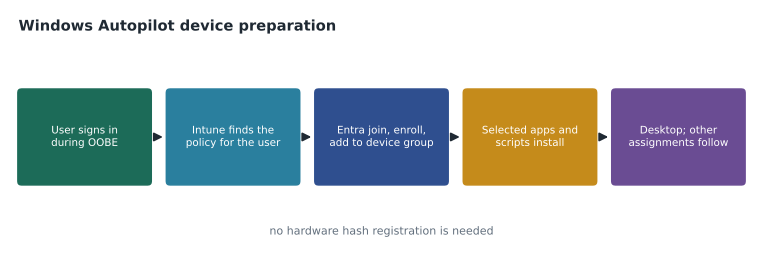
Windows Autopilot device preparation is a separate Autopilot experience built around a device preparation policy rather than a deployment profile. It needs no pre-registration of hardware hashes. Instead, when a user signs in during OOBE with a work account, Intune recognizes that a device preparation policy applies to that user, enrolls the device, adds it to a chosen device group and delivers the apps and scripts listed in the policy before the user reaches the desktop. A progress screen shows what is happening, and an Intune report shows each deployment in near real time.
Microsoft describes three aims for the newer experience: less setup for administrators, because there are no hashes to collect; more predictable deployments, because the apps and scripts that must be installed are listed in one policy; and better reporting. The first point is the one that mattered to Corvallin.
The two modes
Device preparation has two modes. User-driven mode is for physical devices: the user signs in during OOBE and the device joins Microsoft Entra ID and enrolls. Automatic mode is for Windows 365 Cloud PCs. A device preparation policy is included in a Cloud PC provisioning policy, and its apps, scripts and settings are applied immediately after the Cloud PC is created, before any user signs in. Automatic mode for Windows 365 reached general availability on May 11, 2026, for Windows 365 Enterprise, Frontline in both dedicated and shared mode, and Cloud Apps.
Device preparation supports only Microsoft Entra join. It does not support Microsoft Entra hybrid join, pre-provisioning or self-deploying mode. Organizations that need those scenarios continue to use Autopilot deployment profiles.
Requirements
Physical devices need a recent enough Windows 11 build: version 24H2 or later, or version 23H2 or 22H2 with the update KB5035942 or later. Installation media dated April 2024 or later already includes that update. Supported editions are Windows 11 Pro, Pro Education, Pro for Workstations, Enterprise, Education and Enterprise LTSC. Because devices shipped from a supplier may carry an older build, Microsoft advises confirming with manufacturers that new devices include the minimum update.
| Requirement | Detail |
|---|---|
| Windows build | Windows 11 24H2 or later, or 23H2 or 22H2 with KB5035942 or later |
| Editions | Pro, Pro Education, Pro for Workstations, Enterprise, Education, Enterprise LTSC |
| Join type | Microsoft Entra join only |
| Users | Allowed to join devices to Entra ID and in the MDM user scope for automatic enrollment |
| Device group | An assigned security group whose owner is the Intune Provisioning Client service principal |
| Policy | A device preparation policy assigned to a user group |
Building a device preparation policy
Teodor set up device preparation for the reseller laptops in four steps, following Microsoft's tutorial for user-driven Entra join.
This design is called enrollment time grouping. Because the device lands in the group during enrollment, the policies and apps assigned to that group start immediately, rather than waiting minutes or hours for a dynamic group rule to evaluate. The MD-102 skills outline mentions it alongside assignment filters as a way to target profiles.
The policy's app list is limited. Since January 30, 2026, a device preparation policy can include up to 25 apps to install during OOBE, in either mode. Microsoft notes that more apps mean longer setup, so the policy timeout should be reviewed when the list grows. Supported app types include Win32 apps, line-of-business apps, Microsoft Store apps and apps from the Enterprise App Catalog. Everything not listed in the policy still installs, but after the user reaches the desktop.
Worked problem
Choosing the OOBE apps
Ama's list of required apps for branch laptops had 31 items, including Microsoft 365 Apps, the visit verification app, the VPN client, a PDF reader, three printer drivers and 24 smaller utilities. The policy allows 25 apps during OOBE. Which should be in the policy?
Show solution
- Put the apps a user needs before starting work first: Microsoft 365 Apps, the visit verification app and the VPN client.
- Add the printer driver for the user's branch, since printing visit summaries is part of the first day.
- Leave utilities that are used occasionally to install after setup; they still arrive through their normal assignments.
Answer: Only a handful of apps belong in the OOBE list. Keeping it short keeps setup under the timeout, and the remaining apps follow within the first hour.
Devices that block personal enrollment
Many organizations use enrollment restrictions to stop personal Windows devices from enrolling in Intune. Device preparation cannot tell a corporate laptop from a personal one by its hash, because no hash was registered, so a restriction would block it. The answer is corporate identifiers: the organization uploads each device's manufacturer, model and serial number to Intune in advance, and devices matching an identifier are treated as corporate. Since August 2026 there is also Windows Autopilot device association, which binds a physical Windows 11 device to the organization before enrollment and marks it corporate-owned. Corvallin's reseller agreed to send serial numbers with each delivery, and Teodor uploaded them as corporate identifiers.
Comparing the two Autopilot experiences
The two experiences overlap, and both are current. Choosing between them is part of the MD-102 exam and part of every real deployment plan.
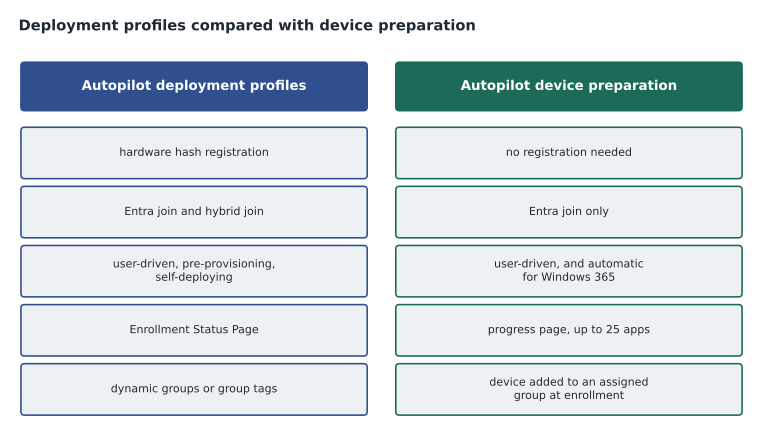
| Question | Choose profiles | Choose device preparation |
|---|---|---|
| Are hardware hashes already registered by the supplier? | Yes | Not needed |
| Does the device need hybrid join? | Yes | Not supported |
| Must a technician pre-provision it? | Yes | Not supported |
| Is it a kiosk with no user? | Self-deploying mode | Not supported |
| Is it a Windows 365 Cloud PC? | Not applicable | Automatic mode |
| Do you want the apps that block setup listed in one place with near real-time reporting? | Possible with ESP | Built in |
One rule prevents surprises: if a device is registered as an Autopilot device and has a deployment profile assigned, the profile takes precedence and device preparation does not run. When Corvallin moved a group of laptops from profiles to device preparation, Teodor first removed their registrations. Mixing the two on the same device is a common cause of "my policy never applied" tickets.
Monitoring device preparation
Intune's Windows Autopilot device preparation deployments report, under device monitoring, lists each deployment with its status, duration, the user, and the status of each app and script in the policy. Because it updates in near real time, the help desk can watch a user's setup while on the phone with them. Ama made the report the first screen her team opened whenever a branch called about a new laptop.
Microsoft has kept improving the experience through 2026. Updates in April 2026 applied managed installer policy during OOBE, which matters for organizations using App Control for Business. In September 2026 Microsoft added reliability improvements, and in October 2026 it allowed Enterprise App Management auto-update apps to block setup until installed. Earlier, in September 2025, Microsoft had announced that monthly security updates would install during OOBE, adding roughly 20 to 40 minutes, and then delayed that change. Because the service changes often, Microsoft's "What's new in Windows Autopilot device preparation" page is worth checking before each rollout.
Deployment settings in the policy
A device preparation policy has a short set of deployment settings beside its group and app list. Microsoft's interface names them as follows; the names may change as the feature develops.
| Setting | What it controls | Corvallin's choice |
|---|---|---|
| Deployment mode | User-driven (physical devices) or automatic (Windows 365) | User-driven |
| Deployment type | Single user, for one person's device | Single user |
| Join type | Microsoft Entra joined | Microsoft Entra joined |
| User account type | Standard user or administrator on the device | Standard |
| Minutes allowed before showing installation error | How long setup may run | 75 minutes for branch laptops |
| Custom error message | Text shown if setup fails | The help desk number and a one-line instruction |
| Allow users to skip setup after multiple attempts | Whether a user can continue after repeated failures | No |
| Show link to diagnostics | Whether the user can collect logs on failure | Yes |
| Allowed applications and allowed PowerShell scripts | Which items install during OOBE | Microsoft 365 Apps, the visit verification app, the VPN client and one branch printer script |
The apps and scripts selected in the policy must already be assigned to the device group, which is what makes them install during setup. If an app is selected in the policy but not assigned to the group, the deployment report shows it as skipped. Teodor caught that mistake in his first test, when the VPN client did not install: he had assigned it to the branch user group, not the device group.
Windows 365 and automatic mode in practice
Corvallin used Windows 365 for one group: about 20 contract therapists who work for several agencies and use their own computers. Each contract therapist gets a Cloud PC, a full Windows 11 desktop streamed from Microsoft's cloud, which they reach from a browser or the Windows App. Teodor created a Cloud PC provisioning policy with Corvallin's image and network settings, and included a device preparation policy in automatic mode. When a therapist's licence is assigned, Windows 365 creates the Cloud PC and device preparation installs the agency apps and scripts before the therapist first connects, so the Cloud PC is ready on the first sign-in rather than still installing apps.
The MD-102 skills outline lists provisioning and configuring Windows 365 Cloud PCs by using Intune, including provisioning policies, network connections and image management, under the same heading as Autopilot. A provisioning policy names the image (a Microsoft gallery image or the organization's custom image), the network (a Microsoft-hosted network, or an Azure network connection to reach on-premises resources), the region and the join type. For Corvallin, a gallery image with Microsoft 365 Apps and a Microsoft-hosted network was enough, because the therapists needed nothing on premises.
Worked problem
Cloud PC or laptop?
A contract therapist works 10 hours a week for Corvallin from her own computer. A new laptop would cost about 1,150 dollars plus shipping and retrieval when the contract ends. A Cloud PC licence costs a monthly fee per user. What factors decide which is better?
Show solution
- Duration: a short contract favours a Cloud PC, which can be removed the day the contract ends.
- Data: with a Cloud PC, client data never sits on her personal computer.
- Work pattern: 10 hours a week of mostly documentation runs well on a Cloud PC; offline work in rural areas would not.
Answer: For a part-time contractor who works online, a Cloud PC is usually the better choice: nothing to ship, nothing to recover, and agency data stays in the cloud. Staff who must work offline need a physical device.
A short history
Autopilot device preparation did not replace the original Autopilot experience; the two were designed to live side by side. Microsoft announced device preparation in June 2024, added automatic mode for Windows 365 in preview through 2025 and made it generally available in May 2026, raised the OOBE app limit to 25 in January 2026, added managed installer support in April 2026 and device association in August 2026. Microsoft continues to add features to deployment profiles too. For an administrator, the practical lesson is that the comparison table in this lesson is a snapshot: check the current comparison page on Microsoft Learn before choosing for a new project, because a scenario that needs profiles today may be supported by device preparation next year.
Common mistakes
MistakeTrying to use device preparation for hybrid joined or self-deploying devices.
InsteadDevice preparation supports only Microsoft Entra join in user-driven mode, plus automatic mode for Windows 365.
MistakeForgetting to make the Intune Provisioning Client the owner of the device group.
InsteadWithout that owner, devices cannot be added to the group during enrollment.
MistakeLeaving a device registered with an assigned deployment profile and expecting device preparation to run.
InsteadA registered device with a profile uses the profile; remove the registration to use device preparation.
MistakeListing every app in the policy.
InsteadList only what users need before work; others install after setup.
Summary and key terms
- Autopilot device preparation provisions Entra joined devices without registering hardware hashes first.
- User-driven mode is for physical devices; automatic mode applies policies to Windows 365 Cloud PCs at creation.
- A device preparation policy names an assigned device group owned by the Intune Provisioning Client, and up to 25 apps plus scripts to install during OOBE.
- Corporate identifiers or device association let corporate devices enroll when personal enrollment is blocked.
- Profiles remain the choice for hybrid join, pre-provisioning and self-deploying mode; a registered device with a profile uses the profile.
- Device preparation policy
- The Intune policy that defines a device group, settings and the apps and scripts installed during OOBE.
- Enrollment time grouping
- Adding a device to a group during enrollment so its assignments apply immediately.
- Automatic mode
- The device preparation mode that provisions Windows 365 Cloud PCs as they are created.
- Corporate identifier
- A manufacturer, model and serial number uploaded in advance so a device is treated as corporate.
- Intune Provisioning Client
- The service principal that must own the device group in a device preparation policy.
Practice problems
Work each problem on paper first, then reveal the answer to check.
Does device preparation need hardware hashes?
Show answer
No. That is its main difference from Autopilot deployment profiles.
Which minimum update must Windows 11 23H2 have for device preparation?
Show answer
KB5035942 or later.
What happens to apps not listed in the policy?
Show answer
They install through their normal assignments after the user reaches the desktop.
Lesson quiz · 5 questions
Score 60% or more to complete this lesson.
Create a free account to save your progress, take quizzes and earn a certificate.