
MSBA-210 · Lesson 3 of 12 · 19 min
Windows Autopilot: profiles and scenarios
▶ Video coming soon A video version of this lesson is on the way.
The first replacement laptops for Corvallin's branch offices were due to ship straight from the manufacturer to the staff who would use them. Ama wanted the experience she had described in the plan: the user opens the box, connects to Wi-Fi, signs in with a work account, and the laptop does the rest. That is what Windows Autopilot is for. This lesson covers the original form of Autopilot, which uses registered devices and deployment profiles. Lesson 4 covers the newer Autopilot device preparation, and the two are compared there.
What Autopilot does
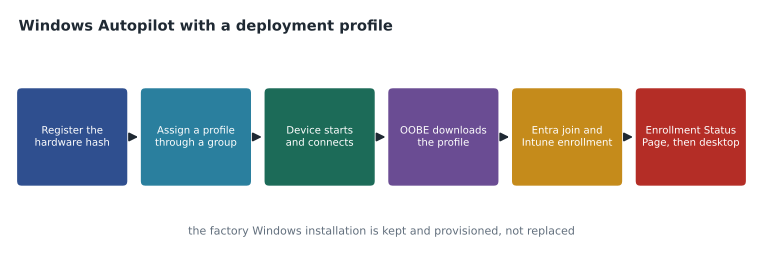
Windows Autopilot is a set of cloud services that customizes the Windows out-of-box experience (OOBE), the screens a person sees when a new Windows device starts for the first time. Instead of asking the user to set up a personal account, Autopilot recognizes the device as belonging to the organization, skips the screens the organization does not want, joins the device to Microsoft Entra ID, enrolls it in Intune and holds the user at a progress screen until the policies and apps that matter are in place. The Windows installation itself is not replaced; Autopilot provisions the one the manufacturer installed.
Registering devices
A device must be registered with the organization's tenant before a deployment profile can apply to it. Registration records the device's hardware hash, a fingerprint computed from its components that Autopilot uses to recognize it when it first connects. There are three common ways to register devices.
| Registration route | How it works | When to use it |
|---|---|---|
| Manufacturer or reseller | The supplier uploads hardware hashes to the tenant when the order ships, after the customer authorizes the supplier in the partner centre or through the supplier's portal | New devices bought from a supplier that supports Autopilot registration; the normal route at scale |
| Manual upload | An administrator collects hashes into a CSV file and imports it in the Intune admin centre under Windows Autopilot devices | Small batches, existing devices, test devices |
| Convert targeted devices | A deployment profile setting registers devices that are already Entra joined and enrolled in Intune | Existing managed devices that should be reset with Autopilot later |
For a device that is already running, an administrator can collect the hash with a script Microsoft publishes in the PowerShell Gallery. The script can save the hash to a file for import, or upload it directly when run with an account that has the right Intune permissions.
Set-ExecutionPolicy -Scope Process -ExecutionPolicy Bypass -Force
Install-Script -Name Get-WindowsAutopilotInfo -Force
Get-WindowsAutopilotInfo -OutputFile C:\HWID\AutopilotHWID.csv
# Or upload directly and tag the device for a branch office group:
Get-WindowsAutopilotInfo -Online -GroupTag BRANCH-NORTH
Each registered device can carry a group tag, a short text value such as BRANCH-NORTH. Dynamic Entra ID device groups can use the tag in their membership rule, which is how Ama made sure laptops for each branch picked up that branch's printers and Wi-Fi profile. A rule such as (device.devicePhysicalIds -any (_ -eq "[OrderID]:BRANCH-NORTH")) selects every Autopilot device with that tag, and (device.devicePhysicalIds -any (_ -startsWith "[ZTDId]")) selects every Autopilot-registered device.
Deployment profiles
A deployment profile is the set of instructions Autopilot gives the device during OOBE. It is created in the Intune admin centre and assigned to a group of devices. When a registered device first connects, it downloads the profile assigned to it and follows it.
| Setting | What it controls | Corvallin's choice |
|---|---|---|
| Deployment mode | User-driven or self-deploying | User-driven for staff laptops |
| Join to Microsoft Entra ID as | Microsoft Entra joined or Microsoft Entra hybrid joined | Microsoft Entra joined |
| Microsoft Software License Terms | Whether the user sees the licence terms screen | Hide |
| Privacy settings | Whether the user sees the privacy settings screen | Hide; diagnostic data is set by policy |
| Hide change account options | Removes options to start over with a different account at sign-in | Hide |
| User account type | Whether the signed-in user is a standard user or an administrator on the device | Standard |
| Allow pre-provisioned deployment | Lets a technician or reseller run the device phase before shipping | Yes, for laptops prepared at head office |
| Language (region) and keyboard | The OOBE language and whether to set the keyboard automatically | Operating system default; set keyboard automatically |
| Apply device name template | Names the device during setup, for example with its serial number | CHC- followed by the serial number |
| Convert all targeted devices to Autopilot | Registers existing Entra joined devices in the assigned group | Yes, for the upgraded Windows 10 laptops |
Device names in Windows are limited to 15 characters. The template can include a variable for the hardware serial number and a variable for a number of random digits, written as shown in the listing below, and the result is cut to 15 characters. A template of CHC- followed by the serial number works only if serial numbers are no longer than 11 characters; otherwise the serial number is truncated and two devices could end up with the same name. Ama checked the manufacturer's serial format before choosing it. Device naming templates apply only to Microsoft Entra joined devices; hybrid joined devices get their names from the domain join configuration profile.
CHC-%SERIAL%        serial number, for example CHC-5CG2741KQD
CHCTAB-%RAND:6%     six random digits, for example CHCTAB-481207
T-%SERIAL%          a shorter prefix for longer serial numbers
Worked problem
Will the name fit?
Corvallin's laptops have 10-character serial numbers. The training room tablets have 13-character serials. Using the template CHC- followed by the serial number, how long would each name be, and which devices need a different template?
Show solution
- The prefix CHC- is 4 characters.
- Laptops: 4 + 10 = 14 characters, within the 15-character limit.
- Tablets: 4 + 13 = 17 characters, which would be cut to 15 and lose the last two characters of the serial.
Answer: Laptop names fit. The tablets need a shorter prefix, such as T- followed by the serial (2 + 13 = 15), or a prefix with random digits, such as CHCTAB- followed by six random digits.
Deployment modes
Autopilot deployment profiles support three ways of running a deployment. Choosing between them is one of the skills the MD-102 exam measures.
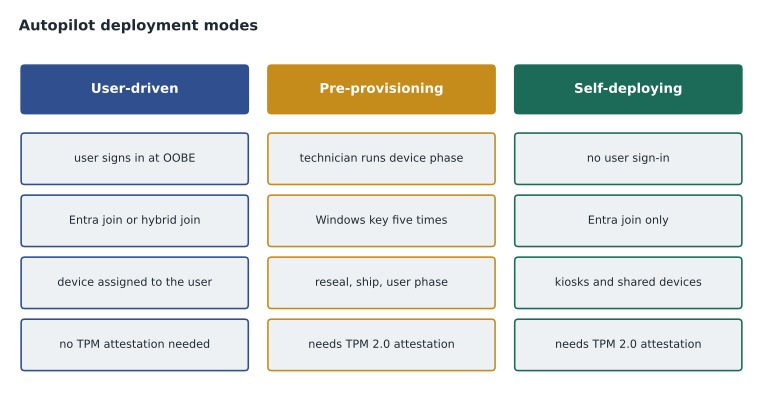
User-driven mode is the default. The user turns the device on, connects to a network and signs in with their work account. The device joins Entra ID (or, in the hybrid case, the on-premises domain), enrolls in Intune and runs the Enrollment Status Page. The device becomes associated with that user, which is right for a personal work laptop.
Pre-provisioning, once called white glove, splits the work into two phases. A technician, the reseller or the manufacturer starts the device, presses the Windows key five times on the first OOBE screen and chooses pre-provisioning. The device then joins, enrolls and installs everything assigned to the device, not the user, before the technician reseals it. When the user later turns it on, only the user phase remains, so the wait is much shorter. Pre-provisioning needs TPM 2.0 with attestation and a wired or otherwise reliable network during the technician phase. It is useful when apps are large and users are on slow connections, which is why Ama chose it for laptops going to the branch with the weakest internet.
Self-deploying mode needs no user at all. The device joins Entra ID and enrolls in Intune by itself, as soon as it has a network connection, and ends at the sign-in screen without a primary user. It suits kiosks, shared devices, meeting room PCs and digital signs. Like pre-provisioning, it requires TPM 2.0 attestation, and it supports only Microsoft Entra join. Corvallin used it for the check-in kiosk in the head office lobby.
| User-driven | Pre-provisioning | Self-deploying | |
|---|---|---|---|
| User signs in during setup | Yes | Only in the user phase | No |
| Microsoft Entra join | Yes | Yes | Yes |
| Microsoft Entra hybrid join | Yes | Yes | No |
| TPM 2.0 attestation needed | No | Yes | Yes |
| Primary user assigned | Yes | Yes | No |
| Typical device | Personal work laptop | Laptop going to a user on a slow network | Kiosk, shared or meeting room device |
Existing devices and Autopilot Reset
Two more scenarios extend Autopilot to devices already in use. Windows Autopilot for existing devices uses a JSON configuration file, typically placed on the device by a Configuration Manager task sequence, so that a freshly installed Windows can run Autopilot even though its hash was never registered. It is mainly used by organizations moving devices from domain join and Configuration Manager to Entra join and Intune. Windows Autopilot Reset, started remotely from Intune or locally at the lock screen with a key combination, removes personal files, apps and settings, keeps the device's enrollment and Entra join, and returns it to a business-ready state for the next user. It is useful for devices that pass between staff, such as the laptops Corvallin lends to temporary personal support workers.
The Enrollment Status Page
The Enrollment Status Page (ESP) is the progress screen a user sees during setup. It shows three stages: device preparation, device setup and account setup. Its main job is to hold the user back from the desktop until the policies and apps that matter are installed, so that nobody starts work on a device without its security settings or required apps. ESP profiles are created in Intune and assigned to groups of users or devices.
| ESP setting | Effect |
|---|---|
| Show app and profile configuration progress | Turns the ESP on |
| Show an error when installation takes longer than a set number of minutes | The timeout, 60 minutes by default |
| Show custom message when time limit or error occurs | Lets the organization tell users what to do |
| Allow users to collect logs about installation errors | Adds a button that saves diagnostics |
| Only show page to devices provisioned by out-of-box experience | Prevents the page appearing to later users of the device |
| Block device use until all apps and profiles are installed | Or until selected apps are installed |
| Allow users to reset device if installation error occurs | Lets users start over |
| Allow users to use device if installation error occurs | Lets users continue to the desktop after a failure |
The most important ESP decision is which apps to block on. Blocking on every app is safe but slow, and one failing app stops the whole setup. Ama blocked only on Microsoft 365 Apps, the electronic visit verification app and the agency's VPN client, and let everything else install in the background. That was the change that fixed the pilot failure described in lesson 2.
Assigning profiles and checking registration
Profiles are assigned to groups of devices, not to users. The usual pattern is a dynamic device group that matches Autopilot devices, either all of them or those with a particular group tag. When a device is registered, Intune shows its profile status in the Windows Autopilot devices list: Not assigned, Assigning or Assigned. A device whose status is not yet Assigned will show the consumer OOBE if a user starts it, so Ama made it a rule that nobody unboxed a laptop until its status was Assigned. With a supplier that registers devices when an order ships, that is usually true within an hour of registration.
Each registered device can also be given a user assignment, so that the user's name appears on the sign-in page during OOBE, and a display name that the device takes during setup instead of the template. Neither is required, but user assignment helps when devices are shipped to specific people, because the user sees their own name and is less likely to sign in with the wrong account.
| Profile status | Meaning | What to do |
|---|---|---|
| Not assigned | No profile is targeted at a group containing the device | Check the device's group membership and the group tag |
| Assigning | The profile is on its way to the Autopilot service | Wait before the device is started |
| Assigned | The device will receive the profile at OOBE | Ready to deploy |
If a device belongs to groups targeted by two profiles, Intune applies the profile that was assigned first, which is rarely what anyone intended. Ama kept one profile per kind of device and made the groups mutually exclusive, using the group tag to separate laptops, tablets and the kiosk.
The Enrollment Status Page in more depth
The ESP tracks different things in each of its phases. In the device phase it tracks device-targeted policies, certificates, network profiles and apps; in the account phase it tracks user-targeted ones. That distinction matters for pre-provisioning, where only device-targeted assignments are installed by the technician. Apps assigned to users install during the user phase, so for a pre-provisioned laptop, a large app that every user needs should be assigned to the device group rather than the user group if it is to be installed before shipping.
Several ESP profiles can exist, each assigned to a group, with a priority order deciding which applies. Corvallin had two: the default for most devices, and one for the kiosk that blocked on its single kiosk app and showed no account phase at all, since self-deploying devices have no user.
Common mistakes
MistakeExpecting a profile to apply to a device that has never been registered.
InsteadDeployment profiles apply only to registered devices; register through the supplier, a CSV import or the convert setting.
MistakeUsing a name template that produces names longer than 15 characters.
InsteadCount the prefix plus the serial length, or use random digits, so names stay within 15 characters.
MistakeChoosing self-deploying mode for a hybrid joined device.
InsteadSelf-deploying mode supports only Microsoft Entra join.
MistakeBlocking the ESP on every app.
InsteadBlock only on the apps users need on day one; let others install after setup.
Summary and key terms
- Windows Autopilot customizes OOBE, joins the device to Entra ID, enrolls it in Intune and applies policies and apps.
- Deployment profiles apply only to registered devices, recognized by their hardware hash.
- Group tags and dynamic device groups target profiles and settings to sets of devices.
- User-driven, pre-provisioning and self-deploying modes suit different devices; the last two need TPM 2.0 attestation.
- The Enrollment Status Page keeps users at a progress screen until the selected policies and apps are installed.
- Hardware hash
- A fingerprint of a device's components used to register and recognize it for Autopilot.
- Deployment profile
- The Autopilot settings a registered device follows during OOBE.
- Group tag
- A text value on a registered device, used in dynamic group rules.
- Pre-provisioning
- A mode in which a technician completes the device phase before the user receives the device.
- Self-deploying mode
- A mode that joins and enrolls a device without any user sign-in.
- Enrollment Status Page (ESP)
- The setup progress screen that can block device use until selected apps and policies are installed.
Practice problems
Work each problem on paper first, then reveal the answer to check.
What key press starts pre-provisioning on the first OOBE screen?
Show answer
Pressing the Windows key five times.
Which deployment mode suits a lobby check-in kiosk with no assigned user?
Show answer
Self-deploying mode.
What is the default ESP timeout?
Show answer
60 minutes.
Lesson quiz · 5 questions
Score 60% or more to complete this lesson.
Create a free account to save your progress, take quizzes and earn a certificate.