
MSBA-210 · Lesson 11 of 12 · 20 min
Troubleshooting deployments
▶ Video coming soon A video version of this lesson is on the way.
Most deployments work. The ones that don't tend to fail in the same few places, and a help desk that knows those places can fix most problems on the first call. By the end of the early adopter ring, Corvallin had deployed 86 devices across the first three rings and logged nine failed setups. Ama sat down with the help desk to turn those nine tickets into a method. This lesson is that method: where to look, which tools to use, and the common causes behind each symptom.
A method before tools
Ama's first rule was to find out where in the sequence the device stopped. Every deployment in this course follows the same stages, and each stage has its own likely causes.
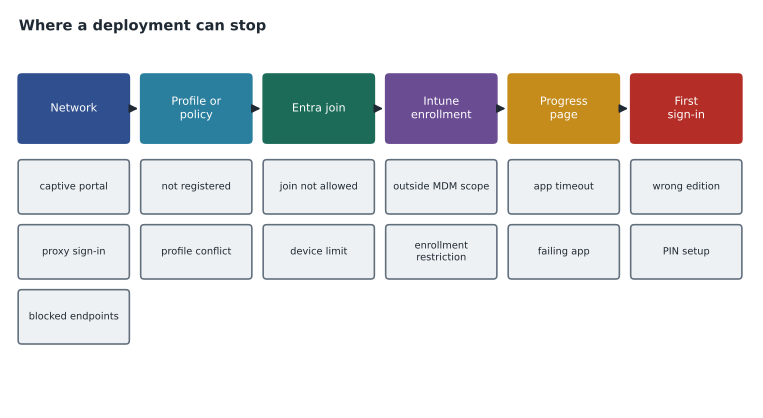
| Stage | Symptom | Common causes |
|---|---|---|
| Network | OOBE cannot reach the internet or shows a generic error | Captive Wi-Fi portal, proxy that requires sign-in, blocked Microsoft endpoints |
| Profile or policy | Device shows the consumer OOBE instead of the organization's | Device not registered; profile not assigned to its group yet; registration missing for a device preparation device that should use a profile, or the reverse |
| Entra join | Error after the user signs in, before enrollment | User not allowed to join devices; device limit reached; Conditional Access blocking the join |
| Intune enrollment | Device joins but is not managed, or enrollment is refused | User outside the MDM user scope; enrollment restriction blocking personal or a platform; licence missing |
| Progress page | ESP or device preparation page stops or times out | Required app failing or too slow; app dependency loop; timeout too short for the network |
| First sign-in | Desktop arrives but something is wrong | Wrong edition (licence); Windows Hello setup errors; apps still installing |
Intune reports
The first tools are in the Intune admin centre, because they can be opened while the user is on the phone. The Windows Autopilot deployments report lists each Autopilot deployment with its device, user, profile, deployment state and duration, and shows which phase failed. The Windows Autopilot device preparation deployments report, covered in lesson 4, shows each device preparation deployment with the status of each app and script in near real time. The device's own page in Intune shows enrollment time, device configuration status, app installation status and compliance.
For Entra join problems, the sign-in logs in the Microsoft Entra admin centre show whether a Conditional Access policy blocked the user, and the device list shows whether the device record exists and how it is joined. For licensing problems, the user's page in the Microsoft 365 admin centre shows assigned licences and any errors in group-based licensing.
Tools on the device
When the cloud reports are not enough, the device holds detailed logs. During OOBE, pressing Shift and F10 together opens a command prompt, unless the organization has disabled it. From there an administrator can run diagnostic commands, check the network and collect logs. On the Enrollment Status Page, if the setting that lets users collect logs is on, a button saves diagnostics to a USB drive.
REM From the Shift+F10 command prompt during OOBE, or an elevated prompt later:
mdmdiagnosticstool.exe -area Autopilot;DeviceEnrollment;DeviceProvisioning;TPM -cab C:\Temp\autopilot.cab

REM Check join state and the Primary Refresh Token:
dsregcmd /status

REM Check basic connectivity to Microsoft Entra ID:
powershell -Command "Test-NetConnection login.microsoftonline.com -Port 443"
The diagnostics package collected by MDMDiagnosticsTool contains the registry keys, event logs and files Microsoft support asks for. Microsoft also publishes a script, Get-AutopilotDiagnostics, in the PowerShell Gallery, which reads the same information and prints a readable timeline of the deployment, including which apps and policies were tracked by the ESP and when each finished.
Event logs
Windows records deployment events in several event logs under Applications and Services Logs, Microsoft, Windows. The ones the help desk learned to open were these.
| Event log | What it records |
|---|---|
| ModernDeployment-Diagnostics-Provider, Autopilot | Autopilot profile download, profile settings and OOBE progress |
| DeviceManagement-Enterprise-Diagnostics-Provider, Admin | MDM enrollment and policy processing, including errors applying settings |
| AAD, Operational | Microsoft Entra join and token events |
| Provisioning-Diagnostics-Provider, Admin | Provisioning package processing |
Win32 apps installed by Intune are handled by the Intune Management Extension, which writes its own logs in the folder C:\ProgramData\Microsoft\IntuneManagementExtension\Logs. When an app blocks the ESP, the IntuneManagementExtension.log and AppWorkload.log files usually say why: a download that never finished, a detection rule that never matched, or an installer that waited for input.
Working the nine tickets
Ama's nine failures from the early adopter ring fell into five causes. Grouping them was what turned nine tickets into five fixes.
| Tickets | Stage | Cause | Fix |
|---|---|---|---|
| 3 | Progress page | The scheduling app's installer took 40 minutes on branch connections and the ESP timed out at 60 minutes with other apps | Removed the scheduling app from the blocking list; it installs after setup |
| 2 | Profile | Laptops from the reseller had been registered by mistake and assigned a profile, so device preparation never ran | Deleted their Autopilot registrations |
| 2 | Network | Hotel Wi-Fi with a captive portal at a staff conference | Told users to finish setup at home or on a phone hotspot; added the guidance to the setup leaflet |
| 1 | Intune enrollment | New hire outside the MDM user scope (the scope was later set to All) | Scope changed to All |
| 1 | First sign-in | Windows Hello for Business setup failed because the user cancelled the PIN screen twice | Help desk walked the user through PIN setup again |
Worked problem
Is the ESP timeout long enough?
At a branch with a 20 megabit per second connection, the apps that block the ESP total 2.4 GB. A megabit per second moves about 0.125 megabytes each second. Ignoring install time, roughly how many minutes does the download take, and is the 60-minute default timeout enough?
Show solution
- 20 megabits per second is about 20 x 0.125 = 2.5 megabytes each second.
- 2.4 GB is about 2,400 MB; 2,400 / 2.5 = 960 seconds.
- 960 / 60 = 16 minutes of download.
- Installation and configuration add more time, but well under 60 minutes in total is likely.
Answer: About 16 minutes to download, so the default timeout is enough if apps install normally. If several staff set up laptops on the same connection at once, the time multiplies, which is why Ama staggered deliveries at small branches.
Resetting and retrying
Sometimes the quickest fix is to start over once the cause is removed. If the ESP setting allows it, the user can reset the device from the error screen. An administrator can also wipe the device from Intune, or use Autopilot Reset for a device that completed setup but is in a bad state. For devices registered for Autopilot, a wipe keeps the registration, so the device goes through Autopilot again. Before retrying, Ama's rule was to change something: retrying the same deployment on the same network with the same assignments usually fails the same way.
When to escalate
A few problems need Microsoft. TPM attestation failures on pre-provisioning or self-deploying devices, for example, can be caused by firmware that needs an update from the manufacturer, and errors in the Autopilot service itself appear in the service health dashboard in the Microsoft 365 admin centre. Ama's escalation rule was to collect the diagnostics package first, check service health, then open a support request with the cab file attached.
Network problems in more detail
Network problems cause a surprising share of failed deployments because they are invisible from the cloud: if the device cannot reach Intune, nothing appears in the Intune reports. At OOBE, the user sees either a generic message that something went wrong or the consumer setup screens, which look as if the device was never registered.
The help desk learned to ask three questions first. Is the device on a network that needs a browser sign-in, such as hotel or café Wi-Fi? Is it on an office network with a proxy that requires authentication? And does the time on the device look right? A captive portal cannot be accepted from OOBE in all cases, an authenticating proxy blocks a device with no user signed in, and a badly wrong clock breaks the certificate checks that sign-in depends on. In each case the fix is to connect to a plain home network or a phone hotspot and start again.
| Network check | From the Shift+F10 prompt | What a problem looks like |
|---|---|---|
| Can the device resolve names? | nslookup login.microsoftonline.com | No address returned |
| Can it reach Microsoft Entra ID? | Test-NetConnection to login.microsoftonline.com on port 443 | TcpTestSucceeded is False |
| Is the time correct? | time /t and date /t | Date or time far from the real one |
| Is a proxy in the way? | netsh winhttp show proxy | A proxy server listed on a home network |
Enrollment errors
When the device reaches Intune but enrollment fails, Windows shows an error with a code, and the Intune troubleshooting documentation lists what each code means. The causes almost always come back to the same few settings: the user is outside the MDM user scope, the user has reached the device limit, an enrollment restriction blocks the device, or the user has no Intune licence. Ama kept a one-page table at the help desk that matched the most common messages to these causes, taken from Microsoft's troubleshooting article rather than from memory, and updated it when Microsoft changed the wording.
Worked problem
Reading the evidence
A user reports that setup failed after sign-in with a message saying the device could not be enrolled. Intune shows no device. The Entra sign-in logs show a successful sign-in with no Conditional Access failure. The user's licences include Microsoft 365 E3. What would you check next?
Show solution
- Successful sign-in rules out the password and Conditional Access.
- The licence includes Intune, so licensing is not the cause.
- Check the user's device count against the device limit, and check whether an enrollment restriction blocks the device as personal.
Answer: The device limit or an enrollment restriction. In this case the user had six old test devices still enrolled under her account from a previous role; deleting them fixed the problem.
Keeping a knowledge base
Every fixed ticket is a lesson for the next one. Ama asked the help desk to record, for each deployment failure, the stage, the cause, the fix and the time it took. After three months the table showed that two causes, app timeouts and network problems, accounted for more than half of all failures, which justified the changes to the ESP and the setup leaflet. Without the records, those patterns would have stayed anecdotes.
Problems after the desktop appears
Some problems show up only after setup seems finished. A device that reaches the desktop may still be installing apps that did not block the ESP, so users should be told that some apps arrive during the first hour. Windows Hello for Business setup runs at the first sign-in and can fail if the user cancels it or if the device has a TPM problem; the user is asked again at the next sign-in. Compliance can take a few minutes to evaluate, and until it does, Conditional Access may block apps that require a compliant device. The help desk script for the first hour told users to wait fifteen minutes, restart once and then call if an app was still missing.
| Symptom after setup | Likely cause | First step |
|---|---|---|
| An app is missing | Still installing in the background | Wait, then check app status in Intune for the device |
| Access to clinical records blocked | Compliance not yet evaluated | Wait a few minutes, then sync the device from Settings or Intune |
| Prompted to set up a PIN again | Windows Hello for Business setup cancelled or failed | Complete PIN setup; check TPM status if it fails again |
| Settings show Windows 11 Pro | Licence or sign-in account | Check the user's licences and that they signed in with the work account |
The same records showed something less obvious: deployments started on Monday mornings failed more often than those started later in the week, because many users set up their laptops at the same time on shared branch connections. Staggering deliveries across the week, as lesson 12's case study also did, removed most of those failures without any change to Intune at all.
Common mistakes
MistakeRetrying a failed deployment without changing anything.
InsteadFind the stage and cause, fix it, then retry.
MistakeReading the device logs before checking the Intune reports.
InsteadStart with the Autopilot or device preparation deployments report; it often names the failing app or phase.
MistakeDisabling Shift and F10 at OOBE without another way to collect logs.
InsteadIf the command prompt is disabled, allow users to collect logs from the ESP.
MistakeTreating each ticket as a separate problem.
InsteadGroup failures by cause; a few fixes usually solve many tickets.
Summary and key terms
- Find the stage where the deployment stopped: network, profile, join, enrollment, progress page or first sign-in.
- Start with the Intune Autopilot and device preparation deployment reports and the Entra sign-in logs.
- On the device, use Shift and F10 at OOBE, MDMDiagnosticsTool, Get-AutopilotDiagnostics and dsregcmd /status.
- Event logs and the Intune Management Extension logs explain policy and app failures.
- Group failures by cause, change something before retrying, and escalate with a diagnostics package.
- MDMDiagnosticsTool
- A built-in tool that collects enrollment and Autopilot diagnostics into a cab file.
- Get-AutopilotDiagnostics
- A Microsoft script that summarizes an Autopilot deployment from the device's logs.
- Intune Management Extension
- The Intune agent that installs Win32 apps and runs scripts, with its own logs.
- Captive portal
- A Wi-Fi sign-in page that blocks internet access until accepted, which can stop OOBE.
- Service health
- The Microsoft 365 admin centre page that reports problems in Microsoft services.
Practice problems
Work each problem on paper first, then reveal the answer to check.
Which key combination opens a command prompt during OOBE?
Show answer
Shift and F10, unless it has been disabled.
Where are the Intune Management Extension logs?
Show answer
In C:\ProgramData\Microsoft\IntuneManagementExtension\Logs.
A device shows the consumer OOBE screens. Which stage failed?
Show answer
The profile or policy stage: the device was not recognized as the organization's.
Lesson quiz · 5 questions
Score 60% or more to complete this lesson.
Create a free account to save your progress, take quizzes and earn a certificate.