
MSBA-202 · Lesson 4 of 12 · 19 min
Conditional Access design
▶ Video coming soon A video version of this lesson is on the way.
Registering strong methods is half the work. The other half is deciding when Entra ID should ask for them, and when it should refuse access altogether. A nurse opening the visit schedule on her managed phone in a client's kitchen is a normal event. The same account signing in from a country Corvallin has never operated in, on an unmanaged laptop, to the payroll application, is not. Conditional Access is the Entra ID policy engine that tells those situations apart and applies the right control to each. Microsoft calls it the Zero Trust policy engine, and the description fits: every sign-in is evaluated against policy, no matter where it comes from.
Conditional Access requires Microsoft Entra ID P1, which is included in Microsoft 365 E3, E5 and Business Premium. Risk-based conditions (lesson 5) need P2. Corvallin's plans included P1 for everyone and P2 for the IT team, which shaped what Teodor could do.
The anatomy of a policy
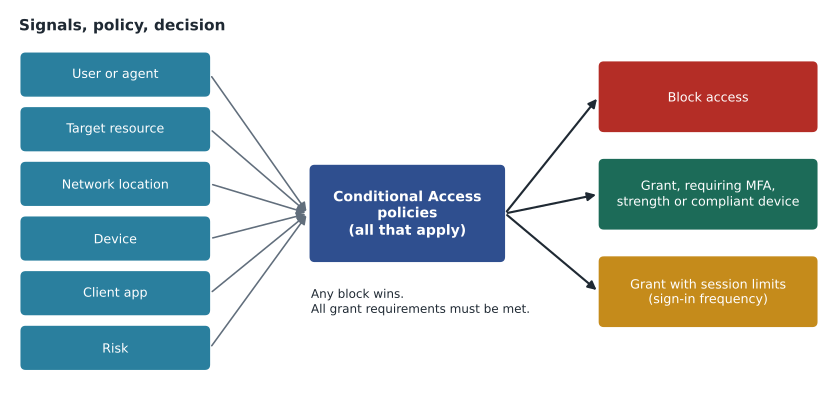
Every Conditional Access policy has the same shape: if a sign-in matches the assignments, then apply the access controls. Policies are evaluated after the first factor of authentication succeeds, so they can use everything Entra ID knows about the sign-in.
| Part | Options | Example at Corvallin |
|---|---|---|
| Users, groups and agents | All users, selected users and groups, directory roles, guests and external users, workload identities, agent identities; with exclusions | All users, excluding the two emergency access accounts |
| Target resources | All resources, selected apps, user actions (register security information, register or join devices), authentication contexts | The scheduling app and Office 365 |
| Network | Any network, named locations (IP ranges or countries), compliant network through Global Secure Access | Countries other than Canada and the United States |
| Conditions | User risk, sign-in risk, insider risk, device platforms, client apps, filter for devices, authentication flows | Client apps: legacy authentication clients |
| Grant controls | Block, or grant requiring MFA, an authentication strength, a compliant device, a Microsoft Entra hybrid joined device, an app protection policy, a password change, terms of use | Require phishing-resistant authentication strength |
| Session controls | Sign-in frequency, persistent browser session, app enforced restrictions, Conditional Access App Control, token protection, continuous access evaluation settings | Sign-in frequency of 12 hours on unmanaged devices |
Three rules about how policies combine explain most surprises. First, all policies that apply to a sign-in are enforced together; there is no priority order. Second, if any applicable policy blocks access, access is blocked, regardless of what others grant. Third, when several policies grant access with requirements, the user must satisfy all of them. A policy that requires MFA and another that requires a compliant device together require both. Within a single policy, the grant controls can require all selected controls or one of them, which is the only place "or" logic appears.
Exclusions beat inclusions inside a policy. A user who is in an included group and an excluded group is excluded. That makes exclusion groups powerful and dangerous: anyone who can add members to an exclusion group can switch policies off for themselves. Exclusion groups should be few, small, owned by the identity team and reviewed (lesson 7).
Authentication strengths
The grant control "Require multifactor authentication" accepts any MFA method the user has, including SMS. Authentication strengths let a policy demand particular methods instead. Entra ID provides three built-in strengths and lets administrators create custom ones:
| Built-in strength | Accepts | Typical use |
|---|---|---|
| Multifactor authentication strength | Any combination that counts as MFA, including password plus SMS | A baseline for all users |
| Passwordless MFA strength | Passwordless methods such as Authenticator passwordless sign-in, passkeys and Windows Hello for Business | Users being moved off passwords |
| Phishing-resistant MFA strength | Passkeys (FIDO2), Windows Hello for Business, certificate-based authentication (multifactor) | Administrators and access to the most sensitive data |
Authentication strengths connect the authentication methods policy to enforcement. The methods policy decides what a user is allowed to register; the strength decides what a sign-in must use. A strength is useless if the users it targets cannot register a qualifying method, so the order from lesson 2 still applies: enable and register the methods, then require them. Strengths can also target the user action Register security information, so that registering a new method itself requires, for example, a Temporary Access Pass or a sign-in from a trusted location. That closes a well-known gap in which an attacker with a stolen password registers their own MFA method.
Designing a policy set
Microsoft's guidance, and the approach that holds up as a tenant grows, is to design policies around personas rather than writing one policy per request. A persona is a group of identities with similar access needs and risks. The autumn 2026 identity review had already cut Corvallin's eleven inherited policies to five baseline policies. Studying for AB-650, Teodor redrew that baseline as a persona-based set with room to grow, using six personas: administrators, office staff, home-care staff, guests and partners, workload identities, and agents. Each persona gets a small set of policies that together express its rules, and every policy follows a naming convention that says what it does: number, persona, target, control.
| Policy | Assignments | Controls | Start state |
|---|---|---|---|
| CA001-All-AllApps-BlockLegacyAuth | All users; client apps: Exchange ActiveSync and other legacy clients | Block | Report-only, then on |
| CA002-All-AllApps-RequireMFA | All users except emergency accounts | Require MFA strength | Report-only, then on |
| CA003-Admins-AllApps-PhishingResistant | Directory roles: all admin roles | Require phishing-resistant MFA strength | On after keys issued |
| CA004-All-RegisterSecurityInfo-TrustedOrTAP | All users; user action: register security information | Require MFA strength (TAP counts) or trusted location | Report-only, then on |
| CA005-HomeCare-Office365-CompliantDevice | Home-care staff group; Office 365 | Require compliant device | Report-only until the 2027 device phase |
| CA006-All-AllApps-BlockOutsideCAUS | All users; network: countries other than Canada and the US | Block | On, with a travel exception process |
| CA007-Guests-AllApps-RequireMFA | Guests and external users | Require MFA strength | Report-only, then on |
Blocking legacy authentication deserves its own explanation. Old protocols such as POP, IMAP, SMTP with basic authentication and older Exchange ActiveSync clients send a username and password with no way to ask for MFA, so they are the favourite route for password spray attacks. Exchange Online has disabled basic authentication for most protocols, but a policy that blocks legacy authentication clients in Conditional Access protects every app and makes the intent explicit.
Device-based controls connect identity to device management. "Require device to be marked as compliant" means Intune has evaluated the device against compliance policies, such as encryption, a PIN and a minimum operating system version, and found it healthy (MSBA-211 covers those policies). For home-care staff on company phones it was planned as Corvallin's strongest single control once the device phase of its Zero Trust roadmap began in 2027: a stolen password is useless on a device the agency does not manage.
Report-only mode, What If and templates
A Conditional Access mistake can lock out every user in the tenant, including the administrator who made it. Three tools reduce that risk.
Report-only mode evaluates a policy on every sign-in and records what it would have done, without enforcing it. The results appear in each sign-in log entry and in the Conditional Access insights and reporting workbook, which summarizes how many sign-ins would have succeeded, failed or needed user action. Teodor ran every new policy in report-only mode for at least two weeks, long enough to cover payroll week and a weekend rota.
What If simulates a sign-in for a chosen user, app, location, device platform and risk level, and shows which policies would apply and why others would not. It is the quickest way to answer the help desk's favourite question: "Why was she asked for MFA?" or "Why was he blocked?"
Templates in the admin center create common policies, such as requiring phishing-resistant MFA for administrators or blocking legacy authentication, with sensible settings, usually starting in report-only mode. Separately, Microsoft creates some Microsoft-managed policies in tenants, for example requiring MFA for administrators who access admin portals. They start in report-only mode and Microsoft turns them on after a waiting period unless an administrator opts out or adjusts them. An administrator who finds an unfamiliar policy marked "Microsoft-managed" should review it, not delete it in a hurry.
# Create a report-only policy that blocks legacy authentication (Microsoft Graph PowerShell)
Connect-MgGraph -Scopes "Policy.ReadWrite.ConditionalAccess","Policy.Read.All"
$policy = @{
  displayName = "CA001-All-AllApps-BlockLegacyAuth"
  state       = "enabledForReportingButNotEnforced"
  conditions  = @{
    users        = @{ includeUsers = @("All"); excludeGroups = @("<emergency-access-group-id>") }
    applications = @{ includeApplications = @("All") }
    clientAppTypes = @("exchangeActiveSync","other")
  }
  grantControls = @{ operator = "OR"; builtInControls = @("block") }
}
New-MgIdentityConditionalAccessPolicy -BodyParameter $policy
Emergency access accounts
Every tenant needs at least two emergency access accounts, sometimes called break-glass accounts: cloud-only accounts with the Global Administrator role, used only when normal administrator sign-in fails, for example because of a faulty Conditional Access policy or an outage of an MFA provider. Microsoft's guidance is that they should be excluded from most Conditional Access policies but still protected strongly, and because Microsoft now enforces MFA for admin portals, that protection should be a phishing-resistant method such as FIDO2 security keys kept in a safe. Their sign-ins should trigger an alert, and the credentials should be tested on a schedule. Corvallin kept the two accounts' keys in separate safes, one at head office and one at the largest branch, and tested them every quarter.
Worked problem
Combining policies
Felix, a network administrator in the Admins persona and also in the Office staff group, signs in to the Microsoft 365 admin center from head office on a compliant laptop, using Authenticator push. Policies CA002 (require MFA strength for all users) and CA003 (require phishing-resistant MFA for admin roles) both apply. Does he get in?
Show solution
- Both policies apply, and Conditional Access enforces all applicable policies together.
- CA002 is satisfied by Authenticator push.
- CA003 requires a phishing-resistant method, and push is not phishing resistant.
- Entra ID prompts Felix to use a method that satisfies CA003, such as his security key. If he has none registered, access is denied.
Answer: Not with push alone. He must satisfy every applicable policy, so he is asked for his security key. This is why administrators must register keys before CA003 is switched on.
Conditions in more detail
The conditions section of a policy is where precise targeting happens, and each condition has a behaviour worth knowing.
Device platforms (Android, iOS, Windows, macOS, Linux and others) are detected from the client's user agent string, which can be spoofed. They are useful for applying the right control to the right platform, such as requiring an app protection policy on phones, but they should not be the only thing standing between an attacker and data. A common pattern blocks unknown or unsupported platforms outright, so that a client claiming to be something unusual is refused.
Locations use named locations, defined as IP ranges or as countries and regions. IP-based named locations can be marked as trusted, which other features (such as ID Protection) use to reduce false positives. Country-based locations rely on mapping IP addresses to countries, which is approximate, and mobile carriers or VPNs can make a sign-in appear to come from somewhere else (lesson 11 has an example). Microsoft recommends against treating a corporate IP range as a reason to skip MFA; Zero Trust treats the office network as just another network.
Filter for devices lets a policy include or exclude devices by attributes such as the device ID, model, operating system, trust type or an extension attribute set by Intune. It is the precise way to treat, say, shared kiosk PCs differently from personal laptops, without relying on group membership of users.
Authentication flows let a policy control the device code flow and authentication transfer. Device code flow, in which a user signs in on one device by typing a code shown on another, is useful for meeting room devices and command-line tools, but it is also abused in phishing campaigns that persuade users to enter an attacker's code. Many organizations block it except for a small, defined set of users and devices, and Microsoft has offered a template and a Microsoft-managed policy for exactly that.
Session controls shape what happens after access is granted. Sign-in frequency sets how often users must reauthenticate, which suits unmanaged devices and sensitive apps. Persistent browser session decides whether a browser stays signed in after it is closed. Continuous access evaluation lets supporting services such as Exchange Online, SharePoint Online and Teams react within minutes to critical events, such as an account being disabled, a password changed or a user moving to a blocked location, instead of waiting for a token to expire. Token protection binds sign-in session tokens to the device they were issued to on supported platforms, so a stolen token cannot simply be replayed from another machine.
One more design habit pays off over time: document every policy outside the portal. Teodor kept a table in the IT SharePoint site with each policy's name, purpose, persona, owner, the date it was enabled and the reason for every exclusion, and exported the policies as JSON to a repository each month with Microsoft Graph so that changes could be compared. When an auditor or a new administrator asks why a policy exists, the answer is then a link, not a memory.
Common mistakes
MistakeExpecting policies to run in an order, with the first match winning.
InsteadAll applicable policies are enforced together; block wins and all grant requirements must be met.
MistakeSwitching a new policy straight to On.
InsteadRun it in report-only mode, check insights and What If, then enable it.
MistakeExcluding emergency accounts and leaving them unprotected.
InsteadProtect them with phishing-resistant methods, alert on their use and test them regularly.
MistakeRequiring an authentication strength users cannot register.
InsteadEnable and register the methods first, then require them.
MistakeLetting many people manage exclusion groups.
InsteadKeep exclusion groups small, owned by the identity team and reviewed.
Summary and key terms
- Conditional Access evaluates every sign-in: if assignments match, apply grant or session controls. It needs Entra ID P1.
- All applicable policies apply together; any block wins and all grant requirements must be met.
- Authentication strengths require particular methods, such as phishing-resistant MFA for administrators.
- Design by persona, name policies consistently, and start each in report-only mode; use What If to explain results.
- Keep two emergency access accounts protected by phishing-resistant methods and monitored.
- Conditional Access
- The Entra ID policy engine that applies controls to sign-ins based on signals.
- Authentication strength
- A grant control that specifies which authentication methods satisfy a policy.
- Report-only mode
- A policy state that records what a policy would do without enforcing it.
- What If
- A tool that simulates a sign-in and shows which policies would apply.
- Persona
- A group of identities with similar access needs used to organize policies.
- Emergency access account
- A cloud-only administrator account used only when normal admin access fails.
Practice problems
Work each problem on paper first, then reveal the answer to check.
Two policies apply to a sign-in: one grants with MFA, the other blocks. What happens?
Show answer
Access is blocked; a block in any applicable policy wins.
Why target the user action "Register security information" with a policy?
Show answer
To stop someone with only a stolen password from registering their own MFA method.
Which licence does Conditional Access require?
Show answer
Microsoft Entra ID P1 (P2 for risk-based conditions).
Lesson quiz · 5 questions
Score 60% or more to complete this lesson.
Create a free account to save your progress, take quizzes and earn a certificate.