
MSBA-202 · Lesson 11 of 12 · 19 min
Sign-in logs and troubleshooting access
▶ Video coming soon A video version of this lesson is on the way.
At 6:52 on a Monday morning the help desk phone rang. A personal support worker named Josie was in her car outside a client's home in a rural part of the county, and the visit app would not open. Ama took the call, and within four minutes she had the answer. Josie's old work phone had been replaced on Friday, her passkey had lived on the old phone, and every sign-in on the new one stopped at the MFA step because she had no method registered on it. Ama verified Josie on a video call against her staff photo, issued a one-hour, one-time Temporary Access Pass, and stayed on the line while Josie registered a new passkey in Authenticator. Josie was at the door by seven. Ama had not guessed. She had opened Josie's latest sign-in in the sign-in logs, read the failure reason, and clicked the Authentication details tab to see exactly which step had failed.
Every lesson so far has added controls. Controls create friction, and friction creates calls. This lesson is about the tools that turn "it doesn't work" into a precise cause: the sign-in and audit logs, error codes, Conditional Access details, the What If tool, and the export of logs for longer retention and analysis. These skills appear directly in the AB-650 objective "Investigate and resolve authentication issues".
The sign-in logs
The sign-in logs in the Microsoft Entra admin center (Entra ID > Monitoring & health > Sign-in logs) record every authentication to the tenant. They are split into several views:
| Log view | Records | Example |
|---|---|---|
| Interactive user sign-ins | Sign-ins where the user provided a factor such as a password, passkey or MFA response | Josie signing in to the visit app |
| Non-interactive user sign-ins | Sign-ins a client made on the user's behalf using tokens, without user input | Outlook refreshing its token in the background |
| Service principal sign-ins | Apps and services signing in as themselves | The HR integration's nightly run |
| Managed identity sign-ins | Azure resources signing in with managed identities | The licence report runbook |
Agent activity appears too, as agent identities and agent users sign in; the exact views evolve as Agent ID matures, so check the current filters in the portal. Each entry has a status (success, failure or interrupted), a timestamp, the user or identity, the application and resource, the IP address and location, the client app, and a correlation ID and request ID that Microsoft Support asks for when a case is opened.
Opening an entry shows detailed tabs, and knowing what each tab answers saves most of the time in troubleshooting:
| Tab | Answers the question |
|---|---|
| Basic info | Did it succeed, and if not, what was the error code and failure reason? |
| Location | Where did it come from (IP address, city, country), and was it a named location? |
| Device info | Which device and operating system, and was it Entra joined, compliant and managed? |
| Authentication details | Which methods were used for each step, and did any step fail? |
| Conditional Access | Which policies applied, which were satisfied, failed or not applied, and why? |
| Report-only | What would report-only policies have done to this sign-in? |
Retention is limited. Sign-in logs and audit logs are kept for 7 days in tenants with only Entra ID Free and 30 days with Entra ID P1 or P2. Many investigations, and most compliance requirements, need more than that, which is why exporting logs is a standard setup task.
Error codes worth knowing
Failed sign-ins carry an AADSTS error code (the prefix dates from the Azure AD name). A handful account for most help desk calls:
| Code | Meaning | Usual fix |
|---|---|---|
| AADSTS50126 | Invalid username or password | User retypes or resets the password with SSPR; repeated failures from elsewhere suggest password spraying |
| AADSTS50053 | Account locked, by smart lockout or because sign-ins came from a known malicious IP | Wait for the lockout to clear or investigate the source; do not simply unlock if the attempts were not the user |
| AADSTS50057 | Account disabled | Check whether the account should be enabled, for example after a leave of absence |
| AADSTS50076 and AADSTS50074 | Strong authentication (MFA) is required | Normal prompt; a failure here usually means the user lacks a qualifying method |
| AADSTS53003 | Access blocked by Conditional Access | Read the Conditional Access tab to find the policy and the unmet condition |
| AADSTS53000 | Device must be managed or compliant | Fix the device's compliance in Intune or enroll it |
| AADSTS50105 | The user is not assigned to the application | Assign the user or group, or request the access package |
| AADSTS65001 | Consent has not been granted for the app | Grant admin consent or approve the admin consent request |
| AADSTS50011 | Redirect URI does not match the app registration | Developer fixes the app or the registration's redirect URIs |
Error codes change slowly but do change, and the error code lookup at login.microsoftonline.com/error gives the current description for any code. Memorizing every code is unnecessary; recognizing the families (password, lockout, MFA, Conditional Access, device, assignment, consent, app configuration) and knowing which log tab to open next is the skill.
Reading the Conditional Access tab
The Conditional Access tab lists every policy in the tenant with a result for this sign-in: Success (applied and satisfied), Failure (applied and not satisfied, which caused a block or an interruption), or Not applied (the sign-in did not match its assignments). Selecting a policy shows which assignments matched and which grant controls were or were not satisfied. When a block is unexpected, the details almost always show one of four causes: the device was not compliant or not recognized as joined; the location was not where the user thought (a mobile carrier routing traffic through another region, or a VPN); risk was raised; or the user was in a group they did not know about.
The What If tool from lesson 4 complements the logs. Logs show what happened; What If shows what would happen under changed conditions, which helps answer "if we exclude this group, will the nurses get through?" before the change is made. The Sign-in diagnostic, available from the help and support area of the admin center, takes a user and a time window, finds the relevant sign-ins and explains likely causes in plain language, which is useful for first-line staff.
Worked problem
An unexpected block
Felix tries to activate the Teams Administrator role from his home office and receives AADSTS53003. The Conditional Access tab shows CA006 (block outside Canada and the US) with result Failure, and the Location tab shows an IP address in another country. Felix is at home. What is happening, and what should Teodor do?
Show solution
- AADSTS53003 means a Conditional Access block, and the tab names CA006 as the cause.
- The Location tab shows a foreign IP, but Felix is home, so the traffic is not originating where it seems.
- Ask Felix whether he is using a VPN or privacy relay; personal VPN services often exit in other countries.
- Felix turns off his personal VPN, signs in again, and the sign-in succeeds; no policy change is needed.
Answer: His personal VPN exited abroad, so the country-block policy worked as designed. The fix is the user's network, not a policy exception.
Audit logs
The audit logs record changes rather than sign-ins: who created a user, who changed a Conditional Access policy, who added a member to a role-assignable group, who consented to an app, who reset a password. When a user says "my MFA method disappeared", the audit log shows whether an Authentication Administrator removed it. When an attacker is suspected, the audit log shows what they changed. PIM, access reviews and entitlement management add their own audit history on top.
Exporting and querying logs
For longer retention and analysis, Entra ID logs are exported through diagnostic settings to one or more destinations: a Log Analytics workspace (for queries and workbooks), an Azure Storage account (for cheap long-term archiving) or an Event Hub (for a third-party security information and event management tool). Microsoft Sentinel, Microsoft's cloud SIEM, uses a Log Analytics workspace, and Microsoft Defender XDR also draws on identity signals. Exporting requires an Azure subscription, and storage and ingestion costs depend on volume, so choosing which logs to export (for example, interactive and service principal sign-ins and audit logs, but perhaps not every non-interactive sign-in) is a cost decision as well as a technical one.
Once logs are in Log Analytics, the Kusto Query Language (KQL) makes questions quick to answer. Teodor kept a few saved queries for the help desk and for his monthly report.
// Top failure reasons in the last 7 days (Log Analytics, SigninLogs table)
SigninLogs
| where TimeGenerated > ago(7d)
| where ResultType != "0"
| summarize Failures = count() by ResultType, ResultDescription
| top 10 by Failures

// Sign-ins blocked by Conditional Access, by policy
SigninLogs
| where TimeGenerated > ago(7d) and ResultType == "53003"
| mv-expand Policy = ConditionalAccessPolicies
| where Policy.result == "failure"
| summarize Blocks = count() by PolicyName = tostring(Policy.displayName)
Without Log Analytics, Microsoft Graph PowerShell can still read the logs within the retention period, which is enough for a quick check on one user.
# Last 10 sign-ins for one user, with status and Conditional Access result
Connect-MgGraph -Scopes "AuditLog.Read.All"
Get-MgAuditLogSignIn -Filter "userPrincipalName eq 'josie.marchand@corvallincare.example'" -Top 10 |
    Select-Object CreatedDateTime, AppDisplayName, @{n="Error";e={$_.Status.ErrorCode}},
        ConditionalAccessStatus, @{n="City";e={$_.Location.City}}
Building a troubleshooting routine
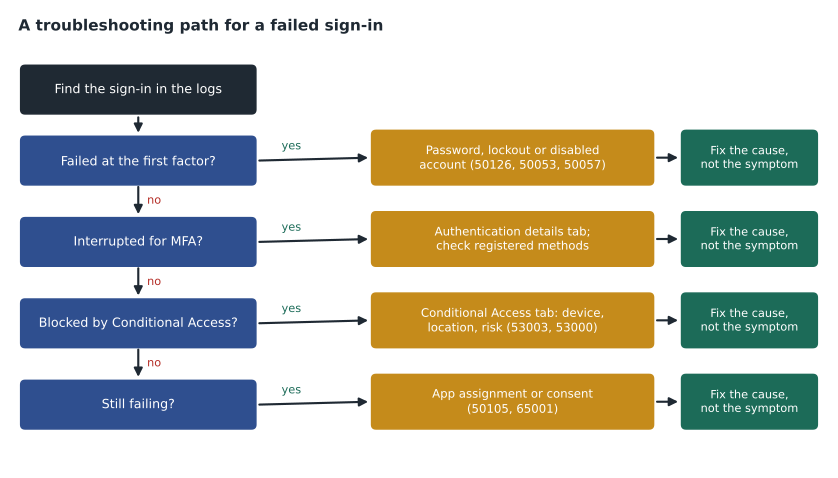
Ama turned what she had learned into a one-page routine for the help desk, and the call that opened this lesson was solved by following it. Find the user's most recent sign-in to the app in question. Read the error code and failure reason. Open the tab the code points to: Authentication details for MFA problems, Conditional Access for blocks, Device info for compliance, and the enterprise application's assignments for AADSTS50105. Fix the cause, not the symptom, and escalate to Teodor only when the fix would be a policy change. In the first quarter after the identity project, average handling time for sign-in calls fell from eleven minutes to five, and calls escalated to IT fell by two thirds.
Investigating a suspected compromise
Troubleshooting is usually about a user who cannot get in. Investigation is the opposite: someone may have got in who should not have. The same logs answer both, read differently. When the branch coordinator's account was phished in September 2026, Teodor followed a short sequence. He filtered the sign-in logs for the account over the past 30 days and looked for successful sign-ins from unfamiliar locations, IP addresses or devices, including non-interactive sign-ins, which reveal a stolen token being used quietly in the background. He opened the audit logs for the same account to see whether new MFA methods had been registered, app consents granted or the account added to groups. He checked the user's mailbox for new inbox rules in Exchange, a favourite trick for hiding replies from the real user. And he checked the enterprise applications list for consent grants by that user (lesson 9).
If the evidence shows compromise, the response steps are the same each time: confirm the user compromised in ID Protection (which raises risk and triggers policy), revoke the user's sessions, reset the password or require re-registration of methods, remove any methods, rules, consents or memberships the attacker added, and review what data the account accessed. Microsoft Defender XDR brings much of this into one incident view, but an administrator who knows the Entra logs can do it with nothing else.
| Question | Where to look |
|---|---|
| Did someone sign in from somewhere unusual? | Interactive and non-interactive sign-in logs, Location tab |
| Did they register a method or change the account? | Audit logs, filtered by target user |
| Did they grant an app access? | Audit logs (consent to application) and the enterprise application's permissions |
| Did they set up mail forwarding or rules? | Exchange admin center or Defender portal |
| Is the account still at risk? | ID Protection risky users report |
Health and recommendations
Two further areas of the admin center help administrators notice problems before users call. Recommendations list improvements Microsoft has identified for the tenant, such as removing unused applications, renewing expiring credentials, migrating from per-user MFA or converting legacy policies, each with a status and the affected objects. Health monitoring tracks key authentication scenarios, such as MFA sign-ins and sign-ins to managed devices, and raises alerts when success rates drop sharply, which can reveal a broken policy or a service issue within minutes. Microsoft Entra also publishes service incidents in the Microsoft 365 Service health dashboard and the Azure status page. When many users fail at once, those pages are worth checking before anyone edits a policy.
Common mistakes
MistakeGuessing at the cause of a sign-in failure.
InsteadOpen the sign-in entry and read the error code and the relevant tab.
MistakeLooking only at interactive sign-ins.
InsteadBackground token use, apps and managed identities appear in the non-interactive, service principal and managed identity views.
MistakeRelying on the portal's default retention for investigations.
InsteadExport logs to Log Analytics or storage; Free keeps 7 days and P1 or P2 keep 30.
MistakeAdding a policy exclusion to fix one user's block.
InsteadFind the unmet condition, such as device compliance or a VPN, and fix that.
MistakeUnlocking an account locked by attempts from an unknown source.
InsteadInvestigate the source first; the lockout may be stopping an attack.
Summary and key terms
- Sign-in logs record interactive, non-interactive, service principal and managed identity sign-ins, with tabs for authentication, device, location and Conditional Access.
- AADSTS error codes fall into families: password, lockout, MFA, Conditional Access, device, assignment, consent and app configuration.
- The Conditional Access tab shows each policy as success, failure or not applied; What If tests changes before they are made.
- Audit logs record changes, such as policy edits, role changes and consent grants.
- Export logs with diagnostic settings to Log Analytics, storage or an Event Hub for retention beyond 7 or 30 days, and query them with KQL.
- Sign-in log
- The record of every authentication to the tenant, with its result and context.
- Non-interactive sign-in
- A sign-in a client performs with tokens on a user's behalf without user input.
- Correlation ID
- An identifier that links the events of one sign-in for troubleshooting and support cases.
- Audit log
- The record of changes made in the directory and its policies.
- Diagnostic settings
- Configuration that exports Entra logs to Log Analytics, storage or an Event Hub.
- KQL
- Kusto Query Language, used to query logs in Log Analytics and Microsoft Sentinel.
Practice problems
Work each problem on paper first, then reveal the answer to check.
A user receives AADSTS50105 opening an app. What is the likely cause?
Show answer
The app requires assignment and the user is not assigned.
How long are sign-in logs kept in a tenant with Entra ID P1?
Show answer
30 days.
Where would you look to find out who changed a Conditional Access policy yesterday?
Show answer
The Entra audit logs.
Lesson quiz · 5 questions
Score 60% or more to complete this lesson.
Create a free account to save your progress, take quizzes and earn a certificate.