
MSBA-202 · Lesson 3 of 12 · 19 min
Self-service password reset
▶ Video coming soon A video version of this lesson is on the way.
Ama Owusu-Pratt runs Corvallin's help desk, and she had a number ready when Teodor asked what hurt most. "One hundred and twenty password calls a month. Half of them before eight in the morning, when a nurse is standing in a client's driveway and can't open the visit schedule." Each call took about ten minutes, because the help desk had to confirm the caller's identity by calling back a manager. Worse, the identity check was weak: an attacker who knew a nurse's name and branch could, with some confidence, talk a busy agent into a reset. Social engineering of help desks has been behind several large breaches, and Ama knew it.
Self-service password reset (SSPR) lets users reset a forgotten password or unlock their account themselves, after proving who they are with methods they registered earlier. Done well, it removes most password calls and replaces a phone conversation with a check that is harder to fool. Done badly, it hands attackers a reset button protected by a phone number they can hijack. This lesson covers how to configure it well.
Turning SSPR on
SSPR is configured in the Microsoft Entra admin center under Entra ID > Password reset. The first setting is its scope: None, Selected (one security group) or All. Most organizations pilot with a selected group and then switch to all users. Administrators are a special case, described below; the scope setting applies to everyone else.
The Authentication methods page of SSPR sets how many methods a user must prove during a reset: one or two. Which methods count is now decided by the authentication methods policy from the previous lesson, together with the SSPR policy for the few things that still live there, chiefly security questions. Microsoft recommends requiring two methods, and Corvallin chose two: a reset is a high-value action, and two independent checks defeat an attacker who has taken over only one of them.
The Registration page decides whether users must register when they next sign in and how often they are asked to reconfirm their information (the default is every 180 days). Reconfirmation matters more than it seems: phone numbers change, people switch from personal to company phones, and a reset that fails because the registered number is three years old sends the user straight back to the help desk.
The Notifications page can tell users by email when their own password is reset (so a user notices a reset they did not make) and tell all global administrators when another administrator resets a password. Both are worth turning on. The Customization page lets the organization replace the generic "contact your administrator" link with its own help desk page or email address, which Corvallin pointed at an intranet page with the help desk's number and hours.
| SSPR setting | Options | Corvallin's choice |
|---|---|---|
| Enabled for | None, Selected group, All | Selected (pilot group of 40), then All |
| Methods required to reset | 1 or 2 | 2 |
| Require registration at sign-in | Yes or No | Yes |
| Days before reconfirmation | 0 to 730 (default 180) | 180 |
| Notify users on reset | Yes or No | Yes |
| Notify admins when other admins reset | Yes or No | Yes |
| Help desk link | Default or custom URL or email | Custom intranet page |
The administrator reset policy
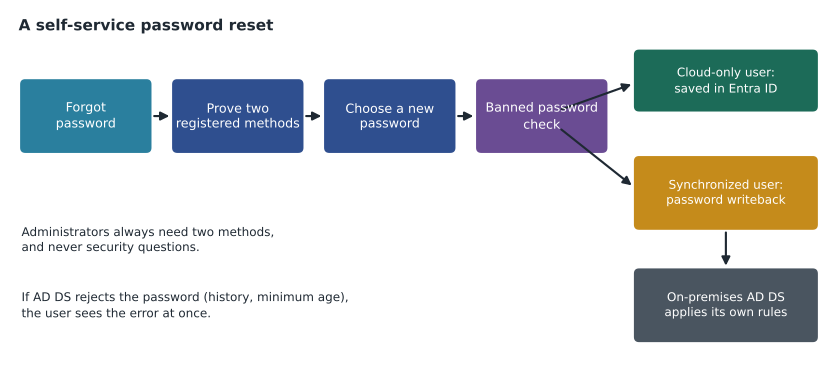
Accounts that hold administrator roles do not follow the tenant's SSPR settings. Microsoft applies a stronger two-gate policy to them automatically: an administrator must always prove two methods, and security questions are never allowed. The settings in the Password reset page do not loosen it, and SSPR for administrators is enabled by default. The design reflects the reality that an attacker who can reset an administrator's password owns the tenant. It also means an organization cannot use SSPR to make admin accounts easier to recover; the right recovery path for admins is a phishing-resistant method plus documented break-glass accounts (lesson 4).
Methods for reset
The methods available for SSPR overlap with MFA methods but are not identical. Microsoft Authenticator notifications and codes, OATH tokens, mobile phone (SMS or call), office phone, email, and security questions can all be used for a reset where the policy allows them. Passkeys are not a reset method in the classic sense; a user who has a passkey can usually sign in without a password at all, and the long-term answer to forgotten passwords is not needing one.
Email deserves a caution. The email address used for SSPR must be an address outside the organization, because a user who has forgotten their password cannot open their work mailbox. That makes it a personal address, which the organization does not control. Teodor allowed email only as one of the two required methods and never alone.
Security questions are the weakest option: answers are guessable, often discoverable on social media, and cannot be changed when they leak. Microsoft allows them only for non-administrators and only for SSPR. Corvallin did not enable them.
A change Microsoft rolled out in late 2026 removes an old shortcut. In the past, SSPR could use the phone numbers and alternate email stored as directory attributes on the user object (mobilePhone, businessPhones and otherMails), even if the user had never registered them. Microsoft announced in the Message center (MC1325414) that SSPR would require registered authentication methods instead, with enforcement starting in November 2026 after a period of registration prompts. Users who relied on a number an administrator typed into their profile, and never registered anything themselves, lose the ability to reset until they register. For administrators the message is to check the registration report before the change reaches the tenant, not after the first locked-out user calls.
Password writeback for synchronized users
A synchronized user's password lives in on-premises AD DS. If that user resets it in the cloud and the change stays in the cloud, the two directories disagree and the next sync cycle, or the next domain sign-in, fails in confusing ways. Password writeback solves this by sending the new password from Entra ID back to AD DS at the moment of the reset. Both Entra Connect Sync and Entra Cloud Sync support it, and in Cloud Sync it is a simple checkbox in the configuration. Writeback is real time: the user gets an error immediately if AD DS rejects the password, for example because it fails the on-premises complexity or history rules. Writeback for synchronized users requires Entra ID P1 licensing. Corvallin itself no longer needs writeback, because all its users have been cloud-only since 2022, but it had relied on writeback during its hybrid years and would need to understand it for any hybrid organization it acquired.
Two related options sit on the SSPR On-premises integration page: allowing users to unlock their AD DS account without resetting the password (useful when the only problem is too many wrong guesses), and writing back passwords changed in the cloud by administrators. In a hybrid tenant both are usually worth enabling.
Users can reach SSPR from several places: the web page at aka.ms/sspr, the "Forgot my password" link on the Microsoft sign-in page, and the Windows sign-in screen of Entra-joined and hybrid-joined devices, where an administrator can enable a "Reset password" link. The Windows option mattered most to Corvallin's office and branch staff, whose laptops were Entra-joined: anyone who forgot a password could recover at the lock screen without calling the help desk.
Worked problem
Why a reset fails
At a hybrid clinic that Corvallin works with, a receptionist with a synchronized account resets her password through SSPR. She proves two methods, types a new password that Entra ID accepts as strong, and then sees the error "Your password doesn't meet your organization's requirements". Password writeback is enabled. What is the likely cause and fix?
Show solution
- For a synchronized user, the reset completes only if on-premises AD DS also accepts the new password through writeback.
- Entra ID checked its own rules and the banned password list, so the rejection came from AD DS.
- The usual AD DS reasons are password history (she reused a recent password) or a minimum password age (she changed it too recently).
- She should choose a password she has not used before, or the AD DS administrator should review a minimum age setting that blocks legitimate resets.
Answer: AD DS rejected the password through writeback, most likely because of history or minimum age rules. Writeback gives the error in real time, which is why she saw it at once.
Microsoft Entra Password Protection
Whether a password is reset by the user or set by an administrator, it should not be one that attackers try first. Microsoft Entra Password Protection checks every new password against two lists:
- The global banned password list, maintained by Microsoft from the passwords it sees attackers use in password spray attacks. It applies to all cloud users automatically.
- A custom banned password list of up to 1,000 terms the organization adds, typically its own name, product names, local sports teams and place names. Corvallin added its name, its branch towns and the name of the scheduling system.
Entra ID does not just look for exact matches. It normalizes the password (for example, treating zero as o and @ as a), looks for banned terms inside it, and scores what is left, so "Corvallin2026!" and "C0rv@ll1n!!" are both rejected. Password Protection can be extended to on-premises AD DS by installing a DC agent on each domain controller and a proxy service, so that passwords changed through Ctrl+Alt+Delete on a domain-joined PC get the same check. The on-premises agent can run in audit mode first, logging what it would have blocked, before switching to enforced mode. Custom lists and the on-premises extension require Entra ID P1.
Smart lockout is a companion control. After a number of failed sign-ins (10 by default in the public cloud), Entra ID locks the account for a period that starts at 60 seconds and grows with repeated failures. It is "smart" because it tries to tell the real user, signing in from a familiar location, from an attacker guessing from elsewhere, and locks out the attacker without locking out the user. The threshold and duration can be customized with P1 licensing. For hybrid users, the Entra lockout threshold should be lower than the AD DS lockout threshold, so that cloud guessing is stopped before it can lock the on-premises account.
# Check SSPR registration across members before enforcement (Microsoft Graph PowerShell)
Connect-MgGraph -Scopes "AuditLog.Read.All"
$r = Get-MgReportAuthenticationMethodUserRegistrationDetail -All |
    Where-Object { $_.UserType -eq "member" }
"SSPR registered: {0} of {1}" -f ($r | Where-Object IsSsprRegistered).Count, $r.Count
$r | Where-Object { -not $_.IsSsprRegistered } | Select-Object UserPrincipalName | Export-Csv sspr-gaps.csvSSPR registered: 371 of 453
Measuring the result
The SSPR Usage and insights reports in the admin center show registrations and reset attempts, including failures and why they failed. Ama and Teodor agreed on two numbers to watch: the share of users registered for SSPR, and password-related calls to the help desk. After the pilot, with two methods required and the Windows lock-screen link enabled, the 40 pilot users made three password calls in a month instead of the dozen they would normally have made. Ama added a rule to the help desk script at the same time: agents would no longer reset passwords on the strength of a phone call. A caller who could not use SSPR would be issued a Temporary Access Pass after a video check against their staff photo, or asked to come to a branch office.
"The best password reset," Teodor told Ama, "is the one nobody needs because they signed in with a passkey." That was the long-term plan. SSPR is the safety net while passwords still exist, and it stays necessary for anyone who has not yet moved to passwordless sign-in.
Rolling SSPR out
Teodor ran the SSPR change as a small project with three stages. First, a pilot group of 40 staff from two branches, chosen to include early-morning field workers and office staff, used SSPR for a month while the help desk recorded every call. Second, he set registration to required at sign-in for all users for three weeks before enabling SSPR for all, so that most people had registered before they ever needed to reset. Third, he switched scope to All and announced it with a one-page guide, a short video recorded on a field phone, and a note on the intranet page that the customized help desk link pointed to.
Two details from the pilot changed the design. Field staff often forgot passwords on Monday mornings after a weekend off, so the Windows lock-screen link and the "Forgot my password" link on the phone sign-in page mattered more than the web address. And a few staff shared one personal phone number with a spouse who also worked at Corvallin; registered methods are per user, so that worked, but it reminded Teodor that a shared number is one more reason to prefer the Authenticator app over SMS.
Common mistakes
MistakeRequiring only one method for reset.
InsteadRequire two, so an attacker needs to defeat two independent checks.
MistakeExpecting the SSPR page settings to apply to administrators.
InsteadAdmins always get the two-gate policy, with no security questions.
MistakeEnabling SSPR for synchronized users without password writeback.
InsteadEnable writeback so the new password reaches AD DS and on-premises rules are enforced.
MistakeRelying on phone numbers stored in the user's profile.
InsteadSSPR now uses registered methods; check registration before enforcement.
MistakeLetting help desk agents reset passwords after a phone call.
InsteadUse SSPR, or a verified Temporary Access Pass, so social engineering does not work.
Summary and key terms
- SSPR lets users reset or unlock their own accounts after proving registered methods; require two methods.
- Administrators always get a two-gate policy that the tenant settings do not change.
- Password writeback sends cloud resets to AD DS in real time and enforces on-premises password rules.
- Password Protection blocks common and organization-specific passwords; smart lockout slows guessing without locking out real users.
- SSPR now relies on registered methods rather than phone numbers in the directory, so track registration.
- Self-service password reset
- A feature that lets users reset or unlock their own account after verifying registered methods.
- Two-gate policy
- The fixed SSPR rule for administrators: two methods and no security questions.
- Password writeback
- Sending a password changed in Entra ID back to on-premises AD DS.
- Banned password list
- Global and custom lists of terms that Password Protection rejects in new passwords.
- Smart lockout
- Temporary lockout after repeated failed sign-ins that distinguishes real users from attackers.
- Combined registration
- One experience for registering methods used for both MFA and SSPR.
Practice problems
Work each problem on paper first, then reveal the answer to check.
Why should the Entra smart lockout threshold be lower than the AD DS lockout threshold for hybrid users?
Show answer
So cloud guessing is stopped before it can lock the on-premises account.
Why must the SSPR email method use a personal address?
Show answer
A user who has forgotten the password cannot open the work mailbox.
Name two terms you would add to a custom banned password list for your organization.
Show answer
Examples: the organization's name and the names of local towns or products.
Lesson quiz · 5 questions
Score 60% or more to complete this lesson.
Create a free account to save your progress, take quizzes and earn a certificate.