
MSBA-102 · Lesson 8 of 12 · 20 min
SharePoint permissions, sharing links and oversharing
▶ Video coming soon A video version of this lesson is on the way.
Every oversharing problem Teodor had found so far led back to SharePoint and OneDrive. That is not because SharePoint is careless; it is because SharePoint holds most of an organization's files and makes sharing easy, which is what people want from it. Teodor's job in November was to understand exactly how access was being granted at Corvallin, find the places where it was too broad, and fix them without breaking the branches' daily work.
The permission model
Access in SharePoint is granted at several levels: the site, a library or list, a folder, and an individual file or item. By default each level inherits permissions from its parent. A file in a folder in a library on a site has the site's permissions unless someone changes that. When a site owner gives a folder its own permissions, the folder breaks inheritance and now has unique permissions that no longer follow the site.
Most modern sites are connected to a Microsoft 365 group, often because they were created with a Microsoft Teams team. Group owners become site owners, and group members become site members. Sites also have the classic SharePoint groups: Owners with full control, Members who can edit, and Visitors who can read. Anyone added directly to one of those groups, or through a security group nested inside, has that level of access everywhere the site's permissions are inherited.
| Way access is granted | Where it shows up | Oversharing risk |
|---|---|---|
| Microsoft 365 group membership | Team and site members | Large or dynamic groups add many people at once |
| SharePoint site groups | Owners, Members, Visitors | Broad groups such as "Everyone except external users" added as Visitors |
| Unique permissions on a folder or file | Manage access panel for the item | Forgotten exceptions after a project ends |
| Sharing links | Manage access panel and sharing reports | Organization-wide or anyone links passed around |
| Guest access | Guests in groups or specific-people links | Outsiders keeping access after work ends |
Everyone except external users
SharePoint has a special claim, Everyone except external users (EEEU), that includes every member account in the organization, but not guests. Adding EEEU to a site's Visitors group or to a folder makes the content readable by everyone with a work account. Over the years, many organizations used EEEU as a shortcut for intranet pages, templates and "everyone needs this" folders, and then reused it for things that were not meant for everyone. Teodor found EEEU on 23 of Corvallin's 210 sites, including a branch incident-report folder.
Public teams create a similar effect. When a team is public, anyone in the organization can join it and read its files, and its content can appear in their search results. Teodor's rule became simple: teams holding client information are private and labelled Confidential / Clinical, and EEEU is allowed only on the intranet and the policies site.
Sharing links
A sharing link grants access to a file or folder without changing the site's group memberships. Microsoft 365 offers four link types.
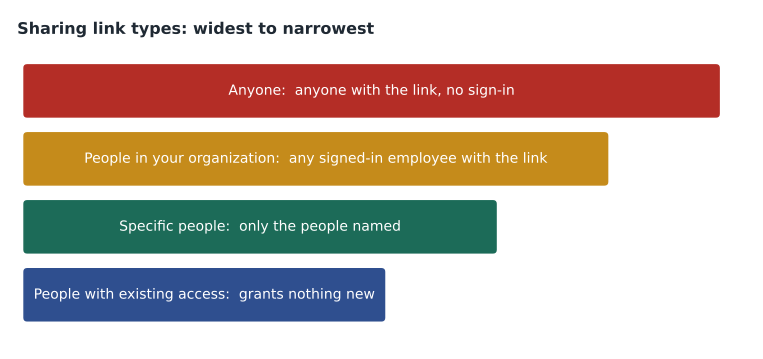
| Link type | Who it works for | Typical use |
|---|---|---|
| Anyone | Anyone who has the link, without signing in, if the tenant allows it | Public flyers; usually disabled in health care |
| People in your organization | Any signed-in member account that has the link | Quick internal sharing; a common source of oversharing |
| People with existing access | Only people who already have access; grants nothing new | Sending a pointer to a colleague who already has access |
| Specific people | Only the named people, including chosen guests if allowed | Sharing a client file with one colleague or partner |
Links interact with Copilot in a way that surprises people. A link that works for people in the organization does not instantly give everyone access; it gives access to people who use the link. But organization-wide links are copied into chats and emails and forwarded, so over time many people use them, and each of those people can then find the file in search and Copilot. The safest default for a health-care tenant is Specific people, with organization-wide links still available for low-risk content when someone chooses them deliberately.
Sharing settings: tenant and site
Administrators control sharing in the SharePoint admin center at two levels. The organization level sets the widest sharing allowed for SharePoint and for OneDrive, from Anyone, through New and existing guests and Existing guests, to Only people in your organization. It also sets the default link type and permission, expiration for Anyone links and limits on which domains guests can come from. Microsoft's readiness guidance notes that the default organization settings are the most permissive options, so reviewing them is one of the first tasks for any Copilot rollout. The site level can be the same as the organization or more restrictive, never less.
Worked problem
Choosing settings for Corvallin
Marguerite wants families to receive documents from case managers, but never through links that anyone could open. Branch staff should share internally without accidentally sharing with the whole company. What should Teodor set?
Show solution
- Organization level for SharePoint: New and existing guests, so case managers can share with family members who sign in or verify with a code.
- Turn off Anyone links by not allowing the Anyone level, so no link works without identification.
- Default link type: Specific people, with the default permission set to View.
- Clinical sites: set site sharing to Only people in your organization or Existing guests, enforced by the Confidential / Clinical container label.
Answer: Allow guests but not Anyone links, default to Specific people with View, and restrict clinical sites further with their label.
Tools to find oversharing
The exam asks candidates to identify the tools used to troubleshoot oversharing. Corvallin used a mix, from the very local to the tenant-wide.
| Tool | What it answers |
|---|---|
| Manage access panel on a site or file | Who has access to this item, through which groups and links |
| Site permissions in site settings | Which groups and people have which permission levels, and where inheritance is broken |
| Data access governance reports | Tenant-wide views of links, EEEU use, labels and permissions |
| DSPM for AI data risk assessments | Where sensitive content and broad access overlap, and what Copilot has touched |
| Data explorer | Which items contain sensitive information or labels, and where they are |
| Audit log and activity explorer | Who created links, changed permissions or opened content |
Data access governance reports
Data access governance (DAG) reports are tenant-wide oversharing reports in the SharePoint admin center, under Reports. With Microsoft 365 Copilot licences in the tenant, they are available through the SharePoint Advanced Management features included with Copilot, covered in lesson 9. Microsoft's readiness guidance suggests starting with these reports.
| Report | What it shows |
|---|---|
| Sharing links activity | Sites with the most Anyone, People in your organization and Specific people links created in the past 28 days |
| Everyone except external users | Sites where content was shared with EEEU in the past 28 days |
| Sensitivity label snapshot | Sites and how labelled content is distributed |
| Site permissions baseline | A snapshot of the permission structure across SharePoint and OneDrive sites |
| Site permissions for users | Every site a chosen user can access |
To run a report, an administrator opens the SharePoint admin center, goes to Reports and then Data access governance, picks a report and generates a snapshot. Large tenants can take some time to produce results. Reports can be downloaded and, for supported reports, summarized with AI insights. From a report, an administrator can start a site access review, which asks the site owner to check and confirm or remove access, and records their response.
The site permissions for users report was the one Ines liked best. Teodor ran it for the test scheduler account and handed her a list of every site that one scheduler could reach. Seeing "Finance - Payroll exports (read)" on a scheduler's list did more to win support for the cleanup than any explanation of inheritance.
Fixing what you find
Remediation is mostly ordinary SharePoint administration done systematically. Teodor's team removed EEEU from sites that did not need it, deleted or narrowed organization-wide links on sensitive folders, restored inheritance on folders where unique permissions had outlived their purpose, removed guests whose work had ended, and made clinical teams private. Site owners did most of the work through site access reviews, because they knew which people needed access; IT supplied the reports and checked that reviews were completed. For the handful of sites that could not be cleaned quickly, he used the containment tools in lesson 9 so Copilot would not surface them in the meantime.
# Corvallin oversharing cleanup - week 1 tracker (excerpt)
Site                         Finding                       Owner action           Status
Branch 3 Operations          290 org-wide links on exports Remove links, label     Done
Finance - Payroll exports    EEEU in Visitors              Remove EEEU             Done
Branch 1 Incidents           Folder broke inheritance,     Restore inheritance     In review
                             EEEU added
Funding applications 2023    Stale export, client data     Delete under retention  Approved
Intranet                     EEEU in Visitors              Keep (by design)        Accepted
OneDrive oversharing
OneDrive is personal storage, but it is not private by accident-proof design. People share folders from OneDrive with colleagues, teams and guests, often with organization-wide links, and those files are then within reach of the people who used the links. Corvallin's reports showed that some branch coordinators kept client spreadsheets in OneDrive and shared them with their whole branch through links. Teodor set the OneDrive sharing level to match SharePoint's, included OneDrive in the data access governance reports and asked coordinators to move shared client files into the branch team's site, where membership controlled access.
Guests and external sharing
Guests are people outside the organization who have been given access, such as family members, contractors or partner agencies. They can be added to teams or receive specific-people links. Guests are not included in EEEU, so EEEU problems do not expose content to them, but forgotten guests are their own risk. Microsoft Entra access reviews can ask group owners to confirm their guests regularly, and SharePoint can make guest links expire. Corvallin set guest access to expire after a set number of days unless renewed.
Worked problem
Reading the Manage access panel
On a care plan file, the Manage access panel shows: the Branch 2 Care team (edit, inherited), two named nurses (edit, direct), a People in Corvallin link (view) used by 14 people, and one guest, a family member (view). Which entries deserve questions?
Show solution
- The Branch 2 Care team is expected; it is inherited from the site.
- The two named nurses may be visiting staff from another branch; ask whether their access is still needed.
- The organization-wide link used by 14 people is the main concern: confirm who those people are and replace it with specific-people sharing.
- The family member's guest access may be legitimate; confirm it with the case manager and set an expiry.
Answer: Question the direct grants and the guest, and replace the organization-wide link used by 14 people.
The panel also lets an owner stop sharing a link or remove a person directly, which is often the fastest fix once the right answer is known.
Why permissions drift
Permissions rarely become broad in one step. They drift. A project team shares a folder with the whole company for a week and never narrows it. A department merges and both groups are added to each other's sites. A site owner leaves and nobody takes over. Each change is small and usually reasonable at the time. That is why one cleanup is never enough: the same forces start widening access again the day after. Recurring reports, site access reviews and lifecycle policies exist to catch drift early, while each problem is still small.
Teodor put it to the branch managers in one sentence: "Sharing is easy on purpose; reviewing sharing has to become just as routine." From December, every site owner would receive a quarterly attestation request, and the reports would be rerun monthly.
He also asked the help desk to suggest the Specific people link type whenever staff asked how to share something, so the new default was reinforced in every conversation.
Common mistakes
MistakeAssuming site membership is the only way people get access.
InsteadCheck unique permissions and sharing links on folders and files too.
MistakeLeaving organization sharing settings at their defaults.
InsteadReview them early; the defaults are the most permissive options.
MistakeUsing Everyone except external users for convenience on working sites.
InsteadReserve EEEU for content that truly is for every employee, such as the intranet.
MistakeHaving IT remove access without involving site owners.
InsteadUse site access reviews so owners confirm who needs access.
Summary and key terms
- SharePoint permissions inherit from site to library to folder to file unless inheritance is broken.
- Access comes from group membership, site groups, unique permissions, sharing links and guest access.
- Everyone except external users and public teams can make content visible to every employee.
- Sharing settings are set at the organization level and can only be tightened at the site level.
- Data access governance reports, the Manage access panel, DSPM for AI and data explorer are the main tools to find oversharing.
- Permission inheritance
- The default where an item takes its permissions from its parent site, library or folder.
- Breaking inheritance
- Giving an item its own unique permissions so it no longer follows its parent.
- Everyone except external users (EEEU)
- A SharePoint claim that includes every member account in the organization but not guests.
- Sharing link
- A link that grants access to a file or folder to a chosen audience without changing group memberships.
- Data access governance reports
- SharePoint admin center reports that show sharing, EEEU use, labels and permissions across sites.
- Site access review
- A request for a site owner to confirm or remove access found in a report.
Practice problems
Work each problem on paper first, then reveal the answer to check.
Which sharing link type grants no new access at all?
Show answer
People with existing access.
Can a site allow more permissive sharing than the organization setting?
Show answer
No. A site can be the same or more restrictive, never less.
Which data access governance report lists every site a chosen user can access?
Show answer
Site permissions for users.
Lesson quiz · 5 questions
Score 60% or more to complete this lesson.
Create a free account to save your progress, take quizzes and earn a certificate.