
MSBA-102 · Lesson 4 of 12 · 21 min
Data loss prevention policies
▶ Video coming soon A video version of this lesson is on the way.
Sensitivity labels tell people and services how sensitive something is. Data loss prevention (DLP) decides what is allowed to happen to it. In the first week of November, Corvallin's privacy officer reported that a branch coordinator had emailed a family a spreadsheet that included two other clients' diagnoses. Nobody had meant any harm; the coordinator had sorted the wrong column. Marguerite asked Teodor whether Microsoft 365 could have stopped it. The answer was yes, with a DLP policy.
What DLP does
Microsoft Purview Data Loss Prevention watches content and activities in Microsoft 365 services, on onboarded devices and in some connected apps, and applies rules when sensitive information is about to be shared, copied or used in a risky way. A DLP policy can block an email from leaving, stop a file from being shared with guests, prevent text from being pasted into a browser, show the user a warning, or simply record the event and alert the compliance team. DLP works with classification from lesson 3: its conditions usually refer to sensitive information types, trainable classifiers or sensitivity labels.
The parts of a policy
Every DLP policy has the same building blocks.
| Part | What it defines | Corvallin example |
|---|---|---|
| Template or custom start | A starting set of conditions for a law or data type, or a blank policy | A template for health information, then tuned |
| Locations | Where the policy applies, with include and exclude scopes | Exchange, SharePoint, OneDrive, Teams chat and channel messages |
| Rules | One or more condition and action pairs, evaluated in priority order | Low-volume rule and high-volume rule |
| Conditions | What must be true for the rule to match | Content contains a health card number, shared with people outside the organization |
| Actions | What happens on a match | Block sending, or restrict access to the file |
| User notifications | Policy tips and emails that explain what happened | Tip in Outlook: "This email contains client health numbers" |
| User overrides | Whether users can proceed with a business justification | Allowed for the low-volume rule only |
| Incident reports and alerts | Who is told, and at what severity | Alert the privacy officer for high-volume matches |
Rules are where the detail lives. A common design uses two rules with different thresholds. A low-volume rule matches one to four instances of a sensitive information type and shows a policy tip while allowing an override with justification. A high-volume rule matches five or more and blocks the action outright, with a high-severity alert. That design catches the coordinator's spreadsheet without stopping a nurse from emailing one client's own information to that client's pharmacy, which is an ordinary part of care.
Worked problem
Designing a two-rule policy
Marguerite wants to stop large leaks of client health card numbers by email and sharing, while allowing a nurse to send one number when there is a care reason. Outline the two rules.
Show solution
- Locations: Exchange email, SharePoint sites, OneDrive accounts and Teams chat and channel messages.
- Rule 1, low volume: content contains 1 to 4 health card numbers with high confidence and is shared with people outside the organization. Action: show a policy tip and allow override with a business justification. Notify the user.
- Rule 2, high volume: content contains 5 or more health card numbers and is shared outside. Action: block, no override. Send a high-severity alert to the privacy officer.
- Run both rules in simulation mode for two weeks and review matches before turning on enforcement.
Answer: A tip-and-override rule for small numbers and a block-and-alert rule for large numbers, tested in simulation first.
Where DLP can apply
DLP locations have grown well beyond email. The main ones are Exchange email, SharePoint sites, OneDrive accounts, Teams chat and channel messages, Windows and macOS devices onboarded to Purview (often called endpoint DLP), on-premises file shares and SharePoint servers through the information protection scanner, Power BI, instances of other cloud apps through Microsoft Defender for Cloud Apps, and the Microsoft 365 Copilot and Copilot Chat location. Each location supports different conditions and actions. Endpoint DLP, for example, can audit or block copying a sensitive file to a USB drive, printing it, or uploading it to a website that is not on an allowed list.
Endpoint DLP matters for AI because people do not only use Copilot. A worker can paste client notes into a consumer chatbot in a browser. With devices onboarded and the right policy, DLP can warn or block when sensitive content is pasted or uploaded to generative AI websites, and DSPM for AI, covered in lesson 7, reports that activity.
DLP for the Microsoft 365 Copilot location
The Copilot location is the most important DLP development for this course. Microsoft documents several capabilities for it, some generally available and some still in preview as of November 2026.
| Capability | What happens | Status in Microsoft's documentation (November 2026) |
|---|---|---|
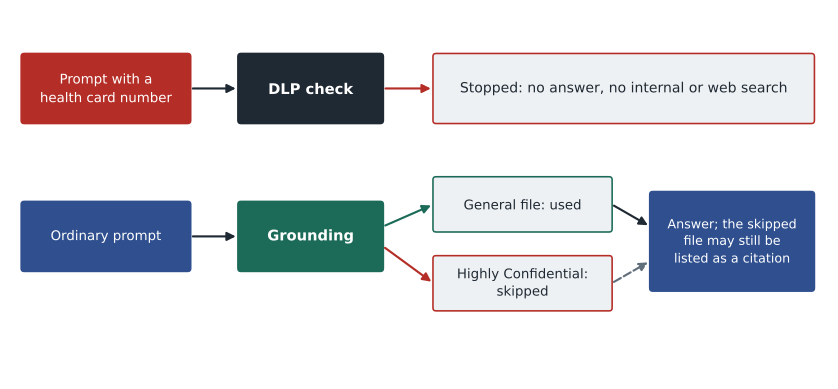
| Block items with chosen sensitivity labels | Copilot does not use the content of labelled files and emails in responses, though an item may still appear as a citation | Available |
| Block sensitive prompts | If a prompt contains chosen sensitive information types, Copilot returns no response and does not search with it | Preview, rolling out |
| Block web search for sensitive prompts | Copilot does not send the prompt to external search, but can still answer from permitted internal content | Available |
| Block emails from external senders | Copilot does not process emails received from outside the organization's accepted domains | Preview |
Several limits shape how administrators use this location. The Copilot location cannot be combined with other locations in the same policy, and it is available only when building from the custom template. A single rule cannot combine a sensitive information type condition with a sensitivity label condition, so Teodor used two rules in one policy. Prompt checking reads the typed prompt; it does not scan a file uploaded into the prompt. Label-based blocking covers supported files and emails sent on or after January 1, 2025. In Word, Excel and PowerPoint the label is checked when the file opens, so a label applied in the middle of a session takes effect the next time the file is opened. Policy changes can take up to four hours to reach Copilot experiences, and simulation mode is available.
Because prompts run in the user's security context, this DLP location adds protection on top of permissions rather than replacing them. A user who cannot open a file still cannot get Copilot to use it, whatever DLP says. DLP adds a second rule for files the user can open: "even you should not have Copilot summarize this."
# Policy: Copilot - protect clinical and investigation data
# Location: Microsoft 365 Copilot and Copilot Chat (all users)
Rule 1  Content with chosen labels
  Condition: content contains sensitivity label
             Highly Confidential, Confidential / Clinical
  Action:    prevent Copilot from processing content
Rule 2  Sensitive prompts
  Condition: prompt contains a health card number (SIT)
             or a Corvallin client number (custom SIT)
  Action:    prevent Copilot from processing the prompt
             and from performing web searches
Mode: simulation for 14 days, then turn on
Rolling out DLP safely
DLP that blocks the wrong things damages trust quickly; nurses who cannot send a referral will find a workaround. Microsoft's guidance is to deploy in stages.
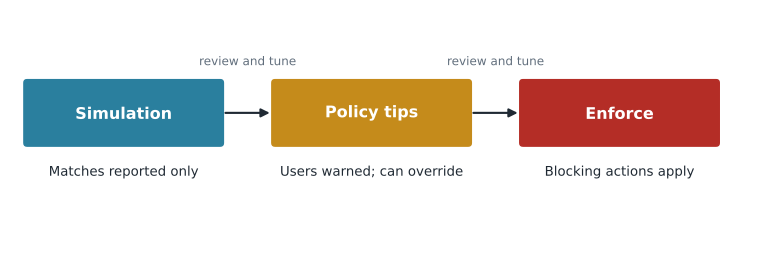
In simulation mode, the policy evaluates content and reports what it would have done, without affecting users. Administrators review matches, look for false positives and adjust conditions, confidence levels and exclusions. Next, the policy is turned on with policy tips only, so users see warnings and learn the rules. Finally, blocking actions are enforced. Teodor ran Corvallin's policy in simulation for two weeks and found that a fax cover template, which contained a sample health card number, matched hundreds of times. He replaced the sample with an obviously invalid number, and the false positives disappeared.
Responding to DLP alerts
When a rule is set to alert, matches appear on the Alerts page of the DLP solution in the Purview portal, and DLP alerts are also available in Microsoft Defender XDR for organizations that manage incidents there. An alert shows the policy and rule, the user, the location, the sensitive information detected and the action taken. Responders can see related events in activity explorer, assign the alert, add comments and mark it resolved or dismissed.
| Step | What the responder does | Tool |
|---|---|---|
| Triage | Check severity, user and volume; decide whether it needs action today | DLP alerts page or Defender XDR incidents |
| Investigate | Look at the matched content summary, the user's recent related activity and any override justification | Alert details and activity explorer |
| Contain | Remove a sharing link, recall or quarantine content where supported, talk to the user | SharePoint, Exchange and the user's manager |
| Learn | Tune the rule if it was a false positive, or add training if it was a real mistake | DLP policy settings and communication to staff |
| Close | Record the outcome and resolve the alert | DLP alerts page |
Teodor set the privacy officer, not IT, as the owner of DLP alerts that involve client data. IT could fix configuration, but deciding whether a disclosure was a reportable privacy breach was a clinical and legal decision. That division of labour, with technical staff tuning policies and privacy staff judging incidents, is common in health care and works well in most organizations.
Endpoint DLP and AI websites
Endpoint DLP extends policies to activities on Windows and macOS devices that are onboarded to Microsoft Purview. It can audit, warn or block when a user copies sensitive files to removable media, prints them, copies them to a network share, uploads them to cloud services not on an allowed list, or pastes sensitive text into a browser. Administrators can define groups of websites, such as generative AI sites, and apply stricter rules to them. Combined with DSPM for AI's discovery policy, this lets an organization first see which AI sites staff use and then decide which to allow, warn about or block.
Corvallin chose a gentle start. On onboarded head office laptops, pasting text containing health card numbers into a site in the generative AI group showed a warning that explained why and pointed to Copilot as the approved tool. Blocking would come later, once staff had Copilot licences and the warnings had done their teaching.
Writing policy tips people read
A policy tip is often the only training a user gets at the moment it matters. Microsoft lets administrators customize the text, and Teodor rewrote the defaults in plain language: "This email contains client health card numbers. Send it only to the client, their pharmacy or their care team. If this is for care, choose Override and give the reason." Short, specific tips with a clear way forward cut both overrides and help-desk calls.
Worked problem
Reading an override report
After two weeks with policy tips on, the DLP activity shows 140 overrides of the low-volume health card rule. Most justifications say "pharmacy referral". Twelve say "testing". What should Teodor do?
Show solution
- Pharmacy referrals are a legitimate care need, so the rule is working: users are told, and they proceed for a valid reason.
- Consider excluding the pharmacy partners' domains from the external-sharing condition to reduce noise, if the privacy officer agrees.
- Follow up on the twelve "testing" justifications, which suggest either curiosity or misunderstanding.
- Keep the rule in tip-and-override mode; it is doing its job.
Answer: Keep the rule, consider a narrow exclusion for pharmacy partners, and follow up on the unexplained overrides.
DLP in Teams
In Teams, DLP can check chat and channel messages, and files shared in them, which are stored in SharePoint and OneDrive. When a message matches a blocking rule, the sender sees a notice that the message was blocked and can, if the policy allows, report it as a mistake or override it. Recipients see that a message was blocked rather than its content. For Corvallin, where branch teams chatted constantly, Teams DLP mattered as much as email DLP, because staff often pasted client details into chats for speed.
Teodor also kept the legacy Exchange rule for credit card numbers but moved it into the new policy structure, so all of Corvallin's DLP rules lived in one place with consistent alerts and tips.
Common mistakes
MistakeEnforcing a new DLP policy immediately for everyone.
InsteadStart in simulation, then policy tips, then enforcement, reviewing matches at each stage.
MistakePutting the Copilot location in the same policy as Exchange and SharePoint.
InsteadThe Copilot location must be in its own policy built from the custom template.
MistakeCombining a label condition and a sensitive information type condition in one Copilot rule.
InsteadUse separate rules in the same policy.
MistakeExpecting prompt DLP to scan a file uploaded into the chat.
InsteadPrompt checks read the typed prompt text, so protect files with labels and permissions.
Summary and key terms
- DLP policies apply rules, made of conditions and actions, to chosen locations.
- Locations include Exchange, SharePoint, OneDrive, Teams, devices, Power BI, other cloud apps and Microsoft 365 Copilot.
- The Copilot location can stop Copilot from using labelled items and, in preview, stop sensitive prompts; it needs its own policy.
- Roll out DLP from simulation to policy tips to enforcement, tuning false positives at each stage.
- DLP alerts are triaged, investigated, contained and resolved in the Purview portal or Defender XDR.
- Data loss prevention (DLP)
- Purview policies that detect sensitive information and restrict how it is shared, copied or used.
- DLP location
- A service or place a DLP policy applies to, such as Exchange, devices or Microsoft 365 Copilot.
- Policy tip
- A message shown to a user when their action matches a DLP rule.
- User override
- A DLP setting that lets a user proceed with a business justification.
- Simulation mode
- A DLP mode that reports what a policy would do without affecting users.
- Endpoint DLP
- DLP applied to activities on onboarded Windows and macOS devices.
Practice problems
Work each problem on paper first, then reveal the answer to check.
Name two actions a DLP rule can take when it matches.
Show answer
Any two of: block, restrict access, show a policy tip, allow override with justification, send an alert or incident report.
Why did Teodor need two rules in his Copilot DLP policy?
Show answer
A single rule cannot combine a sensitivity label condition with a sensitive information type condition.
How long can a change to a Copilot DLP policy take to apply?
Show answer
Up to four hours, according to Microsoft's documentation.
Lesson quiz · 5 questions
Score 60% or more to complete this lesson.
Create a free account to save your progress, take quizzes and earn a certificate.