
MSBA-102 · Lesson 3 of 12 · 19 min
Sensitivity labels and information protection
▶ Video coming soon A video version of this lesson is on the way.
By the end of October, Teodor had a long list of overshared folders and a short list of fixes. Ines pointed out the obvious gap: even if every permission were perfect tomorrow, a clinical summary emailed to the wrong person or downloaded to a home laptop would still be unprotected. Permissions protect content where it sits. Sensitivity labels protect content wherever it goes.
What a sensitivity label is
A sensitivity label is a tag from Microsoft Purview Information Protection that an organization defines once and applies to emails, documents, meetings, Teams and Microsoft 365 groups, SharePoint sites and some other data. The label is stored as metadata in the item itself, so it travels when the item is copied, downloaded or attached to an email. Office apps show it in the title bar or the sensitivity menu, and other Microsoft 365 services read it to decide how to treat the item.
A label can do several things, and an organization chooses which settings each label has.
| Label setting | What it does | Corvallin example |
|---|---|---|
| Content marking | Adds headers, footers or watermarks to documents and emails | "Confidential: Corvallin clinical" footer |
| Encryption | Encrypts the item and grants usage rights to chosen users or groups | Only the Clinical staff group can open and edit |
| Container settings | Controls privacy, guest access and sharing for Teams, groups and SharePoint sites | Clinical sites are private with no guests |
| Auto-labelling | Applies or recommends the label when content matches conditions | Recommend the label when a health card number appears |
| Copilot and AI behaviour | Through encryption rights and DLP, decides whether Copilot can use the content | Highly Confidential items are excluded from Copilot processing by a DLP rule |
Labels are ordered by priority. The order is set in the Purview portal and matters in three places: when Copilot inherits a label from several sources, when a user tries to lower a label and must give a justification, and when policies refer to "this label or higher".
Use cases for labels
The exam asks candidates to identify use cases for sensitivity labels, and the clearest way to learn them is to match common problems to label settings. Corvallin had five.
| Problem | Label use case |
|---|---|
| Staff cannot tell which documents are sensitive | Visual marking so people see the classification on every page |
| Clinical summaries are emailed outside by mistake | Encryption that only clinical staff can open, wherever the file ends up |
| A new Teams team for a branch is created with guests allowed | A container label that sets the team to private and blocks guests |
| Copilot drafts from clinical notes and the draft is saved unprotected | Label inheritance plus a default label for new documents |
| Highly sensitive investigation files should never be summarized by AI | A label used in a DLP rule for the Microsoft 365 Copilot location |
Designing a label taxonomy
Microsoft's guidance is to keep the number of labels small and their names obvious. People will not choose correctly from a list of twelve, and a taxonomy that mirrors the organization chart breaks the next time it reorganizes. Teodor and Marguerite settled on five labels, with one sublabel for clinical information.
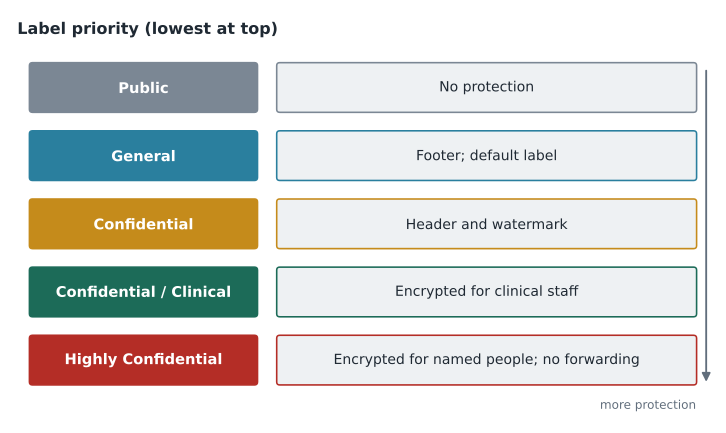
Each label has a short description that appears to users as a tooltip. Teodor wrote them as instructions rather than definitions: "Use for anything about a client's health or care" is more useful than "Contains personal health information as defined in policy." He also decided that Public needed no protection and General would be the default label for new documents and emails, so that nothing ended up unlabelled.
Worked problem
Choosing encryption permissions
Marguerite wants the Confidential / Clinical label to let clinical staff open and edit files, let the Billing team read them but not copy text out, and block everyone else. What should Teodor configure, and what does it mean for Copilot?
Show solution
- Assign the Clinical staff group the Co-Author permissions level, which includes VIEW, EDIT and EXTRACT.
- Assign the Billing team a custom permission with VIEW but without EXTRACT, so they can read but not copy.
- Leave everyone else without rights, so the file will not open for them.
- Copilot for a clinical user can use the file, because that user has VIEW and EXTRACT. Copilot for a Billing user cannot quote it, because EXTRACT is missing.
Answer: Co-Author for Clinical staff, view without extract for Billing, nobody else. Clinical users' Copilot can use the content; Billing users' Copilot cannot.
Label policies: who sees which labels
Creating a label does not show it to anyone. A label policy publishes labels to users or groups and sets behaviour around them. Policy settings include a default label for documents, emails, meetings and sites; whether users must justify removing a label or lowering its priority; whether labelling is mandatory before saving or sending; and a link to a custom help page. Several policies can exist, so field staff might see only General and Confidential while the privacy team also sees Highly Confidential.
Mandatory labelling deserves care. It forces a choice every time someone creates a document, which can be irritating for staff who write dozens of visit notes a day. Teodor used a default label of General for most users, a default sensitivity label of Confidential / Clinical on the clinical document libraries, and a justification prompt whenever someone tried to downgrade Confidential to General.
Applying labels: manually, by default, automatically
Labels reach content in four ways. Manual labelling happens when a person picks a label from the sensitivity menu. Default labels apply automatically to new items, set in the label policy or on a SharePoint document library. Client-side auto-labelling runs in the Office apps while someone works, either applying a label or showing a recommendation when content matches a condition. Service-side auto-labelling runs in Exchange, SharePoint and OneDrive and labels content at rest or in transit, which is how organizations label large archives that nobody will open again. Auto-labelling generally needs higher licensing than manual labelling, so Teodor checked which of Corvallin's users were covered before planning it.
Service-side auto-labelling policies can run in simulation mode first. The policy reports which items it would label without changing them, so administrators can check for false positives. Teodor ran one against the old funding-application export site and found that a pattern meant to match health card numbers was also matching staff ID numbers. He tuned the rule before turning it on.
Data classification
Auto-labelling and DLP both depend on data classification: the ability to recognize sensitive content. Microsoft Purview offers several methods.
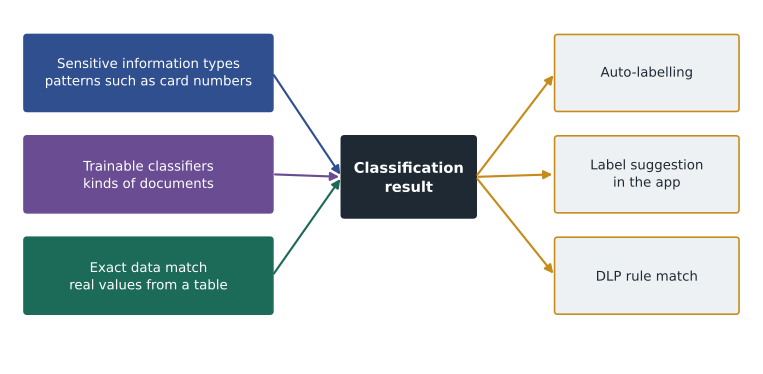
Sensitive information types (SITs) recognize patterns, such as credit card numbers, bank account numbers, passport numbers and many national and provincial identifiers. Each SIT combines a primary pattern, supporting evidence such as nearby keywords, and a confidence level. Microsoft provides hundreds of built-in SITs, and administrators can create custom ones, for example to match Corvallin's own client numbers. Trainable classifiers recognize kinds of content from examples rather than patterns, such as résumés, medical forms or source code; Microsoft provides pretrained classifiers and organizations can train their own. Exact data match compares content against a hashed table of real values, such as an export of actual client identifiers, which reduces false positives because only real clients match.
| Method | Best for | Weakness |
|---|---|---|
| Built-in sensitive information type | Standard identifiers with a fixed format | Can match look-alike numbers |
| Custom sensitive information type | Organization-specific patterns such as internal client numbers | Needs careful testing of the pattern and keywords |
| Trainable classifier | Documents recognized by their overall content | Needs good examples; less precise for single values |
| Exact data match | High-precision matching of real records | Needs a maintained, hashed data upload |
Seeing labelled and sensitive content
Two tools show what classification has found. Data explorer, which some pages still call content explorer, lists items that contain sensitive information types or carry sensitivity or retention labels, grouped by location such as Exchange, SharePoint, OneDrive and Teams. Access is deliberately split into two role groups: a list viewer can see items and their locations, and a content viewer can also open the items. Activity explorer shows what people did with labelled and sensitive content: labels applied, changed or removed, files copied to removable drives, DLP rule matches and, through DSPM for AI, AI interactions. Data explorer answers "where is it?"; activity explorer answers "what happened to it?".
Teodor used data explorer to find 340 files with health card numbers outside the clinical sites, mostly old exports in branch sites. That list became the remediation backlog for lessons 8 and 9.
Labels for sites and teams
Labels can also be applied to containers: Microsoft 365 groups, Teams and SharePoint sites. A container label does not label each file inside. Instead it controls the container's settings, such as whether the team is public or private, whether guests can be added, what kind of sharing links the site allows and whether unmanaged devices get limited web-only access. To use labels for containers, an administrator must turn on sensitivity label support for groups and sites in Microsoft Entra ID and synchronize labels. Corvallin labelled every clinical team Confidential / Clinical, which blocked guests and limited sharing to people in the organization.
For SharePoint and OneDrive to process encrypted labelled files fully, including for search, eDiscovery and Copilot, administrators should also turn on sensitivity labels for Office files in SharePoint and OneDrive. Microsoft recommends this setting; without it, encrypted files that Copilot can use are largely limited to files open in Office apps on Windows.
Rolling labels out to people
A taxonomy that staff do not understand will be ignored or misused, so Teodor treated the rollout as a training project as much as a configuration project. He published the labels first to the IT team and the privacy team for two weeks, then to the head office, and only then to the branches. Each stage had a short guide with three real examples from Corvallin's own work: a visit schedule (General), a staff disciplinary letter (Confidential) and a wound-care assessment (Confidential / Clinical). He also asked branch managers to report any document where the right label was unclear, and used those reports to improve the label descriptions. Within the first weeks of the head office stage, activity explorer already showed fewer downgrades from Confidential to General once the justification prompt made people stop and think.
Labels on email and meetings
Labels work in Outlook as well as in documents. A label for email can add a header or footer, encrypt the message for people inside the organization, or apply a Do Not Forward restriction so recipients cannot forward, print or copy it. Attachments can inherit the email's label. Teodor created one email-specific option under Confidential called Confidential / Internal only, which encrypted messages so they could be read only by Corvallin staff, and showed staff when to use it: sending a colleague a family's complaint, for example, but not sending a family their own care schedule.
Labels can also be applied to Teams meetings and calendar invites, where they can control settings such as who can bypass the lobby or whether recordings are allowed. Some meeting label settings depend on additional Teams licensing, so Teodor left meeting labels for a later phase and noted the requirement.
Who manages labels
Label administration is a privileged task, because a badly configured encryption label can lock people out of their own files. Purview roles separate it from other work: the Information Protection Admin and Information Protection role groups can create and manage labels and policies, while other roles can only read. Teodor kept label changes to himself and one colleague, recorded every change in the governance log, and tested each new label with a small pilot group before publishing it widely.
Labels and Copilot together
Labels and Copilot interact in three ways that are worth repeating together. Encryption decides whether Copilot can use content at all for a given user, through the VIEW and EXTRACT rights. Inheritance decides whether Copilot's output stays protected. And DLP for the Copilot location can use labels as a condition to keep chosen content out of Copilot's processing even for users who can open it. A label taxonomy designed with these three behaviours in mind serves people and AI alike.
Common mistakes
MistakeCreating many labels that mirror departments.
InsteadKeep a short taxonomy based on sensitivity and protection, with clear descriptions written as instructions.
MistakeExpecting a new label to appear for users immediately after it is created.
InsteadLabels must be published in a label policy before users can see them.
MistakeTurning on service-side auto-labelling without testing.
InsteadRun it in simulation mode and review matches before enforcing.
MistakeAssuming a container label labels every file in the site.
InsteadContainer labels control site and team settings; files need their own labels or a library default.
Summary and key terms
- Sensitivity labels are metadata that travel with content and can mark, encrypt and control containers.
- Label policies publish labels to users and set defaults, mandatory labelling and justification for downgrades.
- Labels are applied manually, by default, by client-side auto-labelling or by service-side auto-labelling.
- Data classification uses sensitive information types, trainable classifiers and exact data match.
- Data explorer shows where labelled and sensitive items are; activity explorer shows what happened to them.
- Sensitivity label
- A Purview tag stored in an item that can apply markings, encryption and container settings.
- Label policy
- A policy that publishes labels to users and groups and sets default and mandatory labelling.
- Sensitive information type
- A pattern-based classifier, with supporting evidence and confidence levels, that recognizes data such as identifiers.
- Trainable classifier
- A classifier that recognizes categories of content from examples.
- Exact data match
- Classification that compares content against hashed values from a real data table.
- Data explorer
- A Purview view of items that contain sensitive information or carry labels, also called content explorer.
- Activity explorer
- A Purview view of actions taken on labelled and sensitive content and AI interactions.
Practice problems
Work each problem on paper first, then reveal the answer to check.
What must happen after an administrator creates a label before users can apply it?
Show answer
It must be published in a label policy to the users or groups.
Which classification method compares content against an uploaded table of real client identifiers?
Show answer
Exact data match.
Which tool would show that a user removed a Confidential label from a document yesterday?
Show answer
Activity explorer.
Lesson quiz · 5 questions
Score 60% or more to complete this lesson.
Create a free account to save your progress, take quizzes and earn a certificate.