
MSBA-101 · Lesson 6 of 12 · 19 min
Multifactor authentication and passwordless sign-in
▶ Video coming soon A video version of this lesson is on the way.
In the week before the sixth review, a branch coordinator received an email that looked exactly like a Microsoft 365 sign-in warning. She clicked, typed her password into a convincing copy of the sign-in page, and approved the push notification that appeared on her phone a moment later. Within an hour her mailbox was sending invoices with altered bank details to three of Corvallin's suppliers. Defender caught the rule that hid replies, and nobody paid the fake invoices, but Ines opened the review with one slide: "MFA is not enough. The right MFA is."
Why passwords alone fail
Passwords fail in predictable ways. People reuse them across sites, so a breach somewhere else hands attackers a working password here. Attackers run password spray attacks, trying a few common passwords against thousands of accounts. Phishing pages collect passwords directly. Microsoft has reported for years that the great majority of compromised accounts had no multifactor authentication, and that MFA blocks almost all automated attacks on accounts. Strong password rules help a little; additional factors help a great deal.
Factors and methods
Multifactor authentication (MFA) requires two or more different kinds of evidence: something you know (a password or PIN), something you have (a phone, a security key) and something you are (a fingerprint or face). Two passwords are not two factors. A PIN that unlocks a key stored on a device counts as something you know protecting something you have.
Microsoft Entra ID supports many authentication methods, and they are not equally strong.
| Method | How it works | Phishing-resistant? | Notes |
|---|---|---|---|
| Password | Something you know | No | One factor only |
| SMS or voice call | A code sent to a phone number | No | Vulnerable to SIM swap and phishing; use only as a fallback |
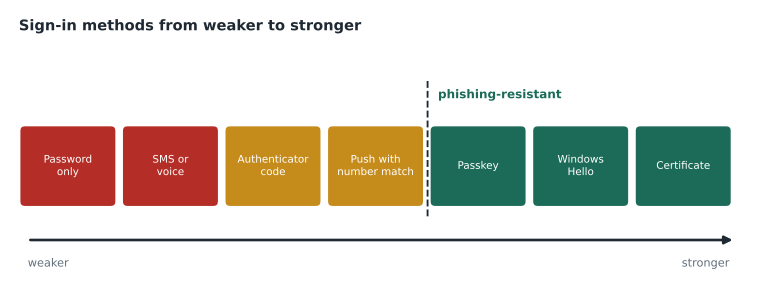
| Authenticator app push with number matching | Approve on the phone by typing the number shown at sign-in | No | Much better than SMS; number matching defeats blind approvals |
| Authenticator code (TOTP) | A six-digit code that changes every 30 seconds | No | Works offline |
| Passkey (FIDO2) | A private key on a device or security key, unlocked with PIN or biometric | Yes | Device-bound in a security key or Authenticator, or synced |
| Windows Hello for Business | A key tied to the Windows device, unlocked with PIN or biometric | Yes | Sign-in to Windows and Microsoft 365 |
| Certificate-based authentication | A certificate on a smart card or device | Yes | Common in government and healthcare |
| Temporary Access Pass | A time-limited passcode issued by an admin | No | For onboarding or recovery, to register a stronger method |
Phishing-resistant methods are the ones that cannot be replayed on a fake site. A passkey is bound to the real sign-in domain: the browser will only use it with login.microsoftonline.com, so the copy of the sign-in page that fooled the coordinator would have received nothing usable. The push approval she gave was the second factor, but it was a second factor that an attacker could relay in real time. That is the weakness Ines's slide was about.
Passwordless sign-in and passkeys
Passwordless sign-in removes the password altogether. The person signs in with something they have, unlocked with something they know or are. In Entra ID the main passwordless options are passkeys (FIDO2), stored on a hardware security key, in the Microsoft Authenticator app or, since Microsoft made them generally available in 2026, as synced passkeys held by a platform or password manager such as those built into phones and browsers; Windows Hello for Business on managed Windows devices; and phone sign-in with Microsoft Authenticator.
In 2026 Microsoft also introduced passkey profiles in the Authentication methods policy, so administrators can allow device-bound passkeys, synced passkeys or both, and apply different passkey settings to different groups. That matters in organizations like Corvallin, where administrators might be required to use device-bound keys while ordinary staff may use synced passkeys on their own phones.
The Authentication methods policy
Which methods people may register and use is controlled in the Microsoft Entra admin center by the Authentication methods policy. Each method, such as Microsoft Authenticator, passkeys, SMS or Temporary Access Pass, can be enabled for all users or for chosen groups, with settings specific to that method. Microsoft has moved management of MFA and self-service password reset methods into this single policy, replacing older separate settings pages, so it is the one place to look.
Related settings in the same area include registration campaigns, which prompt users who still rely on weaker methods to register Authenticator or a passkey at their next sign-in, and system-preferred MFA, which asks people to use the strongest method they have registered rather than whichever one they choose. Authentication strengths, used in Conditional Access (lesson 7), let a policy require a particular level, such as "phishing-resistant MFA", for sensitive apps or for administrators.
# List authentication methods registered by one user
Connect-MgGraph -Scopes "UserAuthenticationMethod.Read.All"
Get-MgUserAuthenticationMethod -UserId ines.ds@corvallincare.example |
    Select-Object @{n='Method';e={$_.AdditionalProperties['@odata.type']}}
Security defaults
Not every organization has Entra ID P1 for Conditional Access. Security defaults are a free, all-or-nothing set of protections that Microsoft turns on for new tenants: every user must register for MFA with the Authenticator app, administrators must use MFA every time they sign in, other users are prompted for MFA when it matters, and legacy authentication protocols that cannot do MFA are blocked. Security defaults cannot be customized. Organizations that need exceptions or finer control turn security defaults off and build Conditional Access policies instead, which is what Corvallin had done years earlier, though not very thoroughly.
Microsoft has also made MFA mandatory for administrative portals. Since October 2024, signing in to the Azure portal, the Microsoft Entra admin center and the Microsoft Intune admin center requires MFA, and since February 2025 the Microsoft 365 admin center does too. Command-line and programmatic tools for managing Azure resources followed in a second phase from October 1, 2025. These requirements apply regardless of an organization's own policies.
Self-service password reset
Self-service password reset (SSPR) lets people reset a forgotten password themselves after proving their identity with registered methods, without calling the help desk. It cuts help desk load and is safer than a phone call to a help desk, which an attacker can impersonate. SSPR uses the same registered methods as MFA, so a combined registration experience asks people to register once for both. With Entra ID P1 and hybrid identity, password writeback sends the new password back to on-premises Active Directory.
Rolling MFA out properly
Corvallin already "had MFA", but mostly as push notifications without number matching on staff who had registered years ago, SMS for anyone who had complained, and no MFA at all for three service accounts used by the scheduling integration. Ines and Teodor drew up a plan.
Worked problem
Corvallin's MFA upgrade plan
Corvallin has 450 staff. About 60 home-care staff have no work phone and do not want to use their personal phone for work. Administrators must be protected against the kind of real-time phishing the coordinator fell for. What should the plan include?
Show solution
- Administrators first: require phishing-resistant MFA (a passkey on a hardware security key or Windows Hello for Business) for every admin role, using an authentication strength in Conditional Access.
- Office staff on managed Windows laptops: deploy Windows Hello for Business and register a passkey in Authenticator as a second phishing-resistant method.
- Home-care staff with work phones: register Microsoft Authenticator with a passkey, run a registration campaign, then disable SMS for them.
- The 60 staff without phones: issue FIDO2 security keys, using a Temporary Access Pass for first registration at the branch office.
- Service accounts: replace them with workload identities or managed identities where the integration supports it, rather than exempting user accounts from MFA.
- Communicate early, explain why, and keep the help desk staffed for the first two weeks.
Answer: Phishing-resistant methods for admins first, passkeys or Windows Hello for staff, security keys for people without phones, and no permanent exemptions.
Troubleshooting MFA sign-ins
AB-900 asks you to identify the right tools for common sign-in problems, including MFA. The first stop is the user's entry in the sign-in logs, which shows whether MFA was required, which method was used or offered, and the failure reason, for example that the user did not complete the prompt, that no method was registered, or that a method was blocked by policy. The user's Authentication methods page shows what is registered and lets an administrator require re-registration, delete a lost device's methods or issue a Temporary Access Pass. Usage and insights reports show registration and use across the tenant, so Teodor could see how many people still relied on SMS each week.
MFA fatigue and how number matching helps
Before Microsoft made number matching the default for Authenticator push notifications, a common attack was MFA fatigue, sometimes called push bombing. An attacker with a stolen password would trigger sign-in after sign-in, sending a stream of approval requests to the victim's phone late at night until the victim tapped Approve just to make it stop. Number matching shows a two-digit number on the sign-in screen that the user must type into the app, so a request the user did not start cannot be approved by accident. Authenticator also shows the app name and the approximate location of the sign-in. These features defeat blind approval, but not a phishing page that shows the user the real number in real time, which is why the coordinator's compromise still worked.
Password rules that actually help
Even in a passwordless future, passwords will remain for a while, so the rules around them matter. Modern guidance, reflected in Microsoft's own recommendations, has moved away from forcing frequent password changes, because people respond by making small predictable changes. Instead, Microsoft recommends long passwords without forced expiry unless there is evidence of compromise, combined with MFA. Entra ID adds two protections automatically. Password protection blocks commonly used and easily guessed passwords, using a global banned list that Microsoft maintains, and organizations can add a custom list of words such as the company name. Smart lockout locks out attackers who guess repeatedly while letting the real user, recognized by familiar location and device, continue to sign in.
| Older practice | Current recommendation | Why |
|---|---|---|
| Change passwords every 90 days | No forced expiry unless compromise is suspected | Forced changes lead to predictable patterns |
| Complex short passwords | Long passphrases | Length matters more than symbols |
| Rely on the password alone | Always add MFA, ideally phishing-resistant | Passwords are phished and reused |
| Lock accounts after a few failures | Smart lockout that distinguishes attacker from owner | Avoids letting attackers lock out real users |
| Allow any password that meets rules | Block banned and common passwords | Stops the most guessable choices |
Registration and recovery: the weak link
Attackers know that the strongest method is useless if they can register their own. If a stolen password is enough to add a new phone to an account, MFA protects nothing. That is why the registration of security information should itself be protected: a Conditional Access policy can require MFA, or a trusted location or a Temporary Access Pass, before anyone can register or change methods. Recovery, when a person has lost every method, should involve verifying the person's identity in a way an attacker cannot easily fake, such as in person at a branch office or with a manager's confirmation, before issuing a Temporary Access Pass. Corvallin wrote this process down for the help desk after a caller claiming to be a branch manager asked Ama to "just reset my MFA, I'm at a client's house". The real manager was in the next room.
# Issue a one-time Temporary Access Pass valid for 60 minutes
Connect-MgGraph -Scopes "UserAuthenticationMethod.ReadWrite.All"
New-MgUserAuthenticationTemporaryAccessPassMethod -UserId newhire@corvallincare.example `
    -BodyParameter @{ lifetimeInMinutes = 60; isUsableOnce = $true }
Measuring the change
The Authentication methods activity report showed Corvallin's progress week by week: how many users had registered a passkey, how many still relied on SMS, and how many had no method at all. Six weeks after the plan started, 92 percent of staff had a phishing-resistant method registered, SMS had been disabled for everyone except a handful of people waiting for security keys, and the help desk's password reset calls had fallen by half because self-service reset now worked for everyone.
One nurse asked Teodor at a branch session whether a passkey on her phone meant Corvallin could see her personal photos. It did not: a passkey is a cryptographic key the phone uses to prove her identity to Microsoft, and registering one gives Corvallin no access to anything else on the device. Answering that question kindly, in person, did more for adoption than any email.
Common mistakes
MistakeTreating every second factor as equally strong.
InsteadPush approvals and codes can be phished in real time; passkeys, Windows Hello and certificates cannot.
MistakeExempting accounts from MFA permanently because they are inconvenient.
InsteadFix the underlying need, for example with a security key or a workload identity.
MistakeKeeping security defaults on and also trying to build Conditional Access policies.
InsteadSecurity defaults and Conditional Access are alternatives; turn defaults off when moving to Conditional Access.
MistakeLeaving SMS as everyone's main method.
InsteadUse SMS only as a fallback and move people to Authenticator or passkeys.
Summary and key terms
- MFA combines different kinds of factor: something you know, have or are.
- Phishing-resistant methods such as passkeys, Windows Hello for Business and certificates cannot be replayed on fake sites.
- The Authentication methods policy controls which methods are allowed for which users, including passkey profiles.
- Security defaults give free baseline MFA; Conditional Access replaces them when finer control is needed.
- MFA is mandatory for Microsoft's administrative portals; SSPR uses the same registered methods.
- Multifactor authentication
- Sign-in that requires two or more different kinds of evidence.
- Phishing-resistant MFA
- Methods bound to the real sign-in site, such as passkeys and Windows Hello for Business.
- Passkey
- A FIDO2 credential made of a private key on a device, unlocked with a PIN or biometric.
- Temporary Access Pass
- A time-limited passcode an administrator issues so a user can register or recover methods.
- Security defaults
- A free, fixed set of baseline identity protections for a tenant.
- Self-service password reset
- Letting users reset their own passwords after verifying with registered methods.
Practice problems
Work each problem on paper first, then reveal the answer to check.
Why did number matching not save the coordinator in the story?
Show answer
Push approval, even with number matching, can be relayed in real time by a phishing site; only phishing-resistant methods prevent that.
What is a Temporary Access Pass for?
Show answer
Letting a user sign in for a short time to register a stronger method, for example during onboarding or after losing a device.
Can security defaults be customized?
Show answer
No. They are all or nothing; customization needs Conditional Access.
Lesson quiz · 5 questions
Score 60% or more to complete this lesson.
Create a free account to save your progress, take quizzes and earn a certificate.