
MSBA-101 · Lesson 2 of 12 · 20 min
Exchange Online, mailboxes and distribution groups
▶ Video coming soon A video version of this lesson is on the way.
The second Thursday review started with a complaint. A client's daughter had emailed the intake address to change a visit time, and nobody had seen the message for two days. The intake address turned out to forward to the personal mailbox of a coordinator who had moved to the north branch. Ines asked Teodor to explain, from the beginning, what kinds of mail objects Corvallin had and which one each job should use. That question is the heart of this lesson and of the AB-900 objective on identifying the right objects in the Exchange admin center.
Exchange Online in brief
Exchange Online is the email, calendar and contacts service in Microsoft 365. It hosts mailboxes, receives and delivers mail for the tenant's domains, filters spam and malware with Exchange Online Protection, and stores calendars that Outlook, Teams and Copilot all read. Exchange Online is also the place where much of the tenant's business record accumulates: approvals, client correspondence and meeting history. That makes the choice of mail objects a governance question as well as a convenience one.
Exchange Online is managed in the Exchange admin center and with the Exchange Online PowerShell module. The Microsoft 365 admin center can do the most common tasks, such as creating a shared mailbox or adding someone to a distribution list, but the Exchange admin center holds the full set of options, including mail flow rules, connectors, accepted domains and detailed recipient settings.
Recipients: everything that can receive mail
Exchange calls any object that can receive mail a recipient. The kinds that matter for the exam and for daily administration are the following.
| Recipient | What it is | Needs a licence? | Typical use |
|---|---|---|---|
| User mailbox | A mailbox owned by one person who signs in to it | Yes | Each staff member's own email and calendar |
| Shared mailbox | A mailbox several people open with their own accounts; nobody signs in to it directly | Not up to 50 GB, unless it needs an archive or extra features | intake@, billing@, a team inbox |
| Room mailbox | A resource mailbox for a meeting room, with its own calendar and booking rules | No | Boardroom and training rooms |
| Equipment mailbox | A resource mailbox for something that is not a place | No | A pool car, a portable projector |
| Mail contact | An outside address listed in the directory | No | A contracted pharmacy's order desk |
| Mail user | A person with an account in the tenant but an outside email address | Depends on what else they use | A contractor who signs in but keeps their own mail |
| Distribution group | A list that delivers mail to its members | No | all-nurses@, a branch announcement list |
| Dynamic distribution group | A list whose members are worked out from attributes when mail is sent | No | Everyone whose office is the Bayview branch |
| Mail-enabled security group | A security group that can also receive mail | No | A group used both for permissions and announcements |
| Microsoft 365 group | A group with a shared mailbox, calendar, SharePoint site and optional team | Members need licences for the services | A project or department that works together |
User mailboxes
A user mailbox is created automatically when a user is given a licence that includes an Exchange Online plan. Its size depends on that plan: Business and some entry plans give 50 GB, while Enterprise plans such as E3 and E5 give 100 GB, and many plans include an online archive that can grow further. Frontline F3 licences give a much smaller 2 GB mailbox, intended for people who read a few messages on a phone. That last point mattered at Corvallin, where some branch nurses on F3 licences had been subscribed to every newsletter and were constantly hitting the limit.
Mailboxes outlive their owners for a while. When a user is deleted, or their licence removed, the mailbox is kept in a soft-deleted state for 30 days and can be restored. After that it is gone unless the mailbox was placed on hold or covered by a retention policy, which lesson 10 of this course and the Purview material in the next courses explain. A departing employee's mailbox that must be kept is therefore often converted to a shared mailbox before the licence is removed, so the content stays and the licence is freed.
Shared mailboxes
A shared mailbox is the right answer for an address that a team answers together: intake@, scheduling@, billing@. Nobody signs in to it with a password. Instead, people are given permissions and it appears in their own Outlook alongside their personal mailbox. Messages sent from it come from the shared address, and everyone with access sees the same items, the same folders and the same sent mail. When the coordinator moved to the north branch, the intake mail would simply have stayed where the intake team could see it.
Three permissions control a shared mailbox, and they are easy to confuse.
| Permission | What it allows | How the message appears |
|---|---|---|
| Full Access | Open the mailbox, read and manage its items and folders | Not a sending permission by itself |
| Send As | Send mail that appears to come directly from the mailbox | From: Intake |
| Send on Behalf | Send mail from the mailbox with the sender shown | From: Teodor Klimaszewski on behalf of Intake |
The sign-in for a shared mailbox account should be blocked. The account exists in the directory because every mailbox needs one, but it should never be used to sign in. Teodor found that Corvallin's billing@ mailbox had a password set in 2021 and written on a sticky note at the finance desk. Blocking sign-in and granting Full Access and Send As to the three finance clerks fixed the problem without anyone losing access.
# Connect to Exchange Online PowerShell
Connect-ExchangeOnline -UserPrincipalName admin.teodor@corvallincare.example

# Create a shared mailbox and give the intake team access
New-Mailbox -Shared -Name "Intake" -PrimarySmtpAddress intake@corvallincare.example
Add-MailboxPermission -Identity intake -User intake-team@corvallincare.example -AccessRights FullAccess -AutoMapping $true
Add-RecipientPermission -Identity intake -Trustee intake-team@corvallincare.example -AccessRights SendAs -Confirm:$false
Resource mailboxes
A room mailbox represents a meeting room and an equipment mailbox represents something bookable that is not a place. Each has a calendar and booking settings: whether requests are accepted automatically, how far ahead the resource can be booked, the maximum length of a booking and whether a delegate must approve. Room mailboxes can carry a capacity and location, and rooms can be grouped into room lists so that Outlook's room finder shows, for example, every bookable room in the head office. Corvallin had been booking its training room through a paper sheet on the door; Teodor created a room mailbox for it and a room list for each office.
Groups that carry mail
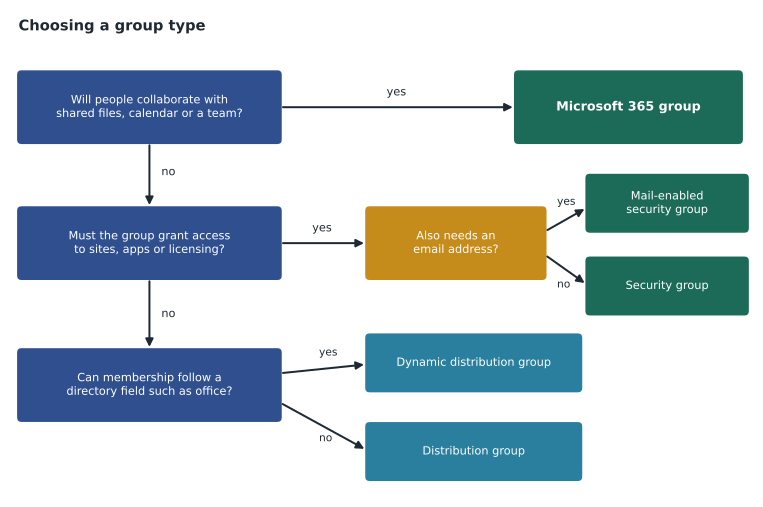
Exchange and Entra ID use several kinds of groups, and AB-900 expects you to pick the right one. The choice depends on what the group must do.
A distribution group, sometimes called a distribution list, only delivers mail. It has an address, members and owners, and settings such as whether people outside the organization may send to it. It cannot be used to grant access to a SharePoint site or an app. A dynamic distribution group has no fixed members; Exchange works out the recipients each time mail is sent, from attributes such as department, office or custom attributes. It is ideal when membership follows a field that HR keeps up to date, and useless if that field is unreliable.
A mail-enabled security group is a security group, so it can be used to grant permissions, that also has an email address. It suits cases such as the intake team above, where the same set of people needs both access and mail. A Microsoft 365 group is the modern collaboration group: it comes with a shared group mailbox and calendar, a SharePoint team site, a OneDrive-style file library, a Planner plan and, if a team is created from it, a team in Microsoft Teams. Lesson 3 returns to Microsoft 365 groups, because they tie Exchange, SharePoint and Teams together.
Worked problem
Picking objects for the intake desk
The intake desk has five coordinators who answer intake@, need a shared calendar of assessment visits, and must be able to open the intake folder in SharePoint. Managers want a separate list that reaches all coordinators across every branch when policy changes. Which objects should Teodor create?
Show solution
- intake@ is answered by a team, so it should be a shared mailbox with sign-in blocked.
- The five coordinators need both mailbox access and SharePoint access, so a mail-enabled security group (or a security group) is a clean way to grant both: Full Access and Send As on the mailbox, and Edit on the intake library.
- The shared calendar of visits can live in the shared mailbox's calendar, which everyone with Full Access sees.
- The managers' list follows job title across branches. If the job title field in the directory is reliable, a dynamic distribution group based on that title works; otherwise a normal distribution group with named members is safer.
Answer: A shared mailbox for intake@, a security group for the coordinators used to grant mailbox and library permissions, and a distribution group or dynamic distribution group for the cross-branch announcement list.
Mail flow in one page
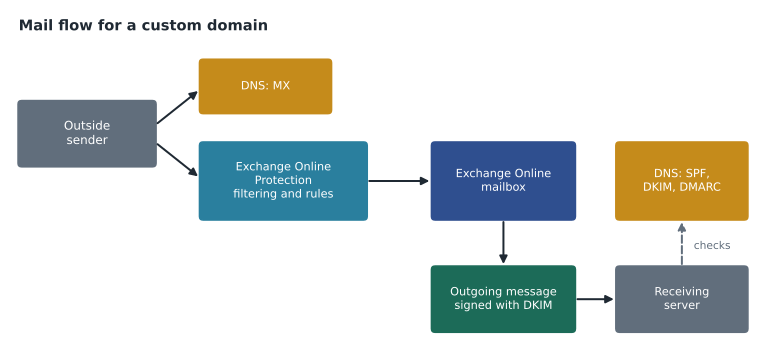
Mail for a custom domain reaches Exchange Online because the domain's MX record points to the tenant's Exchange Online Protection address. The domain must also be an accepted domain in Exchange, which happens automatically when it is verified in the Microsoft 365 admin center. Outgoing mail is protected by three DNS-based standards that receiving servers check: SPF lists the servers allowed to send for the domain, DKIM adds a cryptographic signature to each message, and DMARC tells receivers what to do when SPF or DKIM checks fail and asks them to send reports. Large mailbox providers now reject or junk bulk mail from domains without these records, so they are no longer optional.
Mail flow rules, also called transport rules, inspect messages in transit and act on them: adding a disclaimer, blocking attachments of a certain type, routing messages for approval or redirecting mail. Connectors define how mail moves between Exchange Online and other systems, such as a scanner, a partner organization or a third-party filtering service. Both live in the Exchange admin center. AB-900 does not go deep into mail flow, but knowing that these objects exist, and where, prevents mistakes such as trying to build a disclaimer with a distribution group.
Cleaning up at Corvallin
By the end of the session Teodor had a list. The intake forward was replaced by a shared mailbox. Four ex-employees' mailboxes that managers still needed were converted to shared mailboxes, freeing four E3 licences. The all-staff distribution group, which had been open to messages from anyone on the internet, was restricted to internal senders. The forgotten careers domain from lesson 1 was removed once Teodor confirmed with HR that no recruiter still used it. And the training room got its own calendar.
Keeping mailboxes healthy over time
Creating the right objects is half the job; looking after them is the other half. Three settings came up again and again at Corvallin. The first is the online archive, a second mailbox that holds older items so the primary mailbox stays within its quota. Archiving can be turned on per mailbox in the Exchange admin center, and a retention policy can move items older than, say, two years into the archive automatically. Staff see the archive as a separate folder tree in Outlook. Several office managers who complained about "mailbox full" warnings needed nothing more than an archive and a sensible archive policy.
The second is automatic forwarding to outside addresses. A user can set a rule to forward all mail to a personal account, and attackers who take over a mailbox often do exactly that to keep reading mail after they are locked out. Exchange Online's outbound spam policy blocks automatic external forwarding by default, and Microsoft recommends keeping it that way, with exceptions only for named mailboxes that genuinely need it. Teodor checked the policy and found that it was still on the default block, which was one reason the coordinator's compromise in lesson 6 did not leak more mail than it did.
The third is holds. A litigation hold, or a retention policy applied to a mailbox, keeps every item, including items a user deletes, for as long as the hold lasts. Holds are set by compliance administrators in Microsoft Purview or, for litigation hold, on the mailbox itself, and they mean that "the mailbox was deleted" no longer means "the mail is gone". Corvallin, which keeps client records for years under health records law, applied a retention policy to all mailboxes the following month, a step the Purview course covers in detail.
| Setting | Where | What it prevents |
|---|---|---|
| Online archive with an archive policy | Exchange admin center and Purview retention | Full mailboxes and lost productivity |
| Block automatic external forwarding | Outbound spam policy in the Defender portal | Silent data theft after an account compromise |
| Litigation hold or retention policy | Mailbox settings or Microsoft Purview | Permanent loss of mail that must be kept |
| Restrict who can send to large groups | Distribution group delivery management | Mass mail from outside or by mistake |
Common mistakes
MistakeForwarding a team address to one person's mailbox.
InsteadUse a shared mailbox so the team keeps the messages when people change roles.
MistakeGiving people the password of a shared mailbox.
InsteadBlock sign-in for the shared mailbox account and grant Full Access and Send As to each person.
MistakeUsing a distribution group to grant access to a SharePoint site.
InsteadDistribution groups only deliver mail; use a security group or Microsoft 365 group for permissions.
MistakeRemoving a departing employee's licence before deciding what happens to their mail.
InsteadConvert the mailbox to a shared mailbox or apply a hold first; otherwise the mailbox is deleted after 30 days.
Summary and key terms
- Exchange Online provides mail, calendars and contacts and is managed in the Exchange admin center.
- User mailboxes need a licence; shared, room and equipment mailboxes normally do not.
- Full Access, Send As and Send on Behalf are separate permissions on a mailbox.
- Distribution groups deliver mail; mail-enabled security groups also grant permissions; Microsoft 365 groups add shared collaboration tools.
- MX, SPF, DKIM and DMARC records make mail for a custom domain arrive and be trusted.
- Recipient
- Any Exchange object that can receive mail.
- Shared mailbox
- A mailbox that several people open with their own accounts.
- Resource mailbox
- A room or equipment mailbox with a bookable calendar.
- Distribution group
- A list that delivers mail to its members but cannot grant permissions.
- Dynamic distribution group
- A list whose members are calculated from directory attributes when mail is sent.
- Mail flow rule
- A rule that inspects and acts on messages as they pass through Exchange Online.
Practice problems
Work each problem on paper first, then reveal the answer to check.
Which permission makes a message appear to come directly from a shared mailbox?
Show answer
Send As.
Why might a departing employee's mailbox be converted to a shared mailbox?
Show answer
To keep its contents available without paying for a licence.
When is a dynamic distribution group a poor choice?
Show answer
When the directory attribute it depends on is not kept accurate.
Lesson quiz · 5 questions
Score 60% or more to complete this lesson.
Create a free account to save your progress, take quizzes and earn a certificate.