
MSBA-101 · Lesson 4 of 12 · 19 min
Users, groups, licences and roles
▶ Video coming soon A video version of this lesson is on the way.
Week four began with numbers. Teodor exported every user in the tenant and found 612 accounts for an organization of about 450 people. Some of the difference was expected: shared mailboxes, room mailboxes and a few service accounts all have user objects. Some was not. Thirty-one accounts belonged to people who had left, nine of them still licensed, and fourteen were guest accounts for consultants whose projects had ended years ago. Ines wanted a rule for every kind of account, and the rules became this lesson.
User identities
A user in Microsoft 365 is an object in the tenant's Microsoft Entra ID directory. It has a user principal name (UPN), the sign-in name that looks like an email address, such as teodor.k@corvallincare.example, plus a display name, a password or other credential, and many optional properties: department, job title, office, manager, phone numbers and a usage location, the country where the person mainly uses the services. Usage location must be set before a licence can be assigned, because the services available differ between countries.
Users come in three broad kinds. Cloud-only users are created directly in Entra ID, through the Microsoft 365 admin center, the Entra admin center, a CSV bulk upload or PowerShell. Synchronized users are created in an on-premises Active Directory and copied into Entra ID by Microsoft Entra Connect Sync or Microsoft Entra Cloud Sync; their core properties are then managed on-premises. Guest users are people from outside the organization, invited through Entra B2B collaboration so they can be given access to a team, site or app while signing in with their own organization's account or a personal account. Corvallin had been cloud-only since it left its old file server in 2022, which made life simpler.
| Kind of user | Where it is created and managed | Corvallin example |
|---|---|---|
| Cloud-only | In Entra ID through the admin centers or PowerShell | All staff accounts |
| Synchronized | In on-premises Active Directory, synced to Entra ID | None since 2022 |
| Guest | Invited from outside through B2B collaboration | A consultant from Northlight AV |
| Account for a shared or resource mailbox | Created with the mailbox; sign-in blocked | intake@, the training room |
Accounts follow a lifecycle: create, assign licences and access, change as the person moves roles, and finally block sign-in, convert or hand over data, remove licences and delete. Deleted users stay in a recycle bin for 30 days and can be restored with their licences and group memberships. After 30 days they are permanently deleted. Corvallin's HR system sent a weekly leavers list, but nobody acted on it. Ines agreed with HR that the help desk would block sign-in on the leaving date, and Teodor would review the account two weeks later.
Groups
Groups let administrators give the same access, licences or settings to many people at once. Lesson 2 covered the mail-related groups. In Entra ID there are two group types: security groups, used to grant access to resources, assign licences and target policies, and Microsoft 365 groups, which add a shared mailbox, calendar, SharePoint site and optional team. Either type can have assigned membership, where owners add and remove members by hand, or dynamic membership, where Entra ID adds and removes members automatically according to a rule on user or device properties, such as department equals Nursing. Dynamic membership needs a Microsoft Entra ID P1 licence for the people involved.
# A dynamic membership rule for all nursing staff in the Bayview branch
(user.department -eq "Nursing") -and (user.officeLocation -eq "Bayview")
A group is only as good as its owners. Every group should have at least two named owners who know why it exists, and an expiry or review policy so that unused groups are removed. AB-900 asks you to "identify the appropriate security object to use in an organization (users and groups)". The usual answer is: grant to groups, not individuals, and choose the group type by what the group must do.
Licences and what they turn on
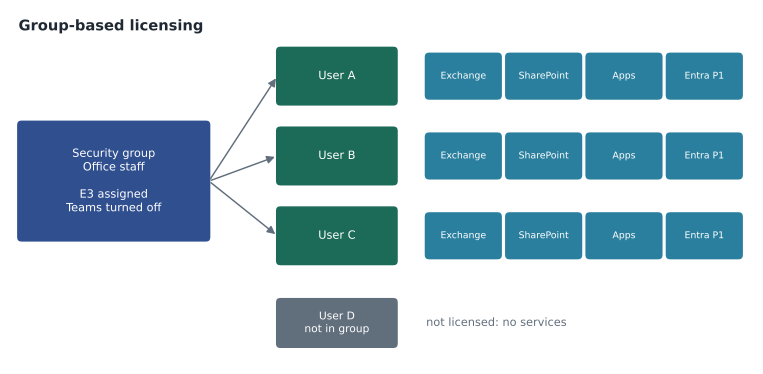
Lesson 1 introduced subscriptions and licences. The exam objective here is to "explain how license types assigned to users and groups affect access to Microsoft 365 features". The key ideas are these. A licence contains service plans, one for each service, such as Exchange Online, SharePoint, Teams, the Microsoft 365 Apps, Intune or Entra ID P1. Assigning the licence switches on all its service plans for that user, and an administrator can switch individual plans off, for example to give someone an E3 licence without Teams. A feature that is not in any of the user's service plans is simply unavailable: an F3 user cannot install the desktop Office apps, and a user without Entra ID P1 is not covered by Conditional Access policies in the way the licence terms require.
Licences can be assigned to users one at a time or through group-based licensing: assign a licence to a security group and every member receives it, while people leaving the group lose it. Group-based licensing makes licence assignment follow HR data or team membership, and it is how most organizations of Corvallin's size work. It needs Entra ID P1 or a product that includes it. When a group licence cannot be applied, for example because the subscription has run out of seats or a user has no usage location, Entra ID shows the error on the group and the user.
Worked problem
Fixing a failed licence assignment
Corvallin assigns Microsoft 365 F3 to a dynamic group of all home-care staff. A new personal support worker, hired on Monday, has no mailbox on Wednesday. Her account shows an error on the F3 licence. What are the likely causes and how should Teodor check them?
Show solution
- Open the group in the Entra admin center or the user in the Microsoft 365 admin center and read the licence assignment error.
- If the error says there are not enough licences, compare purchased and assigned F3 seats in Billing; buy more or reclaim seats from leavers.
- If the error mentions usage location, set the country on her account; the HR import had left it blank.
- If she is not in the group at all, check that her department value matches the dynamic rule exactly; rules are not forgiving about spelling.
Answer: The common causes are no free licences, a missing usage location, or the user not matching the group rule. Each shows up as a specific error on the assignment.
Administrator roles
Administrative power in Microsoft 365 is handed out through roles. A role is a named set of permissions, such as "reset passwords for non-admin users" or "manage all aspects of Exchange". Microsoft 365 uses the built-in roles of Microsoft Entra ID across most admin centers, plus some workload-specific role groups in Exchange, Purview and Defender. Assigning someone a role lets them do exactly those tasks, in the admin centers and in PowerShell.
| Role | What it allows | When to use it |
|---|---|---|
| Global Administrator | Everything, including assigning any role | Very rarely; a few named people and emergency accounts |
| Global Reader | Read everything a Global Administrator can see, change nothing | Auditors, reviewers, new admins learning the tenant |
| User Administrator | Create and manage users and groups, reset most passwords | Identity team |
| Helpdesk Administrator | Reset passwords and sign-out for non-admin users | Front-line help desk |
| License Administrator | Assign and remove licences, edit usage location | Whoever manages seats |
| Billing Administrator | Purchases, subscriptions, invoices | Finance or procurement |
| Exchange / SharePoint / Teams Administrator | Full control of one workload | Workload specialists |
| Security Administrator | Security settings and policies across Defender and Entra | Security team |
| Compliance Administrator | Purview compliance settings | Compliance team |
| AI Administrator | Manage Microsoft 365 Copilot and AI agent settings | Whoever runs the Copilot pilot |
Microsoft recommends having fewer than five Global Administrators and at least two emergency access accounts, sometimes called break-glass accounts, which are cloud-only, protected by strong phishing-resistant credentials, excluded from policies that could lock everyone out, and monitored so that any sign-in raises an alert. Corvallin had seven Global Administrators, including the former IT manager's account, which had been disabled but never had its role removed. Ines's target was two named Global Administrators plus two emergency accounts, with everyone else on narrower roles.
Roles can be scoped. Administrative units in Entra ID group users, groups or devices, for example everyone in the north branch, so that a role such as Helpdesk Administrator can be granted over that unit only. The north branch office manager could then reset passwords for her own staff without being able to touch head office accounts. Lesson 8 adds the most important refinement: making powerful roles eligible rather than permanent, so they are switched on only when needed.
Reading users and roles with PowerShell
# List members of the Global Administrator role
Connect-MgGraph -Scopes "RoleManagement.Read.Directory","User.Read.All"
$role = Get-MgDirectoryRole -Filter "displayName eq 'Global Administrator'"
Get-MgDirectoryRoleMember -DirectoryRoleId $role.Id |
    ForEach-Object { Get-MgUser -UserId $_.Id | Select-Object DisplayName, UserPrincipalName, AccountEnabled }
That script found the former manager's disabled account. A disabled account holding Global Administrator cannot sign in, but if anyone ever re-enabled it, by mistake or by attack, it would have full control instantly. Removing the role took ten seconds.
Guests and external identities
Corvallin regularly works with outsiders: the Northlight AV consultants installing meeting room equipment, auditors from the insurer, and staff at partner clinics. Inviting them as guest users through Entra B2B collaboration means they sign in with their own organization's account, so Corvallin never manages their passwords, and their access can be removed in one place. Guests appear in the directory with a user type of Guest and a UPN containing #EXT#. They can be added to teams, given access to sites, and covered by Conditional Access policies, for example requiring MFA.
Guest settings live in the Entra admin center under External Identities. They control who in the organization may invite guests (everyone, only admins and people with the Guest Inviter role, or nobody), which domains guests may come from, and how much of the directory guests can see. Teams and SharePoint have their own guest settings layered on top, and the most restrictive setting wins. Guests should not be forever: an access review of guests every quarter, asking each team owner whether their guests still need access, cleans up the kind of fourteen forgotten consultant accounts Teodor found at the start of this lesson.
| Guest control | Where | Corvallin setting |
|---|---|---|
| Who can invite guests | Entra External Identities, external collaboration settings | Members of the Guest inviters group only |
| Allowed or blocked domains | Entra External Identities, collaboration restrictions | Partner and vendor domains allowed |
| Guest directory visibility | Entra External Identities | Guests see only their own memberships |
| Guest access in Teams | Teams admin center | Allowed, with no ability to delete channels |
| Reviews of guest access | Entra ID Governance access reviews | Quarterly, removing guests no one confirms |
Working at scale
Most organizations change users in batches: a new intake of staff each spring, a reorganization that moves forty people to a new department. The Microsoft 365 admin center supports bulk add from a CSV file and bulk edits such as assigning licences or changing properties for several selected users. The Entra admin center has bulk create, invite and delete operations that also run from CSV templates. For anything more complex or repeated, PowerShell with the Microsoft Graph PowerShell SDK is the better tool, because a script can be tested, reviewed and run again.
# Add new staff from a CSV file with columns DisplayName, UPN, Department, UsageLocation
Connect-MgGraph -Scopes "User.ReadWrite.All"
Import-Csv .\new-staff.csv | ForEach-Object {
    New-MgUser -DisplayName $_.DisplayName -UserPrincipalName $_.UPN -MailNickname ($_.UPN.Split("@")[0]) `
        -Department $_.Department -UsageLocation $_.UsageLocation -AccountEnabled `
        -PasswordProfile @{ Password = (New-Guid).Guid; ForceChangePasswordNextSignIn = $true }
}
At larger organizations, an HR system can drive the whole lifecycle through inbound provisioning into Entra ID, so that a hire in HR creates the account and a termination disables it without anyone at the help desk acting. Corvallin was not ready for that yet, but Ines added it to the following year's plan after counting the hours the help desk spent on joiners and leavers.
Checking the result
After the clean-up, the Licences page in the Microsoft 365 admin center told a different story: nine reclaimed E3 licences, eleven reclaimed F3 licences, and no licences assigned to blocked accounts. The Active users report and the usage reports under Reports showed who had actually used Exchange, Teams and OneDrive in the past 30, 90 and 180 days, which became the evidence for the next renewal conversation with Corvallin's licensing partner.
Ines asked for one more thing before the session ended: a short written standard for accounts, kept on the IT site, saying who may request each kind of account, who approves it, which group grants its licence, and what happens on the leaving date. A standard like that turns good intentions into a routine the help desk can follow without asking.
Common mistakes
MistakeUsing a Global Administrator account for everyday email and browsing.
InsteadKeep a separate admin account and give daily accounts no admin roles.
MistakeGranting Global Administrator because it is the role that always works.
InsteadPick the least powerful role that covers the task, such as Helpdesk or License Administrator.
MistakeAssigning licences one user at a time in a growing organization.
InsteadUse group-based licensing so licences follow group membership.
MistakeForgetting usage location for new users.
InsteadSet usage location before assigning licences, or the assignment fails.
Summary and key terms
- Users are directory objects with a UPN; they can be cloud-only, synchronized or guests.
- Security groups grant access and licences; Microsoft 365 groups add collaboration tools; membership can be assigned or dynamic.
- Licences contain service plans; features outside a user's plans are unavailable.
- Group-based licensing assigns licences through group membership.
- Admin roles grant defined permissions; use few Global Administrators, emergency access accounts and the least powerful role for each job.
- User principal name
- The sign-in name of a user, formatted like an email address.
- Usage location
- The country where a user mainly uses the services, required before licensing.
- Guest user
- An outside person invited through B2B collaboration.
- Dynamic membership
- Group membership calculated automatically from a rule on user or device properties.
- Group-based licensing
- Assigning a licence to a group so its members receive it.
- Emergency access account
- A highly protected admin account kept for when normal admin access fails.
Practice problems
Work each problem on paper first, then reveal the answer to check.
Which property must be set on a user before a licence can be assigned?
Show answer
Usage location.
Which role lets a help desk reset passwords for ordinary users without broader powers?
Show answer
Helpdesk Administrator (Password Administrator is narrower still).
What licence requirement applies to dynamic group membership?
Show answer
Microsoft Entra ID P1 for the users involved.
Lesson quiz · 5 questions
Score 60% or more to complete this lesson.
Create a free account to save your progress, take quizzes and earn a certificate.