
JS-220 · Lesson 3 of 12 · 28 min
Props and composition
▶ Video coming soon A video version of this lesson is on the way.
On Tuesday, January 18, Mira shows Gareth the shift list from the last session. It works, but each ShiftCard reads its data from the imported sample file, and the same card is needed on the My shifts screen, where it must show a Cancel button instead of the number of spaces left. "The card should not know where its data comes from," Gareth says. "Whoever uses it should hand it what to show, and whatever should appear inside it. That is what props are for."
This lesson covers props, the inputs a component receives from the component that uses it. It explains how props are passed and read, why they are read-only, how default values work and how a parent passes functions so that a child can report events. It then turns to composition, building larger components by putting smaller ones inside them with the children prop and with props that hold elements. It ends by adding TypeScript types to props, the way the real portal files do.
Props are the arguments of a component
A component is a function, and props are its argument. When JSX uses a component with attributes, such as <SpacesLeft open={3} />, React collects the attributes into one object, { open: 3 }, and passes it to the function when it renders it. Inside the component, the props object can be read directly, props.open, or taken apart with destructuring in the parameter list, ({ open }), which is the usual style because it shows at a glance which props the component expects.
Props can hold any JavaScript value: strings, numbers, booleans, arrays, objects, functions and even elements. A string can be written as a plain attribute, area="Warehouse"; every other value goes in braces, open={3}, full={true}, shift={shift}. An attribute written without a value, such as <ShiftCard compact />, is the same as compact={true}.
Because props are just an argument, a component can be tried out without React at all by calling it with an object. The example calls a few small components the way React would, including one with default values, written with the same syntax as default values in any destructured parameter.
function SpacesLeft({ open }) {
  return open === 0 ? 'Full' : `${open} ${open === 1 ? 'space' : 'spaces'} left`;
}

// Default values apply when a prop is missing or undefined.
function ShiftTime({ day, start, end, timeZoneNote = '', short = false }) {
  const days = short ? day.slice(0, 3) : day;
  return `${days}, ${start} to ${end}${timeZoneNote}`;
}

console.log(SpacesLeft({ open: 3 }));
console.log(SpacesLeft({ open: 1 }));
console.log(SpacesLeft({ open: 0 }));
console.log(ShiftTime({ day: 'Saturday', start: '9 a.m.', end: 'noon' }));
console.log(ShiftTime({ day: 'Saturday', start: '9 a.m.', end: 'noon', short: true }));
console.log(ShiftTime({ day: 'Sunday', start: '1 p.m.', end: '4 p.m.', short: undefined }));3 spaces left 1 space left Full Saturday, 9 a.m. to noon Sat, 9 a.m. to noon Sunday, 1 p.m. to 4 p.m.
What this code does
SpacesLeft and ShiftTime are called with plain objects, which is exactly what React passes them. ShiftTime gives timeZoneNote and short default values in its destructuring, so they are used whenever those props are missing. The last call passes short as undefined, which also uses the default; only null or a real value would replace it.
Defaults are worth using for optional props, because they document the normal behaviour and keep the component's code free of checks such as if (short === undefined). The one trap is null: a default applies only to a missing or undefined prop. A parent that passes short={null} gets null, not false.
Props are read-only
A component must never change its props. They belong to the parent that passed them, and the same object may be used by other components or kept by React to compare with the next render. Changing a prop inside a child is like a function quietly changing a variable that its caller passed in: the caller's data changes behind its back, and the bug appears somewhere else, often much later.
React helps by freezing the props object in development, so that an attempt to change it fails loudly. The example freezes a props object the same way and shows the difference between changing it, which throws, and working with a copy, which is the correct approach.
'use strict';
const props = Object.freeze({ area: 'Warehouse', open: 3 });

function BadCard(props) {
  props.open = props.open - 1;   // tries to change the parent's data
  return props.open;
}

function GoodCard(props) {
  const remaining = Math.max(props.open - 1, 0);   // works on a new value
  return remaining;
}

try {
  BadCard(props);
} catch (err) {
  console.log('BadCard:', err.constructor.name, '-', err.message);
}
console.log('GoodCard:', GoodCard(props));
console.log('the props are unchanged:', props.open);BadCard: TypeError - Cannot assign to read only property 'open' of object '#<Object>' GoodCard: 2 the props are unchanged: 3
What this code does
Object.freeze makes the props object unchangeable, as React does with props during development, and 'use strict' makes an attempt to change it throw instead of failing silently. BadCard tries to subtract one from the prop and throws a TypeError. GoodCard works out a new value from the prop and leaves the original alone, so the last line still shows 3.
When a value really does need to change while the page is open, such as the number of spaces after a sign-up, it is state, not a prop. State lives in a component that owns it, and Lesson 4 shows how a component creates and changes it. A child that needs to cause a change asks the owner to make it, which is the next topic.
Data down, events up
Props flow in one direction: from a parent to its children. That leaves a question. If a ShiftCard has a Sign up button, but the list of shifts and their counts belong to the page above it, how does the card make the page change? The answer is to pass a function as a prop. The parent writes a function that knows how to sign up for a shift and passes it to the card as onSignUp. When the button is clicked, the card calls onSignUp with the shift's id, and the parent does the work.
This pattern is described as data down, events up. Data, such as the shift and its count, travels down the tree in props. Events, such as "the user wants to sign up for this shift", travel up as calls to functions that were passed down. The child stays simple and reusable, because it does not need to know what signing up involves. On the My shifts screen the same card can be given an onCancel function instead.
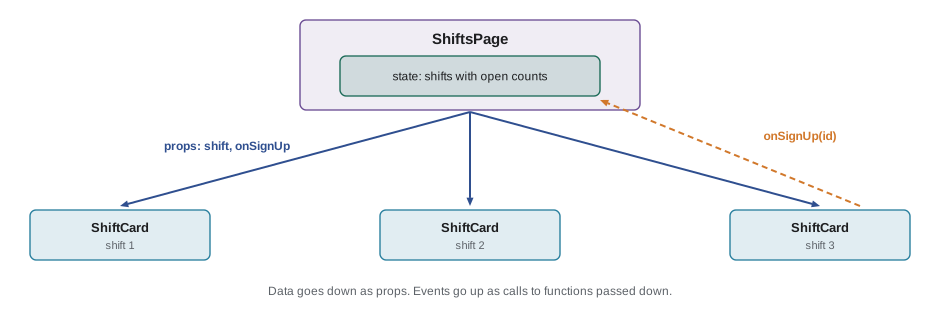
The convention for names comes from the browser's own events. A prop that receives an event function is named on followed by the event: onSignUp, onCancel, onChange. The function a parent writes to handle it is often named handle followed by the event: handleSignUp. The example simulates the pattern without React: the parent owns the data, passes data and a function down, and the child calls the function.
// The parent owns the data and knows how to change it.
let shifts = [
  { id: 'w-sat', area: 'Warehouse', open: 2 },
  { id: 'k-sat', area: 'Community kitchen', open: 1 },
];
function handleSignUp(id) {
  shifts = shifts.map((s) => (s.id === id && s.open > 0 ? { ...s, open: s.open - 1 } : s));
  render();
}

// The child only displays its props and reports clicks.
function ShiftCard({ shift, onSignUp }) {
  return {
    text: `${shift.area}: ${shift.open} left`,
    click: () => onSignUp(shift.id),
  };
}

let cards = [];
function render() {
  cards = shifts.map((shift) => ShiftCard({ shift, onSignUp: handleSignUp }));
  console.log(cards.map((c) => c.text).join(' | '));
}

render();
cards[1].click();   // the volunteer clicks Sign up on the kitchen card
cards[0].click();
cards[1].click(); // the kitchen shift is already fullWarehouse: 2 left | Community kitchen: 1 left Warehouse: 2 left | Community kitchen: 0 left Warehouse: 1 left | Community kitchen: 0 left Warehouse: 1 left | Community kitchen: 0 left
What this code does
shifts and handleSignUp belong to the parent, and ShiftCard receives a shift and an onSignUp function as props. Clicking a card calls onSignUp with the card's id, which travels up to the parent; the parent makes a new list of shifts and renders again. The last click does nothing because the parent's rule refuses to go below zero, which shows that the decision stays with the owner of the data.
In React the shape is the same, with JSX and a real button. A card on the shift list and a card on My shifts differ only in the function and the label they are given.
function ShiftCard({ shift, actionLabel, onAction }) {
  return (
    <article className="shift-card">
      <h3>{shift.area}</h3>
      <p>{shift.day}, {shift.start} to {shift.end}</p>
      <button type="button" onClick={() => onAction(shift.id)}>
        {actionLabel}
      </button>
    </article>
  );
}

const shift = { id: 'w-sat', area: 'Warehouse', day: 'Saturday', start: '9 a.m.', end: 'noon' };
function App() {
  return (
    <>
      <ShiftCard shift={shift} actionLabel="Sign up" onAction={(id) => console.log('sign up', id)} />
      <ShiftCard shift={shift} actionLabel="Cancel this shift" onAction={(id) => console.log('cancel', id)} />
    </>
  );
}
What this code does
ShiftCard takes the shift to show, the label for its button and the function to call. The onClick prop receives an arrow function that calls onAction with the shift's id; it must be a function, not a call, or it would run during rendering. The same card is used twice with different labels and actions.
<article class="shift-card">
  <h3>Warehouse</h3>
  <p>Saturday, 9 a.m. to noon</p>
  <button type="button">Sign up</button>
</article>
<article class="shift-card">
  <h3>Warehouse</h3>
  <p>Saturday, 9 a.m. to noon</p>
  <button type="button">Cancel this shift</button>
</article>
What this code does
React renders the button labels but nothing of the onClick functions. Event handlers are attached to the real elements by react-dom in the browser, so they never appear in the HTML.
A common slip is writing onClick={onAction(shift.id)}. That calls the function immediately, during rendering, and passes its result, usually undefined, as the handler. The button then does nothing when clicked, and the action may run on every render. The braces must contain a function: onClick={() => onAction(shift.id)}.
Composition with children
Many components are containers: a panel with a border and a heading, a dialog, a page layout. They do not care what goes inside them. React handles this with a special prop, children. Whatever is written between a component's opening and closing tags is passed to it as props.children, and the component puts it wherever it should go.
function Panel({ title, children }) {
  return (
    <section className="panel">
      <h2>{title}</h2>
      <div className="panel-body">{children}</div>
    </section>
  );
}

function App() {
  return (
    <Panel title="Before your first shift">
      <p>Wear closed-toe shoes in the warehouse and the kitchen.</p>
      <p>Arrive ten minutes early to sign in at the front desk.</p>
    </Panel>
  );
}
What this code does
Panel draws the frame and heading and places children inside its body. The two paragraphs between <Panel> and </Panel> become Panel's children prop. Panel does not know or care what they are, so it can wrap a reminder, a form or a list equally well.
<section class="panel">
  <h2>Before your first shift</h2>
  <div class="panel-body">
    <p>Wear closed-toe shoes in the warehouse and the kitchen.</p>
    <p>Arrive ten minutes early to sign in at the front desk.</p>
  </div>
</section>
What this code does
React put the two paragraphs from App inside Panel's div. The frame comes from Panel and the content comes from the component that used it.
This is called composition: building a component by giving it other components to hold, rather than by making a new kind of panel for every purpose. React's documentation recommends composition over the alternatives, such as inheritance from a base class, and in practice React code almost never uses inheritance between components.
Sometimes a container has more than one place for content. A page layout might have a title area, an actions area at the top right and a main area. Each place can be a prop that holds elements, sometimes called a slot. The children prop is just the most common slot.
// A tiny renderer: tags as strings, components as functions, children as arrays.
const h = (type, props, ...children) => ({ type, props: { ...props, children } });
function render(n) {
  if (n == null || n === false) return '';
  if (Array.isArray(n)) return n.map(render).join('');
  if (typeof n !== 'object') return String(n);
  if (typeof n.type === 'function') return render(n.type(n.props));
  const cls = n.props.className ? ` class="${n.props.className}"` : '';
  return `<${n.type}${cls}>${render(n.props.children)}</${n.type}>`;
}

// Three slots: title, actions (optional) and children.
function PageLayout({ title, actions, children }) {
  return h('div', { className: 'page' },
    h('header', null, h('h1', null, title), actions && h('div', { className: 'actions' }, actions)),
    h('main', null, children));
}

console.log(render(h(PageLayout, { title: 'My shifts', actions: h('a', null, 'Find more shifts') }, h('p', null, 'You have 2 shifts booked.'))));
console.log(render(h(PageLayout, { title: 'Open shifts' }, h('p', null, '12 shifts this week.'))));<div class="page"><header><h1>My shifts</h1><div class="actions"><a>Find more shifts</a></div></header><main><p>You have 2 shifts booked.</p></main></div> <div class="page"><header><h1>Open shifts</h1></header><main><p>12 shifts this week.</p></main></div>
What this code does
PageLayout has three slots: title holds text, actions holds an element and children holds the main content. When actions is missing, actions && ... gives undefined, which renders as nothing, so the second page has no actions area at all. The layout decides where each slot goes, while the pages using it decide what fills them.
Passing props through
Two shortcuts are common. The spread syntax, <ShiftCard {...shift} />, passes every property of an object as a separate prop. It saves typing when the object and the props match, as they did in Lesson 2, but it also hides which props are passed, so Brightwater uses it only when the object is clearly meant for that component. The other shortcut collects the props a component does not use itself with rest syntax and passes them on to an element inside it. This is how wrapper components accept any attribute the underlying element supports.
function TextField({ label, id, hint, ...inputProps }) {
  const hintId = hint ? `${id}-hint` : undefined;
  return (
    <div className="field">
      <label htmlFor={id}>{label}</label>
      <input id={id} aria-describedby={hintId} {...inputProps} />
      {hint && <p id={hintId} className="hint">{hint}</p>}
    </div>
  );
}

function App() {
  return (
    <form>
      <TextField label="Email" id="email" type="email" autoComplete="email" required />
      <TextField label="Phone" id="phone" type="tel" hint="Optional. Ten digits, for shift reminders by text." />
    </form>
  );
}
What this code does
TextField takes the props it needs itself, label, id and hint, and collects everything else into inputProps with rest syntax. Spreading inputProps onto the input passes type, autoComplete, required and any other input attribute without TextField listing them. The hint gets its own id and is linked to the input with aria-describedby, so a screen reader reads it with the field.
<form>
  <div class="field">
    <label for="email">Email</label>
    <input id="email" type="email" autocomplete="email" required="">
  </div>
  <div class="field">
    <label for="phone">Phone</label>
    <input id="phone" aria-describedby="phone-hint" type="tel">
    <p id="phone-hint" class="hint">Optional. Ten digits, for shift reminders by text.</p>
  </div>
</form>
What this code does
The Email field received type, autocomplete and required through the spread, and the Phone field's hint is linked to its input by aria-describedby. The Email input has no aria-describedby attribute, because React leaves out attributes whose value is undefined.
Look at the order of the props on the input: id and aria-describedby come before the spread, so a caller could override them. When a component must keep control of a prop, it puts that prop after the spread instead.
Designing a component's props
A component's props are its interface, and they deserve the same care as a function's parameters. A few habits keep them easy to use. Name props for what they mean to the user of the component, not for how the component uses them: open rather than count. Keep the number small; a component with fifteen props usually does too much. Prefer one prop with a few named values over several booleans that conflict. A button with primary, danger and quiet booleans allows nonsense such as primary and quiet at once, while variant="primary" | "danger" | "quiet" does not.
Two names are not props. key, which helps React tell list items apart, is used by React and is not passed to the component. Since React 19, ref is passed as an ordinary prop to function components, so a component can accept ref and pass it to the element it wraps; older code used a wrapper called forwardRef for this, which is no longer needed.
Prop drilling
Passing data down through props is clear, but it has a limit. Suppose the signed-in volunteer's name is needed by the header, by the sign-up form and by My shifts, which are three or four levels below App. Every component in between must accept the name as a prop and pass it on, even though it never uses it. This is called prop drilling. A little of it is fine and makes the flow of data obvious. A lot of it makes components harder to change, because adding one piece of data means editing every level. Lesson 10 introduces context, React's way of making a value available to a whole part of the tree without passing it through every level.
Typing props with TypeScript
The real portal is written in TypeScript, which checks that every component is given the props it needs, with the right types. A component's props are described with a type or an interface, and the function's parameter uses it. Mira's editor then completes prop names, and a missing or misspelled prop is an error before the code runs.
import type { ReactNode } from 'react';

type Shift = { id: string; area: string; day: string; start: string; end: string; open: number };

type ShiftCardProps = {
  shift: Shift;
  actionLabel: string;
  onAction: (id: string) => void;
  footer?: ReactNode;
};

export function ShiftCard({ shift, actionLabel, onAction, footer }: ShiftCardProps) {
  return (
    <article className="shift-card">
      <h3>{shift.area}</h3>
      <p>{shift.day}, {shift.start} to {shift.end}</p>
      <button type="button" onClick={() => onAction(shift.id)}>{actionLabel}</button>
      {footer}
    </article>
  );
}

function App() {
  const s: Shift = { id: 'g-sun', area: 'Youth garden', day: 'Sunday', start: '1 p.m.', end: '4 p.m.', open: 2 };
  return <ShiftCard shift={s} actionLabel="Sign up" onAction={() => {}} footer={<p>Bring a water bottle.</p>} />;
}
What this code does
ShiftCardProps lists each prop with its type: a Shift object, a string label, a function that takes a string id and returns nothing, and an optional footer. ReactNode is React's type for anything that can be rendered, including elements, strings and null, which suits slots such as footer and children. TypeScript now reports an error if a caller forgets onAction or passes the shift's id as a number.
<article class="shift-card">
  <h3>Youth garden</h3>
  <p>Sunday, 1 p.m. to 4 p.m.</p>
  <button type="button">Sign up</button>
  <p>Bring a water bottle.</p>
</article>
What this code does
The typed component renders exactly like the untyped one: types are removed by the build and do not change the output. The footer slot shows its paragraph at the end of the card.
With props typed, the compiler catches a whole class of mistakes that would otherwise appear only when a particular screen is opened. The same types, Shift in particular, come from Theo's shared api.ts file, so the portal and the server agree on the shape of a shift.
Common mistakes
MistakeA component can change a prop if it needs a different value.
InsteadProps belong to the parent. Work out a new value from the prop, or ask the parent to change its state through a function prop.
MistakeonClick={signUp(shift.id)} runs signUp when the button is clicked.
InsteadIt runs signUp during rendering and passes its result. Pass a function: onClick={() => signUp(shift.id)}.
MistakeA default value replaces any empty prop.
InsteadDefaults apply only to missing or undefined props. null and empty strings are real values.
MistakeEvery piece of data should be passed down as props from App.
InsteadPassing through many levels is prop drilling. Keep data close to where it is used, and use context for values that many distant components need.
MistakeSeveral booleans give a component flexibility.
InsteadThey allow conflicting combinations. One prop with named values, such as variant, is clearer and safer.
Summary and key terms
- Props are the single object argument React passes to a component, built from the attributes in JSX.
- Any value can be a prop, including functions and elements; destructuring with default values is the usual way to read them, and defaults apply only to missing or undefined props.
- Props are read-only, and React freezes them during development; values that change belong in state.
- Data flows down as props and events flow up as calls to functions passed down, named onSomething.
- Event props must be given functions, not the result of calling one.
- The children prop holds whatever is between a component's tags, and props that hold elements act as slots; composition is preferred to inheritance.
- Spread passes an object's properties as props, and rest collects the props a component does not use so it can pass them on.
- Keep a component's props few, named for their meaning and free of conflicting booleans. key is not a prop; since React 19 ref is.
- Passing data through many levels is prop drilling, which context addresses.
- TypeScript types describe props and catch missing or wrong ones.
- props
- The read-only object of inputs a component receives from the component that renders it.
- default value
- A value a destructured prop takes when it is missing or undefined.
- data down, events up
- The pattern in which data is passed to children as props and children report events by calling functions passed to them.
- children
- The prop that holds whatever is written between a component's opening and closing tags.
- composition
- Building components by putting other components inside them, through children or other props.
- slot
- A prop that holds elements to be placed in a particular part of a component.
- prop drilling
- Passing a prop through several levels of components that do not use it, to reach one that does.
- ReactNode
- The TypeScript type for anything React can render, such as elements, strings, numbers, null and arrays of these.
Practice problems
Work each problem on paper first, then reveal the answer to check.
What object does React pass to <SpacesLeft open={2} compact />?
Show answer
{ open: 2, compact: true }.
Why must a component never change its props?
Show answer
They belong to the parent and may be used elsewhere; changing them causes bugs far from the change, and React freezes them in development.
How does a ShiftCard tell its parent that Sign up was clicked?
Show answer
It calls a function the parent passed as a prop, such as onSignUp(shift.id).
What is the children prop?
Show answer
Whatever is written between the component's opening and closing tags.
A Button has primary, danger and quiet boolean props. What is a better design?
Show answer
One variant prop with the values primary, danger or quiet.
Try it yourself
A button with variants
Complete Button(props) so that it returns the HTML for a button. It takes variant (default 'primary'), size (default 'medium'), disabled (default false), type (default 'button') and children.
The class attribute is btn btn- + variant + btn- + size. Add the word disabled as an attribute only when disabled is true.
function Button(props) {
  return '';
}

console.log(Button({ children: 'Sign up' }));
console.log(Button({ variant: 'danger', size: 'small', children: 'Cancel shift' }));
console.log(Button({ type: 'submit', disabled: true, children: 'Sending' }));
console.log(Button({ variant: undefined, children: 'Back' }));
Try it yourself
Events up from a list
ShiftList renders a card for each shift and gives each card an onCancel function. Complete handleCancel(id) in the parent so that it removes the shift with that id from myShifts and renders again.
Then complete ShiftCard so that its click function calls onCancel with the card's own shift id. Do not change myShifts anywhere except in handleCancel.
let myShifts = [
  { id: 'w-sat', area: 'Warehouse' },
  { id: 'k-sat', area: 'Community kitchen' },
  { id: 'g-sun', area: 'Youth garden' },
];

function handleCancel(id) {
}

function ShiftCard({ shift, onCancel }) {
  return { text: shift.area, click: () => {} };
}

let cards = [];
function render() {
  cards = myShifts.map((shift) => ShiftCard({ shift, onCancel: handleCancel }));
  console.log(cards.length ? cards.map((c) => c.text).join(', ') : 'No shifts booked');
}

render();
cards[1].click();
cards[0].click();
cards[0].click();
Lesson quiz · 5 questions
Score 60% or more to complete this lesson.
Create a free account to save your progress, take quizzes and earn a certificate.