
JS-220 · Lesson 2 of 12 · 29 min
Components and JSX
▶ Video coming soon A video version of this lesson is on the way.
On Thursday, January 13, Gareth opens the new volunteer-portal project and deletes the sample counter that Vite created. "Every React application is built from one kind of thing," he says. "A function that returns a description of some of the page. Today you write the first few, for the shift list, and learn the notation React uses to write those descriptions." Mira has the old shift list open beside it: a heading, a short introduction, and one card for each open shift with its area, day, time and spaces left.
This lesson explains what a React element is, how JSX describes elements in a notation close to HTML, how JSX turns into ordinary JavaScript, and the rules that make JSX different from HTML. It then shows how to write components, how to put JavaScript values inside JSX safely and how to split a page into a tree of components in separate files. Several examples build a tiny version of React's element and rendering machinery, so that nothing about JSX remains mysterious.
Elements: descriptions of the page
In Lesson 1, a render function returned plain objects describing the page. React uses the same idea and calls each description a React element. An element is a small, immutable object with a type, such as 'h2' or 'p', and props, which hold its attributes and its children. Creating an element does not create anything on the page. It only records what should be there, so that React can compare it with the last render and update the real page.
Before JSX, React code created elements by calling a function, React.createElement(type, props, ...children). The example below writes a tiny version of that function and uses it to describe one shift card. The result is printed as JSON so its structure is visible.
function createElement(type, props, ...children) {
  return { type, props: { ...props, children: children.flat() } };
}

const card = createElement('article', { className: 'shift-card' },
  createElement('h3', null, 'Warehouse'),
  createElement('p', null, 'Saturday, 9 a.m. to noon'),
  createElement('p', { className: 'spaces' }, '3 spaces left'),
);

console.log(JSON.stringify(card, null, 2));{
"type": "article",
"props": {
"className": "shift-card",
"children": [
{
"type": "h3",
"props": {
"children": [
"Warehouse"
]
}
},
{
"type": "p",
"props": {
"children": [
"Saturday, 9 a.m. to noon"
]
}
},
{
"type": "p",
"props": {
"className": "spaces",
"children": [
"3 spaces left"
]
}
}
]
}
}What this code does
createElement returns a plain object with the element's type and its props, and it puts the children into props.children, which is how React stores them too. The card is a tree: an article element whose children are a heading and two paragraphs. Printing it shows that an element is just data, ready to be compared or turned into real page elements later.
Writing every element this way would be tiring and hard to read, which is why React introduced JSX in 2013.
JSX
JSX is an extension of JavaScript that lets you write elements with a notation that looks like HTML. It is not HTML and it is not a string. A build tool, such as Vite with its React plugin, translates every piece of JSX into function calls before the code reaches the browser. The card above, written in JSX, looks like this.
const card = (
  <article className="shift-card">
    <h3>Warehouse</h3>
    <p>Saturday, 9 a.m. to noon</p>
    <p className="spaces">3 spaces left</p>
  </article>
);
What this code does
The parentheses let the JSX span several lines; without them, a line break after the equals sign could end the statement. Each tag becomes one element, the attribute className becomes a prop, and the nested tags become the element's children. The build turns all of it into the same nested function calls as the previous example.
Since React 17, JSX is compiled with the automatic runtime: the build inserts calls to a function named jsx from the package react/jsx-runtime, and you no longer need to import React at the top of every file. The example below shows by hand what the compiled code looks like. The children of an element with several children are passed as an array in props, which is the main difference from createElement.
// What the build produces from the JSX card (simplified).
function jsx(type, props, key) {
  return { type, key: key ?? null, props };
}

const card = jsx('article', {
  className: 'shift-card',
  children: [
    jsx('h3', { children: 'Warehouse' }),
    jsx('p', { children: 'Saturday, 9 a.m. to noon' }),
    jsx('p', { className: 'spaces', children: '3 spaces left' }),
  ],
});

console.log(card.type, card.props.className);
for (const child of card.props.children) console.log(' ', child.type, '-', child.props.children);article shift-card h3 - Warehouse p - Saturday, 9 a.m. to noon p - 3 spaces left
What this code does
jsx is a simplified version of the function the automatic runtime calls: it takes the type, the props with children already inside them, and an optional key. The compiled card is an object tree with exactly the same shape as before. The loop prints each child's type and text, showing that the JSX notation is only a convenient way to write these calls.

The rules of JSX
Because JSX becomes JavaScript, it follows a few rules that HTML does not. Most mistakes beginners make with JSX come from treating it as HTML.
| Rule | HTML | JSX | Why |
|---|---|---|---|
| One root | A file can have many top-level tags | An expression returns one element; use a fragment, <>...</>, to group several | A function can return only one value |
| Close every tag | <br>, <img src="a.png"> | <br />, <img src="a.png" /> | JSX is parsed strictly, like XML |
| class | class="card" | className="card" | class is a reserved word in JavaScript |
| for | <label for="email"> | <label htmlFor="email"> | for is a reserved word in JavaScript |
| Attribute names | onclick, tabindex, stroke-width | onClick, tabIndex, strokeWidth | Props follow JavaScript naming (camelCase); aria-* and data-* keep their dashes |
| Inline styles | style="color: red" | style={{ color: 'red' }} | style takes an object with camelCase property names |
| Comments | <!-- note --> | {/* note */} | Inside JSX, comments go in braces |
The rule that surprises people most is the single root. A component that returns a heading and a paragraph side by side must wrap them. A wrapping div works, but it adds an element to the page that may break a layout or a list. A fragment groups elements without adding anything to the page. The short form is an empty tag, <>...</>; the long form, <Fragment>, is needed only when the fragment needs a key, which Lesson 6 explains.
function Intro() {
  return (
    <>
      <h2>Open shifts</h2>
      <p>Choose a shift to see the details and sign up.</p>
    </>
  );
}

function App() {
  return (
    <main>
      <Intro />
    </main>
  );
}
What this code does
Intro returns two elements grouped in a fragment, so it has one root without an extra element. App uses Intro as if it were a tag, which is how components are combined. The JSX for the fragment, <> and </>, compiles to an element of the special Fragment type.
<main>
  <h2>Open shifts</h2>
  <p>Choose a shift to see the details and sign up.</p>
</main>
What this code does
This is the HTML React produced when it rendered App on a server, using React 19. The h2 and the paragraph sit directly inside main: the fragment added nothing to the page.
JavaScript inside JSX
Curly braces put a JavaScript expression inside JSX. Anything that produces a value can go there: a variable, a calculation, a function call, a ternary operator. Braces work in two places: as an element's children, where the value becomes text or more elements, and as an attribute's value, where it becomes the prop. Statements such as if and for cannot go inside braces, because they do not produce values; Lesson 6 shows the expressions used instead.
const shift = { area: 'Warehouse', day: 'Saturday', start: '9 a.m.', end: 'noon', open: 3, capacity: 6 };

function App() {
  const full = shift.open === 0;
  return (
    <article className={full ? 'shift-card full' : 'shift-card'} aria-label={`${shift.area}, ${shift.day}`}>
      <h3>{shift.area}</h3>
      <p>{shift.day}, {shift.start} to {shift.end}</p>
      <p>{shift.capacity - shift.open} of {shift.capacity} booked</p>
    </article>
  );
}
What this code does
Braces inside the text insert values: the area, the day and the times, and a subtraction that works out how many places are booked. Braces as attribute values set className with a ternary and aria-label with a template literal. Only expressions are allowed in braces; the if-like choice is written with the ternary operator.
<article class="shift-card" aria-label="Warehouse, Saturday">
  <h3>Warehouse</h3>
  <p>Saturday, 9 a.m. to noon</p>
  <p>3 of 6 booked</p>
</article>
What this code does
React rendered the expressions to plain text and attribute values. The aria-label attribute keeps its dash, as aria-* and data-* attributes do in JSX, while className became class.
Some values render as nothing. true, false, null and undefined produce no output when they appear as children, which is useful for showing something only sometimes. Numbers and strings render as text. Arrays of elements render each element in turn. Plain objects cannot be rendered and cause an error, "Objects are not valid as a React child", which usually means a whole object was put in braces when one of its properties was meant.
Text is escaped
One of React's most important features is invisible. Text put into JSX with braces is always treated as text, never as HTML. If a volunteer types <b>Raj</b> into the name field, the page shows those characters, angle brackets and all; it does not make the name bold, and it cannot run a script. This escaping protects the portal against cross-site scripting, the attack Mira learned about in her DOM course, in which an attacker gets a page to run their code by putting markup into data.
The example renders elements to an HTML string the way a server renderer would, and escapes text on the way. It is the first half of a tiny React: it handles strings, numbers, nothing values, arrays and elements with attributes.
const escape = (s) => String(s).replace(/&/g, '&').replace(/</g, '<').replace(/>/g, '>').replace(/"/g, '"');
const h = (type, props, ...children) => ({ type, props: { ...props, children } });
function renderToString(node) {
if (node === null || node === undefined || typeof node === 'boolean') return '';
if (typeof node === 'string' || typeof node === 'number') return escape(node);
if (Array.isArray(node)) return node.map(renderToString).join('');
const { children, ...attrs } = node.props;
const attrText = Object.entries(attrs)
.map(([k, v]) => ` ${k === 'className' ? 'class' : k}="${escape(v)}"`).join('');
return `<${node.type}${attrText}>${renderToString(children)}</${node.type}>`;
}
const name = '<b>Raj</b> & friends';
const note = false;
console.log(renderToString(h('p', { className: 'who' }, 'Booked by ', name, note && ' (new)')));
console.log(renderToString(h('ul', null, [1, 2, 3].map((n) => h('li', null, 'Shift ', n)))));<p class="who">Booked by <b>Raj</b> & friends</p> <ul><li>Shift 1</li><li>Shift 2</li><li>Shift 3</li></ul>
What this code does
renderToString turns an element tree into HTML text, escaping every string and attribute value so that characters such as < and & cannot start markup. It returns nothing for null, undefined and booleans, which is why note && ' (new)' disappears when note is false. The second line shows arrays of elements rendering one after another, which is how lists work in React.
There is one deliberate way around escaping, a prop with the alarming name dangerouslySetInnerHTML. It inserts a string as HTML. The portal never uses it. If formatted text from the server ever had to be shown, it would first be cleaned with a sanitizer, such as the browser's Sanitizer API or the DOMPurify library, and the code would be reviewed by Gareth.
Components
A component is a JavaScript function that returns elements. Its name must start with a capital letter, because that is how JSX tells components from built-in tags: <shiftCard /> would be treated as an unknown HTML tag, while <ShiftCard /> calls the ShiftCard function. A component can return JSX, a string, a number, null (to show nothing) or an array.
Using a component in JSX does not call it immediately. <ShiftCard /> creates an element whose type is the function itself. React calls the function later, when it renders that part of the tree, and it decides how often to call it. That is why components must be pure: given the same input, they must return the same output, and they must not change anything outside themselves while rendering, such as a global variable or the page. Side effects belong in event handlers and effects, covered in Lessons 4 and 5.
The example extends the tiny renderer to support components. When an element's type is a function, the renderer calls it with the props and renders what it returns.
const h = (type, props, ...children) => ({ type, props: { ...props, children } });
let calls = 0;

function render(node) {
  if (node === null || node === undefined || typeof node === 'boolean') return '';
  if (typeof node !== 'object') return String(node);
  if (Array.isArray(node)) return node.map(render).join('');
  if (typeof node.type === 'function') { calls++; return render(node.type(node.props)); }
  return `<${node.type}>${render(node.props.children)}</${node.type}>`;
}

function SpacesLeft(props) { return h('p', null, props.open === 0 ? 'Full' : `${props.open} spaces left`); }
function ShiftCard(props) { return h('article', null, h('h3', null, props.area), h(SpacesLeft, { open: props.open })); }
function ShiftList(props) { return h('section', null, props.shifts.map((s) => h(ShiftCard, s))); }

const shifts = [{ area: 'Warehouse', open: 3 }, { area: 'Kitchen', open: 0 }];
const tree = h(ShiftList, { shifts });
console.log('component calls before rendering:', calls);
console.log(render(tree));
console.log('component calls after rendering:', calls);component calls before rendering: 0 <section><article><h3>Warehouse</h3><p>3 spaces left</p></article><article><h3>Kitchen</h3><p>Full</p></article></section> component calls after rendering: 5
What this code does
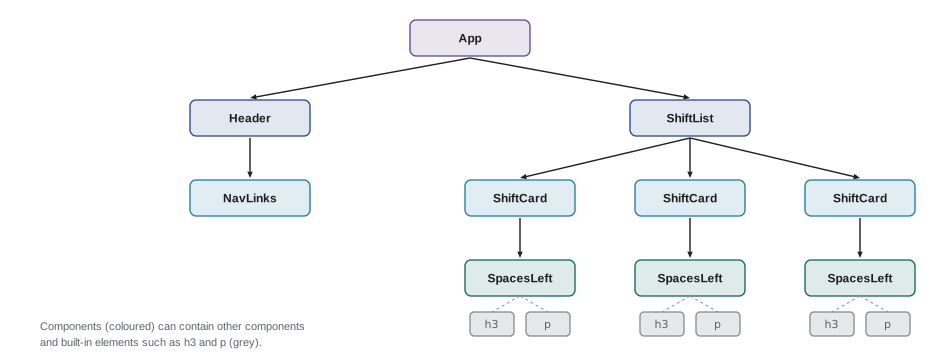
Each component is an ordinary function that receives props and returns elements, and h(ShiftCard, s) creates an element whose type is the function rather than a tag name. Building the tree calls none of the components, which the first count shows. The renderer calls a component only when it reaches its element, so rendering this list makes five calls: one list, two cards and two SpacesLeft components.
Writing the first components
Mira's first version of the shift list has three components in three files. The convention at Brightwater, and in most React projects, is one component per file, named like the component, with the component as the file's default export or a named export. Brightwater uses named exports, which give better automatic imports in the editor and make renaming safer.
// src/components/SpacesLeft.jsx
export function SpacesLeft({ open }) {
  if (open === 0) return <p className="spaces full">Full</p>;
  return <p className="spaces">{open === 1 ? '1 space left' : `${open} spaces left`}</p>;
}
What this code does
SpacesLeft receives an object of props and takes open out of it with destructuring in the parameter list. It returns one of two paragraphs, and the second chooses between singular and plural with a ternary. An early return with if is allowed here because it is ordinary JavaScript outside the JSX.
// src/components/ShiftCard.jsx
import { SpacesLeft } from './SpacesLeft.jsx';

export function ShiftCard({ area, day, start, end, open }) {
  return (
    <article className="shift-card">
      <h3>{area}</h3>
      <p>{day}, {start} to {end}</p>
      <SpacesLeft open={open} />
    </article>
  );
}
What this code does
ShiftCard imports SpacesLeft and uses it like a tag, passing open as a prop with braces. The card itself shows the area as a heading and the day and times as a sentence. Because each component has one job, SpacesLeft can be reused on the details page and on My shifts without copying its plural rule.
// src/components/ShiftList.jsx
import { ShiftCard } from './ShiftCard.jsx';
import { shifts } from '../sample-shifts.js';

export function ShiftList() {
  return (
    <section aria-labelledby="open-shifts">
      <h2 id="open-shifts">Open shifts</h2>
      {shifts.map((s) => <ShiftCard key={s.id} {...s} />)}
    </section>
  );
}
What this code does
ShiftList shows a heading and turns each shift object into a ShiftCard with map. The spread {...s} passes every property of the shift as a separate prop, which saves writing area={s.area} and so on. The key prop helps React tell the cards apart when the list changes, as Lesson 6 explains.
<section aria-labelledby="open-shifts">
  <h2 id="open-shifts">Open shifts</h2>
  <article class="shift-card">
    <h3>Warehouse</h3>
    <p>Saturday, 9 a.m. to noon</p>
    <p class="spaces">3 spaces left</p>
  </article>
  <article class="shift-card">
    <h3>Community kitchen</h3>
    <p>Saturday, 10 a.m. to 2 p.m.</p>
    <p class="spaces">1 space left</p>
  </article>
  <article class="shift-card">
    <h3>Youth garden</h3>
    <p>Sunday, 1 p.m. to 4 p.m.</p>
    <p class="spaces full">Full</p>
  </article>
</section>
What this code does
React rendered three cards, each with the right plural or Full. The section is labelled by its heading through aria-labelledby, so assistive technology announces it as the Open shifts region.
The sample data lives in its own file for now, src/sample-shifts.js, with three shifts that match the data Theo's API returns. Lesson 9 replaces it with real requests.
Splitting a page into components
Deciding where one component ends and the next begins is a skill that improves with practice. React's documentation suggests starting from a design or a sketch of the page and drawing a box around every part that has one job. The old sign-up page gives Mira a head start, because Sana's design already names its parts: the page header, the filter bar, the shift list, each card, the details panel and the sign-up form.
A few guidelines help. A component should do one thing; if its name needs the word "and", it may be two components. A part of the page that appears in more than one place should be a component, so that a fix in one place fixes both. A component that becomes long, say more than a screen of JSX, can usually be split. But components that are too small make the code harder to follow, so there is no need to make a component for every element. Mira's first plan has eleven components, listed in the table with the job each does.
| Component | Job | Used on |
|---|---|---|
| App | Top of the tree; sets up routing and shared data (Lessons 8 to 10) | Every screen |
| Header | Food Hub logo, portal name and navigation links | Every screen |
| FilterBar | Area and day filters and the search box | Shift list |
| ShiftList | The heading and a card for each shift that matches the filters | Shift list |
| ShiftCard | One shift: area, day, times and spaces left | Shift list, My shifts |
| SpacesLeft | Spaces left, with the plural rule and the Full label | Cards, details panel |
| ShiftDetails | Everything about one shift, with a sign-up button | Shift details |
| SignUpForm | Name, contact details and the checks from the first-year form | Shift details |
| MyShifts | The shifts the volunteer has booked, with Cancel buttons | My shifts |
| EmptyState | A friendly message when a list has nothing to show | Several |
| ErrorMessage | A message and a Try again button when a request fails | Several |
Styling components
JSX does not change how CSS works. The portal keeps Sana's stylesheet from the public site, imported once in main.jsx, and components use className to pick the classes. Vite also supports CSS Modules: a file named ShiftCard.module.css is imported as an object of class names, and Vite renames the classes so that they cannot clash with classes in other files. Brightwater uses CSS Modules for component-specific styles and the shared stylesheet for colours, type and layout. Inline styles with the style prop are kept for values that are worked out at run time, such as the width of a progress bar.
Common mistakes
MistakeJSX is HTML inside JavaScript.
InsteadJSX is a notation for function calls that create elements. It follows JavaScript's rules, which is why it uses className, htmlFor and camelCase.
MistakeA component's name can start with a lower-case letter.
InsteadLower-case names are treated as HTML tags. Component names must start with a capital letter.
MistakePutting a value in braces inserts its HTML.
InsteadReact escapes text in braces, which protects against cross-site scripting. Only dangerouslySetInnerHTML inserts HTML, and it should not be used with untrusted data.
MistakeWrapping everything in a div is the way to return several elements.
InsteadUse a fragment, <>...</>, so that the page does not get extra elements that can break layouts and lists.
Mistake<ShiftCard /> calls the function straight away.
InsteadIt creates an element. React calls the component later, as often as it needs to, which is why components must be pure.
Summary and key terms
- A React element is a plain, immutable object describing part of the page, with a type and props; children are stored in props.children.
- JSX is a notation for creating elements that a build tool compiles into calls to jsx from react/jsx-runtime.
- JSX follows JavaScript's rules: one root per expression (use a fragment), every tag closed, className and htmlFor, camelCase props, style objects and comments in braces.
- Braces insert any JavaScript expression as children or attribute values. true, false, null and undefined render nothing; numbers and strings render as text; arrays render each item; plain objects cannot be rendered.
- Text in braces is always escaped, which protects against cross-site scripting.
- A component is a function whose name starts with a capital letter and returns elements.
- React decides when to call components, so they must be pure.
- Split a page into components with one job each, one per file, using named exports.
- React element
- A plain, immutable object that describes part of the interface, with a type and props.
- JSX
- A JavaScript extension that describes React elements with a notation similar to HTML and is compiled into function calls.
- automatic runtime
- The way JSX has been compiled since React 17, inserting calls to jsx from react/jsx-runtime so React need not be imported.
- fragment
- A way to group elements without adding an element to the page, written <>...</> or <Fragment>.
- props
- The object of inputs passed to an element or component, including its children.
- escaping
- Turning characters such as < and & into codes so that text is shown as text and cannot become markup.
- pure component
- A component that returns the same output for the same input and changes nothing outside itself while rendering.
- CSS Modules
- CSS files whose class names are made unique per file by the build tool and imported as an object.
Practice problems
Work each problem on paper first, then reveal the answer to check.
What does the JSX <h3>Warehouse</h3> compile to with the automatic runtime?
Show answer
A call such as jsx('h3', { children: 'Warehouse' }).
Why must JSX use className instead of class?
Show answer
JSX becomes JavaScript, and class is a reserved word there.
A component returns a heading and a paragraph side by side. How should they be grouped?
Show answer
In a fragment, <>...</>, which adds nothing to the page.
A volunteer's name is <script>alert(1)</script>. What does <p>{name}</p> show?
Show answer
The text exactly as typed; React escapes it, so no script runs.
Why must a component's name start with a capital letter?
Show answer
JSX treats lower-case names as HTML tags and capitalized names as components.
Try it yourself
Render attributes correctly
Complete attrs(props) so that it turns a props object into the attribute text of an HTML tag, the way a server renderer does. Skip children.
Rename className to class and htmlFor to for. Leave out attributes whose value is false, null or undefined, and write an attribute whose value is true as its name alone. Escape &, < and " in values.
function attrs(props) {
  return '';
}

console.log(`<label${attrs({ htmlFor: 'email', className: 'field-label', children: 'Email' })}>`);
console.log(`<input${attrs({ id: 'email', type: 'email', required: true, disabled: false, title: undefined })}>`);
console.log(`<p${attrs({ 'aria-label': 'Fish & "chips" <today>' })}>`);
Try it yourself
Support components and fragments
The renderer below handles strings, numbers, nothing values, arrays and tags. Extend render so that it also handles **components** (an element whose type is a function: call it with the props and render the result) and **fragments** (an element whose type is Fragment: render only its children).
Run it to see the expected two lines of HTML.
const Fragment = Symbol('Fragment');
const h = (type, props, ...children) => ({ type, props: { ...props, children } });

function render(node) {
  if (node === null || node === undefined || typeof node === 'boolean') return '';
  if (typeof node !== 'object') return String(node);
  if (Array.isArray(node)) return node.map(render).join('');
  const tag = typeof node.type === 'string' ? node.type : 'unknown';
  return `<${tag}>${render(node.props.children)}</${tag}>`;
}

const Title = ({ text }) => h('h2', null, text);
const Intro = () => h(Fragment, null, h(Title, { text: 'Open shifts' }), h('p', null, 'Choose a shift.'));
console.log(render(h('main', null, h(Intro, null))));
console.log(render(h(Fragment, null, h('li', null, 'Warehouse'), false, h('li', null, 'Kitchen'))));
Lesson quiz · 5 questions
Score 60% or more to complete this lesson.
Create a free account to save your progress, take quizzes and earn a certificate.