
GCP-212 · Lesson 9 of 12 · 18 min
Endpoint management and mobile devices
▶ Video coming soon A video version of this lesson is on the way.
Birchline's devices are as varied as its staff. Head office has about 260 Windows laptops. Each of the 40 stores has three shared Android tablets at the till and in the stock room, and each warehouse has 12 rugged Android scanners. About 70 store and warehouse managers want work mail on their own phones, a mix of Android and iPhone. In the ninth session Sofia and Owen decide how each kind of device will be managed, because context-aware access (lesson 3) and several alerts (lesson 7) depend on device information. This lesson covers Google endpoint management: basic and advanced mobile management, company-owned and personal devices, work profiles, computers and what to do when a device is lost.
Basic and advanced management
Google endpoint management is built into Workspace and configured under Devices in the Admin console. For phones and tablets it offers two levels, and Google's comparison page sets out what each includes.
| Capability | Basic management | Advanced management |
|---|---|---|
| App needed on the device | No agent; works through the account | Android: device policy through the work profile or a managed device; iOS: a management profile |
| Screen lock or passcode | Can be required | Strength, length and other rules can be set |
| Remote wipe | Wipes the work account from the device | Can also wipe the whole device |
| Device approval | No | Devices can require approval before they get data |
| Android work profile, iOS app management | No | Yes |
| Company-owned device inventory and bulk enrollment | Inventory only | Yes |
| Security details and compliance reports | Basic inventory | More detail, such as encryption and compromise signals |
Advanced management is not available on every edition: Google's help pages say it is not included in Business Starter, Business Standard, some Education and Essentials editions, or Cloud Identity Free. Birchline's Enterprise Standard and Frontline Standard licences include it, so the choice is about policy, not licences. Some features, such as device audit alerts and management rules, need particular editions, which Owen notes as things to confirm before relying on them.
Company-owned and personal devices
The most important distinction is ownership. On a company-owned device, Birchline can manage the whole device, restrict apps and wipe it completely. On a personal device, Birchline should manage only its own data and leave the rest alone. Android's work profile makes that separation real: work apps and data live in a separate, encrypted profile with a briefcase badge, and a wipe removes only the profile. On iPhones, advanced management manages work apps and their data in a similar spirit.
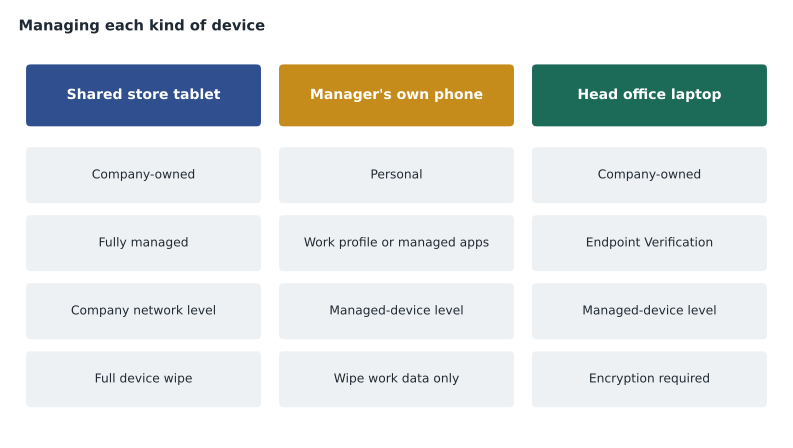
| Device | Owner | Approach | Access level (lesson 3) |
|---|---|---|---|
| Store tablets (120) | Birchline | Advanced management, company-owned, enrolled in bulk before shipping to stores | Company network |
| Warehouse scanners (24) | Birchline | Advanced management, company-owned, limited to the scanning and Workspace apps | Company network |
| Managers' phones (about 70) | Staff | Advanced management with Android work profile or iOS managed apps; personal side untouched | Managed device, for Gmail and Drive |
| Head office laptops (about 260) | Birchline | Windows managed by Birchline's device tools; Endpoint Verification reporting to Google | Managed device |
| Staff personal computers | Staff | Not managed; not allowed to reach Drive and Gmail for head office | Blocked by the managed-device level |
Policies for phones and tablets
Device policies are set per OU or group under Devices, Mobile and endpoints, Settings. Owen keeps them simple, because every requirement is something a person has to satisfy before they can read mail.
- Screen lock required on every device, with a minimum of six digits or a password on company-owned devices, and the device's own lock accepted on personal phones.
- Encryption required. Modern Android and iPhone devices encrypt by default once a screen lock is set, so this rarely causes trouble.
- Device approvals required for personal phones, so that a new phone cannot receive work mail until IT approves it. Approvals are quick for managers who registered their phone with the helpdesk.
- Compromised device blocking on, so that rooted or jailbroken devices lose access automatically.
- Inactive device wipe: company tablets that have not synced for 60 days have their account wiped, since an unsynced store tablet is probably lost.
- Apps on company devices limited to an approved list, managed through the Admin console's app settings for Android and iOS.
The shared tablets raise one more question: whose account signs in? A tablet used by eight people across shifts cannot be tied to one person's account. Birchline's plan is that each person signs in with their own Frontline account at the start of a shift and signs out at the end, with a short idle timeout, so that the logs show who did what. The tablets are company-owned and limited to the store's network, so a forgotten sign-out exposes less than it would on a personal phone, and Owen sets the web session length for the Stores OU to the length of a long shift.
Computers
For Windows and Mac computers, Workspace offers several pieces, and Google's help pages describe which editions include each. Endpoint Verification reports device details for context-aware access. Chrome browser management applies policies to Chrome, such as which extensions can be installed and whether people can sign in to personal Google accounts in the browser. Workspace also offers Windows device management on some editions, which can apply settings to Windows computers and wipe them, and the Google Credential Provider for Windows lets people sign in to Windows with their Workspace account; in July 2026 Google announced that it supports FIDO2 security keys as a second step for Windows sign-in. Birchline already manages its laptops with existing Windows tools, so Owen uses Workspace only for Endpoint Verification and Chrome browser management for now, and records Windows device management as a later option.
Lost and stolen devices
Devices go missing. A tablet disappears from a store after a break-in; a manager leaves a phone in a taxi. The response depends on ownership and urgency.
| Situation | Action in the Admin console | Notes |
|---|---|---|
| Company tablet stolen | Wipe device | Removes everything; the tablet is then useless to the thief until re-enrolled |
| Manager's personal phone lost | Wipe account (removes the work profile or work data) | Personal photos and apps are not touched |
| Phone missing, may be found | Block the device and sign the user out of all sessions | Unblock if it turns up; wipe if not |
| Laptop stolen | Sign the user out; reset the password; the managed-device level blocks access from the laptop if its status changes | Windows wipe through Birchline's own tools |
| Employee leaves with a company phone | Wipe device after it is returned or after a set date | Part of the departure checklist |
Speed matters most in the first hour. Owen adds a lost device line to the helpdesk script: block the device and sign out the user's sessions straight away, then decide on a wipe once the facts are known. Store managers get a short card for the stock room wall with the helpdesk number and the instruction to report a missing tablet before trying to find it.
Measuring compliance
Once devices are enrolled, the device list in the Admin console shows each device's status: compliant, not compliant and why, last sync, owner and type. Owen plans a weekly check and a simple measure for the baseline report.
devices = {
    # type: (enrolled, compliant)
    "Store tablets": (120, 117),
    "Warehouse scanners": (24, 24),
    "Managers' phones": (68, 61),
    "Head office laptops": (258, 249),
}
total = sum(e for e, c in devices.values())
ok = sum(c for e, c in devices.values())
for name, (e, c) in devices.items():
    print(f"{name:22} {c:>4} of {e:>4} compliant ({round(100 * c / e)} out of every 100)")
print(f"All devices: {ok} of {total} compliant ({round(100 * ok / total)} out of every 100)")
worst = min(devices, key=lambda k: devices[k][1] / devices[k][0])
print("Lowest rate:", worst)Store tablets 117 of 120 compliant (98 out of every 100) Warehouse scanners 24 of 24 compliant (100 out of every 100) Managers' phones 61 of 68 compliant (90 out of every 100) Head office laptops 249 of 258 compliant (97 out of every 100) All devices: 451 of 470 compliant (96 out of every 100) Lowest rate: Managers' phones
What this code does
For each kind of device, the table holds how many are enrolled and how many meet the policy. The calculation shows each kind's compliance as a number out of 100, then the total across all devices, and picks out the kind with the lowest rate, which is where to look first. The figures are planning numbers for the period after the rollout.
With these planning figures, about 96 out of every 100 devices would be compliant, and managers' personal phones would have the lowest rate. That is typical: personal phones fall behind on updates, and the fix is a friendly reminder rather than a block, unless a phone is so far behind that it stops receiving security updates altogether.
Enrolling 120 store tablets
Enrolling one tablet by hand takes a few minutes. Enrolling 120 across 40 stores by hand, with store managers following instructions over the phone, would take weeks and produce 120 slightly different tablets. Advanced management supports bulk enrollment for company-owned devices: Android devices bought through a partner that supports zero-touch enrollment can be registered to Birchline before they ship, and when a tablet is switched on and connected to the store network it enrolls itself and receives its policies. For devices that are already in the stores, enrollment with a token or QR code is the usual alternative.
Owen plans the store tablets in three groups of 40, in the weeks before the April store wave. Each group is unboxed and enrolled at the head office warehouse by two IT staff, checked against a short list (enrolled, compliant, correct OU, Workspace apps present, store network saved), labelled with the store name and the serial number, and shipped with the store's other April materials. The device list then shows 40 new compliant tablets for each group, which becomes part of the go-live check for each store.
Privacy on personal phones
Managers bringing their own phones need to know what Birchline can and cannot see. With a work profile, Birchline can see the device model, operating system version, whether it is encrypted and compromised, and the work apps it manages; it cannot see personal apps, photos, messages or browsing on the personal side. PIPEDA expects Birchline to explain this and to collect only what the purpose requires. Owen writes a one-page note for managers that says exactly that, includes a screenshot of what the device list shows for a sample phone, and explains that a wipe removes only the work profile.
The note also answers the question managers ask most: what happens to work mail if they decide to stop using their own phone. The answer is simple: they remove the work profile, or IT removes it remotely, and the rest of the phone is untouched. A manager who prefers not to use a personal phone at all can use the store tablet and a security key for sign-in, the same as floor staff.
Common mistakes
MistakeWiping a manager's whole personal phone when it is lost.
InsteadWipe only the work account or work profile on personal devices.
MistakeEnforcing a managed-device level before devices report their status.
InsteadEnroll devices and confirm their status first.
MistakeLetting shared tablets stay signed in to one person's account all day.
InsteadEach person signs in for their shift, with short sessions and a set session length.
MistakeWaiting to block a missing device until it is confirmed stolen.
InsteadBlock and sign out immediately; decide on a wipe later.
Worked problem
A store reports a missing tablet
At 2 p.m. the Kingston store manager reports that a till tablet is missing after a delivery. What should the helpdesk do?
Show solution
- Find the tablet in the device list by its serial number and note its last sync time.
- Block the device and sign out the accounts that used it today.
- Because the tablet is company-owned and limited to the store network, ask the manager to search for 30 minutes while it stays blocked.
- If it is not found, wipe the device; record the event and the serial number for insurance.
- Review the login events for the accounts that used it, in case anyone signed in elsewhere afterwards.
Answer: Block and sign out immediately, search briefly, then wipe if it is not found and check the logs.
Summary and key terms
- Google endpoint management offers basic management, with no agent and account-only wipes, and advanced management, with stronger passcodes, device approval, work profiles, full wipes and company-owned inventory; advanced needs a suitable edition.
- Separate company-owned devices, which can be fully managed and wiped, from personal devices, where only work data is managed.
- Set policies per OU: screen lock, encryption, approvals, compromised device blocking and inactive wipes.
- For computers, Endpoint Verification and Chrome browser management feed and enforce policy.
- For lost devices, block and sign out first, then wipe the device or the account as ownership allows.
- Google endpoint management
- Workspace's built-in management for phones, tablets and computers.
- Basic management
- Agentless management with screen lock rules and account wipes.
- Advanced management
- Management with stronger policies, device approval, work profiles and full wipes.
- Work profile
- A separate, managed area on an Android device for work apps and data.
- Device approval
- A requirement that IT approves a device before it receives work data.
- Wipe account
- Removing only the work account and data from a device.
- Wipe device
- Erasing the whole device, used for company-owned devices.
- Chrome browser management
- Applying organization policies to the Chrome browser on computers.
Practice problems
Work each problem on paper first, then reveal the answer to check.
Why is a work profile used on personal Android phones?
Show answer
It keeps work data separate so only it is managed and wiped.
What is the first action for a missing device?
Show answer
Block it and sign out the user's sessions.
Which Birchline editions include advanced management?
Show answer
Enterprise Standard and Frontline Standard both do.
Lesson quiz · 5 questions
Score 60% or more to complete this lesson.
Create a free account to save your progress, take quizzes and earn a certificate.