
GCP-212 · Lesson 7 of 12 · 18 min
Alert center and the security investigation tool
▶ Video coming soon A video version of this lesson is on the way.
Prevention is the first half of the baseline. The second half is noticing when prevention fails. In the seventh session Teresa introduces the person who will handle most of the noticing: Amira Saleh, a security analyst who joined her team in October and who will triage Workspace alerts each morning. Owen's job is to make sure the right alerts reach Amira, that she can investigate them without needing super admin rights, and that the steps from alert to closed case are written down. This lesson covers the alert center, the security investigation tool and how the two work together.
The alert center
The alert center, under Security in the Admin console, collects notifications about potential problems in the tenant. Some alerts are generated by Google, such as a suspicious sign-in, a user's password found in a public leak, a phishing message reported by users or detected after delivery, a device compromise, or activity Google associates with a government-backed attacker. Others come from rules the organization sets, such as the DLP rules in lesson 4 or activity rules built in the investigation tool. Each alert has a type, a severity, a status, an assignee and a link to its details.
| Alert (examples) | Source | What it usually means | First step |
|---|---|---|---|
| Suspicious login | A sign-in that looks unusual for the account, such as a new country with signs of automation | Check the login events for the account and contact the person | |
| Leaked password | The account's password appeared in a public leak | Force a password change and check recent activity | |
| User-reported phishing | Several people reported the same message | Find the message in the investigation tool and remove it from all mailboxes | |
| Device compromised | Google (endpoint management) | A managed device shows signs of compromise | Block the device and contact the user |
| DLP rule triggered | Organization | A DLP rule matched and was set to alert | Review the event and the user's intent |
| Admin role granted | Organization (activity rule) | Someone received an admin role | Confirm the change was approved |
Alerts also go out by email if the alert's notification settings say so. Birchline sends high-severity alerts to a group, sec-alerts@birchline.example, whose members are Amira, Teresa and the on-call administrator, and leaves medium and low alerts for the morning triage in the console. The group address rather than named people means that holidays and staff changes do not silence alerts.
Working an alert
Every alert follows the same life cycle. Amira assigns it to herself, sets its status to in progress, investigates, takes action, records what she found and closes it. The alert center keeps the history: who was assigned, what the status was and when, and any notes. Google also asks for feedback on whether an alert was useful, which helps tune Google's detection.
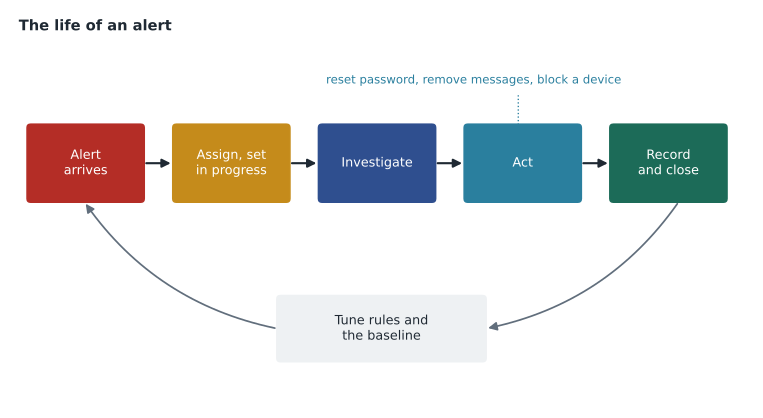
Teresa sets targets for response times by severity, so that the morning triage does not let a serious alert wait until after lunch.
| Severity | Examples | Acknowledge within | Close or escalate within |
|---|---|---|---|
| High | Leaked password for an admin; government-backed attack warning; many users reporting the same phishing message | 15 minutes during business hours; 1 hour outside | 4 hours |
| Medium | Suspicious login for a regular user; DLP block on card numbers | Same business day | 2 business days |
| Low | Single DLP warning overridden; device out of compliance | Next business day | 5 business days |
The security investigation tool
The security investigation tool, in the security center, lets administrators search across data sources such as Gmail messages and logs, Drive log events, device data, login events and admin actions, and then act on the results. Google's help pages list the editions that include it, among them Enterprise Standard and Plus and Frontline Standard and Plus, so it is available to Birchline. Searches are built from a data source and conditions, such as Gmail messages where the subject contains "Invoice overdue" and the sender domain is not birchline.example, sent in the last two days.
What makes the tool powerful is that it can act on what it finds. For Gmail messages, administrators can delete messages from all the mailboxes that received them, mark them as spam or phishing, or send them back to inboxes if they were wrongly removed. For Drive, they can review who accessed a file, see its sharing changes and change its sharing settings. For devices and users, results link to actions such as signing a user out or resetting a password. Google's help pages describe the actions available for each data source.
Data source:  Gmail messages
Conditions:   Subject contains "Invoice overdue"
              AND From header domain is not birchline.example
              AND Date is within the last 2 days
Result:       37 messages, 31 recipients, 1 sending domain (pay-notices.example)
Action:       Delete messages (after review of 5 samples)
Because the tool can delete mail from every mailbox in the organization, access to it is a privilege in its own right. Owen creates a custom admin role, Security analyst, with the privileges to view and act in the investigation tool and the alert center, and to view the audit logs, but without the right to change settings or manage users. Amira gets that role. Teresa's policy adds a human check: any bulk deletion of more than 100 messages is reviewed by a second administrator before it is run, and the review is noted in the alert.
Activity rules
An activity rule turns an investigation tool search into a standing watch. When the conditions are met, the rule creates an alert and can optionally take an action automatically. Birchline's first activity rules cover the events Teresa listed for admin accounts in lesson 1, and a few data movements that would be unusual for a retailer.
| Activity rule | Conditions | Action |
|---|---|---|
| Admin role granted | Admin log: role assignment added | Alert, high |
| Super admin sign-in from a new device | Login events: super admin account, device not seen before | Alert, high |
| Mass external sharing | Drive log: one user shares more than 50 files outside within one hour | Alert, high |
| Forwarding rule to outside | Gmail settings change: forwarding to an external address | Alert, medium |
| Large download | Drive log: one user downloads more than 500 files within one day | Alert, medium |
Thresholds such as 50 files an hour are guesses until measured. Owen checks them against what normal looks like by counting, from the pilot's Drive logs once it runs, how many files the busiest people share and download. Until then, he uses a quick estimate from the old file servers.
# Files shared outside per person per day in a normal week (from the old file server and mail logs).
daily_external_shares = [0, 0, 1, 0, 2, 0, 0, 3, 0, 1, 0, 0, 12, 0, 1, 0, 0, 0, 4, 0]
daily_external_shares.sort()
n = len(daily_external_shares)
p95 = daily_external_shares[int(0.95 * (n - 1))]
peak = max(daily_external_shares)
print(f"People sampled: {n}")
print(f"Level 95 of every 100 people stay within: {p95}")
print(f"Highest single day: {peak}")
threshold_per_hour = 50
print(f"An alert at {threshold_per_hour} in one hour is {threshold_per_hour // max(peak, 1)} times the busiest day")People sampled: 20 Level 95 of every 100 people stay within: 4 Highest single day: 12 An alert at 50 in one hour is 4 times the busiest day
What this code does
The list holds the number of files each sampled person shared outside the company on a normal day. After sorting, the calculation finds the value that 95 out of every 100 people stay at or below, and the busiest single day. It then compares the proposed alert threshold of 50 files in one hour with the busiest day seen, which shows how far above normal activity the alert would sit.
Even the busiest person shared 12 files in a day, so an alert at 50 in an hour is about four times the busiest normal day. That leaves room for a real campaign launch without false alarms, and anyone sharing 50 files outside in an hour is either doing something unusual or has had their account taken over. Owen notes that the threshold will be checked again with real data after the head office wave.
Privacy in investigations
The investigation tool can show the content of employees' mail, and that power needs rules. Under PIPEDA, Birchline may use personal information only for purposes a reasonable person would consider appropriate and must be open about its practices. Teresa's investigation procedure requires a recorded reason before anyone views message content, limits content review to the security analyst role, and records every investigation in a log that internal audit reviews.
Making sure alerts can fire
Some alerts depend on settings or data that must be in place first. A device-compromised alert needs devices enrolled in endpoint management (lesson 9). DLP alerts need the rule's alert option turned on. Activity rules need the data source to exist: a rule on Drive log events for a shared drive that has not yet been created will never fire. And alert email notifications go nowhere if the recipient group has no members. Owen adds an alert test to the pilot plan: during the first week, he will deliberately cause a harmless event of each kind on a test account, such as granting and removing a help desk role, setting up and deleting a forwarding address on a test mailbox, and sharing a dummy file outside, and confirm that each one produces the expected alert in the console and in the sec-alerts mailbox.
He also checks the reverse problem: alerts that will fire far too often. Google's suspicious login alerts are tuned by Google, but organization rules are not. A DLP alert on every audit-only match during the first fortnight would produce dozens of alerts a day and teach Amira to skim them. Owen's rule of thumb is that a new alert source should produce no more than a handful of alerts a day for a team of one analyst; anything noisier is tuned before it is allowed to email anyone.
The weekly review
Closing alerts one at a time hides patterns. Every Friday, Amira exports the week's closed alerts and reviews them with Teresa for half an hour. They look for three things: the same user or device appearing repeatedly, alert types that were always harmless and could be tuned, and alerts that took longer than the target to acknowledge. The findings feed back into the baseline, the DLP rules and the training plan. If four people in the same store clicked the same phishing link, the fix is a short talk at that store's next team meeting, not a fifth password reset.
Common mistakes
MistakeSending every alert to one named administrator by email.
InsteadRoute high-severity alerts to a monitored group and triage the rest daily.
MistakeGiving the security analyst super admin rights to use the investigation tool.
InsteadCreate a custom role with only investigation and alert privileges.
MistakeSetting activity rule thresholds by guesswork and never revisiting them.
InsteadMeasure normal activity and adjust thresholds with real data.
MistakeClosing alerts without notes.
InsteadRecord what was found and done, so patterns can be seen later.
Worked problem
A user-reported phishing alert
At 9:10 a.m. the alert center shows a high-severity alert: 6 users reported a message titled "Your parcel is held" from shipping-desk.example. What should Amira do?
Show solution
- Assign the alert to herself and set it to in progress.
- Open the investigation tool from the alert and search Gmail messages from shipping-desk.example in the last 3 days.
- Review a few messages to confirm they are phishing, and check the Gmail log for anyone who clicked the link.
- Delete the messages from all mailboxes, with a second administrator approving if the count exceeds 100.
- For anyone who clicked, check login events and reset passwords if needed; then record findings, close the alert and add the domain to the blocked senders list.
Answer: Triage, search, confirm, remove the messages everywhere, follow up on clickers, record and close.
Summary and key terms
- The alert center collects Google-generated alerts and alerts from the organization's rules, each with a type, severity, status and assignee.
- Route high-severity alerts to a monitored group, set response targets and follow one life cycle from assignment to closure.
- The security investigation tool searches Gmail, Drive, device, login and admin data and can act on results, such as deleting phishing messages from all mailboxes.
- Give analysts a custom role and require approval for bulk actions.
- Activity rules turn searches into standing alerts; base thresholds on measured normal activity.
- Record a reason before viewing content.
- Alert center
- The Admin console page that lists security alerts and their status.
- Security investigation tool
- A security center tool that searches Workspace data and acts on the results.
- Activity rule
- A saved investigation search that creates an alert, and optionally acts, when its conditions are met.
- Severity
- How serious an alert is, used to set response times.
- Triage
- Sorting alerts by importance and deciding what to do first.
- Custom admin role
- An admin role with only the privileges a job needs.
- Data source
- The kind of data an investigation searches, such as Gmail messages or Drive log events.
- 95-in-100 level
- The value that 95 out of every 100 observations are at or below.
Practice problems
Work each problem on paper first, then reveal the answer to check.
Why do high-severity alerts go to a group instead of a person?
Show answer
So holidays and staff changes do not silence them.
What can the investigation tool do with phishing messages it finds?
Show answer
Delete them from all mailboxes, mark them as phishing or spam, or return wrongly removed ones.
What turns a search into a standing watch?
Show answer
An activity rule.
Lesson quiz · 5 questions
Score 60% or more to complete this lesson.
Create a free account to save your progress, take quizzes and earn a certificate.