
GCP-212 · Lesson 2 of 12 · 19 min
2-step verification and passkeys
▶ Video coming soon A video version of this lesson is on the way.
Teresa's first critical item is 2-step verification. Birchline has never required it for ordinary staff: the old Exchange system used passwords only, and the helpdesk resets about 40 forgotten passwords a week. In the second session Sofia lays out the options on the whiteboard, from text-message codes at the bottom to security keys and passkeys at the top, and Owen's task is to choose methods for three very different groups: head office staff with company laptops, store and warehouse floor staff who share tablets, and the handful of administrators. This lesson covers how 2-step verification works in Workspace, how to enforce it without locking people out, and where passkeys fit.
What 2-step verification adds
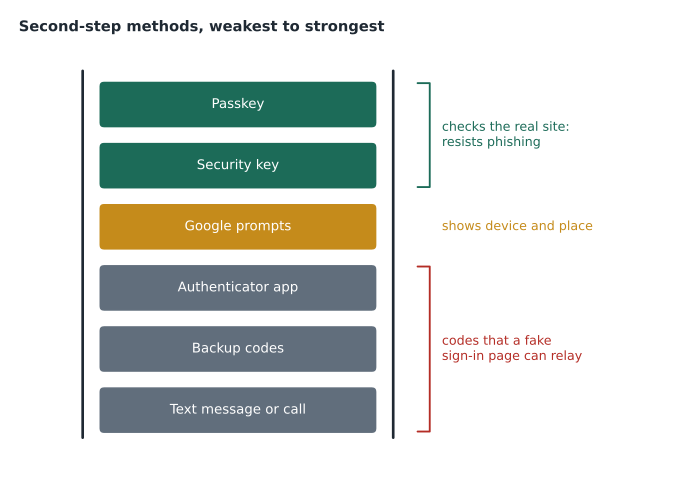
2-step verification (2SV) asks for a second proof of identity after the password: something the person has, such as a phone or a security key. A stolen password alone is then not enough to sign in. Google's methods differ in how well they resist phishing, the most common way passwords are stolen. A fake sign-in page can ask for a password and a six-digit code in real time and replay both to Google; it cannot do the same with a security key, because the key checks the address of the site it is talking to before it answers.
| Method | How it works | Resists phishing? | Typical use at Birchline |
|---|---|---|---|
| Text message or voice call | A code is sent to a phone number | No; codes can be intercepted or relayed | Not allowed for admins; discouraged for everyone |
| Backup codes | Printed one-time codes | No | Emergency use only, stored safely |
| Authenticator app | The app shows a code that changes every 30 seconds | No; codes can be relayed | Acceptable fallback |
| Google prompts | The phone shows "Is it you trying to sign in?" | Partly; tells the person which device and place | Default for head office |
| Security key | A USB or NFC key checks the site and signs the sign-in | Yes | Required for admins; offered to store staff |
| Passkey | A key stored on the phone or computer, unlocked with a fingerprint, face or PIN | Yes | Encouraged for everyone with a supported device |
Enrollment and enforcement
In the Admin console, 2SV is under Security, Authentication, 2-step verification. Three settings work together, and each can be set per OU or group.
- Allow users to turn on 2-step verification lets people enroll. It must be on before enforcement can be.
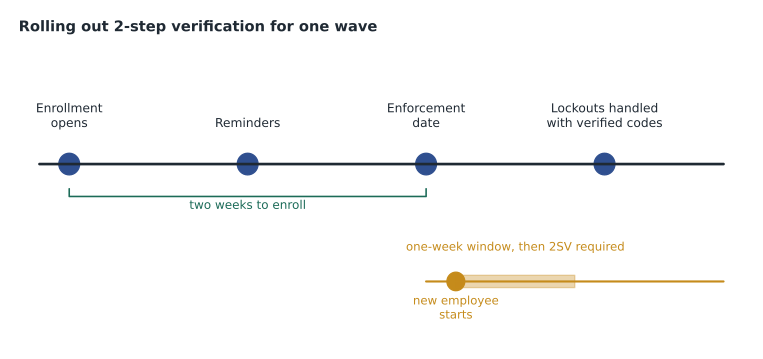
- Enforcement sets the date from which 2SV is required. Before that date, users can sign in without it but see reminders; after it, a user who has not enrolled cannot sign in until they do, unless an administrator gives a temporary bypass.
- New user enrollment period gives newly created accounts a window, such as one week, to set up 2SV after their first sign-in. Without it, a new user would face enforcement immediately and might be unable to sign in at all.
- Methods chooses which second steps are allowed: any method, any except verification codes by text or call, or only security keys. Birchline sets "only security keys" for the Admin accounts OU.
Sofia's rule is that enforcement never arrives as a surprise. Each wave gets a two-week enrollment period before its enforcement date, a short guide in the welcome pack, and helpdesk hours set aside for the first morning. For the pilot, the dates are simple: enrollment opens the week of November 16 and enforcement for the Pilot OU starts on November 30.
When someone is locked out
Enforcement creates a new kind of helpdesk call: the person who has lost their phone or left their key at home. Administrators can help in two ways, both from the user's page in the Admin console. They can get backup verification codes for the user, which the user enters instead of the second step, or they can allow the user to sign in without 2SV for a short time (a bypass) so the user can set up a new method. Both must be handled with care, because a caller claiming to be a manager who lost their phone is exactly what an attacker would say.
Owen writes the helpdesk procedure so that identity is checked first. The helpdesk calls the person back at the number in the directory, or asks the person's manager to confirm, before issuing backup codes. Bypasses are kept short and logged, and every bypass creates an entry in the Admin log that Teresa's team reviews weekly.
Choosing methods for each group
The three groups have different needs. Head office staff carry company laptops and, mostly, their own phones. Store and warehouse floor staff, about 800 people, use shared tablets at the till and in the stock room; many do not want a work app on their personal phone, and Birchline cannot require it. Administrators need the strongest protection.
| Group | OU or group | Allowed methods | Notes |
|---|---|---|---|
| Administrators | Admin accounts | Security keys only | Two keys each, one kept at home |
| Head office and office staff | Head office, Warehouses (office staff) | Any except text or call | Passkeys and Google prompts encouraged |
| Store and warehouse floor staff | Stores, Warehouses (floor) | Any except text or call | Security key offered to anyone who prefers not to use a personal phone |
| Pilot | Pilot | Any except text or call | Enforced on November 30 |
| Service and test accounts | Contractors (test accounts only) | Reviewed case by case | Service accounts that use OAuth do not sign in interactively |
The floor staff decision needs a cost check. Teresa estimates that about a third of floor staff will choose a security key. Owen works out the budget, using a quoted unit price that is labelled illustrative, and adds spares for lost keys.
floor_staff = 800
share_wanting_key = 1 / 3         # Teresa's estimate
spare_rate = 0.10                  # extra keys for losses in the first year
unit_price = 28                    # illustrative quote, in dollars, per key

keys = round(floor_staff * share_wanting_key)
spares = round(keys * spare_rate)
total_keys = keys + spares
print(f"Keys for staff: {keys}")
print(f"Spares: {spares}")
print(f"Total keys: {total_keys}")
print(f"Budget: {total_keys * unit_price:,} dollars")Keys for staff: 267 Spares: 27 Total keys: 294 Budget: 8,232 dollars
What this code does
The estimate starts from 800 floor staff and assumes one in three will want a security key instead of using a personal phone. It adds one spare key for every ten handed out, to cover losses in the first year, and multiplies the total by an illustrative price per key. The result is the number of keys to order and the budget to request.
About 267 keys plus 27 spares, 294 keys in all, comes to 8,232 dollars at the illustrative price. Dana Leclair, the chief financial officer, approves the budget because the alternative, a helpdesk reset for every forgotten shift password, costs more in staff time within a year.
Passkeys and skipping the password
A passkey is a sign-in credential stored on a phone, computer or security key and unlocked with the device's screen lock: a fingerprint, a face scan or a PIN. Because it is tied to the real site, it cannot be phished, and because the person never types a secret, there is nothing to steal from them. In Workspace, passkeys can be used in two ways. As a second step, a passkey works like a security key after the password. With the setting Allow users to skip passwords at sign-in, under Security, Authentication, Passwordless, a passkey can replace the password entirely.
Two details from Google's help pages surprise Owen. First, turning on skip passwords does not delete anyone's password; users still have one and can still use it. Second, enrolling a passkey does not turn on 2SV by itself; a user who wants a passkey as their second step must still be enrolled in 2SV. The baseline therefore treats the two settings separately: 2SV is enforced for everyone, and skip passwords is allowed for head office so that people with a passkey can sign in faster.
The investigation tool can report passkey use on editions that include it, which lets Teresa track adoption. Her target for head office is that half of people sign in with a passkey within six months of their wave.
Login challenges and password policy
2SV sits alongside two older controls. Login challenges are extra checks Google adds when a sign-in looks unusual, such as asking for an employee ID when someone signs in from a new country; administrators can turn on employee ID as a challenge and can turn challenges off for ten minutes for a user who is stuck. Password management sets minimum length and strength and whether passwords expire. Current guidance from security agencies in both countries favours long passwords that do not expire on a schedule, combined with 2SV, over short passwords that must be changed every 90 days, because forced changes lead to predictable patterns. Birchline sets a minimum of 12 characters, strong passwords enforced at the next sign-in, and no scheduled expiry.
Tracking enrollment before the deadline
An enforcement date works only if almost everyone has enrolled before it arrives. The Admin console's user reports show each person's 2SV enrollment and enforcement status, and the list can be filtered by OU and exported. Owen plans to check the Pilot OU every two days during its enrollment period and to call anyone still not enrolled three working days before November 30, rather than waiting for them to discover the problem at the start of a shift.
For the larger waves, a simple projection shows whether the helpdesk can cope. If enrollment follows the pattern of most rollouts, a burst of people enroll in the first two days, a slow middle follows and a second burst arrives just before the deadline. Whoever is left on enforcement day becomes a helpdesk call.
| Day of the two-week period | Enrolled (head office wave, 230 people) | Still to enroll |
|---|---|---|
| Day 2 | 120 | 110 |
| Day 7 | 168 | 62 |
| Day 12 | 205 | 25 |
| Day 14 (enforcement) | 221 | 9 |
Nine people on enforcement day is manageable with two helpdesk staff for the first morning. Twenty-five would not be, which is why the day 12 check triggers personal calls to everyone still missing. The same table, filled with real numbers during the pilot, becomes the model for the store waves, where 690 people across 40 stores will enroll in April and where store managers, not the central helpdesk, will be the first line of help.
Super admin recovery
Strong sign-in for administrators raises its own risk: an administrator who loses both security keys can be locked out of the tenant. Google provides a super admin account recovery process for when every super admin is locked out, which proves domain ownership and can take time. Birchline avoids needing it. Each super admin enrolls two keys, keeps one at home, and has a recovery phone and email outside the tenant. There are always at least two super admins, so one can reset the other, and the sealed emergency account Teresa holds is tested every quarter by signing in with it and recording the date. If that test ever fails, it is treated as an incident, not an inconvenience.
Common mistakes
MistakeEnforcing 2SV for everyone on the same day it is announced.
InsteadGive each wave an enrollment period, guidance and helpdesk support before the enforcement date.
MistakeAllowing text-message codes for administrators.
InsteadRequire security keys for admin accounts.
MistakeIssuing backup codes to anyone who calls the helpdesk.
InsteadVerify the caller through a call-back or their manager first, and log every bypass.
MistakeAssuming that turning on passkeys also turns on 2SV.
InsteadEnforce 2SV separately; passkey enrollment does not enroll the user in 2SV.
Worked problem
Setting up 2SV for the Trailhead Rentals onboarding
Trailhead Rentals' 48 staff join in January 2027 in their own OU. About 20 are seasonal staff who start in spring. What should Owen configure?
Show solution
- Turn on Allow users to turn on 2-step verification for the Trailhead OU now, so the setting is ready.
- Set enforcement for the Trailhead OU two weeks after their planned January sign-in date, with reminders and a short guide.
- Set a new user enrollment period of one week, so seasonal staff created in spring can sign in and enroll before enforcement applies to them.
- Allow any method except text or call; offer security keys to seasonal staff who do not want to use a personal phone.
- Add the helpdesk call-back procedure to Trailhead's welcome pack, so staff know how lockouts are handled.
Answer: Allow enrollment now, enforce two weeks after sign-in, give new users a one-week window, and block text-message codes.
Summary and key terms
- 2-step verification adds a second proof after the password; security keys and passkeys resist phishing, codes do not.
- Enforcement needs enrollment allowed, an enforcement date, a new user enrollment period and allowed methods, set per OU or group.
- Admins can issue backup codes or a short bypass, after checking the caller's identity.
- Choose methods by group: security keys for admins, no text codes for anyone, keys offered to people without a suitable phone.
- Passkeys can be a second step or, with skip passwords, replace the password; passkey enrollment does not enroll a user in 2SV.
- Long, strong passwords without scheduled expiry work best alongside 2SV.
- 2-step verification (2SV)
- A second proof of identity after the password, such as a phone prompt or a security key.
- Enforcement date
- The date after which users must use 2SV to sign in.
- New user enrollment period
- A window in which new accounts can sign in and set up 2SV before enforcement applies.
- Security key
- A physical key that checks the site and signs the sign-in, resisting phishing.
- Passkey
- A phishing-resistant credential stored on a device and unlocked with its screen lock.
- Skip passwords
- A setting that lets users sign in with a passkey instead of a password.
- Backup codes
- One-time codes that can replace the second step in an emergency.
- Login challenge
- An extra check Google adds when a sign-in looks unusual.
Practice problems
Work each problem on paper first, then reveal the answer to check.
Why can a security key stop a fake sign-in page when a six-digit code cannot?
Show answer
The key checks the real site's address before it answers; a code can be relayed.
What does a new user enrollment period prevent?
Show answer
New users being blocked by enforcement before they can set up 2SV.
Does turning on skip passwords remove users' passwords?
Show answer
No; users keep their passwords.
Lesson quiz · 5 questions
Score 60% or more to complete this lesson.
Create a free account to save your progress, take quizzes and earn a certificate.