
GCP-212 · Lesson 11 of 12 · 18 min
Troubleshooting access and sharing problems
▶ Video coming soon A video version of this lesson is on the way.
"I can't open it" is the second great helpdesk call, and in Workspace it can mean a dozen different things. The person may not have been given access, may be signed in to the wrong account, may be blocked by a context-aware access level, may have no licence for the app, or may be outside the organization and running into a sharing setting. In the eleventh session Sofia gives Owen a stack of tickets from the second course's rehearsals and asks him to sort them by cause before solving any. This lesson covers the layers that decide whether someone can reach a file or an app, the evidence for each, and the fixes.
The layers that decide access
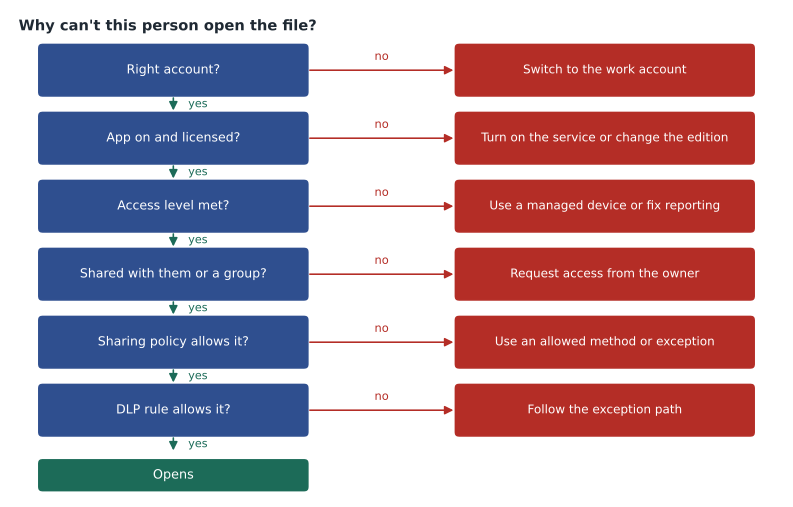
Access to a Workspace file passes through several checks, in roughly this order. A failure at any one of them produces a message that can look similar to the person who sees it, which is why Owen learns to identify the layer before he changes anything.
- The right account. Is the person signed in with their Birchline account, or with a personal Google account in the same browser? This is the single most common cause.
- The app is on, and licensed. Is the service turned on for the person's OU or group, and does their licence include it? Frontline Standard users, for example, have a smaller set of apps and storage than Enterprise Standard users.
- Context. Does the request meet the context-aware access levels assigned to the app for the person's OU (lesson 3)?
- Permission on the item. Has the file or folder been shared with this person, a group they belong to, or their whole organization, or are they a member of the shared drive?
- Sharing policy. Do the OU settings of the file's owner, or of the shared drive, allow sharing with this person at all, for example with someone outside Birchline?
- Data protection rules. Has a DLP rule blocked the share or the download (lesson 4)?
What the person sees, and what it means
| Message or symptom | Layer | Evidence | Typical fix |
|---|---|---|---|
| You need access, with a Request access button | Permission on the item | Drive log shows no share to this person or their group | The owner or a shared drive manager grants access, ideally to a group |
| The request page shows a personal address | The right account | The account picker shows a consumer account | Switch to the Birchline account, or use a separate Chrome profile for work |
| A custom message about Birchline laptops or networks | Context | Login and context-aware access events show the failed level | Use a managed device, or fix the device's reporting |
| The app is missing from the app launcher | The app is on and licensed | The user's page shows the service off for their OU or no licence | Turn on the service for the OU, or assign the right licence |
| The owner cannot share with an outside address | Sharing policy | The share dialog warns or refuses; the OU allows only allowlisted domains | Use an allowlisted domain, a shared drive with external members, or an exception |
| The share or download is blocked with a policy message | Data protection rules | Rule log events show the DLP rule | Follow the rule's exception path; do not switch the rule off |
Shared drives and OUs
Shared drives add a twist that catches even experienced administrators. Files in a shared drive follow the sharing settings of the shared drive's OU, not the OU of the person who uploaded them, as the second course explained. A marketing designer whose own OU allows sharing with the agency may still be refused when sharing a file from a shared drive that sits in a stricter OU. The reverse also happens: a file in a loosely configured shared drive can be shared outside by someone whose own OU would never allow it.
Shared drives also have their own settings that can refuse access even when the OU allows it: whether people outside the organization can be added, whether non-members can be given access to individual files, and whether viewers and commenters can download, copy and print. When a shared drive setting is the cause, the fix is made by the shared drive's manager or by an administrator in Manage shared drives, and the change is recorded, because shared drive settings are part of the baseline too.
A worked check with a small program
Owen writes out the checks as a short program, not to run the helpdesk on it, but to make the order of the layers explicit for training. Each ticket is described by a few facts, and the program reports the first layer that fails.
LAYERS = [
    ("right_account", "Signed in with a personal account: switch to the Birchline account"),
    ("app_on", "Service off or not in the user's edition: turn it on or change the edition"),
    ("context_ok", "Context-aware access level not met: use a managed device or fix reporting"),
    ("shared", "Item not shared with the user or their group: request access from the owner"),
    ("policy_ok", "Sharing policy of the file's OU or shared drive refuses: use an allowed method"),
    ("dlp_ok", "Blocked by a DLP rule: follow the rule's exception path"),
]

def first_failure(ticket):
    for key, advice in LAYERS:
        if not ticket.get(key, True):
            return advice
    return "All layers pass: check for a brief outage or a cached page"

tickets = {
    "Ines, finance report at home": {"context_ok": False},
    "Agency designer, campaign file": {"shared": True, "policy_ok": False},
    "Store manager, rota": {"right_account": False, "shared": False},
}
for who, t in tickets.items():
print(f"{who:34} -> {first_failure(t)}")Ines, finance report at home -> Context-aware access level not met: use a managed device or fix reporting Agency designer, campaign file -> Sharing policy of the file's OU or shared drive refuses: use an allowed method Store manager, rota -> Signed in with a personal account: switch to the Birchline account
What this code does
The list holds the access layers in the order they should be checked, each with the advice for when it fails. Each ticket records only the facts that are known to be false, and every other layer is assumed to pass. The function walks through the layers in order and returns the advice for the first one that fails, which is the cause to fix first. The output gives the first failing layer for three sample tickets.
The store manager's ticket shows why order matters. The manager was signed in with a personal account and the rota had not been shared with the store managers' group either. Fixing the account first reveals the second problem; fixing the sharing first would have looked like no change at all, because the personal account still could not open it.
Outsiders who cannot open a file
External access problems have their own short list. The outsider may have been sent a link but not been given access; the owner's OU or the shared drive may not allow sharing with that domain; the outsider may be using a different address from the one the file was shared with, such as a personal Gmail address instead of their company address; or the file may be labelled Confidential and blocked by a DLP rule. Google's help pages also describe trust rules, newer controls on some editions that define who can share with whom in more detail; Owen notes them as something to check in the Admin console if they are in use. Outsiders without a Google account can usually still open files shared with them through a verification code sent to their email address, where the sharing settings allow it, which surprises people who expect to need a Google account.
Evidence before changes
Sofia's rule from the mail lesson applies here too: find the evidence, then change one thing. The Drive log shows sharing changes and access attempts for a file, the login log and context-aware access events show blocked requests, the user's page in the Admin console shows their OU, groups, licences and services, and the rule log shows DLP actions. The investigation tool can combine them. Two shortcuts are forbidden at Birchline: giving the person ownership of the file to make the problem go away, and moving the person into a looser OU "for now". Both fix one ticket and create a silent exception that nobody records.
| Tool | Use it to answer |
|---|---|
| User's page in the Admin console | Which OU, groups and licence? Which services are on? |
| Drive log events | Was the file shared with them? Did they try to open it? Was a share refused? |
| Login and context-aware access events | Was a request blocked by an access level, and which condition failed? |
| Rule log events | Did a DLP rule block or warn? |
| Manage shared drives | Which OU is the shared drive in, and what are its settings? |
| Security investigation tool | All of the above in one search, for complex cases |
Groups, timing and caches
Many access tickets at Birchline will involve groups, because the baseline grants access to groups rather than people. Groups bring their own causes. A new starter may not be in acl-finance-files yet because the group is synchronized from Active Directory by Google Cloud Directory Sync on a schedule, and the change made in Active Directory this morning has not arrived. A group may contain another group, and the person is in the inner group but the inner group was removed from the outer one. Or the group may allow only members from inside the organization, so an outside auditor added by mistake never really became a member.
Timing matters in the other direction too. When access is removed, a file that is already open in someone's browser may stay visible until the page is reloaded, and Drive for desktop may show a cached copy for a short time. Owen's helpdesk script asks two timing questions for every access ticket: when was the access granted or removed, and when did the person last reload. A surprising number of tickets close with "try again in fifteen minutes", and the script says so honestly rather than inventing a fix.
For groups, the user's page in the Admin console shows direct memberships, and the Groups log shows who added or removed whom and when. If GCDS is involved, its own log shows the last successful sync. Owen adds a line to the baseline report: the time of the last successful directory sync, so a stalled sync is noticed before it becomes twenty access tickets.
Common mistakes
MistakeMoving a user into a looser OU to fix one access problem.
InsteadFind the failing layer and fix that, with a recorded exception if needed.
MistakeTransferring file ownership to the person who cannot open it.
InsteadGrant the right access, ideally through a group.
MistakeAssuming a file follows the uploader's OU settings in a shared drive.
InsteadShared drive files follow the shared drive's OU and its own settings.
MistakeChanging several settings at once until it works.
InsteadGather evidence, change one thing, and record it.
Worked problem
An agency cannot open campaign files
In one of Sofia's rehearsal scenarios, set in March 2027, Lens and Light, the allowlisted design agency, says two designers cannot open files in the Marketing campaigns shared drive, though they could last week. What should Owen check?
Show solution
- Ask for the exact addresses the designers use and the file names, and confirm they are on lensandlight.example, not personal accounts.
- Check the Drive log for one file: was it shared with them, and was any share refused?
- Check the shared drive in Manage shared drives: its OU and its setting for adding people outside the organization.
- Check the Admin log: someone moved the shared drive from the Marketing OU to the Head office OU last Thursday, where external sharing is limited to the auditors' domain.
- Move it back after confirming with the change owner, record the reason, and add the shared drive's OU to the baseline so a future move raises an alert.
Answer: The shared drive was moved to a stricter OU; the Admin log proves it, and moving it back with a record fixes it.
Summary and key terms
- Access depends on layers: the right account, the app on and licensed, context-aware access, permission on the item, the sharing policy of the file's OU or shared drive, and DLP rules.
- Identify the failing layer from the message and the evidence before changing anything.
- Shared drive files follow the shared drive's OU and its own settings.
- Outsiders fail for missing access, policy limits, a different address or DLP.
- Use the user's page, Drive log, login and access events, rule log, Manage shared drives and the investigation tool.
- Never fix access by moving people into looser OUs or transferring ownership.
- Access layer
- One of the checks that decides whether a person can reach a file or app.
- Request access
- A Drive feature that lets a person ask the owner for access to an item.
- Shared drive OU
- The organizational unit whose sharing policy applies to a shared drive's files.
- Manage shared drives
- The Admin console page for finding and changing any shared drive.
- Trust rules
- Controls on some editions that define who can share with whom.
- Verification code access
- A way for outsiders without a Google account to open files shared with their email address.
- Chrome profile
- A separate browser profile that keeps work and personal accounts apart.
- Silent exception
- An undocumented change that loosens policy to fix one problem.
Practice problems
Work each problem on paper first, then reveal the answer to check.
What is the most common cause of "I can't open it"?
Show answer
Being signed in with the wrong, often personal, account.
Which OU's sharing policy applies to a file in a shared drive?
Show answer
The shared drive's OU.
Why is moving a user into a looser OU a bad fix?
Show answer
It creates an unrecorded exception that weakens policy for everything that user does.
Lesson quiz · 5 questions
Score 60% or more to complete this lesson.
Create a free account to save your progress, take quizzes and earn a certificate.