
CSCO-102 · Lesson 8 of 12 · 21 min
Remote access and remote support tools
▶ Video coming soon A video version of this lesson is on the way.
Brightline has fourteen staff and about forty clients spread across Saskatoon and the surrounding towns. If every ticket needed a visit, the company could not exist. Most of Jordan's work happens through remote support tools: he connects to a user's screen, sees what they see, and fixes the problem while they watch. On Wednesday, November 4, he handles twenty-two tickets and visits a site for only one of them. Marisol reminds him that every remote session is also a moment of trust: "You're inside someone's computer. Act like you're a guest in their house."
This lesson covers the two kinds of remote access a support technician meets. The first is remote access for users, which lets staff reach office resources from home or on the road. The second is remote support, which lets technicians reach users' devices to help them. Both are powerful, both are favourite targets for attackers, and both depend on careful security and good manners.
Remote access for users: VPNs
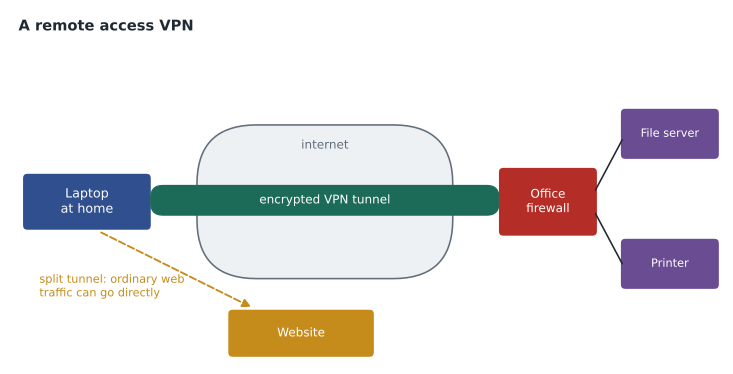
A virtual private network, or VPN, creates an encrypted tunnel from a user's device across the internet to the organization's network or cloud security service. Once connected, the device behaves much as if it were in the office, able to reach internal file servers, printers and applications. Remote access VPNs use client software on the laptop; site-to-site VPNs join two office networks permanently through their routers or firewalls, as Prairie Paws' two locations are joined. VPNs usually require MFA to connect.
Some VPNs send all of the user's traffic through the tunnel, called a full tunnel; others send only traffic for company resources and let ordinary internet traffic go directly, called a split tunnel. Split tunnelling reduces load on the office connection but means internet browsing is not protected by the office's filters. Many organizations now use zero trust network access instead of, or alongside, traditional VPNs: each application checks the user and device before allowing access, rather than trusting anyone who has joined the network. For a support technician, the practical effect is the same: when a remote user cannot reach an internal resource, check whether the VPN or access client is connected and healthy before anything else.
Remote desktop
Remote desktop lets a user or technician control a computer from another device. Microsoft's Remote Desktop Protocol, RDP, is built into Windows and is widely used to reach servers and office PCs. macOS includes Screen Sharing, and other remote desktop technologies such as VNC are common on Linux and in older systems. Remote desktop is powerful and therefore dangerous: RDP exposed directly to the internet is one of the most common ways ransomware groups break into organizations, by guessing or stealing passwords. Brightline's rule is that RDP is never opened to the internet; staff reach it only through the VPN or a remote desktop gateway, with MFA.
Remote support tools
Help desks use dedicated remote support tools that let a technician view and control a user's screen with the user's permission. Some are built into operating systems, such as Quick Assist on Windows; most managed-service providers use commercial tools integrated with their monitoring and management platform. Common features include attended sessions, where the user must accept the connection; unattended access to managed devices for maintenance; file transfer; chat; session recording; and the ability to reboot the device and reconnect automatically. Many also let the technician run commands or scripts on a device in the background without taking over the screen.
| Tool or method | Typical use | Key security point |
|---|---|---|
| VPN client | Staff reaching office resources remotely | Require MFA; keep the client updated |
| Remote desktop (RDP, Screen Sharing) | Using a remote computer as if sitting at it | Never expose directly to the internet |
| Attended remote support | Helping a user who is present | User accepts each session; verify first |
| Unattended remote access | Maintenance on managed devices | Strong technician MFA; log and review |
| Remote command or script | Background fixes and information gathering | Limit who can run what; log everything |
| Cloud management console | Settings, updates and wipes across devices | Least-privilege technician roles |
Starting a remote session properly
Brightline's procedure for an attended session has five steps, and Jordan follows them on every call. First, verify who the user is and that the request is genuine, as in lesson 5. Second, explain what the session will do and ask permission, including permission to take control rather than just view. Third, ask the user to close anything private, such as personal email, banking or confidential client files that are not part of the problem. Fourth, connect, narrate what you are doing as you do it, and avoid opening files or windows unrelated to the ticket. Fifth, end the session clearly, confirm with the user that the tool has disconnected, and note the session in the ticket.
That last point matters because attackers imitate help desks. Scammers call people pretending to be from a well-known technology company or the user's own IT provider and ask them to install a remote support tool, then take control and steal data or money. Brightline tells every client's staff that Brightline will never cold-call asking for remote access, that real sessions are always tied to a ticket number, and that anyone who is unsure should hang up and call the help desk number they already know.
Unattended access and privileged tools
Unattended access lets technicians connect to managed computers without a user present, for updates, after-hours fixes and servers. It is convenient and essential to managed services, but it means that anyone who controls a technician's account controls every client's devices. Attacks on remote management tools have caused some of the largest ransomware incidents. Protection includes strong, phishing-resistant MFA on every technician account, roles that give each technician only the access their job needs, keeping the tools updated, and logging every session so that unusual access is noticed. Brightline's tool alerts Keisha whenever a session starts outside business hours without a matching ticket.
Working remotely with the user
Remote support is still customer service. Users cannot see the technician's face, so tone and narration carry the conversation. Jordan says what he is about to do before he does it: "I'm going to open your network settings now," "I'm going to restart the print service; your screen may flicker for a second." He warns before anything that will disconnect the session, such as releasing the IP address or restarting, and agrees how he will reconnect. He keeps his hands off the user's mouse when they want to show him something. And he avoids reading anything on the screen that is not relevant to the problem.
Some fixes are better done without taking over the screen at all. If the user is comfortable, guiding them through the steps helps them learn and fix the problem themselves next time. If the problem needs administrator rights, the technician should enter them through the tool's secure elevation feature rather than reading an administrator password aloud or typing it where the user can see it.
PS C:\> Get-NetAdapter | Select-Object Name, Status, LinkSpeed

Name      Status       LinkSpeed
----      ------       ---------
Ethernet  Disconnected 0 bps
Wi-Fi     Up           866.7 Mbps
Cloud management consoles
Much remote support now happens without touching the device at all. Cloud management consoles for Microsoft 365, Google Workspace, device management and endpoint protection let technicians reset passwords, change licences, push settings, deploy software and wipe devices from a browser. These consoles are among the most powerful tools a support technician uses, so they follow the same rules as unattended access: each technician signs in with their own account and strong MFA, has only the roles they need, and every action is logged. Brightline's technicians use separate administrator accounts for console work, distinct from the everyday accounts they use for email, so that a phishing email cannot hand an attacker administrator rights.
Consoles also give support staff information that users cannot easily provide: when the device last checked in, whether it is compliant, which user signed in last, and which updates are pending. Checking the console before calling the user often turns a long diagnostic conversation into a short confirmation.
When remote support is not enough
Some problems cannot be fixed remotely. A device that will not start, a damaged network jack, a failed power supply or a printer jam needs hands on site, and so does any device that cannot connect to the network at all. A remote technician's job then is to gather everything the on-site visit will need: the device and its location, the symptoms, what has been ruled out, parts that may be required, and access arrangements. A well-prepared site visit takes half the time of a poorly prepared one. When Brightline sends someone on site, the remote technician's notes go with the ticket, and the person who visits adds their own findings before closing it.
For users far from the office, an alternative is to ship a replacement device that is already configured, and have the user return the faulty one. Device management makes this practical: a new laptop can be delivered sealed, and it configures itself with the user's settings and apps when they sign in for the first time.
Recording remote sessions is common practice at managed-service providers, and Brightline records every attended session. Recordings protect both sides: if a client later asks what a technician did, the recording shows it, and if a technician is accused of something they did not do, the recording clears them. Users should be told that sessions are recorded, recordings should be kept only as long as the retention policy allows, and access to them should be limited, because they may show personal information that appeared on the screen.
Finally, the remote support tool itself must be kept up to date and its installer obtained only from the vendor. Attackers have published fake installers for popular remote tools, and some have exploited weaknesses in older versions to take over many devices at once. Brightline's change calendar includes a monthly check that every client device runs a current version of the agent.
Worked problem
A suspicious session request
A bakery employee calls the help desk, worried. Someone phoned her claiming to be from Brightline, said her computer was sending out viruses and asked her to go to a website and install a remote support tool. She has not done it. There is no ticket. What should Jordan do?
Show solution
- Brightline does not cold-call users asking for remote access, so the call was almost certainly a scam.
- Thank her for checking, and confirm she did not install anything or share any codes.
- If she had installed the tool, disconnect the computer from the network and treat it as a security incident.
- Record the caller's number and details in a ticket, alert the security analyst, and send a short reminder to the bakery's staff about the scam.
Answer: Treat it as attempted social engineering: confirm no software was installed, document it, alert security and warn other staff.
Common mistakes
MistakeOpening RDP to the internet for convenience.
InsteadReach RDP only through a VPN or gateway with MFA.
MistakeStarting a session without verifying the user and the request.
InsteadVerify first; tie every session to a ticket.
MistakeTaking control without asking.
InsteadExplain what you will do and ask permission to control the screen.
MistakeBrowsing the user's files or email during a session.
InsteadTouch only what the ticket needs.
MistakeLeaving unattended access unmonitored.
InsteadUse MFA, least-privilege roles and session alerts.
Summary and key terms
- VPNs give remote users an encrypted tunnel to company resources; full and split tunnels differ in what they carry.
- Zero trust access checks the user and device for each application.
- Remote desktop is powerful; RDP must never be exposed directly to the internet.
- Remote support tools offer attended and unattended sessions, file transfer, chat, recording and background commands.
- An attended session follows verify, ask permission, protect privacy, connect and narrate, end and document.
- Scammers impersonate help desks; real sessions are always tied to a ticket.
- Protect technician accounts with strong MFA, least privilege and session monitoring.
- VPN
- A virtual private network, an encrypted tunnel across the internet.
- Split tunnel
- A VPN setting that sends only company traffic through the tunnel.
- Zero trust
- An approach that verifies every user and device for every access.
- RDP
- Remote Desktop Protocol, Microsoft's remote desktop technology.
- Attended session
- A remote support session the user is present for and accepts.
- Unattended access
- Remote access to a managed device without a user present.
- Remote desktop gateway
- A secure entry point that protects remote desktop access.
Practice problems
Work each problem on paper first, then reveal the answer to check.
What is the difference between a full tunnel and a split tunnel?
Show answer
A full tunnel sends all traffic through the VPN; a split tunnel sends only company traffic.
Why should RDP never be open directly to the internet?
Show answer
Attackers scan for it and guess or steal passwords to break in.
What should a user do if someone calls offering to fix a virus remotely?
Show answer
Hang up and call the help desk number they already know.
Name two things to do before taking control of a user's screen.
Show answer
Verify the user and ask permission, and ask them to close private items.
Why does unattended access need extra protection?
Show answer
Anyone controlling a technician account can reach every managed device.
What should a technician do before releasing an IP address during a remote session?
Show answer
Warn the user and agree how to reconnect.
Lesson quiz · 5 questions
Score 60% or more to complete this lesson.
Create a free account to save your progress, take quizzes and earn a certificate.