
CSCO-102 · Lesson 12 of 12 · 21 min
Practice: network and security tickets
▶ Video coming soon A video version of this lesson is on the way.
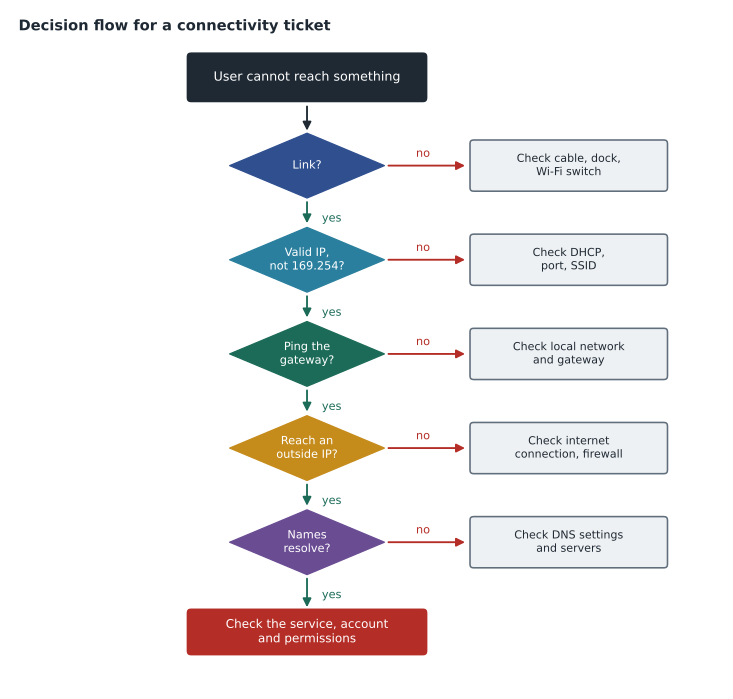
On Tuesday, November 10, at the end of Jordan's tenth week, Marisol does something she has been planning since September. She pulls six real tickets from the past two weeks, removes the resolutions, and hands them to Jordan as a practice set. "Work each one the way you'd work it live," she says. "Tell me the first three things you'd check, what you think is wrong, what you'd do, and what you'd write in the ticket. Then we'll compare with what actually happened." This lesson follows the same exercise. Each case brings together skills from earlier lessons: the connectivity staircase, addressing and DHCP, Wi-Fi, DNS and the test ladder, accounts and MFA, malware response, endpoint security, remote support, ticketing, communication, escalation and privacy.
Jordan's CCST IT Support exam is booked for early 2027, and Marisol's practice sets are part of his preparation plan. The CCST exam itself is a timed online exam; Cisco's exam page lists a duration of 50 minutes, and the format and passing standard are described in CSCO-190, which brings both halves of the course together for final review.
Case 1: the shared drive that disappeared
Ticket: a legal assistant at Riverside Family Law says her S: drive has "disappeared" since this morning, but websites and email work. Jordan's first three checks: whether anyone else has lost the drive, what DNS servers the laptop is using, and whether the file server's name resolves. The pattern of internet working and an internal resource failing points at internal DNS or the connection to the internal network, not the internet.
C:\Users\assistant> ipconfig /all
   ...
   DNS Servers . . . . . . . . . . . : 1.1.1.1

C:\Users\assistant> nslookup fileserver01
*** one.one.one.one can't find fileserver01: Non-existent domain
The laptop's DNS server is a public resolver rather than the firm's domain controller. The assistant explains that a friend changed her Wi-Fi settings at home "to make the internet faster". The internal file server's name exists only in the firm's own DNS, so the laptop can no longer find it. The fix is to set the adapter back to obtain DNS automatically, flush the DNS cache and reconnect the drive. Jordan's ticket note records the cause, the fix, and a recommendation that the firm's device policy lock DNS settings so users cannot change them. What actually happened matched his answer, and Marisol adds that the policy change was approved the same week.
Case 2: the community centre lab
Ticket: six of the twenty PCs in the Northfield computer lab show "No internet" after a power outage over the weekend; the other fourteen are fine. Jordan's first three checks: the IP address on an affected PC, whether the affected PCs share a switch, and the switch's link and power lights.
An affected PC shows a 169.254 address, so it has a link of some kind but no DHCP lease. All six PCs sit on the same table and connect through a small desktop switch under it. The switch's power light is on but its uplink light is dark: during the outage, the switch's uplink cable was knocked half out of its wall jack by the cleaning crew moving tables. Reseating the cable brings the light on, and the PCs get addresses after a renewal. Jordan's note records the cause and adds a follow-up suggestion to secure the switch and cable under the table. The actual resolution was the same, though Dev also replaced the cheap unmanaged switch with a managed one so Brightline can monitor it.
Case 3: the bakery manager's strange sign-in
Ticket: the Kettle & Crumb owner receives an email from the company's cloud email service saying there was a successful sign-in to her account from another country at 3:12 a.m., and she did not travel. She asks if it is a scam. Jordan's first three checks: whether the alert is genuine, by looking at the sign-in logs himself rather than clicking any link in the email; whether MFA is enabled on her account; and what the sign-in did.
The logs confirm the sign-in, which succeeded with her password and an MFA approval: she remembers tapping approve on a prompt that woke her up during the night. This is MFA fatigue. Jordan immediately escalates to Keisha as a security incident, because the account is compromised. Together they revoke all sessions, reset the password from a clean device, switch her MFA to number matching, check the mailbox for new forwarding rules that attackers often add to watch email silently, and find and remove one such rule. Jordan's note documents every step and the times, and his recommendation is to enable number matching for every account at the bakery. Keisha's review found that the attacker had read but not sent email; the owner informed her accountant, whose messages had been exposed.
Case 4: the clinic laptop that will not join Wi-Fi
Ticket: a new veterinary technician's personal laptop will not connect to the staff Wi-Fi at Prairie Paws; it keeps asking for the password, which she has typed carefully many times. Jordan's first three checks: which network she is trying to join, the security type the network uses, and whether the clinic allows personal laptops on the staff network at all.
The staff network uses WPA3 enterprise with each staff member signing in with their own account, while she is typing the guest network's shared passphrase from a sign at reception. More importantly, the clinic's policy allows only clinic-owned devices on the staff network; personal devices belong on the guest network. Jordan explains this kindly, connects her laptop to the guest network so she can use the internet, and suggests she ask the clinic manager if she needs access to clinic systems, in which case a clinic device would be issued. His note records the policy reason. The actual ticket ended the same way; the manager decided she would use the treatment room tablets for clinic work.
Case 5: the urgent remote session
Ticket: a caller says she is from the law firm's accounting team, her screen is "full of errors", and she needs someone to connect to her computer now. She cannot find the ticket portal. Jordan's first three checks: verify who she is using the firm's procedure, confirm her device appears in Brightline's management tool, and open a ticket before connecting.
Verification succeeds: a callback to the firm's main number reaches her, and her laptop shows in the management console. Jordan opens a ticket, explains the session, asks her to close her personal banking tab, and connects. The "errors" turn out to be dozens of notifications from a calendar app that has lost its connection after a password change. He re-enters the account in the app, explains what he is doing as he goes, and confirms the session has ended. The case is simple technically; Marisol included it to check that Jordan followed the remote session procedure under time pressure, which he did.
Case 6: the receipt printer and the angry customer
Ticket: at 11:40 on a Saturday, a Kettle & Crumb shop reports that the receipt printer has stopped and customers are complaining. The shop manager is stressed and short-tempered on the phone. Jordan's first three checks: whether the point-of-sale terminals can still take payments, which affects priority; whether the printer has power, paper and a link light; and whether the printer's IP address still answers.
Payments still work, so it is not a P1, but it is a whole shop's receipts during the Saturday rush, so Jordan sets P2. He acknowledges the manager's frustration, explains that payments are still working and receipts can be emailed from the terminal as a workaround, and commits to calling back within fifteen minutes. A ping to the printer's reserved address fails; the manager finds that a new staff member moved the printer to make room and plugged it into a different network port, one that is on the guest network. Moving the cable back fixes it. Jordan calls back in ten minutes, confirms the fix, documents the cause, and creates a request to label the printer's port. The actual resolution matched; Marisol adds that the label went on the following week.
| Case | Key clue | Step on the staircase | Skill areas |
|---|---|---|---|
| 1 Shared drive | Internet works, internal name fails; public DNS server | Name resolution | DNS, policy, documentation |
| 2 Lab PCs | 169.254 addresses on PCs sharing one switch | Link and address | DHCP, physical checks |
| 3 Strange sign-in | Overnight MFA approval, forwarding rule | Account security | MFA, incident escalation |
| 4 Personal laptop | Wrong network and policy | Link (wireless authentication) | Wi-Fi security, policy, communication |
| 5 Urgent session | Pressure to skip steps | Not a network fault | Verification, remote support |
| 6 Receipt printer | Printer address does not answer; moved cable | Link and address | Priority, communication, workarounds |
What the practice set shows
Marisol's debrief with Jordan draws out three lessons. First, the clue is usually in the pattern of what works and what does not: internet but not internal, some PCs but not others, payments but not receipts. Second, the security cases were the ones where speed and procedure mattered most: the compromised account needed escalation in minutes, and the urgent caller needed verification no matter how urgent she sounded. Third, every case ended with a note that would let someone else understand it months later, and several ended with a small improvement that prevents the next ticket. That, she says, is what separates a help desk that fixes the same problems forever from one that gets steadily quieter.
Practising for the exam
Practice sets like Marisol's are good exam preparation because the CCST questions describe situations and ask what a technician should do, rather than asking for memorized facts alone. A useful habit when reading any scenario is to underline the clues: who is affected, what works, what changed, and whether security or privacy is involved. Then decide which step on the staircase or which procedure applies before looking at the answer options.
Worked problem
Choosing a first check
A user at the Prairie Paws second location says nothing works: no websites, no practice app, no shared files. Every other user at that location is fine. The user's laptop shows Wi-Fi connected. What is the most useful first check, and why?
Show solution
- Only one user is affected, so the site's internet connection and servers are probably fine.
- Wi-Fi shows connected, so a radio link exists, but it might be to the wrong network.
- The fastest useful check is ipconfig: it shows whether the laptop has a valid address on the staff network, a 169.254 address, or an address from the guest network.
- The answer directs the next step: DHCP, the network chosen, or higher steps on the ladder.
Answer: Check the IP address with ipconfig first. It shows in seconds whether the laptop is on the right network with a valid lease.
Common mistakes
MistakeIgnoring the pattern of what still works.
InsteadUse it to place the fault on the staircase.
MistakeClicking a link in a security alert email to check it.
InsteadCheck the account logs directly in the real service.
MistakeSkipping verification because the caller sounds urgent.
InsteadUrgency is a reason to follow the procedure, not to skip it.
MistakeSetting priority by how loud the caller is.
InsteadSet it from impact and urgency, considering workarounds.
MistakeClosing a ticket without preventing a repeat.
InsteadAdd a recommendation or follow-up request where it helps.
Summary and key terms
- Work every ticket from its clues: who is affected, what works and what does not.
- Use the staircase and the test ladder to place connectivity faults.
- Internal names failing with internet working points to internal DNS settings.
- 169.254 addresses on a group of devices often point to a shared switch, cable or DHCP issue.
- Overnight MFA approvals and new forwarding rules signal a compromised account: escalate immediately.
- Follow verification and remote session procedures under pressure.
- Set priority from impact and urgency, offer workarounds, communicate clearly and document causes and improvements.
- Practice set
- A group of real tickets with the resolutions removed, used for training.
- Forwarding rule
- A mailbox rule that sends copies of messages elsewhere; attackers add them to watch email.
- Workaround
- A temporary way to restore service while the real fix is found.
- Debrief
- A review after work is done to draw out lessons.
- Unmanaged switch
- A simple switch with no configuration or monitoring.
- Root cause
- The underlying reason an incident happened.
- Recommendation
- A suggested improvement recorded in a ticket to prevent repeats.
Practice problems
Work each problem on paper first, then reveal the answer to check.
In case 1, why could the laptop reach websites but not the file server?
Show answer
It was using a public DNS server that does not know internal names.
In case 2, what did the 169.254 addresses on six PCs sharing one switch suggest?
Show answer
A problem between that switch and the rest of the network.
In case 3, what made the sign-in succeed despite MFA?
Show answer
The owner approved a push prompt during the night: MFA fatigue.
Why was case 6 a P2 and not a P1?
Show answer
Payments still worked and receipts could be emailed as a workaround.
What should you check first if one user says nothing works but Wi-Fi shows connected?
Show answer
The IP address, with ipconfig.
What do attackers often add to a compromised mailbox?
Show answer
A forwarding rule.
Lesson quiz · 5 questions
Score 60% or more to complete this lesson.
Create a free account to save your progress, take quizzes and earn a certificate.