
CSCO-102 · Lesson 7 of 12 · 21 min
Securing endpoints and mobile devices
▶ Video coming soon A video version of this lesson is on the way.
Riverside Family Law's newest associate, Priya Desai, starts on Tuesday, November 3. Her laptop and phone arrive at Brightline the week before, and Jordan is given the job of preparing them. The firm's security requirements fill a page: full-disk encryption, a screen lock after five minutes, endpoint protection and automatic updates, a standard user account, the firm's Wi-Fi and VPN profiles, a password manager, and a phone that can be wiped remotely if lost, with the firm's email and documents kept separate from her personal apps. Jordan works through the list with a checklist, and by the end he understands that securing an endpoint is not one setting but a dozen small decisions that together keep a client's confidential files safe.
An endpoint is any device that connects to the network and that a person uses: desktops, laptops, phones, tablets, and also point-of-sale terminals, kiosks and printers. Endpoints are where users meet attackers, through email, websites, downloads and stolen devices. This lesson covers the controls that harden endpoints, the special challenges of mobile devices, and the support technician's role in applying and checking those controls.
Hardening a computer
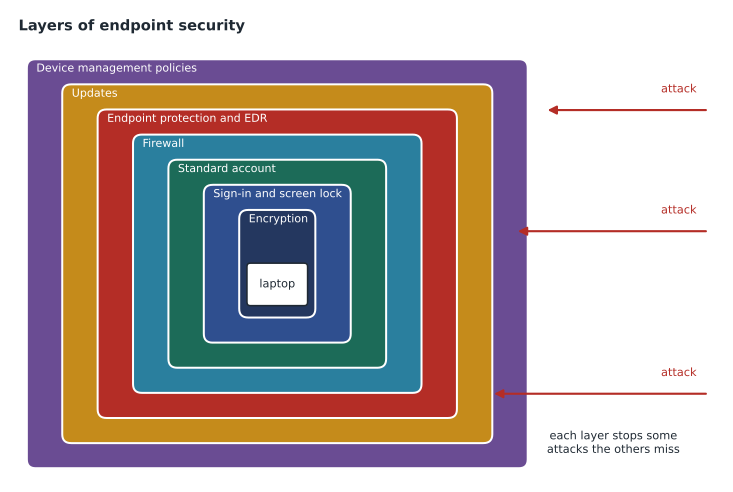
Hardening means reducing the ways a device can be attacked. The basic controls are the same on Windows, macOS and Linux, though the tools differ. Install updates promptly and automatically for the operating system, browsers and applications. Run endpoint protection and keep it current. Turn on the built-in firewall, which blocks unrequested incoming connections. Use standard user accounts for daily work, with administrator rights only for specific tasks. Remove software that is not needed, because every installed program is something that may need patching. Disable services and features that are not used, such as file sharing on a laptop that never shares files. Set a screen lock that engages after a short period of inactivity, and require a password, PIN or biometric to unlock.
| Control | Windows | macOS |
|---|---|---|
| Full-disk encryption | BitLocker | FileVault |
| Built-in firewall | Windows Defender Firewall | macOS application firewall |
| Built-in malware protection | Microsoft Defender Antivirus | XProtect and Gatekeeper |
| Automatic updates | Windows Update | Software Update |
| Screen lock | Lock screen and sign-in options | Lock Screen settings |
| Standard account | Standard user account | Standard user account |
Encryption
Full-disk encryption scrambles everything on a device's storage so that, without the key, the data is unreadable. A lost or stolen laptop with encryption turned on is an inconvenience; one without it may be a reportable privacy breach, as lesson 11 explains. BitLocker on Windows and FileVault on macOS are built in and use a chip in the computer, the Trusted Platform Module on Windows PCs or the Secure Enclave on Apple devices, to protect the key. Modern phones encrypt their storage automatically when a passcode is set.
Encryption creates a support responsibility: the recovery key. If a laptop's hardware changes, its firmware is updated or its encryption detects tampering, it may ask for a long recovery key before it will start. Organizations escrow recovery keys, storing them in their device management system or directory, so that the help desk can supply them after verifying the user. A recovery key that was never saved means the data on that drive is lost. Jordan confirms that Priya's BitLocker recovery key appears in the firm's management console before he hands the laptop over.
Firewalls on the endpoint
A host-based firewall on each device controls which network connections it allows. It complements the network firewall at the office edge, because laptops spend time on home, hotel and café networks where there is no office firewall. Windows uses network profiles to apply stricter rules on public networks than on a trusted domain network. A common support issue is an application that needs to receive connections, such as a video conferencing tool or a file-sharing feature, being blocked until a rule is added. Support technicians should add narrow rules for specific applications rather than turning the firewall off.
Physical security and the screen
Physical access defeats many controls. A support technician should know and teach the basics: lock the screen when stepping away, with the Windows key and L on Windows or Control, Command and Q on a Mac; never leave laptops visible in cars; use privacy screens in public places where others can see the display; and report lost or stolen devices immediately so that they can be locked or wiped. In offices, cable locks and locked rooms protect desktops and network equipment. At the veterinary clinic, the reception PCs face the waiting room, so their screens lock after two minutes and have privacy filters fitted.
USB devices carry their own risk. Unknown USB drives found in a car park have been used to deliver malware, and some devices that look like flash drives act as keyboards and type commands. Organizations can block or restrict USB storage through device policies. Users should never plug in a found device; they should hand it to IT.
Mobile devices
Phones and tablets hold email, files, authentication apps and contacts, and they are lost far more often than laptops. The essential controls are a strong passcode with biometric unlock, automatic updates, apps installed only from the official app stores, encryption, which is automatic with a passcode, and the ability to locate, lock and wipe the device remotely. Jailbreaking an iPhone or rooting an Android phone removes the platform's security controls, and organizations normally block such devices from company data.
Mobile device management, or MDM, lets an organization enrol devices, push settings such as Wi-Fi and email profiles, require passcodes and encryption, and wipe company data remotely. Mobile application management focuses on protecting company apps and data rather than the whole device. Many organizations allow staff to use their own phones, a practice called bring your own device, or BYOD. In that case, the organization usually manages only a separate work profile or container: on Android, a work profile; on iPhone, managed apps and accounts. A remote wipe then removes only company data, leaving personal photos and apps alone. That separation matters for privacy and for trust; staff are far more willing to enrol their own phones when they know the employer cannot see or erase their personal life.
| Ownership model | What the organization manages | What a remote wipe removes |
|---|---|---|
| Company-owned device | The whole device | Everything; the device returns to factory settings |
| Bring your own device | A work profile or managed apps only | Only company apps and data |
| Company-owned, personally enabled | The whole device, with allowed personal use | Usually everything, by agreement |
Priya's phone is her own, so Jordan enrols it with a work profile. The firm's email, document app and authenticator live inside it, protected by the work profile's own passcode policy, and the firm can wipe the work profile if she leaves or loses the phone. He shows her the work badge on the apps so that she knows which data the firm manages.
Lost or stolen devices
When a user reports a lost or stolen device, speed matters. The support technician verifies the caller, then uses the management console to locate the device if location is enabled, lock it, and, if it cannot be recovered, wipe it or its work data. The user's passwords and sessions for company services should be revoked, so that a thief who has an unlocked device cannot keep using open sessions. The incident is documented, and if the device was not encrypted or held sensitive data, it is escalated for a privacy assessment.
Updates and patch management
Updates are the single most effective security control, and also a frequent source of tickets. Operating system vendors release security updates regularly, Microsoft on the second Tuesday of each month, and urgent fixes in between when a weakness is being actively exploited. Brightline tests updates on a few machines at each client before rolling them out to everyone, so that a faulty update breaks one PC instead of fifty. The management console shows which devices are behind, and devices that are weeks behind are chased individually.
Users often delay restarts, which leaves updates installed but not active. Support technicians explain why the restart matters, schedule it for a convenient time where possible, and know that some updates also need firmware or driver changes that the device manufacturer supplies through its own tool. When an update causes a problem, the right response is to document it, roll it back on the affected device if needed, and report it so that the rollout can be paused, not to turn off updates permanently.
Printers, kiosks and other endpoints
Not every endpoint is a laptop or phone. Network printers store copies of scanned and printed documents and run their own software that needs updates. Reception kiosks and point-of-sale terminals are used by many people and often run in a locked-down mode that allows only one application. Smart TVs in meeting rooms, door controllers and cameras are endpoints too. These devices should have their default passwords changed, their firmware updated, and, where possible, be placed on a separate part of the network so that a compromised camera cannot reach the file server. The bakery's point-of-sale terminals, for example, sit on their own network segment that can reach only the payment processor.
Endpoint security also depends on knowing what endpoints exist. An up-to-date inventory, usually built automatically by the management and monitoring tools, lists each device, its owner, its operating system version and its last check-in. Devices that stop checking in may be lost, broken or simply sitting in a drawer, and each case needs a different response. A device that appears on the network but not in the inventory is a question to ask: it may be a new purchase that was never enrolled, or something that should not be there at all.
Worked problem
Responding to a lost phone
On a Saturday morning, Priya calls Brightline's after-hours line to say her phone was stolen from a restaurant table the night before. The phone has a passcode and the firm's work profile. What should the technician on call do, and in what order?
Show solution
- Verify Priya's identity through the firm's agreed procedure.
- In the management console, lock the device and send a wipe of the work profile, since it is unlikely to be recovered.
- Sign her out of all sessions in the firm's cloud services and reset her password; remove the stolen phone as an authentication method and register a new one when she has a replacement.
- Document the incident, note that the phone was passcode-protected and encrypted, and notify the firm's office manager and Brightline's security analyst on Monday, or sooner if policy requires.
Answer: Verify, lock and wipe the work profile, revoke sessions and the phone's MFA registration, then document and notify.
Checking compliance
Device management systems report whether each device meets policy: encryption on, updates current, endpoint protection running, passcode set. Many organizations block access to company services from devices that are out of compliance, a practice called conditional access. A user who suddenly cannot reach email on their phone may simply have an operating system update waiting. Support technicians read these compliance reports, explain them to users, and fix the device rather than relaxing the policy.
Common mistakes
MistakeTurning off the firewall to make an app work.
InsteadAdd a narrow rule for that application.
MistakeEnabling encryption without saving the recovery key.
InsteadEscrow the key in the management system before handing the device over.
MistakeWiping a personal BYOD phone completely.
InsteadWipe only the work profile or managed apps.
MistakeLeaving a lost device's sessions active.
InsteadRevoke sessions and remove the device as an MFA method.
MistakeUsing an administrator account for daily work.
InsteadUse a standard account and elevate only when needed.
Summary and key terms
- Hardening reduces attack opportunities: updates, endpoint protection, firewall, standard accounts, fewer apps and services, screen locks.
- Full-disk encryption protects lost devices; recovery keys must be escrowed.
- Host firewalls protect laptops away from the office; add narrow rules rather than disabling them.
- Physical security, screen locking, privacy filters and USB caution still matter.
- Mobile devices need passcodes, updates, official app stores, encryption and remote lock and wipe.
- MDM manages whole devices; BYOD usually uses a work profile so only company data can be wiped.
- For a lost device: verify, lock, wipe, revoke sessions and MFA, document and escalate if needed.
- Endpoint
- A device that people use to connect to the network.
- Hardening
- Reducing the ways a device can be attacked.
- Full-disk encryption
- Encrypting all data on a device's storage.
- Recovery key
- A long key that unlocks an encrypted drive when normal unlock fails.
- MDM
- Mobile device management, which enrols and controls devices.
- BYOD
- Bring your own device: staff use personal devices for work.
- Conditional access
- Allowing access only from devices and sessions that meet policy.
Practice problems
Work each problem on paper first, then reveal the answer to check.
Name the built-in full-disk encryption tools on Windows and macOS.
Show answer
BitLocker and FileVault.
Why must a BitLocker recovery key be escrowed?
Show answer
Without it, data is lost if the drive asks for recovery.
What should a user do with a USB drive found in the car park?
Show answer
Hand it to IT without plugging it in.
On a BYOD phone, what does a remote wipe usually remove?
Show answer
Only the work profile or managed company apps and data.
Why revoke sessions after a device is stolen?
Show answer
Open sessions could let a thief keep using company services.
A user's phone loses email access after policy checks. What is a likely simple cause?
Show answer
A required update or passcode setting is out of compliance.
Lesson quiz · 5 questions
Score 60% or more to complete this lesson.
Create a free account to save your progress, take quizzes and earn a certificate.