
CSCO-102 · Lesson 6 of 12 · 21 min
Malware: recognizing, removing and preventing it
▶ Video coming soon A video version of this lesson is on the way.
On Monday, November 2, the manager of the Kettle & Crumb shop on the east side calls in a quiet voice. The office laptop has started opening a web page full of advertisements every few minutes, the browser's home page has changed to a search site she has never heard of, and a pop-up says the laptop is infected with "37 viruses" and gives a phone number to call for help. She has not called it. Jordan tells her she did exactly the right thing, asks her to disconnect the laptop from Wi-Fi and leave it switched on, and opens a ticket marked as a security incident. Marisol pulls up the endpoint protection console, and they begin working through the malware procedure together.
Malware, short for malicious software, is any software designed to harm a device, steal information or give an attacker control. Support technicians are often the first to see it, because users call the help desk when something strange happens. This lesson covers the main types of malware, the symptoms that suggest an infection, the safe way to respond, and how to prevent infections in the first place. Defensive response is the focus throughout; the goal is to recognize, contain and recover, not to study how malware is built.
Types of malware
Malware is usually classified by how it spreads and what it does. A virus attaches to a legitimate file or program and spreads when that file is opened or shared. A worm spreads by itself across networks, exploiting weaknesses without any user action. A Trojan disguises itself as something useful, such as a free utility or a cracked game, and carries a harmful payload. Ransomware encrypts the victim's files and demands payment for the key, and modern ransomware groups also steal data and threaten to publish it. Spyware secretly collects information, and keyloggers, a kind of spyware, record keystrokes to capture passwords. Adware floods the user with advertisements and redirects the browser. A rootkit hides deep in the operating system to conceal other malware. A botnet is a network of infected devices controlled together by an attacker, often used to send spam or flood websites with traffic.
| Type | How it behaves | Typical symptoms |
|---|---|---|
| Virus | Attaches to files and spreads when they run | Damaged files, unexpected behaviour after opening a file |
| Worm | Spreads across networks by itself | Many devices affected quickly, heavy network traffic |
| Trojan | Disguised as useful software | New unknown programs, settings changed after an install |
| Ransomware | Encrypts and often steals files, demands payment | Files renamed or unreadable, ransom note |
| Spyware and keyloggers | Secretly collect data and keystrokes | Usually few visible symptoms; stolen accounts |
| Adware and browser hijackers | Push advertisements and change browser settings | Pop-ups, changed home page and search engine |
| Rootkit | Hides in the operating system | Security tools disabled or unable to see problems |
Fileless malware runs in memory using legitimate system tools instead of installing its own files, which makes it harder for traditional scanners to find. Potentially unwanted programs, often bundled with free software, are not always malicious in the legal sense but behave badly enough that organizations treat them as malware.
Recognizing an infection
Some infections are loud. Ransomware leaves a note and makes files unreadable. Adware throws up pop-ups. Fake antivirus warnings, like the one on the bakery laptop, try to frighten the user into calling a scam phone number or paying for useless software. Other infections are quiet and show up only indirectly: a computer that suddenly runs slowly, fans that run constantly, security software that has been turned off, unfamiliar programs or browser extensions, new accounts, friends receiving strange emails from the user's address, or the user's online accounts being accessed from elsewhere.
None of these symptoms proves malware on its own. A slow computer may just need more memory; a pop-up may come from an aggressive but legitimate website. The support technician's job is to take the signs seriously, check them with the organization's security tools, and follow the procedure rather than guess. A fake alert that includes a phone number is always a scam: real security software does not ask users to call strangers.
A safe response procedure
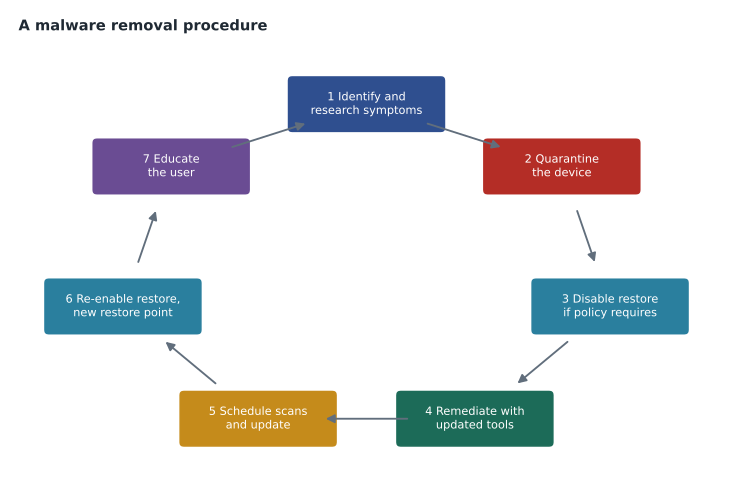
Most organizations follow a procedure similar to the one Brightline uses, adapted from widely taught industry practice. First, identify and verify the symptoms, and record them in the ticket. Second, quarantine the device: disconnect it from wired and wireless networks so the malware cannot spread or send data, but do not switch it off if the security team may need to see what is running in memory. Third, where the organization's policy calls for it, disable System Restore on Windows, because restore points can contain infected files and bring the malware back. Fourth, remediate: update the endpoint protection's definitions, run full scans, often from a separate boot environment for stubborn infections, and remove what they find. Fifth, schedule regular scans and install pending operating system and application updates, which often close the hole the malware used. Sixth, re-enable System Restore and create a new restore point once the device is clean. Seventh, educate the user about what happened and how to avoid it.
Serious infections change the procedure. Ransomware, signs of stolen data, malware on a server, or an infection on a device that holds sensitive client information, such as a law firm laptop or a veterinary clinic's practice management workstation, are escalated to the security analyst immediately. In those cases the device is usually reimaged, meaning wiped and reinstalled from a known good image, rather than cleaned, because no one can be certain that a cleaned device is truly clean. Passwords used on the device are changed from a different, clean device, because a keylogger may have captured them.
What happened at the bakery
The endpoint protection console shows that the laptop's real security software is still running and has flagged a browser extension installed two days earlier, along with a scheduled task that reopens the advertising page. The manager remembers installing a "coupon finder" that a website offered. Marisol walks Jordan through the procedure: the laptop stays off the network, the extension and the scheduled task are removed, a full scan finds two related files and quarantines them, the browser is reset to its default settings, and pending updates are installed. Because the laptop holds payroll spreadsheets, Keisha reviews the scan results and the sign-in logs for the manager's accounts and finds no sign of data theft or other access. The manager changes her email password from her phone as a precaution.
Jordan then does the step most technicians skip: he spends ten minutes with the manager showing her how to recognize fake alerts and why browser extensions should only come from trusted publishers. Brightline's policy is also updated so that the bakery's laptops can no longer install browser extensions without approval.
Preventing malware
Prevention works in layers, so that if one fails another catches the problem. Endpoint protection, including antivirus and the more advanced endpoint detection and response tools that watch for suspicious behaviour, runs on every device and is kept up to date. Operating systems, browsers and applications are patched promptly, because most malware uses known weaknesses that updates have already fixed. Users work in standard accounts rather than administrator accounts, so that malware they accidentally run cannot install itself deeply. Email filtering blocks most malicious attachments and links before users see them. Application control and browser extension policies limit what can be installed. Regular, tested backups, with at least one copy offline or otherwise protected from the network, mean that ransomware cannot destroy the only copy of important files.
| Layer | What it does | Example at Brightline clients |
|---|---|---|
| Endpoint protection | Detects and blocks known and suspicious software | Managed antivirus and EDR on every PC |
| Patching | Closes known weaknesses | Monthly update window plus urgent fixes |
| Standard user accounts | Limits what malware can change | No daily use of administrator accounts |
| Email and web filtering | Stops malicious links and attachments | Filtering DNS and email security service |
| Application and extension control | Limits what can be installed | Approved browser extensions only |
| Backups | Allows recovery without paying | Daily cloud backup plus a weekly offline copy |
| User awareness | Helps people spot and report threats | Short sessions and simulated phishing |
Social engineering and phishing
Most malware arrives because a person is tricked into letting it in. Phishing emails pretend to come from banks, delivery companies, software vendors or colleagues and urge the reader to click a link or open an attachment. Targeted phishing aimed at a particular person, called spear phishing, uses details about the victim to seem convincing. Phishing by text message and by phone are common too, as Jordan learned in lesson 5. The warning signs are consistent: urgency, an unusual request, a sender address that does not quite match, a link whose real destination differs from its text, and an attachment the user was not expecting.
Support technicians help in two ways: by making it easy for users to report suspicious messages, usually with a report button in the email client, and by treating every report kindly, even when it turns out to be harmless. A user who is thanked for reporting will report again; a user who is made to feel foolish will not.
Mobile and macOS malware
Malware is not only a Windows problem. macOS has its own malware, mostly adware, information stealers and fake updates, and Apple's built-in protections block much of it, provided users do not override the warnings for software from unidentified developers. Phones are attacked mostly through malicious apps from outside the official stores, scam messages and malicious profiles that change settings. The same principles apply on every platform: keep systems updated, install software only from trusted sources, use endpoint protection where available, and treat unexpected prompts to install something with suspicion.
After any infection, the support technician should ask how the malware got in, because the same door may still be open. Was it an email attachment, a download, a browser extension, an unpatched application or a reused password? The answer shapes the recommendation in the ticket: an email filter rule, a policy blocking extensions, an urgent update or a password manager. Fixing the device without closing the door only schedules the next ticket.
Worked problem
Deciding on a response
A paralegal at Riverside Family Law reports that after opening an invoice attachment from an unknown sender, a window flashed and closed, and now some file names on the shared drive end in an unfamiliar extension and cannot be opened. What should Jordan do?
Show solution
- Renamed, unreadable files on a shared drive are a strong sign of ransomware.
- Ransomware is a serious incident: escalate to the security analyst immediately.
- Disconnect the paralegal's computer from the network at once to stop further encryption, and do not switch it off.
- Record the time, the email and the symptoms in the ticket, and tell the paralegal not to use other devices to open the same attachment.
Answer: Treat it as a likely ransomware incident: isolate the computer, escalate immediately and document everything. Recovery will come from backups once the security team has contained it.
Common mistakes
MistakeCalling the phone number in a pop-up alert.
InsteadFake alerts with phone numbers are scams; contact the help desk instead.
MistakeSwitching off an infected device straight away during a serious incident.
InsteadDisconnect it from the network; the security team may need its memory.
MistakeCleaning a device that held sensitive data and calling it done.
InsteadEscalate serious infections; reimage and change passwords from a clean device.
MistakeSkipping user education after removal.
InsteadExplain what happened and how to avoid it next time.
MistakeRelying on antivirus alone.
InsteadUse layers: patching, standard accounts, filtering, control and backups.
Summary and key terms
- Malware includes viruses, worms, Trojans, ransomware, spyware, adware, rootkits and botnets.
- Symptoms range from obvious pop-ups and ransom notes to quiet slowdowns and disabled security tools.
- A common procedure is identify, quarantine, disable restore, remediate, schedule scans and update, re-enable restore, educate.
- Serious infections are escalated, and affected devices are usually reimaged rather than cleaned.
- Change passwords from a clean device after an infection.
- Prevention uses layers: endpoint protection, patching, standard accounts, filtering, application control and backups.
- Most malware arrives through phishing and social engineering; make reporting easy and welcome.
- Malware
- Software designed to harm devices, steal data or give an attacker control.
- Ransomware
- Malware that encrypts files and demands payment, often after stealing data.
- Trojan
- Malware disguised as useful software.
- Quarantine
- Isolating an infected device or file so it cannot spread.
- Reimage
- Wiping a device and reinstalling it from a known good image.
- EDR
- Endpoint detection and response, tools that watch for suspicious behaviour.
- Phishing
- Messages that trick people into clicking links, opening files or giving information.
Practice problems
Work each problem on paper first, then reveal the answer to check.
Which malware type spreads across networks by itself?
Show answer
A worm.
What should a user do when a pop-up says the computer is infected and gives a phone number?
Show answer
Not call it; it is a scam. Contact the help desk.
Why disable System Restore during malware removal?
Show answer
Restore points can hold infected files and bring the malware back.
Why change passwords from a different device after an infection?
Show answer
A keylogger on the infected device could capture the new ones.
Name three layers of malware prevention.
Show answer
Any three of: endpoint protection, patching, standard accounts, filtering, application control, backups, user awareness.
What makes a backup useful against ransomware?
Show answer
At least one copy kept offline or protected from the network, and tested restores.
Lesson quiz · 5 questions
Score 60% or more to complete this lesson.
Create a free account to save your progress, take quizzes and earn a certificate.