
COMP-119 · Lesson 5 of 12 · 25 min
Review: applications and software
▶ Video coming soon A video version of this lesson is on the way.
Domain 3, applications and software, covers the layer that most people mean when they say "the computer": the operating system, the files and folders, the programs they open every day, and the web browser where much of their work now happens. It is worth roughly 18 in every 100 points, about thirteen questions. Noor rated herself 4 on it because she spent years helping patrons with browsers, printing and word processors. Lorna agrees that she knows the practical side well, and so she wants this review to sharpen the vocabulary around it: the names of operating system functions, the categories of software licence, the exact meaning of browser features, and the newer objective on artificial intelligence, which COMP-110 lesson 9 introduced and which is easy to underestimate.
What domain 3 covers
The domain has five main areas. The first is operating systems: what they do, their main components, and the differences between desktop, mobile, server and embedded systems. The second is file management: file types and extensions, paths, folders, and basic permissions. The third is applications: common types, licensing models, and how software is installed, updated and removed. The fourth is the web browser: settings, features, security indicators and troubleshooting. The fifth is common uses of artificial intelligence, including generative AI, and its limits. Each area tends to produce questions that ask you to identify, compare or choose.
Operating systems
An operating system manages the hardware and provides services to applications and users. Its main functions are managing processes (deciding which program runs on the processor and when), managing memory, managing storage through a file system, managing devices through drivers, providing a user interface, and enforcing security through accounts and permissions. Questions often describe one of these jobs and ask which OS function it is. A program that has stopped responding is handled by process management; a printer that appears after its driver is installed is device management; a user who cannot open another user's files is being stopped by access control.
Operating systems fall into families. Desktop systems include Windows, macOS, Linux distributions and ChromeOS. Mobile systems include Android and iOS (and iPadOS on tablets), designed for touch, sensors and long battery life, with apps installed mainly from app stores. Server operating systems, such as Windows Server and server editions of Linux, are built to provide services to many users and to run without a person at the console. Embedded operating systems run inside devices such as routers, printers and kiosks and are usually updated as firmware. A useful exam clue: if the scenario mentions an app store, touch and battery, think mobile; if it mentions many users connecting to a service, think server.
| Operating system family | Examples | Typical clue in a question |
|---|---|---|
| Desktop | Windows, macOS, Linux, ChromeOS | A user at a keyboard and mouse running many applications |
| Mobile | Android, iOS, iPadOS | Touch, sensors, app store, battery life |
| Server | Windows Server, Linux server editions | Many users connecting to a shared service |
| Embedded | Router, printer and kiosk firmware | A device with one job, updated as firmware |
Files, folders and extensions
File management questions test paths, extensions and basic housekeeping. A path describes where a file lives. On Windows, a path such as C:\Users\Noor\Documents\plan.docx starts with a drive letter and uses backslashes; on macOS and Linux, a path such as /home/noor/plan.txt starts at the root, written as a forward slash, and uses forward slashes. An extension, the letters after the last dot in a file name, tells the operating system which application should open the file. Common ones include .docx for word processing documents, .xlsx for spreadsheets, .pptx for presentations, .pdf for portable documents, .txt for plain text, .jpg and .png for images, .mp3 for audio, .mp4 for video, .zip for compressed archives and .exe for Windows programs.
Extensions are also a security topic. Windows hides known extensions by default, which lets a malicious file named invoice.pdf.exe appear as invoice.pdf. Showing extensions is a simple, worthwhile setting on staff computers. Compressed archives such as .zip files reduce size and bundle many files together, which is useful for email attachments and backups. Permissions control who may read, change or run a file; on a shared computer they keep one user's files private from another.
Applications and licensing
Application types appear in scenarios. Productivity software includes word processors, spreadsheets and presentation tools. Collaboration software includes email, calendars, chat, video conferencing and shared document editing. Business software includes accounting, customer relationship management and specialized systems such as the library's integrated library system. Utility software maintains the system: backup tools, antivirus, compression tools and disk cleaners. Applications can be installed locally, run in a web browser, or delivered from the cloud as a subscription, and many are offered as all three.
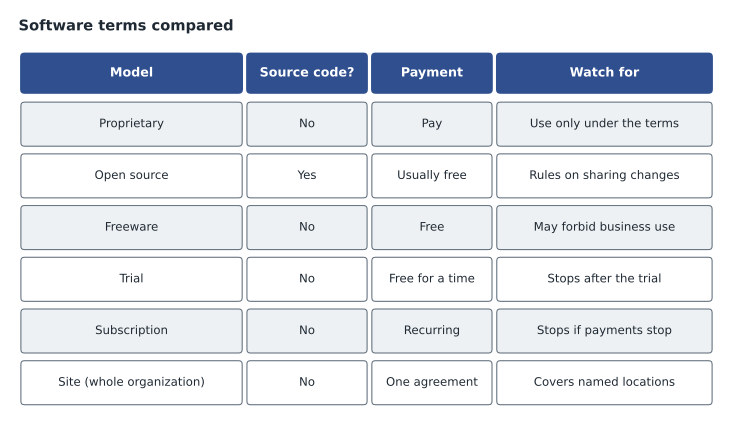
Licensing questions are reliable points if the terms are clear. Proprietary software is owned by a company and used under its licence terms; the source code is not shared. Open-source software publishes its source code under a licence that allows people to study, change and share it, although some open-source licences add conditions about how changes are shared. Freeware is free to use but not necessarily open source, and its licence may restrict commercial or organizational use. Shareware or trial software can be tried before buying. A single-use licence covers one installation or one person; a group or volume licence covers a set number; a site licence covers an entire organization or location. A subscription licence must be paid periodically and stops working if payments stop; a perpetual licence is paid once. The exam favourite: free to download does not mean free to use anywhere. Read the licence.
Worked problem
Choosing a licence for the computer labs
The library wants a photo editing program for 30 public computers in three branches. Option A is a free program whose licence says it is for personal, non-commercial use only. Option B is open source under a licence that allows use by any organization. Option C is a commercial program sold as a subscription at a per-seat price, with a discount for 25 seats or more. Which options are legally usable, and what should decide between them?
Show solution
- Option A: the licence limits use to personal, non-commercial use. A public library installing it on 30 lab computers is organizational use, so it is not permitted, however free it is to download.
- Option B: the licence allows organizational use, so it is permitted. There is no licence fee, but the library still needs to plan for updates and support.
- Option C: permitted, as long as the library buys 30 seats and keeps paying; if the subscription lapses, the software stops working.
- Between B and C, decide on features the patrons need, training and support, the total cost over several years and how updates are delivered.
Answer: Options B and C are usable; option A is not. Choose between B and C on features, support and total cost.
Installing software safely means checking system requirements, obtaining it from a trusted source (the publisher, an official app store, the organization's software portal or a package manager), having the right permissions to install it, and keeping it updated. Removing software should be done through the operating system's uninstall feature or the package manager, which removes services, shortcuts and settings that deleting a folder would leave behind.
Updates deserve their own attention on the exam. Operating system and application updates fix security vulnerabilities and bugs and sometimes add features. Automatic updates keep most home devices current with no effort, while organizations often test updates on a small group of computers before rolling them out to everyone, so that a faulty update does not stop the whole library at once. A patch that fixes a security problem should be applied promptly; a major upgrade that changes how a program works may be scheduled for a quiet period, with users told in advance. Software that no longer receives security updates from its maker, often called end-of-life software, should be upgraded or replaced, because every new vulnerability discovered in it stays open forever.
Mobile devices add one more layer: app permissions. When an app asks to use the camera, microphone, location, contacts or photos, the operating system asks the user to allow or deny it, and the setting can be changed later. Good practice is to grant only the permissions an app needs for what it does. A torch app has no reason to read contacts. On devices the organization owns, mobile device management can push approved apps, block others and enforce settings, which is how the library manages its lending hotspots and staff tablets.
Web browsers
Browser questions test features and their privacy and security effects. The cache stores copies of web content to speed up later visits; clearing it can fix pages that display outdated or broken content. Cookies are small pieces of data that websites store in the browser, used for staying signed in, remembering preferences and tracking; clearing them signs the user out of sites. Private or incognito browsing does not save history, cookies or form data after the window closes, but it does not hide activity from the network, the employer or the website itself. Extensions and plug-ins add features but can also collect data or carry malware, so they should be installed only from trusted sources and kept to a minimum. Pop-up blockers stop unwanted windows. A proxy setting sends browser traffic through another server, often in organizations.
Security indicators include HTTPS and certificates. HTTPS means the connection between the browser and the website is encrypted and the site has presented a certificate showing that it controls the domain name. It does not mean the site is honest; criminals can obtain certificates for look-alike domains. A certificate warning means something is wrong: the certificate may have expired, may be for a different name, or the computer's date and time may be wrong, which is the first thing to check if every site shows a warning on one computer. Reading the domain name carefully, especially the part just before the first single slash, is the best defence against fake sites.
Worked problem
Troubleshooting a browser complaint
A patron at a public computer says that the library's event calendar page shows last month's events, although a staff member says it was updated this morning. Other computers show the current calendar. What is the most likely cause and the simplest fix?
Show solution
- The page has been updated on the server, and other computers display the new version, so the website itself is working.
- The difference is on this one computer, so the most likely cause is a stored copy of the old page.
- The browser cache keeps copies of pages to speed up visits; an outdated cached copy explains the symptom.
- Refreshing the page, then if needed clearing the browser's cached images and files, should display the current calendar.
Answer: An outdated cached copy. Refresh the page, then clear the browser cache if the old version persists.
Artificial intelligence
The Tech+ objectives include common uses of artificial intelligence. Candidates should recognize everyday examples: recommendation systems that suggest books or videos, voice assistants that understand spoken requests, image recognition that sorts photos, spam filters, translation tools, and generative AI tools that produce text, images or code from a prompt. Large language models are the kind of generative AI behind chat assistants. The exam also expects awareness of their limits and risks. Generative AI can produce confident but incorrect output, often called hallucination, so its answers must be checked. Information typed into a public AI tool may be stored or used by the provider, so personal or confidential data should not be entered without approval. AI output can reflect bias in its training data. And organizations should have a policy saying which tools may be used for what.
Lorna connects this to something the library actually did. When the teen volunteers asked for an AI assistant in the makerspace, Hana reviewed the tool's data handling and the library set rules: no patron data in prompts, every output checked before use, and a notice explaining what the tool is. Those three rules map neatly onto the exam's concerns about accuracy, privacy and transparency, and Noor uses them as her memory aid.
Common mistakes
MistakeAssuming freeware can be used anywhere because it costs nothing.
InsteadCheck the licence; some free software forbids organizational use.
MistakeThinking private browsing hides activity from the employer or network.
InsteadIt only avoids saving history, cookies and form data on the device.
MistakeTrusting a site because it shows HTTPS.
InsteadHTTPS means an encrypted connection to that domain, not that the domain is honest.
MistakeRemoving software by deleting its folder.
InsteadUse the operating system's uninstall feature or the package manager.
MistakeTreating generative AI output as reliable.
InsteadCheck AI output for accuracy and never enter personal data without approval.
Summary and key terms
- Operating systems manage processes, memory, storage, devices, the interface and security.
- Desktop, mobile, server and embedded operating systems serve different purposes.
- Extensions identify file types, and hidden extensions can disguise malicious files.
- Licence terms, not price, decide how software may be used.
- Cache, cookies, private browsing, extensions and HTTPS each have specific, limited effects.
- Generative AI is useful but can be wrong, can leak data and needs a usage policy.
- Operating system
- Software that manages hardware and provides services to applications and users.
- File extension
- The letters after the last dot in a file name that identify its type.
- Open source
- Software whose source code is published under a licence allowing study, change and sharing.
- Site licence
- A licence covering every installation at an organization or location.
- Cache
- Stored copies of web content kept to speed up later visits.
- Cookie
- A small piece of data a website stores in the browser.
- Hallucination
- Confident but incorrect output from a generative AI tool.
Practice problems
Work each problem on paper first, then reveal the answer to check.
Which OS function decides which program runs on the processor?
Show answer
Process management.
Which family of operating system suits a device with touch, sensors and an app store?
Show answer
Mobile.
What does the extension .xlsx indicate?
Show answer
A spreadsheet file.
Is freeware always safe to use in an organization?
Show answer
No; its licence may restrict organizational or commercial use.
What does clearing cookies usually do?
Show answer
Signs the user out of websites and removes stored preferences.
What is the first thing to check if every website shows a certificate warning on one computer?
Show answer
The computer's date and time.
Name one risk of typing patron information into a public AI tool.
Show answer
The provider may store or use the information.
Lesson quiz · 5 questions
Score 60% or more to complete this lesson.
Create a free account to save your progress, take quizzes and earn a certificate.