
COMP-111 · Lesson 11 of 12 · 22 min
Malware, social engineering and backups
▶ Video coming soon A video version of this lesson is on the way.
A message reaches several Fairhaven staff on a Monday morning. It appears to come from the library's payroll provider, says a tax form needs urgent confirmation before the end of the day, and links to a page that looks exactly like the provider's sign-in screen. Two people report it to Hana within minutes; one person clicks and types their password before realizing something is off, then calls the help desk. Because of MFA, the attacker gets nothing useful, and Hana resets the password and blocks the fake site within the hour. She brings the message, with names removed, to the cert club. "This is how most incidents begin," she says. "Someone is tricked, and then malware or stolen access does the damage. Backups are what save you when the rest fails." This lesson covers the main types of malware, the social engineering techniques that deliver it, and how backups are planned, stored and tested.
Types of malware
Malware is any software designed to harm a device, steal data or give an attacker control. Tech+ expects you to recognize the main types by what they do and how they spread.
| Type | How it spreads or works | What it does |
|---|---|---|
| Virus | Attaches to a file or program and runs when that file is opened; needs a person to run it | Damages, deletes or corrupts files; spreads to other files |
| Worm | Spreads by itself across networks by exploiting vulnerabilities; needs no user action | Spreads rapidly, consumes bandwidth, often carries other malware |
| Trojan | Disguised as useful or legitimate software that the user installs willingly | Opens a backdoor, steals data or installs more malware |
| Ransomware | Usually arrives through phishing or an unpatched system | Encrypts files and demands payment for the key; often steals data first |
| Spyware | Bundled with other software or installed by a Trojan | Secretly monitors activity and collects information |
| Keylogger | A type of spyware, or a small hardware device on the keyboard cable | Records keystrokes, capturing passwords and messages |
| Rootkit | Installed by other malware with administrator rights | Hides deep in the system to conceal itself and other malware |
| Adware | Bundled with free software | Shows unwanted ads, often changes the browser's settings |
| Botnet | Infected devices controlled together by an attacker | Used for spam, denial-of-service attacks and credential stuffing |
The distinctions the exam tests most are between virus, worm and Trojan. A virus needs a host file and a person to run it. A worm needs neither and spreads by itself. A Trojan relies on the user being fooled into installing it, like the wooden horse it is named after. Ransomware deserves special attention because it attacks availability directly and is the most damaging threat many organizations face: once files are encrypted, the choices are restoring from backups, paying criminals with no guarantee of results, or losing the data. Modern ransomware groups also copy data before encrypting it and threaten to publish it, which turns an availability problem into a confidentiality one too.
Signs of infection include a sudden slowdown, programs crashing or opening by themselves, a changed browser home page or search engine, new toolbars, pop-ups appearing outside the browser, security software turned off, files renamed with unfamiliar extensions and a note demanding payment. A technician who sees these should isolate the device from the network, by unplugging the cable or turning off Wi-Fi, report it to the security team and avoid trying random fixes that could destroy evidence. Removing malware fully is often harder than reimaging the device and restoring the user's data from a clean backup.
Social engineering
Social engineering means manipulating people into giving away information, granting access or taking an action that helps an attacker. It works because it exploits ordinary human qualities: helpfulness, trust, curiosity, fear and the wish to avoid trouble. Attackers create urgency ("before the end of the day"), claim authority ("this is the IT department"), offer something attractive ("you have won a prize") or make the target afraid ("your account will be closed"). Recognizing those pressures is the first defence.
| Technique | How it works | Example |
|---|---|---|
| Phishing | Fraudulent email that imitates a trusted sender to steal credentials or deliver malware | The fake payroll message |
| Spear phishing | Phishing aimed at a particular person or group using details about them | A message to a branch manager that names her branch and her deputy |
| Whaling | Spear phishing aimed at senior leaders | A fake legal notice sent to the library's chief executive |
| Vishing | Voice phishing by phone | A caller claiming to be from the bank's fraud team |
| Smishing | Phishing by text message | A text about an undelivered parcel with a link |
| Pretexting | Inventing a believable story to obtain information | A caller posing as a vendor technician who needs a password to "finish an update" |
| Shoulder surfing | Watching someone enter a PIN or read a screen | Someone standing close behind a staff member at a kiosk |
| Tailgating or piggybacking | Following an authorized person through a secure door | Walking into the staff area behind someone with a badge |
| Impersonation | Pretending to be someone with authority or a reason to be there | A person in a high-visibility vest claiming to inspect the server room |
| Baiting | Leaving infected media where someone will find and use it | A USB stick labelled "staff salaries" left in the parking lot |
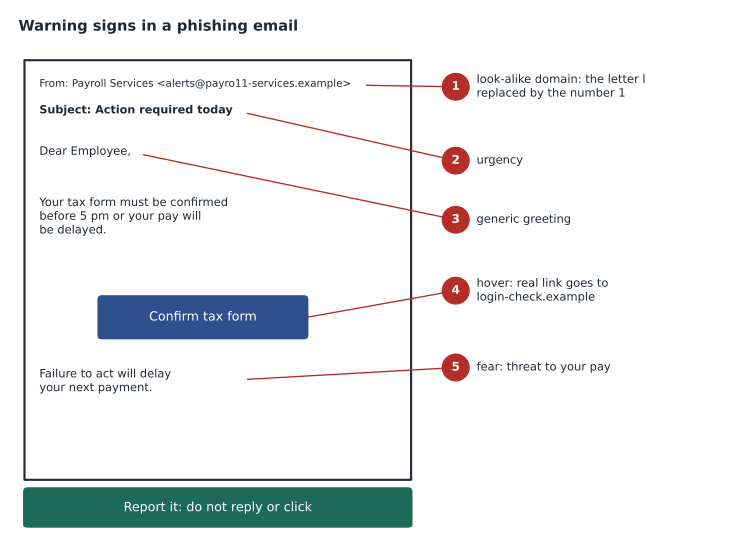
The defences are habits and processes. Check the sender's real address, not just the display name. Hover over links to see where they really go before clicking, and go to important sites by typing the address or using a bookmark instead. Be suspicious of urgency, threats and requests to bypass normal procedures. Verify requests for money, passwords or sensitive data through a separate channel, such as calling the person back on a number you already have. Never share passwords or MFA codes: no legitimate IT team asks for them. Report suspicious messages, because one report lets the security team warn everyone and block the site, as Hana did. Physical rules matter too: badge doors that close behind each person, visitors signed in and escorted, screens locked when unattended and found USB sticks handed to IT, never plugged in.
The person who clicked the fake payroll link did the most important thing right: they reported it immediately. Hana is careful to thank people who report mistakes rather than blame them, because a culture where people hide clicks gives attackers hours or days instead of minutes. Security awareness training, run regularly and backed by short simulated phishing tests, keeps the warning signs fresh.
Backups
A backup is a copy of data kept so the data can be restored if the original is lost, damaged or encrypted. Backups protect against hardware failure, accidental deletion, software corruption, theft, fire and flood, and ransomware. They are the last line of defence for availability and integrity, and they only count if they can actually be restored.
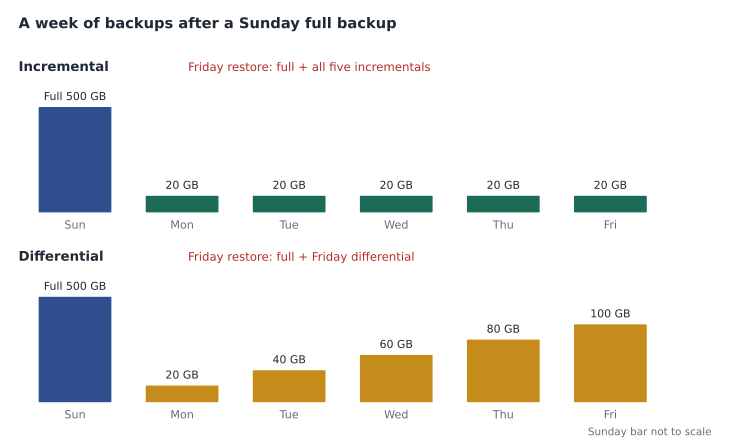
There are three classic backup types. A full backup copies all of the selected data every time; it is the simplest to restore but takes the most time and space. An incremental backup copies only what has changed since the last backup of any kind; each one is small and fast, but restoring needs the last full backup plus every incremental since, in order. A differential backup copies everything that has changed since the last full backup; each differential grows through the week, but restoring needs only the last full backup and the latest differential. Many organizations run a full backup weekly and incremental or differential backups daily.
full_size = 500          # GB in a full backup
daily_change = 20        # GB of data that changes each weekday
days = ["Mon", "Tue", "Wed", "Thu", "Fri"]

incr_total = full_size
diff_total = full_size
print("Day  Incremental  Differential")
for i, day in enumerate(days, start=1):
    incr = daily_change           # only changes since yesterday
    diff = daily_change * i       # all changes since Sunday's full
    incr_total += incr
    diff_total += diff
    print(f"{day}  {incr:6d} GB    {diff:6d} GB")
print(f"Storage for the week: incremental {incr_total} GB, differential {diff_total} GB")
print("To restore Friday: incremental needs the full + 5 backups; differential needs the full + 1")Day Incremental Differential Mon 20 GB 20 GB Tue 20 GB 40 GB Wed 20 GB 60 GB Thu 20 GB 80 GB Fri 20 GB 100 GB Storage for the week: incremental 600 GB, differential 800 GB To restore Friday: incremental needs the full + 5 backups; differential needs the full + 1
What this code does
It assumes a 500 GB full backup on Sunday and 20 GB of new or changed data on each weekday, then works out the size of each night's backup under the two methods. Incremental backups stay at 20 GB because each copies only one day's changes; differential backups grow by 20 GB each night because each copies everything since Sunday. The totals show differential uses more storage, 800 GB against 600 GB, but restores from just two backups instead of six.
Where backups live
Where backups are stored matters as much as how they are made. An on-site backup, such as a backup server or external drive in the same building, restores quickly but is lost along with the original in a fire or flood, and may be encrypted along with everything else in a ransomware attack if it is always connected. An off-site backup, kept at another location or with a cloud backup provider, survives local disasters but may take longer to restore. Cloud storage that simply synchronizes files is not a backup on its own, because a deletion or encryption on one device is copied to the cloud too; a real backup keeps earlier versions that cannot be overwritten.
A widely used rule of thumb is the 3-2-1 rule: keep at least three copies of important data, on two different types of storage, with one copy off-site. Many organizations add that one copy should be offline or immutable, meaning it cannot be changed or deleted for a set period even by an administrator, so ransomware cannot reach it. Fairhaven keeps nightly backups on a backup server at central, a copy in a cloud backup service in another region, and an immutable copy that is retained for thirty days.
Testing is the step most often skipped. A backup that has never been restored is a hope, not a plan: jobs fail silently, media goes bad and people discover too late that a critical folder was never included. Organizations should check backup job reports daily and perform restore tests regularly, restoring individual files and, from time to time, an entire system to prove it works and to measure how long it takes. Two targets guide planning: the recovery point objective, how much recent data the organization can afford to lose, such as one day, which sets how often backups run; and the recovery time objective, how quickly a system must be working again, which shapes where backups are kept and how restores are done.
Worked problem
Planning the makerspace backups
The makerspace now has its booking database and a shared folder of project files, about 200 GB in total, with roughly 5 GB changing each day. Ruth says losing more than a day of bookings would be a serious problem, and the service should be back within a day after any failure. What backup plan fits?
Show solution
- A recovery point of one day means backups must run at least daily.
- Use a weekly full backup with daily incremental backups to keep the nightly jobs small: about 5 GB each.
- Back up the database with its own dump tool, as in lesson 7, rather than copying its files while it runs.
- Follow 3-2-1: the live data, a copy on the central backup server, and a copy in the cloud backup service, with the cloud copy immutable for at least two weeks.
- Schedule a restore test every month: restore the database to a test machine and open a sample of project files, and record how long it took to confirm the one-day recovery time is achievable.
Answer: Daily incrementals with a weekly full, database dumps, 3-2-1 storage with an immutable off-site copy, and monthly restore tests.
Common mistakes
MistakeConfusing worms and viruses.
InsteadA virus needs a host file and a user to run it; a worm spreads by itself.
MistakeAssuming phishing only arrives by email.
InsteadVishing uses calls and smishing uses texts.
MistakeKeeping the only backup always connected to the network.
InsteadKeep an offline or immutable copy that ransomware cannot reach.
MistakeTreating file sync as a backup.
InsteadSync copies deletions and encryption too; backups keep earlier versions.
MistakeNever testing restores.
InsteadA backup is proven only when it has been restored successfully.
Summary and key terms
- Viruses need a host and a user, worms spread by themselves, and Trojans pose as legitimate software.
- Ransomware encrypts data for payment; spyware, keyloggers, rootkits, adware and botnets serve other aims.
- Social engineering exploits urgency, authority, fear and helpfulness through phishing, vishing, smishing, pretexting, tailgating and more.
- Verify through another channel, never share passwords or codes, and report suspicious messages quickly.
- Full, incremental and differential backups trade storage against restore steps.
- Follow 3-2-1 with an offline or immutable copy, and test restores regularly.
- Malware
- Software designed to harm devices, steal data or give an attacker control.
- Worm
- Malware that spreads across networks by itself.
- Trojan
- Malware disguised as legitimate software.
- Ransomware
- Malware that encrypts data and demands payment.
- Phishing
- Fraudulent messages that imitate trusted senders.
- Pretexting
- Using an invented story to obtain information.
- Tailgating
- Following an authorized person through a secure entrance.
- Incremental backup
- A backup of changes since the last backup of any type.
- Differential backup
- A backup of changes since the last full backup.
- 3-2-1 rule
- Three copies, on two types of storage, with one off-site.
Practice problems
Work each problem on paper first, then reveal the answer to check.
Which malware spreads without any user action?
Show answer
A worm.
What is smishing?
Show answer
Phishing by text message.
Someone follows a staff member through a badge door. What is this?
Show answer
Tailgating or piggybacking.
To restore Friday from incremental backups, what do you need?
Show answer
The last full backup and every incremental since, in order.
What does the 3-2-1 rule say?
Show answer
Three copies, two types of storage, one off-site.
What should you do with a USB stick found in the parking lot?
Show answer
Hand it to IT; never plug it in.
Lesson quiz · 5 questions
Score 60% or more to complete this lesson.
Create a free account to save your progress, take quizzes and earn a certificate.