
MSBA-160 · Lesson 4 of 12 · 19 min
GitHub accounts and repositories
▶ Video coming soon A video version of this lesson is on the way.
By the fourth Git lunch, on December 7, Owen had a working repository on his laptop and a reasonable grasp of commits and branches. What he did not have was any way to share them. Rosa Delgado, who looks after accounts and office systems at Tidewater, joined the session, because she would be the one creating the company's GitHub organization and paying for it. "Today we put the repositories on GitHub," Priya said. "That means accounts first, then repositories, then the three commands that move commits between a laptop and GitHub."
Personal accounts, organizations and enterprises
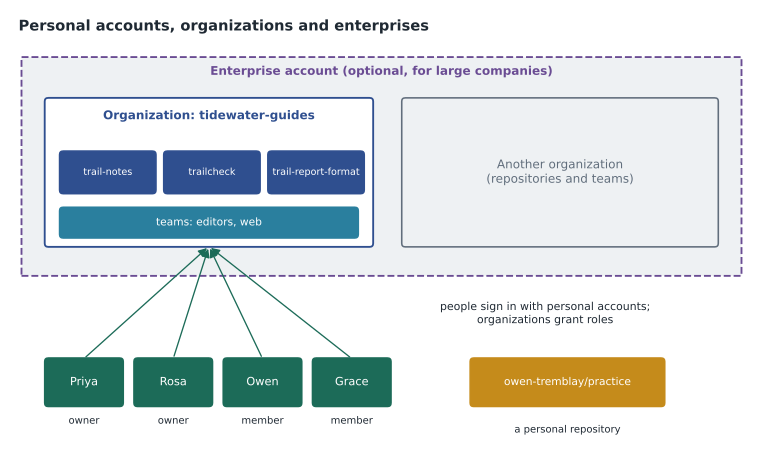
GitHub has three kinds of account, and the GH-900 exam expects you to tell them apart.
A personal account belongs to one person. It is their identity on GitHub: a username, a profile, and the repositories they own personally. Every person who uses GitHub needs one, including people who only work on their employer's repositories. A personal account can be on the free plan or on GitHub Pro, which adds some advanced tools and limits for private repositories. People keep the same personal account when they change jobs, which is one reason GitHub encourages using a personal email address on it and adding the work address as a second email.
An organization account is a shared account that owns repositories on behalf of a group, such as a company, a club or an open-source project. People do not sign in to an organization; they sign in with their personal accounts, and the organization grants them a role and access to repositories. Organizations add tools for managing people in groups called teams, billing in one place and settings that apply to every repository. Organizations can be on the Free plan, the Team plan or GitHub Enterprise Cloud.
An enterprise account sits above organizations. It lets a large company manage several organizations together, with central policies, billing, audit logs and single sign-on through the company's identity provider. Some enterprises use Enterprise Managed Users, where the company creates and controls the user accounts itself through its identity provider, instead of employees joining with their own personal accounts. MSBA-161 and the GitHub administration courses go deeper into organizations and enterprises.
| Account type | Who or what it represents | Typical use |
|---|---|---|
| Personal account | One person | Identity on GitHub, personal projects, contributing to others |
| Organization | A group, company or project | Shared ownership of repositories, teams and settings |
| Enterprise account | A large company with several organizations | Central policies, billing, audit and identity management |
| Plan | For | Highlights |
|---|---|---|
| GitHub Free | Personal accounts and organizations | Unlimited public and private repositories with core features |
| GitHub Pro | Personal accounts | Extra tools and usage for an individual |
| GitHub Team | Organizations | Advanced collaboration tools such as required reviewers and protected branches on private repositories |
| GitHub Enterprise | Large organizations | Enterprise account, central policies, single sign-on, audit logs, enterprise security options |
Setting up accounts at Tidewater
Rosa created an organization called tidewater-guides on the Team plan, because the editors wanted to require Grace's review before changes to private repositories reached main, and that kind of protection on private repositories needs a paid plan. She invited Priya, Owen, Grace and the other two developers using their personal GitHub usernames, and made herself and Priya organization owners. Everyone else joined as members.
Rosa also insisted on two-factor authentication (2FA) for everyone. With 2FA, signing in needs something you know, the password, and something you have, such as an authenticator app on your phone, a security key, or a passkey stored on a device. GitHub has required 2FA for accounts that contribute code, and an organization owner can require it for every member. Passkeys are a newer sign-in method that replaces the password with a cryptographic key held by your device and unlocked by a fingerprint, face or PIN, which resists phishing. Owen set up an authenticator app and saved his recovery codes in the company password manager, because losing both the phone and the codes can mean losing access to the account.
Creating a repository on GitHub
A repository on GitHub can be created in several ways: with the New repository button on the website, from a template repository that copies another repository's files as a starting point, by importing from another service, or by pushing a local repository that already exists. When you create one on the website you choose its owner (your personal account or an organization you belong to), its name, an optional description, its visibility, and whether to start it with a README, a .gitignore file and a license, which lesson 5 covers.
A repository's visibility decides who can see it. A public repository can be seen by anyone on the internet, although only people with permission can change it. A private repository can be seen only by its owner and the people or teams who are given access. In enterprises there is a third option, internal, which is visible to every member of the enterprise but not to the public, which supports the practice of inner source described in lesson 9. Visibility can be changed later in the repository settings, but making a private repository public exposes its entire history, so it needs care.
| Visibility | Who can see it | Example at Tidewater |
|---|---|---|
| Public | Anyone on the internet | The open trail-report data format that volunteers help with |
| Private | Only people and teams given access | trail-notes, the unpublished guidebook text |
| Internal (enterprise only) | Everyone in the enterprise | Not used: Tidewater has no enterprise account |
Remotes, cloning, pushing and pulling
A remote is a named link from your local repository to another copy of it, usually the one on GitHub. By convention the main remote is called origin. The link is just a web address, either an HTTPS address or an SSH address. HTTPS works through most networks and signs in with a credential helper or a personal access token; SSH uses a key pair stored on your computer and registered with your GitHub account.
There are two ways to connect a laptop and GitHub, depending on which existed first. If the repository already exists on GitHub, you clone it: git clone downloads a full copy, including the whole history and all branches, and sets up origin automatically. If the repository exists only on your laptop, as Owen's practice repository did, you create an empty repository on GitHub, add it as a remote and push.
git remote add origin https://github.com/tidewater-guides/trail-notes.git
git push -u origin maingit clone https://github.com/tidewater-guides/trailcheck.git
cd trailcheck
git remote -vorigin https://github.com/tidewater-guides/trailcheck.git (fetch) origin https://github.com/tidewater-guides/trailcheck.git (push)
Three commands move commits between the two copies. git push sends your local commits on a branch to the remote. The -u option the first time links your local branch to the remote one, so later you can type just git push. git fetch downloads new commits and branches from the remote without changing your own branches or files, so you can look before you combine. git pull is a fetch followed by a merge of the remote branch into your current branch, which is what most people use to bring their copy up to date at the start of the day.
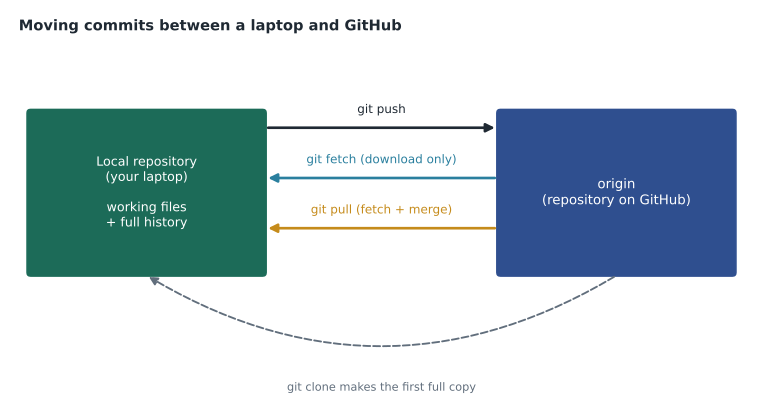
| Command | Direction | What changes on your computer |
|---|---|---|
| git clone <address> | GitHub to laptop, once | A new folder with the full repository and origin set up |
| git push | Laptop to GitHub | Nothing locally; the remote branch gains your commits |
| git fetch | GitHub to laptop | Remote-tracking branches update; your branches and files do not |
| git pull | GitHub to laptop | Your current branch merges the remote changes |
If someone else has pushed to the same branch since you last pulled, GitHub rejects your push, because accepting it would throw away their commits. The fix is to pull first, resolve any conflicts, and push again. Owen hit this on his second day with the real repository, and found it reassuring: GitHub had refused to let him overwrite Grace's work, which was exactly the October problem the move was meant to solve.
Worked problem
Push or pull?
Owen arrives on Monday morning. Over the weekend Grace merged two pull requests into main on GitHub. Owen has one local commit on his branch fix-ferry-table that nobody else has seen. He wants his branch on GitHub and his copy of main up to date. What does he run?
Show solution
- First, update main: git switch main, then git pull, which fetches Grace's two merged changes and moves his local main forward.
- Then switch back with git switch fix-ferry-table and, to keep his branch current, merge main into it with git merge main.
- Finally, git push -u origin fix-ferry-table sends his branch to GitHub for the first time and links it for later pushes.
- He can then open a pull request on GitHub from fix-ferry-table into main.
Answer: Pull on main, merge main into his branch, then push his branch with -u the first time.
A tour of a repository page
Priya opened the trailcheck repository in the browser and walked through the tabs along the top, because the exam assumes you know where things live.
Code shows the files on the selected branch, the README rendered below them, the latest commit, and buttons to switch branches, find files, view history and get the clone address. Issues holds the to-do list and bug reports (lesson 7). Pull requests holds proposed changes waiting for review (lesson 6). Actions shows automated workflows (lesson 11). Projects links planning boards (lesson 8). Wiki, if turned on, holds longer documentation pages. Security gathers security policies and alerts, covered in MSBA-161. Insights shows activity graphs, such as contributors, commits over time, traffic for public repositories and the dependency graph of packages the project uses. Settings, visible only to people with admin access, controls the repository's name, visibility, features, collaborators, branch rules and more.
On the right of the Code tab, every repository shows its description, topics and counts of stars, watchers and forks. Starring a repository is a public bookmark and a way to show appreciation; GitHub also uses stars to recommend projects. Watching controls notifications: you can watch all activity, only releases or only activity that mentions you. Forking, which lesson 9 covers, makes your own copy of someone else's repository.
| Tab | What you find there |
|---|---|
| Code | Files, README, branches, history and the clone address |
| Issues | Bug reports, tasks and ideas |
| Pull requests | Proposed changes and their reviews |
| Actions | Automated workflows and their runs |
| Projects | Planning boards linked to the repository |
| Wiki | Optional pages of longer documentation |
| Security | Security policy and alerts |
| Insights | Activity graphs, contributors, traffic and dependency graph |
| Settings | Repository configuration, for admins |
Managing files on GitHub
Many small changes never need a laptop. On the Code tab you can create a new file, upload files by dragging them in, or open any file and edit it with the pencil icon. When you save, GitHub asks for a commit message and whether to commit directly to the current branch or to create a new branch and start a pull request. For anything that will be reviewed, Priya told the editors to choose the new branch option. The same page lets you rename or delete files and view a file's history and blame, a view that shows, line by line, which commit last changed each line and who made it. Grace found the blame view the quickest way to trace a reader's complaint about a route description.
Keeping repositories healthy
A repository that is easy to find and understand gets used properly. Good practice includes a clear name and description, topics that help people search, a README that explains what the repository is for, a license for anything public, deleting branches after they are merged, archiving repositories that are no longer maintained so that they become read-only, and transferring repositories to the organization rather than leaving company work under a personal account. Rosa moved Priya's old personal copy of the website into the organization the same afternoon.
Common mistakes
MistakeSigning in to an organization account with a shared password.
InsteadEveryone uses a personal account; the organization grants roles and access.
MistakeThinking git fetch changes your files.
Insteadfetch only downloads; pull downloads and merges into the current branch.
MistakeForcing a push after GitHub rejects it.
InsteadPull first, resolve conflicts, then push, so nobody's work is lost.
MistakeMaking a private repository public without checking its history.
InsteadReview the full history for secrets and private material first.
Summary and key terms
- Personal accounts belong to people; organizations own shared repositories and grant roles; enterprise accounts manage several organizations.
- Plans include Free, Pro for individuals, Team for organizations and Enterprise.
- Two-factor authentication and passkeys protect accounts; organizations can require 2FA.
- Repositories can be public, private or, in enterprises, internal.
- clone makes a full copy; push sends commits; fetch downloads; pull fetches and merges.
- The repository page groups Code, Issues, Pull requests, Actions, Projects, Wiki, Security, Insights and Settings.
- Organization
- A shared GitHub account that owns repositories and grants access to personal accounts.
- Enterprise Managed Users
- An enterprise option where the company creates and controls user accounts through its identity provider.
- Visibility
- Whether a repository is public, private or internal.
- Remote
- A named link to another copy of a repository, usually origin on GitHub.
- Clone
- A full local copy of a remote repository, including its history.
- Fetch
- Downloading new commits from a remote without merging them.
- Blame
- A view showing which commit and author last changed each line of a file.
Practice problems
Work each problem on paper first, then reveal the answer to check.
Which command downloads new commits from GitHub without changing your branches?
Show answer
git fetch.
Who can see an internal repository?
Show answer
Every member of the enterprise, but not the public.
What should you do when GitHub rejects your push because the remote has new commits?
Show answer
Pull, resolve any conflicts, then push again.
Lesson quiz · 5 questions
Score 60% or more to complete this lesson.
Create a free account to save your progress, take quizzes and earn a certificate.