
MSBA-160 · Lesson 10 of 12 · 21 min
GitHub Codespaces and the web editor
▶ Video coming soon A video version of this lesson is on the way.
Lena's first week at Tidewater was meant to start with setting up her laptop for the TrailCheck website: installing the right version of the site generator, the tools that check links and spelling, and the local web server. On the old system that had taken Priya's last co-op student two days. At the tenth session, on February 8, Priya showed the team the two ways GitHub lets people work on a repository without setting anything up on their own computer: the github.dev web editor for quick edits, and GitHub Codespaces for full development environments in the cloud. Lena had TrailCheck running in a browser tab within ten minutes.
The github.dev web editor
Every repository on GitHub can be opened in a lightweight code editor that runs entirely in the browser. On any repository or pull request page, pressing the period key (.) opens it, or you can change github.com to github.dev in the address. The editor is a browser version of Visual Studio Code: it has a file explorer, tabs, search across files, syntax highlighting, Markdown preview, and a Source Control panel for creating branches, staging changes and committing them straight to GitHub.
github.dev is free and needs no setup, but it has an important limit: it has no compute behind it. There is no terminal, you cannot run programs, build the website, run tests or use extensions that need to execute code. It is an editor for files, nothing more. That makes it ideal for documentation and small changes across several files, such as Owen correcting the same ferry time in three chapters and committing them together, which is awkward with the single-file pencil editor on the repository page.
| Way to edit on GitHub | Good for | Limits |
|---|---|---|
| Pencil icon on a file page | A small change to one file | One file at a time |
| github.dev (press .) | Changes across several files, Markdown preview, reviews | No terminal; cannot run or build anything |
| GitHub Codespaces | Full development: run, build, test, preview | Uses paid compute beyond the free allowance |
What a codespace is
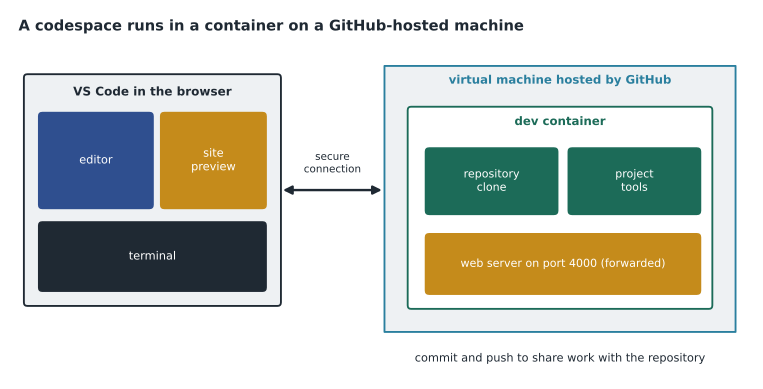
A codespace is a development environment that runs in a container on a virtual machine hosted by GitHub. It contains a copy of the repository, the tools the project needs, and a terminal, and you connect to it from Visual Studio Code in the browser, from Visual Studio Code on your desktop, or from other supported editors and the gh command-line tool. Because it runs on GitHub's machines, you can build and run the project, start a local web server and preview it, run tests, and install whatever tools you need, all without changing your own computer.
Each codespace belongs to one person and one repository branch. You can create several codespaces for different branches, stop them when you are not working, and delete them when you are done. Your changes are saved in the codespace while it exists, but they are only shared when you commit and push, exactly as on a laptop. Codespaces can be created from the Code button on a repository page, from a pull request, from a template, and with the gh codespace command.
Dev containers: describing the environment
The real value of Codespaces for a team is that everyone gets the same environment. That environment is described in a dev container configuration, a file named devcontainer.json in a .devcontainer folder in the repository. It says which container image to start from, which tools and versions to install, which editor extensions to add, which ports to forward, and any commands to run after creation. Because the configuration is a file in the repository, it is versioned and reviewed like everything else. If a repository has no configuration, GitHub uses a default image with common languages and tools already installed.
{
  "name": "TrailCheck site",
  "image": "mcr.microsoft.com/devcontainers/ruby:3.3",
  "postCreateCommand": "bundle install",
  "forwardPorts": [4000],
  "customizations": {
    "vscode": {
      "extensions": ["streetsidesoftware.code-spell-checker"]
    }
  }
}
The dev container standard is open and also works with Visual Studio Code on a local computer that has a container tool installed, so the same file can give developers an identical local environment. When the configuration changes, an existing codespace is updated with the Rebuild container command.
| devcontainer.json setting | What it controls |
|---|---|
| image or build | The starting container image or a Dockerfile to build |
| features | Extra tools added in a standard way, such as a language runtime |
| postCreateCommand | Commands run once after the codespace is created |
| forwardPorts | Ports from the container made available for preview |
| customizations.vscode.extensions | Editor extensions installed automatically |
Working in a codespace
Lena's first day showed the typical flow. She opened the trailcheck repository, chose Code, then Codespaces, then Create codespace on main. A minute later a browser tab showed Visual Studio Code with the repository, and the postCreateCommand had already installed the site's dependencies. She created a branch from the Source Control panel, ran the local server in the terminal, and when the server started on port 4000, the codespace offered to open the forwarded port in a new tab. Forwarded ports are private to you by default; they can be shared with members of the organization or made public for a quick demonstration, which should be done with care.
She edited the closures page, previewed it, committed and pushed from the codespace, and opened a pull request. When she closed the browser tab, the codespace kept running for a while and then stopped itself after a period of inactivity, 30 minutes by default. A stopped codespace keeps its files and can be restarted, but uses no compute. Codespaces that stay stopped are deleted automatically after a retention period, 30 days by default, so anything important must be pushed.
| Codespace state or action | What happens |
|---|---|
| Create | A new machine and container start, and the repository is cloned |
| Active | Compute time is used; you can edit, run and preview |
| Stop (manual or after idle timeout) | Compute stops; files remain in storage |
| Rebuild container | Applies a changed dev container configuration |
| Delete (manual or after retention period) | The codespace and any unpushed work are removed |
Machine types and prebuilds
Codespaces run on machine types with different numbers of processor cores, from 2 cores for light work up to 32 cores for large projects, with memory and storage that grow with the core count. Organizations can restrict which machine types their members may use. For repositories that take a long time to set up, a prebuild prepares the codespace ahead of time, for example whenever main changes, so that new codespaces start in seconds instead of minutes. Prebuilds use storage and Actions minutes, so they are worth it mainly for large projects.
Cost: who pays
github.dev is free. Codespaces use paid compute and storage, measured separately. Compute is charged for the time a codespace is active, in proportion to the machine's cores, so an hour on a 16-core machine costs eight times as much as an hour on a 2-core machine. Storage is charged for the disk space codespaces and prebuilds use, measured in gigabyte-months. Personal accounts on GitHub Free include a monthly allowance of 120 hours of compute and 15 gigabyte-months of storage, and GitHub Pro includes 180 hours and 20 gigabyte-months. The included hours are counted with a multiplier equal to the machine's core count, so each real hour on a 2-core machine uses 2 included hours and each real hour on a 4-core machine uses 4. On GitHub Free that gives about 60 real hours a month on a 2-core machine, or about 30 on a 4-core machine.
Organization-owned codespaces have no free allowance and are billed to the organization, which must allow members to create them at its expense; otherwise members use their own allowance. Organizations can set a spending limit and policies such as maximum idle timeout and allowed machine types. Rosa allowed codespaces for the web team on 2-core and 4-core machines only, with a monthly spending limit, and kept the idle timeout at 30 minutes.
Worked problem
Estimating a monthly allowance
Lena uses her personal GitHub Free account for her own open-source practice. She works in a 4-core codespace for about 2 hours on each of 12 evenings a month. Does she stay within the included compute?
Show solution
- She is active for 2 hours on 12 evenings, which is 2 times 12 = 24 hours of real time.
- On a 4-core machine each real hour uses 4 included hours, so 24 real hours use 24 times 4 = 96 included hours.
- The GitHub Free allowance is 120 included hours a month.
- 96 is less than 120, so she stays within the allowance, with 24 to spare, as long as her storage also stays under 15 gigabyte-months.
Answer: Yes: she uses 96 of the 120 included hours. On a 2-core machine the same evenings would use only 48.
Secrets and security
A codespace often needs a secret, such as the mapping service key from lesson 1, to run the site fully. That key must not be in the repository. Codespaces secrets, set in a person's account settings or by an organization or repository admin, are injected as environment variables only into codespaces for the repositories they are allowed for. Each person also controls which repositories their codespaces can access beyond the one they were created for. Because a codespace runs project code, people should only create codespaces from repositories they trust and should be careful with public port forwarding.
Codespaces for reviews, onboarding and teaching
Codespaces help beyond everyday development. A reviewer can open a codespace directly on a pull request's branch, from the Code button on the pull request page, run the changed website and click through it before approving, instead of judging a visual change from the diff alone. Priya did this for Lena's first pull request and caught a closure banner that overlapped the map on narrow screens. For onboarding, a new person needs only a GitHub account and a browser; the dev container installs the right tools on the first start, so the first day is spent on the work rather than on setup. And for teaching, an instructor can give every student an identical environment, which is why GitHub offers Codespaces through its education programs.
There are also good reasons to keep a local setup. Work without an internet connection needs one, very large projects may run faster on a powerful local machine, and some hardware or specialized tools cannot run in a cloud container. The two approaches are not exclusive: because the dev container file works with local Visual Studio Code too, a team can let each person choose and still get the same tools. Priya's summary for the team was that github.dev is for editing, a codespace is for running, and a laptop is for working offline.
Choosing the right tool
By the end of the session the team had a simple rule. Owen and the editors use the pencil icon or github.dev for text changes, because they need nothing more. The web team uses codespaces for website work, because the dev container gives everyone identical tools and new people are ready in minutes. Priya still keeps a local setup for heavy work and for days on a ferry without internet, using the same dev container file in Visual Studio Code on her laptop.
Worked problem
Which environment?
Three tasks arrive: Owen must change the wording of a warning in four chapters; Lena must test whether the closures page still works after a library upgrade; Grace wants to read a pull request's changes on a borrowed computer. Which environment suits each?
Show solution
- Owen's change is text in several files, with no need to run anything, so github.dev is ideal: press the period key, edit the four files, commit to a new branch and open a pull request.
- Lena must run the site and its checks, which needs compute and a terminal, so she needs a codespace.
- Grace only needs to read and comment, which the pull request's Files changed tab does in any browser; github.dev also works if she wants to browse the whole repository.
- None of the three needs a local installation.
Answer: github.dev for Owen, a codespace for Lena, and the pull request page or github.dev for Grace.
Common mistakes
MistakeExpecting to run the website or tests in github.dev.
Insteadgithub.dev has no compute; use a codespace to run code.
MistakeLeaving work uncommitted in a codespace for weeks.
InsteadStopped codespaces are deleted after the retention period; commit and push.
MistakePutting service keys in devcontainer.json.
InsteadUse Codespaces secrets, which are injected as environment variables.
MistakeChoosing the largest machine type for every task.
InsteadCompute cost grows with cores; use the smallest machine that does the job.
Summary and key terms
- github.dev, opened with the period key, is a free browser editor with Source Control but no terminal or compute.
- A codespace is a container on a GitHub-hosted virtual machine, used through VS Code in the browser or desktop.
- devcontainer.json in .devcontainer describes the image, tools, extensions, ports and setup commands.
- Codespaces stop after an idle timeout and are deleted after a retention period; push work to keep it.
- Compute is charged by active time in proportion to cores; storage by gigabyte-months; Free and Pro include monthly allowances.
- Codespaces secrets supply keys safely; organizations control machine types, spending and timeouts.
- github.dev
- A browser-based code editor for a repository, without compute.
- Codespace
- A cloud development environment in a container on a GitHub-hosted machine.
- Dev container
- A container described by devcontainer.json that defines a development environment.
- Forwarded port
- A port from the codespace made available for previewing a running program.
- Prebuild
- A codespace prepared in advance so new codespaces start quickly.
- Machine type
- The size of the virtual machine behind a codespace, measured in cores.
- Codespaces secret
- A secret injected into codespaces as an environment variable.
Practice problems
Work each problem on paper first, then reveal the answer to check.
How do you open a repository in github.dev from its GitHub page?
Show answer
Press the period key (.), or change github.com to github.dev in the address.
Where does the dev container configuration file live?
Show answer
In .devcontainer/devcontainer.json in the repository.
What happens to a codespace after the idle timeout?
Show answer
It stops; files remain and it can be restarted.
Lesson quiz · 5 questions
Score 60% or more to complete this lesson.
Create a free account to save your progress, take quizzes and earn a certificate.