
MSBA-141 · Lesson 6 of 12 · 22 min
Workflows
▶ Video coming soon A video version of this lesson is on the way.
Approvals at Cobalt Ridge had always happened by email. A clerk entered a vendor invoice, emailed a scan to the plant manager, waited, chased, and eventually posted it when a reply said fine. Nobody could say how many invoices were waiting, who was holding them up, or whether an invoice over the plant manager's limit had ever been approved by the controller as policy required. Thandeka called it the email swamp. The fifth session showed the team how workflows replace it.
What a workflow is
A workflow in finance and operations apps is a configured business process that routes a document through steps such as review, approval and automatic actions, according to rules. Workflows exist for many document types: purchase requisitions, purchase orders, vendor invoices, general journals, customer free text invoices, expense reports, budget plans, vendor bank account changes and many more. Each module provides workflow types for its documents, and administrators create workflow configurations from those types in the module's setup area, for example Accounts payable workflows or General ledger workflows.
Workflows are configured, not coded. The developer's role is to make a document type workflow-enabled if Microsoft has not already done so; after that, functional consultants and administrators design the steps. A workflow configuration is versioned, so a change creates a new version and documents already in progress continue on the version they started with.
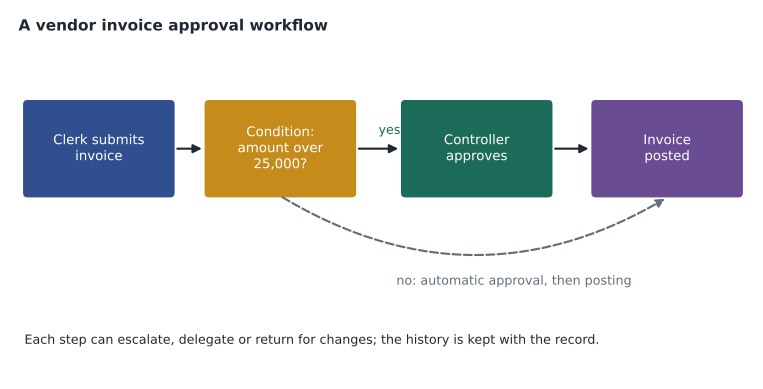
The workflow editor and its elements
Workflows are designed in a graphical workflow editor, opened from the workflow list. You drag elements onto a canvas and connect them. The main elements are an approval, in which one or more people approve, reject, request a change or delegate; a task, in which someone must complete a piece of work and mark it done; an automated task, in which the system performs an action such as posting; a conditional decision, which sends the document down one of two paths depending on a rule; a manual decision, in which a person chooses the path; a parallel activity, which runs branches at the same time; and a subworkflow, which starts another workflow, for example a line-level approval inside a document-level one. Some document types also support line-item workflows, so that each line of a purchase requisition can be approved by the owner of its budget.
| Element | What happens | Cobalt Ridge example |
|---|---|---|
| Approval | People approve, reject, request change or delegate | Plant manager approves invoices for the plant |
| Task | Someone completes and marks work done | Buyer attaches a quote to a requisition |
| Automated task | The system performs an action | Post the vendor invoice after approval |
| Conditional decision | A rule chooses the path | Invoices over 25,000 go to the controller |
| Manual decision | A person chooses the path | Engineering decides if a part needs inspection |
| Subworkflow | Starts another workflow | Line approvals within a requisition |
Conditions
Every workflow and most elements can have conditions, written by choosing fields of the document and comparing them to values: the invoice amount is greater than 25,000, the vendor group is Contractors, the site is Hamilton. A workflow configuration itself has an activation condition, so a company can have several configurations for the same document type, for example one for each legal entity or for different vendor groups, and the system chooses the configuration whose condition matches. Conditions are where policy becomes enforceable: Thandeka's rule that only she approves invoices above the plant managers' limit became one conditional decision.
Assignments
Each approval or task must be assigned to someone. The assignment types are flexible. Participant assignment uses a role-based group, such as everyone with a security role. Hierarchy assignment follows the managerial hierarchy built from workers and positions, or a configurable hierarchy, upward until a condition is met, such as reaching someone whose signing limit covers the amount. Workflow user assignment routes to a person related to the document, such as the person who submitted it or the owner of the workflow. User assignment names specific people. For each step, the completion policy says what counts as done: a single approver, a majority, a percentage, or all.
Worked problem
Designing the vendor invoice workflow
Thandeka's policy: vendor invoices up to 25,000 dollars need the approval of the manager of the site that received the goods; invoices above 25,000 also need the controller. Approved invoices should post automatically. How is this configured?
Show solution
- Create a vendor invoice workflow configuration for each legal entity, with an activation condition on the company.
- Add an approval assigned through a participant group for site managers, filtered by the invoice's site.
- Add a conditional decision: invoice amount greater than 25,000.
- On the true branch, add a second approval assigned to the controller; the false branch skips it.
- End both branches with an automated task that posts the invoice.
- Set escalation on each approval after three business days to the approver's manager.
Answer: Two approvals separated by a conditional decision, followed by automatic posting, with escalation to keep invoices moving.
Escalation, delegation and time limits
Workflows that stall are almost as bad as email. Each step can have a time limit, after which the step escalates, for example to the assignee's manager, or takes an automatic action. Users can set up delegation in their options, so that while Piotr is on holiday, work assigned to him goes to his deputy automatically for a date range. Approvers can also delegate a single item, request a change, which returns it to the submitter with a comment, or reject it. Every action is recorded with the person, time and comment.
What users see
When a document is subject to workflow, a workflow bar appears on its page with the current status and the actions available to the person looking at it: Submit for the creator, and Approve, Reject, Request change or Delegate for an approver. Items assigned to a user appear in the work items list, on the dashboard and in workspaces, and notifications can be sent by email. A document that is in review cannot be edited by the submitter unless it is recalled. When the workflow completes, the document's status changes, for example to Approved, and an automated task may post it.
Every document keeps its workflow history: each step, who acted, when, and with what comment. Copilot can now summarize long workflow histories in plain language, which helps an approver understand quickly why an item has come back to them. Lesson 10 returns to this feature.
What administrators manage
Workflows run on the batch framework. A batch job called Workflow message processing moves documents from step to step, and if it is not running, nothing moves. Administrators check it in the batch job list in lesson 11 and in the workflow monitoring pages, where they can see workflows in progress, those that have stopped with an error, and those waiting for a person. Stopped workflows can often be resumed after the cause is fixed, for example a step assigned to a user who has left. Administrators can also reassign work items or cancel a workflow when a document should not be approved.
Worked problem
Diagnosing a stalled invoice
A clerk says an invoice submitted two days ago has not reached anyone. What should the administrator check?
Show solution
- Open the invoice's workflow history to see the last step and any error.
- Check that the Workflow message processing batch job is running and has not errored.
- If the step was assigned to a user who is inactive or has no role, reassign the work item or fix the assignment rule.
- Resume the stopped workflow instance from workflow monitoring.
Answer: History first, then the workflow batch job, then the assignment. Most stalls are a stopped batch job or an assignee who cannot act.
Workflows and journals
In Finance, journals connect to workflow through journal names, as lesson 4 mentioned. When a journal name is set to require approval with a named workflow, every journal of that name must be submitted and approved before it can be posted. Thandeka planned this for manual general journals over a threshold, so that no material manual entry would post without a second person's review. Combined with segregation of duties in lesson 5, it gave the auditors two independent controls.
Common workflow types to know
The functional exams expect familiarity with the workflows in each area. In Accounts payable: vendor invoice, vendor invoice line, vendor bank account change and vendor record changes through proposals. In General ledger: daily journals and allocation journals. In Procurement: purchase requisition review, purchase order approval and vendor collaboration requests. In Accounts receivable: free text invoices and customer record changes. In budgeting: budget plans and budget register entries. Each is configured with the same editor and the same elements, which is why learning one well makes the rest easy.
Workflow and Power Automate
Finance and operations apps can also raise business events when something happens, such as a workflow work item being created, which external services can subscribe to. Power Automate flows can react to these events, for example posting an approval request into Microsoft Teams, so that the plant manager can approve from a phone. The workflow remains the record of approval; the flow is a convenient way to reach people where they are. Desmond noted it as an improvement for after go-live.
Line-level approvals
Purchase requisitions at Cobalt Ridge often mixed items for different departments: a requisition from the Hamilton plant might include safety equipment charged to the health and safety budget and spare parts charged to maintenance. A single document-level approval would force one person to approve spending that belonged to someone else. Line-item workflows solve this. The document-level workflow contains a step that starts a line-level subworkflow, which routes each line to the owner of its department or budget. When every line is approved, rejected or changed, control returns to the document-level workflow, which may still need a final approval for the total. The design takes more thought, but it puts each decision with the person accountable for the money.
Notifications that reach people
Work items appear inside the application, but approvers who spend their day on a plant floor do not sit in front of it. Workflow notifications can be sent by email, through an email batch process configured by the administrator, with a link back to the item. Teams and Power Automate integrations, mentioned above, go further. Annelise suggested starting simply, with email notifications and a daily digest of pending items for each approver, and adding more channels only if approval times showed a problem.
Measuring how well a workflow works
Because every step is recorded, workflows produce data about the process itself. The history shows how long each document waited at each step, who approves quickly and who does not, how often items are sent back for changes, and how many escalate. Kiri planned a monthly review of these numbers for the first six months after go-live. If invoices consistently waited four days at one plant, the answer might be a deputy, a higher threshold, or training, but the decision would be based on facts rather than complaints. Thandeka liked that the auditors could see the same history: every approved invoice carried the evidence of its approval inside the system, with no swamp of email to search.
Worked problem
Reading approval times
In October, 120 vendor invoices went through the Hamilton workflow. 90 were approved within one business day, 24 within three days, and 6 escalated after three days. What share escalated, and what share was approved within a day?
Show solution
- Escalated: 6 out of 120 = 0.05, or 5 percent.
- Approved within a day: 90 out of 120 = 0.75, or 75 percent.
- The 24 in the middle are worth a look: which approver held them, and why?
Answer: 5 percent escalated and 75 percent were approved within a day; the workflow is healthy, with room to improve the middle group.
Designing workflows well
Annelise ended with advice from many projects. Write the approval policy down in words, signed off by its owner, before configuring anything. Keep the number of steps small; each extra approval adds delay and is often rubber-stamped. Use conditions instead of separate configurations where you can. Always set escalation. Test with real users who hold the right roles, not with administrators. And review approval times after go-live, using the history, to find where documents wait longest.
Common mistakes
MistakeConfiguring a workflow without checking the Workflow message processing batch job.
InsteadWorkflows only move when that batch job runs.
MistakeAssigning approvals to named individuals throughout.
InsteadPrefer participant or hierarchy assignments so people can change jobs without editing workflows.
MistakeLeaving steps without time limits.
InsteadSet escalation so items never wait indefinitely.
MistakeTesting workflows as an administrator.
InsteadTest with users holding the real roles, including approvers.
Summary and key terms
- Workflows route documents through approvals, tasks, automated tasks and decisions according to conditions.
- Workflow types come from each module; configurations are versioned and chosen by activation conditions.
- Assignments can use participants, hierarchies, workflow users or named users, with completion policies.
- Escalation, delegation and time limits keep work moving; history records every action.
- The Workflow message processing batch job must run; administrators monitor, reassign and resume workflows.
- Workflow type
- A document-specific template from which workflow configurations are created.
- Conditional decision
- A workflow element that chooses a path based on a rule.
- Escalation
- An automatic action, such as reassignment, when a step exceeds its time limit.
- Delegation
- Passing assigned work to another person, for a single item or a date range.
- Workflow history
- The record of each workflow step, actor, time and comment for a document.
Practice problems
Work each problem on paper first, then reveal the answer to check.
Which element routes invoices over a limit to a second approver?
Show answer
A conditional decision.
What happens to documents in progress when a workflow is changed?
Show answer
They continue on the version they started with; the new version applies to new submissions.
Name the batch job that moves workflows forward.
Show answer
Workflow message processing.
Lesson quiz · 5 questions
Score 60% or more to complete this lesson.
Create a free account to save your progress, take quizzes and earn a certificate.