
MSBA-141 · Lesson 2 of 12 · 19 min
Navigation, workspaces and personalization
▶ Video coming soon A video version of this lesson is on the way.
Piotr's question from the first session, how anyone finds the right screen in an application this broad, became the theme of the second. Annelise projected the sandbox on the wall, signed in as herself and asked the team to do the same on their laptops. Finance and operations apps run in a web browser; there is nothing to install for everyday use. Microsoft supports current versions of Microsoft Edge and Google Chrome, among others, and the experience is the same whether the browser runs on Windows or a Mac. Users sign in with their work account from Microsoft Entra ID, the same account they use for Outlook and Teams.
The dashboard and the navigation bar
After sign-in, most users land on the dashboard, a home page that shows a set of workspace tiles and a calendar. The page is personal: each person sees tiles only for the workspaces their security roles allow, and can rearrange, rename or hide tiles. Across the top of every page runs the navigation bar. On it sit the most important controls in the whole application: the company picker, which shows the legal entity you are working in and lets you switch to another; the navigation search box; the Copilot and help buttons; the notifications bell; and the settings menu, where you open your user options.
The company picker deserves attention because it causes more beginner mistakes than any other control. Almost every record in finance and operations apps belongs to one legal entity, and lists show only the records of the current one. When Thandeka's clerk opened the vendor list and could not find a supplier she knew existed, the reason was that she was in CRUS and the vendor belonged to CRCA. Switching the company picker fixed it. Your default company is set in user options, so people who work mostly in one legal entity start there each time.
Four ways to reach a page
There are four common ways to open a page. The first is the navigation pane on the left, which can be expanded or collapsed. It holds Favorites that you pin with the star on any menu item, Recent pages, Workspaces and Modules. Modules are the classic menus, such as Accounts payable, General ledger or Inventory management, each organized into groups such as Vendors, Invoices, Payments, Inquiries and reports, Periodic tasks and Setup. Learning the module layout pays off, because the same groups appear in every module.
The second way is navigation search: type part of a page name, such as all vendors or vendor invoice journal, and the system lists matching menu items with the path to each. Search finds pages, not data, and it searches the names of menu items you have access to. The third way is through workspaces, covered below. The fourth is to follow links: almost every field that refers to another record, such as a vendor account on an invoice, can be opened directly to view the related record.
| Method | Best for | Example at Cobalt Ridge |
|---|---|---|
| Navigation pane modules | Learning where things live; setup pages | Accounts payable > Setup > Accounts payable parameters |
| Navigation search | Jumping to a page you know by name | Typing vendor invoice journal |
| Workspaces | Daily work for a role | The buyers open a procurement workspace every morning |
| Favorites and Recent | Pages you use constantly | Thandeka pins the trial balance page |
| Links on fields | Following a document to related records | Opening the vendor from an invoice line |
The anatomy of a page
Most pages fall into a few patterns. A list page shows many records in a grid, such as all vendors, with an action pane across the top. A details page shows one record with its fields arranged on FastTabs, collapsible sections such as General, Addresses and Payment. A workspace gathers tiles, lists and links for one activity. Setup pages for parameters and configuration use tabs down the left side.
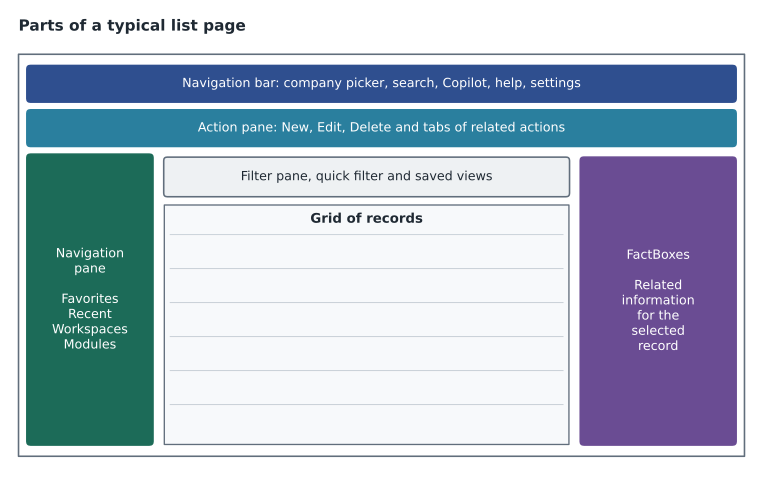
The action pane holds buttons for the actions you can take, such as New, Edit, Delete and Save, plus tabs that group related actions; on a vendor list, for example, tabs lead to invoices, purchase orders and payments for the selected vendor. FactBoxes in a pane on the right show summary information about the selected record, such as a vendor's open balance or recent invoices, so users do not have to open another page. Many pages open in read mode, so that a stray keystroke does not change a record; you select Edit to change it. Users can choose in their options whether pages open in view or edit mode by default.
Records save automatically when you move off them, and the Save button saves immediately. When a page refuses to save, a message bar at the top explains why, usually a required field left blank. Messages also appear in the Action center, opened from the notifications area, which keeps a list of recent messages from your session.
Finding the records you need
Lists can hold thousands of rows, so filtering is a core skill. The quick filter above a grid searches one column at a time; type a value and choose which column to match. The filter pane opens a set of filter fields for the most common columns and lets you add more. Selecting a column header opens a filter for that column with operators such as begins with, is one of, or between. For complex conditions, the advanced filter or sort option opens a query editor where you can build criteria across related tables. Filters can use wildcards: an asterisk matches any characters, so *pump* finds every item description containing the word pump.
Dates have their own conveniences. Filters accept expressions such as (dayRange(0,7)) for the next week or (monthRange(0,0)) for the current month, so that a saved filter keeps working as time passes. Annelise recommended keeping a short list of these query functions near the desk, because finance staff filter by date all day.
Worked problem
Filtering open invoices
Thandeka asks a clerk to list every open vendor invoice in CRCA due in the next seven days for vendors whose name contains the word steel. How should the clerk build the view?
Show solution
- Check the company picker shows CRCA.
- Open the open vendor invoices list, then open the filter pane.
- Add a filter on the due date with the expression (dayRange(0,7)).
- Add a filter on the vendor name with the value *steel*.
- Apply, then save the result as a view called Due this week - steel so it can be reused.
Answer: A filtered list saved as a view. Because the date filter uses a relative expression, the view stays correct every day without editing.
Saved views
Saved views let users name and keep a combination of filters, sorting, column layout and other personalization on a page, then switch between views from a menu beside the page title. A user can mark one view as their default, so the page always opens the way they like it. The feature has to be turned on in Feature management in some environments, and once on, it changes how personalization works across the system, so administrators normally switch it on early in a project.
Views can be shared. Users with the right security privilege can publish a view to people who hold selected security roles, optionally limited to certain legal entities, and can make it the default for those roles. Piotr used this to publish a view of the purchase order list for his buyers that showed only open orders for their own plant, with the columns they cared about first. Published views can be updated and republished centrally, which is far easier than asking forty people to change their own settings.
Personalization
Beyond views, users can personalize almost any page. From the options on the action pane, or by right-clicking a field, a user can hide a field, move it, rename its label, mark it as required for themselves, skip it when tabbing, or add a field that exists on the underlying table but is not shown by default. Changes apply only to that user unless they are shared. Personalization can also pin a page or a list to a workspace or to the dashboard. Administrators can export a set of personalizations and import them for other users, or clear a user's personalization when a page has become confusing.
Annelise warned the team about one trap. Personalization is not configuration. Hiding a field from your own view does not make it optional for the business process, and renaming a label for yourself does not change it in reports. When something should change for everyone, the right tools are published views, form configuration where available, security, or, in the end, development.
Workspaces
A workspace is a page designed around one activity rather than one table. Microsoft ships many of them, such as vendor payments, vendor invoice entry, customer credit and collections, financial period close, and purchase order preparation. Each workspace combines tiles that show counts and open filtered lists, tabbed lists of records that need attention, charts and links to related pages. Because the lists are filtered for the work that needs doing, a workspace turns a broad application into a focused to-do list.
Users can create their own workspaces and add tiles, lists and links to them from almost any page, and administrators can share them. Thandeka built a month-end workspace with a tile for unposted journals, a list of vendor invoices waiting for approval and links to the trial balance and the period close workspace. It became the first page her team opened on the first business day of each month.
User options
The settings menu on the navigation bar opens User options, where each person sets their language, date, time and number formats, time zone, default company, default view or edit mode, and preferences for notifications and workflow delegation. Language settings matter in a company like Cobalt Ridge, where the Monterrey distribution hub planned for later will need Spanish, and the system can display labels in many languages while the underlying data stays the same.
For the Akron team the defaults were English (United States), a month-day-year date format and Eastern time; the Denver warehouse used Mountain time. Getting these right early avoided confusing due dates in reports.
Working with Microsoft Office
Many lists offer Open in Microsoft Office on the action pane, which exports the grid to Excel or opens it in Excel through the Microsoft Dynamics Office add-in. The add-in reads and writes through data entities, the same objects used by the data management framework in lesson 7, so a clerk can edit many records in Excel and publish them back, subject to the same validation and security as the page. Document templates in Word and Excel can be managed centrally. Used carefully, these tools save hours; used carelessly, they let one person change hundreds of records at once, which is why the publish permission follows security roles.
Help, task guides and Task recorder
The question mark on the navigation bar opens the Help pane. It shows articles from Microsoft Learn that relate to the current page, plus any task guides your organization has published. A task guide is a recording of the steps in a process that plays back as on-screen prompts, pointing at each field and button in turn, so that a new clerk can post a journal by following it. Task guides are built with Task recorder, a tool on the settings menu that records clicks and field entries as a user walks through a process. Recordings can be saved to the user's computer and attached to process documentation, used to generate a Word document of steps, or played back in a training environment.
On the Cobalt Ridge project, Kiri asked the key users to record each tested process with Task recorder during user acceptance testing. The recordings did double duty: they showed exactly what had been tested, and they became the first draft of the training material. Desmond pointed out a third use. When a user reports a problem, a recording of the steps that led to it saves a long conversation about what they clicked.
Keyboard users are well served. Most actions have shortcuts, and the full list for your version is available from the help menu. Learning a handful of them, such as creating a new record, saving, and moving between the grid and the filter pane, noticeably speeds up data entry for people who post hundreds of documents a day, which is why Thandeka asked for a printed card of shortcuts for each desk in accounts payable.
Common mistakes
MistakeSearching for a record that seems to be missing without checking the company picker.
InsteadConfirm the current legal entity first; lists show only the current company's records.
MistakeUsing navigation search to find a customer by name.
InsteadNavigation search finds pages; use filters on the list page to find records.
MistakeHiding a field through personalization and assuming it is no longer required.
InsteadPersonalization changes only one user's view; business rules stay the same.
MistakeAsking each user to rebuild the same view.
InsteadPublish a saved view to the relevant security roles.
Summary and key terms
- The navigation bar holds the company picker, navigation search, Copilot, help, notifications and settings.
- Pages are reached through the navigation pane, search, workspaces, favorites and links on fields.
- List pages, details pages with FastTabs, action panes and FactBoxes follow consistent patterns.
- Filters, relative date expressions and saved views help users find records; views can be published to security roles.
- Personalization and workspaces tailor the application for individuals and roles without changing configuration.
- Company picker
- The navigation bar control that shows and changes the current legal entity.
- Workspace
- A page that gathers tiles, lists, charts and links for one activity.
- FactBox
- A pane that shows summary information about the selected record.
- Saved view
- A named set of filters, sorting and layout for a page that can be shared and published.
- Personalization
- Changes a user makes to how a page looks for them, such as hiding or moving fields.
Practice problems
Work each problem on paper first, then reveal the answer to check.
A user cannot find a vendor that a colleague can see. What should they check first?
Show answer
The company picker, because the vendor may belong to a different legal entity.
What filter expression finds records with dates in the next seven days?
Show answer
(dayRange(0,7)).
How can a manager give all buyers the same purchase order list layout?
Show answer
Create a saved view and publish it to the buyers' security role.
Lesson quiz · 5 questions
Score 60% or more to complete this lesson.
Create a free account to save your progress, take quizzes and earn a certificate.