
MSAZ-131 · Lesson 9 of 12 · 18 min
Data classification and sensitivity labels
▶ Video coming soon A video version of this lesson is on the way.
In the second week of November 2026, Carmen Ortiz asked a question nobody at Harrow & Finch could answer: where is the company's sensitive data? Everyone knew the obvious places, such as the payment database, the HR system and the Finch Rewards customer records. But a buyer had once saved a list of supplier bank account numbers in a spreadsheet on his OneDrive, a store manager had emailed a scan of an employee's driver's license to head office, and the marketing team kept exports of loyalty members in a SharePoint folder. "You can't protect what you can't find," Carmen said. This security hour was about how Microsoft Purview finds sensitive data, how it shows what it found, and how sensitivity labels protect it wherever it travels.
Classifying data: what is sensitive?
Purview recognizes sensitive content in several ways, and these classification methods are shared by information protection, data loss prevention, insider risk management and other solutions.
Sensitive information types (SITs) detect well-defined kinds of data by pattern. A SIT combines a pattern, such as the format of a credit card number, with supporting evidence, such as nearby keywords like "card" or "expiry", a checksum test that real numbers pass, and a confidence level that rises when more evidence is present. Microsoft provides hundreds of built-in SITs for card numbers, bank account numbers, government identification numbers and health identifiers for many countries, including the US Social Security number, bank routing numbers and driver's license numbers. Organizations can create custom SITs, for example for Harrow & Finch employee numbers, which follow the format HF followed by six digits.
Exact data match is a stricter kind of SIT. Instead of matching a pattern, it matches values from a table the organization uploads in a protected, hashed form, such as the actual list of loyalty member numbers. It finds real customer records with very few false matches, because a number that merely looks right but is not in the table does not match.
Trainable classifiers use machine learning to recognize kinds of documents that have no fixed pattern, such as contracts, résumés, source code or invoices. Microsoft provides ready-made classifiers, and organizations can train their own by giving examples of documents that are and are not in the category. Carmen wanted a classifier for supplier contracts, which vary in layout but share a recognizable structure and vocabulary.
Sunil Rao showed the idea behind a SIT with a short script. It looks for sixteen-digit numbers, checks them with the checksum that real card numbers use, and raises its confidence when a keyword appears nearby. The numbers in the test text are published test numbers that belong to no real account.
import re
def checksum_ok(number):
    # The Luhn check used by payment card numbers.
    total = 0
    for i, d in enumerate(int(x) for x in reversed(number)):
        if i & 1:
            d *= 2
            if d > 9:
                d -= 9
        total += d
    return total // 10 * 10 == total
text = ("Card on file 4111 1111 1111 1111 for the supplier deposit. "
        "Order reference 1234 5678 9012 3456. Expiry noted separately.")
for m in re.finditer(r"\b(?:\d{4}[ -]?){3}\d{4}\b", text):
    number = re.sub(r"\D", "", m.group())
    nearby = text[max(0, m.start() - 30): m.end() + 30].lower()
    if not checksum_ok(number):
        print(m.group(), "-> pattern only, fails checksum: no match")
        continue
    level = "high" if ("card" in nearby or "expiry" in nearby) else "medium"
print(m.group(), "-> passes checksum, confidence", level)4111 1111 1111 1111 -> passes checksum, confidence high 1234 5678 9012 3456 -> pattern only, fails checksum: no match
What this code does
Finds payment card numbers in text in two steps: a pattern finds sequences of digits that look like card numbers, then the Luhn checksum used by real card numbers confirms them. A made-up number that fits the pattern but fails the checksum is not counted as a match. Combining a pattern with a checksum reduces false alarms, as sensitive information types do.
Seeing what was found: content explorer and activity explorer
Once classification is running, two tools in the Purview portal show the results. Content explorer shows where sensitive items are stored: how many items in Exchange, SharePoint, OneDrive and Teams contain each sensitive information type or carry each label, broken down by location, with the ability to drill into folders and, for people with the right role, view the items themselves. Because seeing the actual content is itself sensitive, access is controlled by separate roles: one to see the summary and another to see the content.
Activity explorer shows what is happening to sensitive and labeled content over time: labels applied, changed or removed, files copied to USB drives or cloud locations, files printed, DLP rules matched. It answers questions such as how many documents had their label lowered last month and who did it. Together, content explorer shows where sensitive data is, and activity explorer shows what people are doing with it.
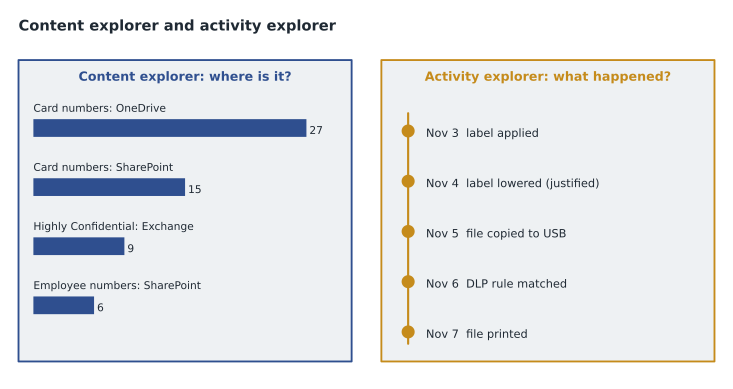
When Carmen's team looked at content explorer at the end of the first week, they found card-number matches in forty-two files on OneDrive and SharePoint, mostly old supplier forms and a handful of copied payment reports. That list became the first clean-up task.
Sensitivity labels
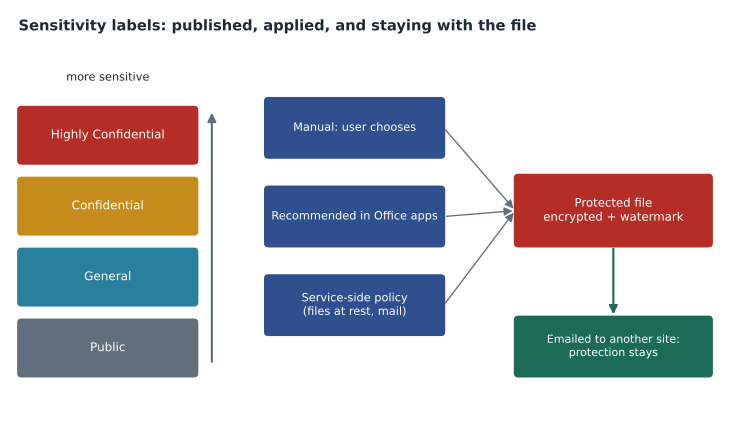
Finding sensitive data is half the job; protecting it is the other half. Sensitivity labels are tags that an organization defines to classify content by how sensitive it is, such as Public, General, Confidential and Highly Confidential, and that can apply protection to that content. Labels are part of Microsoft Purview Information Protection. Unlike a folder permission, a label travels with the item: if a labeled document is emailed, copied to another site or downloaded, the label and its protection go with it.
A label can do several things. It can encrypt the content and set who may open it and what they may do, such as view but not print or forward. It can add content markings: headers, footers and watermarks such as CONFIDENTIAL. It can apply settings to containers, such as Teams, Microsoft 365 groups and SharePoint sites, controlling privacy, external sharing and access from unmanaged devices. It can extend to other places that support it, such as Power BI reports and some data in the Purview data map. A label is also visible metadata, so people and tools can see at a glance how an item should be handled.
| Label | Meaning at Harrow & Finch | Protection |
|---|---|---|
| Public | Approved for anyone, such as published price lists | None |
| General | Internal business information | Footer: Internal use |
| Confidential | Information that would harm the company if shared, such as supplier contracts | Encryption for staff only; header and watermark |
| Highly Confidential | Personal or payment information, such as HR files and card data | Encryption for named groups; no forwarding or printing; watermark |
Labels have an order, from least to most sensitive, and can have sublabels, such as Confidential with sublabels for Finance and HR. The order matters because policies can require a justification when someone lowers a label, and because automatic labeling will not lower a label someone applied by hand.
Label policies
Creating a label does not make it available. A sensitivity label policy publishes chosen labels to chosen users and groups, so they appear in Office apps, Outlook, Teams and other places. The policy also sets how labels are used. It can set a default label applied to new documents and emails, require users to justify removing a label or lowering its sensitivity, require that every document or email has a label before it is saved or sent, which is called mandatory labeling, and link to a custom help page explaining the company's rules.
Labels can be applied in three ways. Users can apply them manually. Office apps can recommend or apply a label automatically when a document contains matching sensitive information, which is called client-side automatic labeling; for example, when Paul Lindqvist types a card number into a document, Word can suggest Highly Confidential. And service-side automatic labeling policies can label files at rest in SharePoint and OneDrive and emails in transit, without anyone opening them, which is how Carmen planned to label the forty-two files content explorer found.
The rollout plan
Carmen proposed a staged plan, decided in November 2026 and scheduled for the first months of 2027. First, publish the four labels to the security, finance and HR teams, with General as the default and justification required to lower a label. After a month of feedback, publish to all head office staff, with client-side recommendations for card numbers and employee numbers. Then run a service-side automatic labeling policy in simulation mode, which shows what it would label without applying anything, review the results and switch it on. Containers come last, once the teams know how the labels behave. "Labels fail when people don't understand them," she said. "Four labels that everyone uses beat ten that nobody does."
Choosing a label set people will use
Carmen had seen label projects fail elsewhere, and she shared what she had learned. Too many labels confuse people, who then pick the first one in the list. Labels named after departments, such as Finance Only, break when a document is shared with another team. Labels that encrypt everything get removed by frustrated users who cannot open their own files on a phone. The labels that last are few, named for sensitivity rather than department, explained with one-line descriptions that appear in the apps, and protective only where the risk justifies it.
She also planned for documents that come from outside. Suppliers send contracts and price lists that the company did not create, and some arrive already labeled by the supplier's own system. Purview can recognize labels from some other organizations' Microsoft 365 tenants and protected files, but the company's own labels are what its policies understand, so incoming documents are labeled when saved to the company's sites, using default labels on the libraries where they are stored. Encrypted files from outside remain protected by their sender's settings, which the purchasing team needs to know when a document will not open.
Labels interact with other tools in ways the team planned for. Microsoft 365 Copilot and other AI tools respect the permissions and encryption that labels apply, so a Highly Confidential document encrypted for the HR group cannot be summarized for someone outside it. Search and eDiscovery can find items by label. DLP, in the next lesson, can use labels as conditions. And activity explorer shows when labels are removed or lowered, which gives Carmen a way to measure whether people are using the labels as intended once they are rolled out.
Ama checked one more detail for the exam. Sensitivity labels and retention labels are different things, even though both are called labels and both appear in the Purview portal. A sensitivity label says how sensitive content is and can protect it; a retention label, covered in lesson 12, says how long content must be kept and what happens at the end. An item can carry one of each at the same time. Questions that ask about encryption, watermarks or restricting who can open a file point to sensitivity labels; questions about keeping or deleting content point to retention labels.
Worked problem
Classification method
Which classification method fits each need? (1) Finding Canadian or US card numbers in documents; (2) finding documents containing actual loyalty member numbers from the company's own list, with very few false matches; (3) finding supplier contracts, which have no fixed number format.
Show solution
- Card numbers have a defined pattern and checksum, so a built-in sensitive information type fits.
- Matching the company's own list of values precisely is exact data match.
- Recognizing a kind of document by its content and structure is a trainable classifier.
Answer: A sensitive information type, exact data match and a trainable classifier respectively.
Common mistakes
MistakeThinking a label is only a folder permission.
InsteadA label travels with the item and can encrypt it wherever it goes.
MistakeCreating labels and expecting users to see them.
InsteadLabels must be published to users with a label policy.
MistakeConfusing content explorer with activity explorer.
InsteadContent explorer shows where sensitive items are; activity explorer shows actions on them.
MistakeSwitching on automatic labeling without testing.
InsteadRun service-side labeling in simulation mode first and review the results.
Summary and key terms
- Microsoft Purview classifies content with sensitive information types, which match patterns with supporting evidence and confidence levels, exact data match, which matches an organization's own values, and trainable classifiers, which use machine learning to recognize kinds of documents.
- Content explorer shows where sensitive and labeled items are stored, and activity explorer shows what is done with them.
- Sensitivity labels classify content and can apply encryption, content markings and container settings that travel with the item.
- Label policies publish labels to users and set defaults, justification and mandatory labeling; labels can be applied manually, recommended or applied in Office apps, or applied by service-side policies.
- Sensitive information type
- A pattern-based definition of sensitive data, such as a card number, with confidence levels.
- Exact data match
- Classification that matches values from an organization's own uploaded table.
- Trainable classifier
- A machine-learning model that recognizes a kind of document.
- Content explorer
- A Purview tool showing where sensitive and labeled items are stored.
- Activity explorer
- A Purview tool showing actions taken on sensitive and labeled content.
- Sensitivity label
- A classification tag that can encrypt and mark content and travels with it.
- Label policy
- The setting that publishes labels to users and controls how they are used.
Practice problems
Work each problem on paper first, then reveal the answer to check.
Which tool shows how many files in OneDrive contain card numbers?
Show answer
Content explorer.
What must happen before users can apply a new sensitivity label?
Show answer
It must be published to them in a sensitivity label policy.
Which classification method uses machine learning?
Show answer
Trainable classifiers.
Lesson quiz · 5 questions
Score 60% or more to complete this lesson.
Create a free account to save your progress, take quizzes and earn a certificate.