
GCP-211 · Lesson 6 of 12 · 20 min
Sharing settings and external collaboration
▶ Video coming soon A video version of this lesson is on the way.
Birchline works with many outsiders: a photography agency that shoots the product catalog, an advertising agency, about 120 suppliers, a payroll provider, auditors once a year and, since September, the Trailhead Rentals staff who are not yet in Workspace. On the file server, sharing with them meant emailing attachments, which is why copies of the same price list exist in a dozen versions. Drive makes sharing easy, which is the point and the risk. "The question isn't whether we share outside," Teresa says. "It's who can share what, with whom, and how we'll know." This lesson covers the sharing settings in Drive and Docs, the options for external collaboration and how to set them by OU so that each part of Birchline gets the freedom it needs and no more.
The sharing settings
The sharing settings live under Apps, Google Workspace, Drive and Docs, Sharing settings, and apply per OU or configuration group. The most important group, Sharing options, answers four questions.
| Question | Main options |
|---|---|
| Can users share files outside the organization? | Off; only with allowlisted domains; on |
| Can users receive files from outside? | Allowed or not, sometimes limited to allowlisted domains |
| Warn when sharing outside? | Show a warning when files owned by users are shared outside the organization |
| Allow sharing with people who are not signed in to a Google account? | Visitor sharing on or off, where available |
| Who can see files shared with a link? | Users can make files available to anyone with the link, or not |
| Default for new files | Private to the owner, or shared with the organization or a target audience by default |
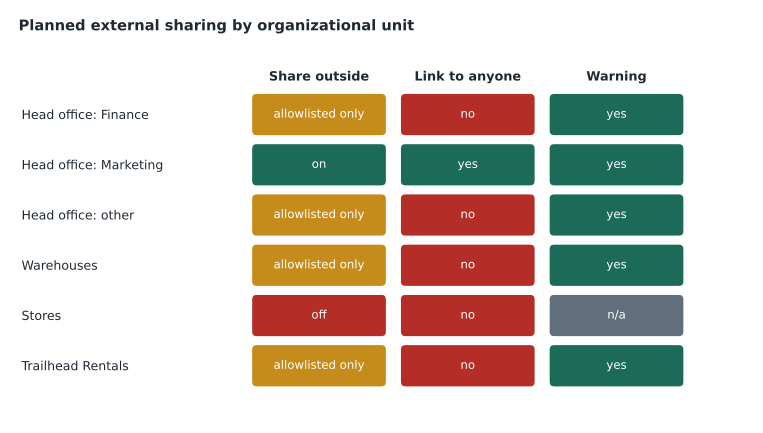
Each question is answered per OU, so Birchline can let Marketing share with the agencies while stores cannot share outside at all. When a setting is off for an OU, users there see sharing options grayed out, and files they own cannot be shared outside even by a colleague in another OU with more freedom, because the owner's OU decides.
Allowlisted domains
Allowlisted domains (sometimes called trusted domains) are a middle path. Administrators list the outside domains the organization works with closely, such as the photography agency's lensandlight.example and the ad agency's northcopy.example, and set an OU's external sharing to only allowlisted domains. Users there can share with people at those domains and nowhere else. The list itself is account-wide; which OUs may use it is set per OU.
Allowlisting works best for a short list of long-term partners whose people have Google accounts on those domains. It does not suit 120 suppliers, most of whom use other mail systems and change contacts often. For them, Birchline will rely on a small number of shared drives with external members, managed by Buying, and on attachments where a supplier cannot use Drive.
Link sharing and target audiences
Drive files can be shared with named people or by link. A link can be restricted (only people who are added can open it), open to everyone in the organization, open to a target audience, or open to anyone with the link, depending on what the settings allow. "Anyone with the link" is convenient and dangerous: links are forwarded, pasted in public chat channels and indexed by mistake. Birchline will turn it off for every OU except Marketing, which needs to publish public press kits, and even there the default for new files stays restricted.
Target audiences let administrators replace "everyone in the organization" with smaller, named audiences built from groups, such as All head office or Store managers. When a user chooses to share with the organization, Drive suggests the target audience instead, which reduces oversharing in a company of 1,100 where most files are not meant for everyone. Sofia defines three: Head office, Store managers and All Birchline, and sets Head office as the suggested audience for head office users.
Shared drives and external members
Shared drive settings add their own controls, which administrators set as defaults per OU and which shared drive managers can sometimes tighten further.
- Allow people outside the organization to access files in the shared drive, which controls whether external members or external sharing of individual files is possible.
- Allow people who are not shared drive members to access files, which decides whether files can be shared individually or only through membership.
- Allow viewers and commenters to download, print and copy files, which limits casual copying of sensitive files, though it cannot stop screenshots.
For suppliers, Buying will create one shared drive per major supplier relationship, such as Supplier Northpine, with the supplier's two or three contacts as members with the commenter or contributor role. The shared drive's OU allows external members; Buying's other shared drives do not. When the relationship ends, the manager removes the supplier's contacts and nothing is left behind in anyone's My Drive.
External sharing for people without Google accounts
Not every outsider has a Google account. Where the edition and settings allow it, users can share with an outside email address that is not a Google account, and the recipient verifies their identity with a code sent by email each time (visitor sharing). This suits occasional collaborators such as the auditors, who need two weeks of access to a set of Finance files once a year. The alternative is asking them to create a Google account for their work address, which many will do without fuss but some firms forbid.
| Outsider | Best way to collaborate | Settings needed |
|---|---|---|
| Photography agency, long-term, uses Google Workspace | Share files and folders with named people at an allowlisted domain | Marketing OU: allowlisted domains or on, with warnings |
| A supplier with three contacts on other mail systems | Shared drive with the contacts as external members | Buying supplier OU: external members allowed |
| Auditors for two weeks a year | Visitor sharing or a named share with an expiry date | Finance OU: external sharing to named people, expiry encouraged |
| Trailhead staff before they join Workspace | Share to their current addresses until January | Temporary allowlist entry for trailheadrentals.example, removed after onboarding |
| The public | Published press kit with link sharing | Marketing OU only: anyone with the link |
Access expiry and warnings
Owners can set an expiration date on access they give to individuals, which is how the auditors' access should end automatically. Sofia also keeps the warning when sharing outside on everywhere sharing is allowed: users see a prompt naming the outside recipients before the share happens, which catches the common mistake of choosing the wrong person from autocomplete. Gmail has a similar warning for messages to external recipients, set in the Gmail settings.
Who decides, and how the settings combine
When two settings meet, the more restrictive usually wins. A file in a shared drive follows the shared drive's settings and the policies of the shared drive's OU, not the OU of the person sharing it. A file in My Drive follows its owner's OU. And when a file is shared with someone in another Workspace organization, that organization's settings decide whether its users may receive files from outside.
This is why Owen tests settings with real accounts in different OUs before telling departments what they can do. His test grid covers a user in each of three OUs (Finance, Marketing and Stores) sharing a My Drive file and a shared drive file with an allowlisted address, an outside Google account and a non-Google address, eighteen cases in all. He records which cases succeed, which show a warning and which are blocked, and checks the Drive audit log afterwards to confirm that each attempt was logged.
Predicting the result before testing
Before running the eighteen tests, Owen writes down the result he expects for each case, so that a surprise in the console is noticed rather than accepted. He models the planned settings as a small table and works out the outcome of each combination.
policy = {   # planned external sharing per OU
    "Finance":   {"mode": "allowlisted", "warn": True},
    "Marketing": {"mode": "on", "warn": True},
    "Stores":    {"mode": "off", "warn": False},
}
allowlist = {"lensandlight.example", "northcopy.example"}
recipients = {
    "agency (allowlisted)": "kim@lensandlight.example",
    "outside Google account": "sam@gmail.example",
    "non-Google address": "pat@supplier.example",
}

def outcome(ou, address):
    rule = policy[ou]
    domain = address.split("@")[1]
    if rule["mode"] == "off":
        return "blocked"
    if rule["mode"] == "allowlisted" and domain not in allowlist:
        return "blocked"
    return "allowed with warning" if rule["warn"] else "allowed"

for ou in policy:
    for label, address in recipients.items():
print(f"{ou:9} -> {label:24} {outcome(ou, address)}")Finance -> agency (allowlisted) allowed with warning Finance -> outside Google account blocked Finance -> non-Google address blocked Marketing -> agency (allowlisted) allowed with warning Marketing -> outside Google account allowed with warning Marketing -> non-Google address allowed with warning Stores -> agency (allowlisted) blocked Stores -> outside Google account blocked Stores -> non-Google address blocked
What this code does
The model writes down the planned external sharing rule for three organizational units and the domains on the allowlist. For each unit it works out what should happen when a user there shares with three kinds of outside recipient: an allowlisted agency, a personal Google account and an address that is not a Google account. It prints the expected result of each of the nine combinations, which Owen then compares with what the console actually does for My Drive and shared drive files.
The model predicts nine results for each kind of file: Finance can reach only the agency, Marketing can reach everyone with a warning, and Stores can reach nobody. When Owen runs the real tests, one case surprises him: a Marketing user can add the non-Google address only after visitor sharing is turned on for Marketing, a setting the model left out. He adds it to the plan rather than to the model, because the point of the exercise is to catch exactly that kind of gap.
Other ways content leaves the organization
Drive sharing is not the only route out. Docs editors can publish to the web, which makes a public copy that anyone can find; the Drive settings control whether users may publish, and Birchline allows it only for Marketing. Google Sites can be published publicly or only inside the organization (lesson 8). Forms can accept responses from outside, and files can be attached to Gmail messages or linked from Chat. Sofia's sharing review therefore covers all of these, not only Drive, and Teresa's data loss prevention rules in GCP-212 will apply across Drive, Gmail and Chat.
Google has also been introducing trust rules, a newer way to express sharing policy as rules that say which users may share with which audiences, replacing some of the older on-or-off settings in accounts where they are available. The ideas in this lesson carry over: who may share, with whom, with what warnings. Owen notes that the console Birchline sees may present some settings as trust rules, and that the exam guide's wording should be checked against Google's current documentation before the exam.
Seeing what is shared
Settings decide what users may do; reports show what they did. The Drive log events in the Admin console's audit and investigation pages record sharing changes, including the visibility a file changed to and who it was shared with. With the security center, administrators can see external sharing trends and the files shared outside most often. Owen will review externally shared files monthly with Teresa's team, starting with Finance and People and culture, and the data loss prevention rules in GCP-212 will later block or warn on sharing of sensitive content automatically.
There is also a simple user-side check. Each file's sharing dialog shows who has access, and Drive's search can find files shared outside the organization or with anyone with the link. Sofia will ask every department lead to run that search before their wave moves, so that files on the old file share that were secretly public are not reproduced in Drive.
Common mistakes
MistakeAllowing anyone-with-the-link sharing everywhere because it is convenient.
InsteadAllow it only where public publishing is needed, and keep the default for new files restricted.
MistakeAllowlisting every supplier's domain.
InsteadAllowlist a few long-term partners; use shared drives with external members for suppliers.
MistakeAssuming a shared drive file follows the sharer's OU.
InsteadShared drive files follow the shared drive and its OU's policies.
MistakeLeaving auditors' access open after the audit.
InsteadSet an expiry date or use visitor sharing with a defined end.
Worked problem
Opening the Marketing OU to agencies safely
Marketing works daily with two agencies that use Google Workspace and publishes a press kit twice a year. Everyone else at head office should share outside only with named, allowlisted partners. What settings should Owen apply?
Show solution
- Add lensandlight.example and northcopy.example to the allowlisted domains list.
- For /Head office, set external sharing to allowlisted domains only and turn the external sharing warning on.
- For /Head office/Marketing, allow external sharing with warnings, so the team can also share with new agency contacts, and allow anyone-with-the-link sharing for the press kit.
- Keep the default for new files as restricted in Marketing, so link sharing is a deliberate choice for each published file.
- Test with a Marketing account and a Finance account sharing to an agency address and to an outside personal account, then check the Drive log events.
Answer: Allowlist the two agencies for head office, give Marketing broader sharing with warnings and link sharing for publishing, keep defaults restricted and test before announcing.
Summary and key terms
- Drive sharing settings, per OU or configuration group, decide whether users can share outside, receive from outside, share by link, share with non-Google accounts and what the default is for new files.
- Allowlisted domains limit sharing to named partner domains.
- Target audiences replace sharing with the whole organization.
- Shared drive settings control external members, sharing with non-members and download, print and copy for viewers.
- Choose the method per outsider: allowlisted domains for long-term partners, shared drives for suppliers, visitor sharing or expiry dates for short engagements.
- Shared drive files follow the shared drive's OU; My Drive files follow the owner's.
- Review sharing with Drive log events and plan data loss prevention.
- Allowlisted domain
- An outside domain users may share with when sharing is limited to allowlisted domains.
- Target audience
- A named group of people suggested when users share with part of the organization.
- Link sharing
- Sharing a file with anyone who has the link, within limits the settings allow.
- External member
- A person outside the organization added to a shared drive.
- Visitor sharing
- Sharing with non-Google accounts, who verify with a code sent by email.
- Access expiry
- An end date on access given to an individual.
- Drive log events
- Audit records of Drive activity, including sharing changes.
- Sharing warning
- A prompt that names outside recipients before a file is shared with them.
Practice problems
Work each problem on paper first, then reveal the answer to check.
Why does Birchline not allowlist all 120 suppliers?
Show answer
Most use other mail systems and change contacts often; shared drives with external members suit them better.
Which OU's settings apply to a file in a shared drive?
Show answer
The shared drive's OU, not the OU of the person sharing it.
What should department leads check before their wave moves?
Show answer
Which files on the old share were public or widely shared, so the exposure is not copied into Drive.
Lesson quiz · 5 questions
Score 60% or more to complete this lesson.
Create a free account to save your progress, take quizzes and earn a certificate.