
GCP-211 · Lesson 3 of 12 · 19 min
Spam, phishing and malware protection
▶ Video coming soon A video version of this lesson is on the way.
With authentication records planned, Teresa wants to talk about the other direction: what Gmail does with the mail Birchline receives. Retail companies are favorite targets for invoice fraud, fake shipping notices and messages that pretend to come from the chief executive, and Birchline's help desk logs a few hundred reported phishing messages a year in Exchange. "Gmail's filtering is strong by default," Sofia says, "but defaults are a starting point. We decide which protections are switched on, what happens to suspicious mail and how staff report what slips through." Everything in this lesson is defensive: settings that protect users and the evidence administrators use to tune them.
Layers of protection
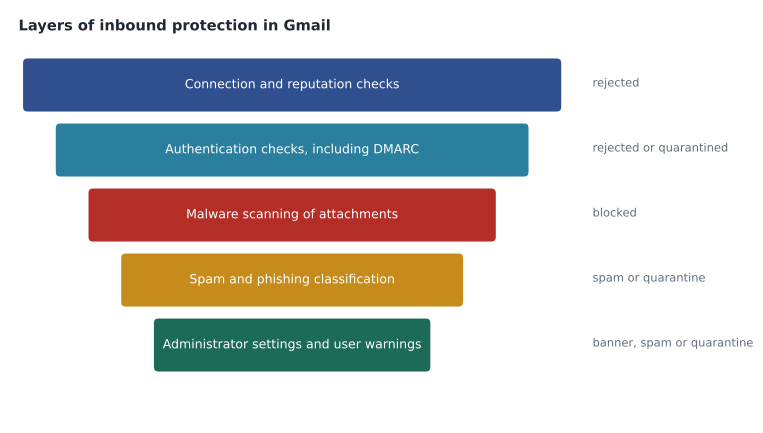
Gmail filters inbound mail in several layers before a user sees it. Connection-level checks reject servers with a bad reputation and mail that fails the sender's published DMARC reject policy. Malware scanning examines attachments and blocks known dangerous ones. Spam and phishing classifiers, trained on the very large volume of mail Gmail handles, score each message. Administrator settings then add the organization's choices: stricter attachment rules, warnings, quarantines and lists of approved senders. Finally, users see warning banners and can report what remains.
Safety settings in the Admin console
Under Apps, Google Workspace, Gmail, Safety groups the protections that administrators can tune per OU. Google offers a recommended configuration for each and can apply future recommended settings automatically as new threats appear. Sofia's starting point is to turn on Google's recommendations everywhere and then decide on the actions.
| Setting group | What it protects against | Typical actions |
|---|---|---|
| Attachments | Encrypted attachments from untrusted senders, attachments with scripts, anomalous attachment types | Banner warning, move to spam or quarantine |
| Links and external images | Links behind shortened URLs, links to dangerous sites, images that hide links | Identify links, warn on click to untrusted domains, scan images |
| Spoofing and authentication | Domain names similar to the organization's, spoofed employee names, unauthenticated mail from the organization's own domains | Banner, spam or quarantine |
| Enhanced pre-delivery scanning | Phishing that needs extra analysis | Short delivery delay while Gmail scans more deeply |
| Security sandbox (some editions) | Unknown malware in attachments | Runs attachments in a virtual environment before delivery |
The spoofing protections matter most for Birchline. Inbound emails that spoof employee names catches messages whose display name matches a Birchline employee ("Helen Arsenault") but whose address is outside the organization, a classic pattern in invoice fraud. Domains similar to your domain catches lookalikes such as birchlnie.example. And unauthenticated emails from your domains catches messages that claim to come from birchline.example but fail authentication, which ties directly to lesson 2. Teresa wants all three set to quarantine for /Head office/Finance, where a single successful fraud could cost tens of thousands of dollars, and to a warning banner elsewhere.
To explain the employee-name check to the finance team, Owen writes a short demonstration with invented messages. It is the same idea Gmail applies at a much larger scale, with many more signals.
staff = {"helen arsenault", "dana leclair", "sofia marchetti"}
own_domains = {"birchline.example", "birchlineoutfitters.example", "trailheadrentals.example"}

messages = [
    ("Dana Leclair", "dana.leclair@birchline.example", "Budget review moved to 3 pm"),
    ("Dana Leclair", "dana.leclair.cfo@freemail.example", "Urgent: pay this supplier today"),
    ("Helen Arsenault", "helen@birchlnie.example", "Gift cards for the team"),
    ("Parcel Service", "notice@parcels.example", "Your delivery is waiting"),
]

def similar(domain, own):
    # Count positions that differ between two names of the same length.
    for d in own:
        if len(d) == len(domain) and domain != d:
            diff = sum(1 for a, b in zip(d, domain) if a != b)
            if diff <= 2:
                return d
    return None

for name, address, subject in messages:
    domain = address.split("@")[1]
    flags = []
    if name.lower() in staff and domain not in own_domains:
        flags.append("employee name from outside")
    look = similar(domain, own_domains)
    if look:
        flags.append("looks like " + look)
print(f"{subject[:32]:32} -> {', '.join(flags) if flags else 'no spoofing signs'}")Budget review moved to 3 pm -> no spoofing signs Urgent: pay this supplier today -> employee name from outside Gift cards for the team -> employee name from outside, looks like birchline.example Your delivery is waiting -> no spoofing signs
What this code does
The demonstration takes four invented messages and checks two warning signs for each one. The first is a sender name that matches a Birchline employee while the address belongs to another domain. The second is a domain that differs from one of Birchline's own by only a letter or two. It prints each subject with the signs it found, showing that the fake budget request and the fake gift card message are caught while the real colleague and the ordinary parcel notice are not.
The demonstration shows the two invented fraud messages flagged for different reasons: one uses the chief financial officer's name with a free mail address, and the other comes from birchlnie.example, two letters swapped. The real message from Dana and the parcel notice are not flagged. Gmail's real checks also use sending history, authentication results and reputation, so they catch cases a simple comparison like this would miss, and they avoid flagging legitimate mail such as an employee writing from a personal address that they have used for years.
Spam settings, approved senders and their risks
The Spam, phishing and malware settings include approved senders lists, which let administrators bypass spam filtering for chosen addresses or domains, and a blocked senders list that rejects or quarantines mail from listed senders. There is also an option to be more aggressive about spam for an OU, and a setting for whether internal senders bypass spam filters.
Sofia is wary of approved senders. A bypass for a whole domain means that a forged message claiming to be from that domain also skips the spam filter. Google's guidance is to require authentication for bypassed senders, so that only messages that actually pass SPF or DKIM for the domain get the bypass. Birchline's only planned entry is the payroll provider, with authentication required, and it will be reviewed when DKIM for that provider is in place. The inbound gateway from lesson 1 is the better answer when another filtering service sits in front of Gmail; an approved senders entry for the gateway's addresses is a common and dangerous mistake.
Quarantines, banners and what users see
For each protection the administrator chooses an action. Keep in inbox and show a warning is the gentlest: users see a yellow or red banner explaining the risk. Move to spam puts the message in the user's spam folder, where it is deleted after 30 days. Quarantine holds it in an admin quarantine (lesson 1) where users cannot see it until a reviewer releases it. Quarantines suit high-risk OUs where a reviewer can respond quickly; for everyone else, banners and the spam folder keep the help desk's workload manageable.
| OU | Spoofed employee names | Lookalike domains | Encrypted attachments from untrusted senders |
|---|---|---|---|
| /Head office/Finance | Quarantine | Quarantine | Quarantine |
| /Head office (other) | Banner warning | Move to spam | Banner warning |
| /Stores and /Warehouses | Banner warning | Move to spam | Move to spam |
| /Pilot | Same as Finance, to test the review process | Quarantine | Quarantine |
The pilot gets Finance's strictest settings deliberately. Over its first weeks, Owen and two finance reviewers will see how many messages land in quarantine, how long reviews take and how many false positives appear, before the settings reach Finance in February.
Measuring whether the settings work
Settings that nobody measures drift. Sofia sets three simple numbers for the pilot review in January. The first is the false positive rate in quarantine: of the messages reviewers looked at, how many were legitimate and had to be released. If reviewers release more than about one message in five, the rule is too broad and staff will lose patience with the delays. The second is review time: how long a quarantined message waits before someone decides, which matters because a supplier's genuine invoice held over a weekend can delay a payment. The third is the number of user reports of phishing that reached inboxes, compared with the Exchange baseline for the same people.
Imagine that in the first four weeks the pilot quarantine holds 120 messages, reviewers release 18 as legitimate, the median wait is 3 hours and pilot users report 4 phishing messages that got through. Eighteen out of 120 is 15 in every 100, under Sofia's threshold of one in five, so the rule can stay. A 3-hour median wait is acceptable for Finance, which has reviewers on shift during business hours, but Sofia will ask for a weekend rota before February. The 4 reports become test cases: for each one, Owen checks which safety setting should have caught it and whether a stricter action for that setting would also have quarantined legitimate mail.
Safe testing
Testing protections never means sending real malware or real phishing to staff. Gmail's settings can be checked with harmless test messages: an attachment of a blocked type such as a renamed script containing no code, an encrypted ZIP file from an outside test account, or a message from a test address whose display name matches a pilot user. The industry-standard antivirus test file, a short harmless string that scanners agree to treat as malware, confirms that attachment scanning works without any risk. Owen keeps a small library of these test messages in the IT team's shared drive and replays them after every significant settings change, as part of the change process in lesson 11.
Awareness matters as much as settings. Teresa's team runs short phishing awareness sessions twice a year and publishes a one-page guide: check the sender's full address, be suspicious of urgency and payment changes, never enter a password after following an email link, and use the report button rather than forwarding suspicious mail to colleagues. Reports from staff are the signal that the automated layers missed something, so Birchline thanks people for reporting, even when the message turns out to be harmless.
Reporting and the security tools
Users can report a message as spam or phishing from Gmail, and administrators can choose to send copies of reported messages to a review address. The alert center (lesson 11) raises alerts for patterns such as user-reported phishing or suspicious messages that Gmail removed after delivery. In editions with the security center, the security investigation tool lets authorized administrators search Gmail log events and, for confirmed threats, delete a message from every mailbox that received it. That last action is powerful, so Teresa keeps it to her security team through a custom admin role.
Birchline's procedure for a reported phishing message is short. The help desk checks the message's original headers and authentication results, searches email log search or the investigation tool for other recipients, removes the message if it is malicious, and adds the sending domain to the blocked senders list if it has no legitimate use. If a user clicked a link and entered a password, the account's password is reset, sessions are signed out and two-step verification is checked, which GCP-212 covers in detail.
Malware and attachment rules
Gmail blocks messages containing certain executable file types, even inside compressed files, and scans all attachments for known malware. Administrators can add attachment compliance rules (lesson 1) for file types the organization never expects, such as script files in store mailboxes, and the security sandbox, where the edition includes it, opens unknown attachments in an isolated environment before delivery. Sofia adds one practical point for Birchline: warehouse scanners send PDF reports by email, so the attachment rules must be tested against those scanners' real messages before they apply to /Warehouses.
Common mistakes
MistakeAdding a whole partner domain to an approved senders list without requiring authentication.
InsteadRequire authentication so forged messages from that domain do not skip spam filtering.
MistakeQuarantining suspicious mail everywhere.
InsteadQuarantine where reviewers can respond quickly; use banners and the spam folder elsewhere.
MistakeApproving a filtering appliance's addresses to stop false spam.
InsteadDeclare the appliance as an inbound gateway so Gmail evaluates the original sender.
MistakeLeaving future recommended settings off and forgetting to review new protections.
InsteadApply future recommended settings or review new protections on a schedule.
Worked problem
A fake invoice reaches a store manager
A manager in /Stores receives a message from "Dana Leclair" at an outside address, with a PDF invoice and a request to pay a new supplier. The manager reports it as phishing. Three other managers received it. What does the help desk do, and what setting change would have helped?
Show solution
- Open the reported message's original headers: the address is outside Birchline and DMARC does not apply because the domain is not birchline.example.
- Search email log search for the same sender and subject to find the three other recipients.
- If the help desk has the investigation tool privilege, delete the message from all four mailboxes; otherwise escalate to Teresa's team.
- Add the sending address's domain to the blocked senders list if it has no legitimate business with Birchline.
- Raise the spoofed employee names setting for /Stores from a warning banner to quarantine, or at least confirm the banner was showing, and remind managers that payment changes are confirmed by phone.
Answer: Find and remove every copy, block the sender if appropriate and strengthen the employee-name spoofing action for the OU that was targeted.
Summary and key terms
- Gmail filters inbound mail in layers: reputation, authentication, malware scanning, spam and phishing classification, then administrator settings and user warnings.
- Safety settings cover attachments, links and images, spoofing and authentication, enhanced pre-delivery scanning and, in some editions, the security sandbox; apply Google's recommendations and choose actions per OU.
- Spoofing protections catch employee-name spoofing, lookalike domains and unauthenticated mail from your own domains.
- Approved senders bypass spam filtering, so require authentication and use inbound gateways for filtering services.
- Choose banners, spam or quarantine by risk and review capacity.
- Users report messages; the alert center and the security investigation tool help administrators find and remove threats.
- Spoofing
- Pretending to be a trusted sender, for example with an employee's name or a lookalike domain.
- Approved senders list
- Addresses or domains that bypass spam filtering, ideally only when authenticated.
- Blocked senders
- Addresses or domains whose mail is rejected or quarantined.
- Enhanced pre-delivery scanning
- Extra analysis of suspicious messages before delivery, with a short delay.
- Security sandbox
- A feature in some editions that opens unknown attachments in an isolated environment.
- Banner warning
- A notice Gmail shows above a message to explain a risk.
- Security investigation tool
- A security center tool for searching log events and acting on messages across mailboxes.
- Future recommended settings
- An option that applies new Google-recommended protections automatically.
Practice problems
Work each problem on paper first, then reveal the answer to check.
Why does Teresa want quarantine for Finance but banners for most staff?
Show answer
A successful fraud in Finance is costly and reviewers there can respond quickly; quarantining everywhere would overload review.
What is the risk of an approved senders entry for a whole domain?
Show answer
Forged messages claiming that domain would bypass spam filtering unless authentication is required.
Why does the pilot get Finance's strictest settings?
Show answer
To test the review process, false positives and workload before those settings reach Finance.
Lesson quiz · 5 questions
Score 60% or more to complete this lesson.
Create a free account to save your progress, take quizzes and earn a certificate.