
GCP-211 · Lesson 4 of 12 · 19 min
Calendar and resource booking
▶ Video coming soon A video version of this lesson is on the way.
Calendar looks simple until an organization tries to share it. At Birchline, meeting rooms are booked through Exchange room mailboxes, the two warehouses book loading docks on a whiteboard, and head office has argued for years about who may book the boardroom. For the pilot, fourteen people on Google Calendar must still see the free and busy times of colleagues on Exchange and book the same rooms. "Calendar is where people notice a migration," Sofia says. "If someone can't book a room or sees a colleague as free when they're in a meeting, they lose trust in the whole project." This lesson covers Calendar's sharing settings, resources, booking permissions and how Calendar works alongside Exchange.
Calendar sharing settings
In the Admin console under Apps, Google Workspace, Calendar, the sharing settings control how much users can share with others. There are separate settings for sharing inside the organization and outside the organization, each applied per OU, and each sets the maximum that users may choose; individual users can always share less.
| Setting | Options | Birchline's choice |
|---|---|---|
| External sharing for primary calendars | Only free/busy; share all information but outsiders cannot change; share all and allow changes; manage calendars | Only free/busy information |
| Internal sharing for primary calendars | No sharing; only free/busy; share all information | Share all information |
| Video calls | Add Meet video conferencing to events by default, or not | On by default |
| External invitations | Warn users when they invite guests outside the domain | On |
| Working hours and location | Let users set working hours and where they work | On |
Sharing all information internally is usual in companies like Birchline: colleagues can see what a meeting is about, which helps scheduling, while private events stay private when users mark them so. Externally, free/busy only means a supplier can see that a buyer is busy at 10 but not with whom. Sofia adds one exception: the executive assistants' OU needs manage access to their executives' calendars, which executives grant individually; the admin setting only sets the ceiling.
Resources: buildings, features and rooms
A calendar resource is something people book through Calendar: a meeting room, a vehicle, a projector, a loading dock. Resources live in the Admin console under Directory, Buildings and resources, and they are built from three parts.
- Buildings describe physical sites, with floors and an address. Birchline will create Columbus head office, the two warehouses and the three Trailhead Rentals locations.
- Features describe equipment or properties a resource has, such as a video conference system, a whiteboard or wheelchair access. Users can filter on them when they look for a room.
- Resources are the bookable items, each with a name, a type, a category (conference room or other), a building and floor, a capacity and optional features.
Resources appear in Calendar's room finder, which suggests rooms in the user's building that are free and big enough for the guests invited. A consistent naming convention matters because the generated name is what users see in long lists. Birchline will use the pattern building, floor, room name and capacity, as Google's own documentation suggests: HO-3-Algonquin (10). Vehicles and loading docks are created with the category other, so they do not appear in the room finder for meetings.
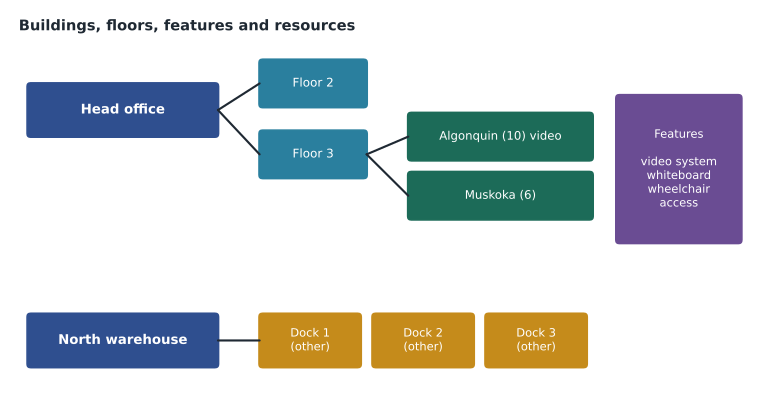
Resources can be created one at a time or in bulk with a CSV upload, as users were in the first course. Sofia prefers the bulk upload for head office's 31 rooms, built from the facilities team's floor plans, so names, capacities and features are consistent.
Resource Name,Resource Type,Capacity,Building Id,Floor Name,Features,Resource Category
Algonquin,Conference room,10,HO,3,Video conference system;Whiteboard,CONFERENCE_ROOM
Muskoka,Conference room,6,HO,3,Whiteboard,CONFERENCE_ROOM
Boardroom,Conference room,18,HO,4,Video conference system;Wheelchair access,CONFERENCE_ROOM
Dock 1,Loading dock,,NW,1,,OTHER
Who may book what
Each resource has its own calendar, and the resource's sharing settings decide who can book it. By default everyone in the organization can book every resource. Administrators can change that per resource: some users or groups can book (an accepted booking appears immediately), others can only see free/busy or view event details, and some can be given manage access to accept and decline on the resource's behalf. Resources accept bookings automatically if they are free; when a resource is already booked, the invitation is declined.
Birchline's boardroom shows why this matters. Anyone at head office could book it in Exchange, and the executive team often found it full of training sessions. The new rule: the group acl-boardroom-bookers (executive assistants and the facilities team) can book; everyone else sees free/busy only and asks an assistant. Owen implements this with a group, as the first course recommended, so that a change of assistant does not require editing the resource.
The warehouses' docks are a different problem. Carriers book dock slots through the warehouse supervisors today. The docks will become resources of category other, bookable only by the group acl-dock-schedulers in each warehouse, so that the supervisors' bookings show in Calendar and conflicts disappear.
Measuring room use
Facilities want to know whether head office has too many or too few rooms before the lease renewal next year. Calendar can answer that question, because every booking is an event on the room's calendar. Owen samples one week of bookings for four rooms, exported from the pilot test calendars with invented but realistic data, and works out how busy each room is during the 45 working hours of a week (nine hours a day, five days).
bookings = {  # hours booked in one week, per room
    "HO-3-Algonquin (10)": [1, 2, 1.5, 3, 1, 2, 1, 1.5, 2, 3, 1, 2.5],
    "HO-3-Muskoka (6)":    [1, 1, 0.5, 1, 1, 0.5],
    "HO-4-Boardroom (18)": [2, 3, 2],
    "HO-2-Cabin (4)":      [0.5, 1, 1, 0.5, 1, 0.5, 1, 1, 0.5, 1, 0.5, 1, 1, 0.5, 1, 1],
}
WEEK_HOURS = 45
for room, hours in bookings.items():
    booked = sum(hours)
    use = round(booked / WEEK_HOURS * 100)
print(f"{room:22} {len(hours):2} bookings {booked:5.1f} h -> {use} hours in every 100 booked")HO-3-Algonquin (10) 12 bookings 21.5 h -> 48 hours in every 100 booked HO-3-Muskoka (6) 6 bookings 5.0 h -> 11 hours in every 100 booked HO-4-Boardroom (18) 3 bookings 7.0 h -> 16 hours in every 100 booked HO-2-Cabin (4) 16 bookings 13.0 h -> 29 hours in every 100 booked
What this code does
The calculation adds up the hours booked in each of four rooms over one sample week, using invented data. It divides each room's booked hours by the 45 working hours in the week and expresses the result as booked hours out of every 100 available hours. The output lets facilities compare the rooms directly: one busy room, one quiet one and two in between.
Algonquin, the ten-person room with video, is booked for 21.5 of 45 hours, about 48 in every 100, while the boardroom is booked for only 7, about 16 in every 100. The small Cabin room is popular: 16 short bookings. The pattern is common in offices that moved to hybrid meetings: small rooms with video are in demand, large rooms sit empty. Booking data is not attendance data, because people book rooms and do not turn up, so Sofia notes a Calendar setting that helps: releasing unused rooms, where Calendar can release a booked room if nobody checks in, available in some editions with room hardware. Real reports in production will use the Calendar audit logs or exported data rather than a sample.
Working with Exchange during coexistence
While most people remain on Exchange, Calendar users need to see Exchange users' free and busy times, and the reverse. Calendar Interop connects Google Calendar with Exchange so that each side can look up the other's availability and, for resources, book rooms that live on the other side. It needs a role account in Exchange, the Exchange server's address and configuration on both sides, and it is set up in the Admin console under Calendar settings. Without it, pilot users would see Exchange colleagues as free at all times, the scenario Sofia warned about.
Birchline's rooms stay in Exchange until head office moves in February, so pilot users will book them through Calendar Interop. In February, the rooms will be recreated as Google resources from the upload file, existing future bookings will be migrated with the migration tools in the first course's lesson 11, and the Exchange room mailboxes will be removed. Owen records the order carefully, because a room that exists in both systems at once can be double-booked.
| Need | Feature | Where it is set |
|---|---|---|
| Pilot users see Exchange users' free/busy | Calendar Interop | Admin console Calendar settings and Exchange |
| Only assistants book the boardroom | Resource sharing with a group | The resource's calendar sharing |
| Suppliers see availability only | External sharing ceiling of free/busy | Calendar sharing settings per OU |
| Rooms easy to find | Buildings, floors, features and naming | Directory, Buildings and resources |
| Customers book appointments with buyers | Appointment schedules | Users create them in Calendar, where the edition allows |
Shared calendars and store schedules
Not every calendar belongs to a person or a room. Users can create secondary calendars for a team or a topic, such as the marketing team's campaign calendar, and share them with a group. Because a secondary calendar is owned by the person who created it, Sofia asks teams to create important shared calendars from a role account or to make sure at least two people have manage access, so the calendar survives when its creator leaves. Group calendars are another option: a Google group can have events on its own calendar that members see, which suits store announcements such as stocktake dates.
The 40 stores raise a particular question. Store staff on Frontline licenses use Calendar mainly to see shifts, training sessions and store events, not to schedule meetings. Their shifts come from Birchline's scheduling system, which can publish shifts to each person's calendar through the Calendar API once the integration is approved in lesson 10. Until then, each store manager will keep a secondary calendar for the store, shared with the store's group, holding training dates and visits from head office. Owen checks that Frontline Standard includes Calendar and notes that some advanced features, such as appointment booking pages, may not be available on Frontline editions.
Invitations from outside and calendar spam
Invitations can also be a route for unwanted content. By default, Calendar can add invitations from unknown senders to users' calendars automatically, and spammers have used this to place links on people's calendars. The Calendar settings let administrators choose whether invitations from external senders are added automatically, only when the user has responded to or knows the sender, or never until accepted. Birchline will choose the middle option: invitations from known senders appear, while those from strangers wait in the inbox until the user accepts. Teresa adds this to the security baseline that GCP-212 builds on.
The last general setting Owen reviews is the event visibility default. Events are visible to anyone who can see a calendar unless the creator marks them private. Executives' calendars are shared with all information internally, so Sofia asks the executive assistants to mark sensitive meetings private and to use generic titles where details would reveal plans, such as an acquisition, before they are announced.
Appointment schedules, the last row, let a user publish a booking page with available slots, which suppliers and job candidates can use without back-and-forth email. Birchline's buyers want them for supplier visits, and Owen checks that their edition includes the paid features of appointment schedules, such as booking forms and reminders, before promising anything.
Common mistakes
MistakeLeaving every resource bookable by everyone, including the boardroom.
InsteadRestrict booking with a group and give others free/busy access.
MistakeNaming rooms casually, such as Big room upstairs.
InsteadUse a convention with building, floor, name and capacity so users can find rooms.
MistakeCreating vehicles and docks as conference rooms.
InsteadUse the category other so they stay out of the meeting room finder.
MistakeRecreating rooms in Google while they still exist in Exchange.
InsteadPlan one cutover: migrate future bookings, then remove the old room mailboxes.
Worked problem
Setting up a dock resource
The north warehouse wants its three loading docks in Calendar. Only the four supervisors should book them; drivers in the warehouse should see when docks are free. How does Owen set this up?
Show solution
- Make sure the building North warehouse exists with a floor 1.
- Create three resources, Dock 1 to Dock 3, with the category other and a type of loading dock, so they do not appear in the meeting room finder.
- Create or reuse the group acl-dock-schedulers-north with the four supervisors as members.
- On each dock's calendar, give the group permission to book and give the warehouse's staff group permission to see free/busy only.
- Tell the supervisors to book docks as events with the carrier name in the title, which the drivers will not see because they only see free and busy times.
Answer: Three resources of category other, bookable by a supervisors' group and visible as free/busy to warehouse staff.
Summary and key terms
- Calendar sharing settings set the maximum users may share inside and outside the organization, per OU.
- Resources are built from buildings, features and the bookable items, with names that include building, floor and capacity.
- Bulk upload creates many resources consistently.
- Each resource's calendar sharing decides who can book, see free/busy or manage it; use groups.
- Booking data shows how busy rooms are but not attendance.
- Calendar Interop lets Google Calendar and Exchange see each other's availability and resources during coexistence.
- Plan room cutover so a room never exists in both systems.
- Appointment schedules publish booking pages, with some features depending on the edition.
- Calendar resource
- A bookable item such as a room, vehicle or piece of equipment, with its own calendar.
- Building
- A physical site with floors, used to organize resources.
- Feature
- A property of a resource, such as a video system, that users can filter on.
- Room finder
- The Calendar tool that suggests free rooms of the right size.
- Calendar Interop
- A connection that shares availability between Google Calendar and Microsoft Exchange.
- Free/busy
- Availability information without event details.
- Appointment schedule
- A booking page where others can choose a free slot on a user's calendar.
- Resource category
- Whether a resource is a conference room or another kind of bookable item.
Practice problems
Work each problem on paper first, then reveal the answer to check.
Why does Owen use a group to control boardroom bookings?
Show answer
A change of assistant needs only a group membership change, not an edit to the resource.
What does Calendar Interop prevent during the pilot?
Show answer
Pilot users seeing Exchange colleagues as always free, and being unable to book rooms that still live in Exchange.
Why is booking data not the same as room use?
Show answer
People book rooms and do not attend; check-ins or releasing unused rooms help close the gap.
Lesson quiz · 5 questions
Score 60% or more to complete this lesson.
Create a free account to save your progress, take quizzes and earn a certificate.